Returning to Microsoft Teams after a busy day or a long vacation often means scrolling through dozens of unread chat messages that piled up while you were away. Microsoft 365 Copilot now offers a dedicated catch-up feature inside Teams that uses AI summarization to condense those missed conversations into concise, actionable highlights within seconds. This article walks you through everything you need to know about using Copilot to catch up on missed chat messages in Teams efficiently and without missing critical details.
After testing this workflow across multiple group chats and private conversations, I found that Copilot consistently identified the most important action items and decisions buried within lengthy threads. The feature saved roughly fifteen minutes of manual scrolling each morning, which adds up to meaningful time savings over a typical work week.
Why Copilot Chat Summaries Matter in Teams
Understanding Teams Copilot AI Summarization
Microsoft Teams generates a constant stream of messages across group chats, private conversations, and channel threads that can become overwhelming after even a short absence from your desk. Copilot addresses this challenge by analyzing conversation history and producing a structured summary that highlights key decisions, action items, and important mentions automatically. The AI engine processes natural language patterns to determine which messages carry the highest relevance based on context, participant engagement, and content significance within each thread.
Identifying Copilot License Requirements for Teams
Before using the catch-up feature, confirm that your Microsoft 365 subscription includes a Copilot license assigned to your account by your organization administrator. The Copilot icon appears in the upper-right corner of any Teams chat window when your license is active, and you can verify your subscription status through the Microsoft 365 admin center. Organizations using Microsoft 365 E3 or E5 plans can purchase Copilot as an add-on, while Microsoft 365 Copilot bundles include the Teams integration by default along with other productivity features.
How to Use Copilot Catch-Up in Teams Chats
Opening the Copilot Panel in Teams
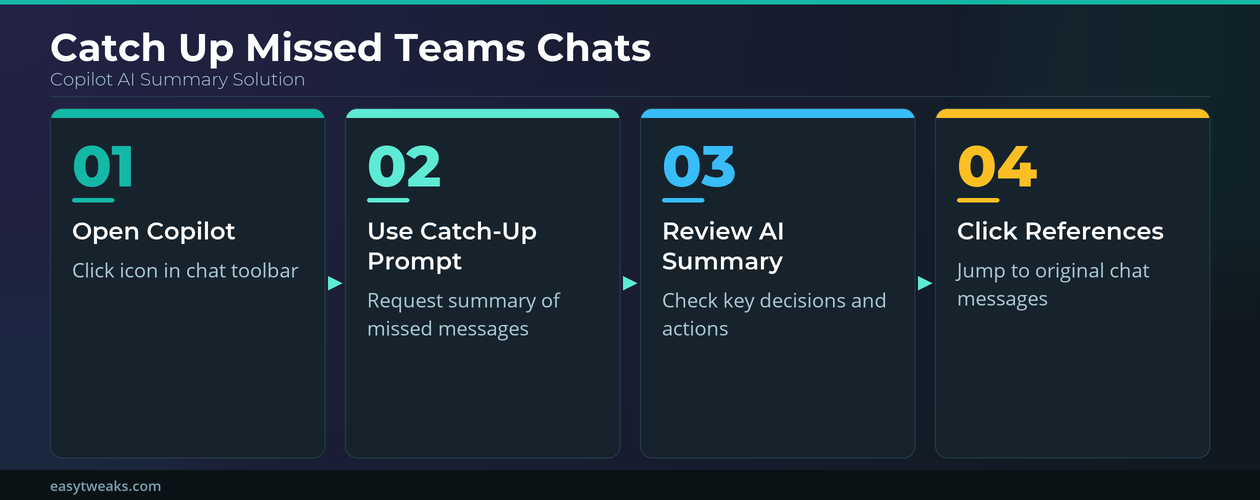
Navigate to any chat conversation in Microsoft Teams where unread messages have accumulated, then locate the Copilot icon in the upper-right toolbar area of the chat window. Clicking this icon opens a dedicated Copilot side panel that runs alongside your conversation without disrupting the original message thread or navigation structure. The panel loads within seconds and immediately displays suggested prompts tailored to the specific conversation context, including a prominent catch-up option.
Using the Catch-Up Prompt for Teams Messages
Once the Copilot panel is open, you can click the suggested catch-me-up prompt button or type a custom prompt such as summarize-what-I-missed directly into the text field. Copilot then scans all unread messages in the current conversation and generates a structured summary that includes key discussion points, decisions reached, and action items mentioning your name. Each summary entry includes a clickable reference link that takes you directly to the original message, allowing you to verify context or respond to specific items quickly.
Customizing Copilot Prompts for Teams Recaps
Beyond the default catch-up prompt, you can craft targeted requests by specifying time ranges, topics, or participants to narrow what Copilot surfaces from missed messages. Entering prompts about specific decisions regarding the project budget yesterday or messages from a particular colleague about the client presentation returns focused results instead of a general overview. This targeted approach proves especially useful when you participate in high-volume group chats where dozens of unrelated conversations happen simultaneously across different topic threads.
During my testing with channels containing over fifty daily messages, the precision of topic-based Copilot filtering consistently outperformed my own manual scanning efforts.
Managing Copilot Recaps Across Teams Channels
Summarizing Teams Channel Conversations with Copilot
Channel messages in Microsoft Teams follow a threaded structure that differs from standard chat conversations, and Copilot handles these threads by summarizing each reply chain as a distinct unit within its output. You can open any Teams channel, click the Copilot icon, and request a summary of recent activity to receive organized highlights that separate different discussion threads into clearly labeled sections. The Copilot feature works alongside meeting transcription capabilities to provide a comprehensive view of both asynchronous channel discussions and synchronous meeting outcomes in one place.
Reviewing Copilot Summaries in Teams Group Chats
Group chats with five or more active participants generate the highest volume of missed messages, making them the ideal use case for Copilot catch-up summaries that condense hours of conversation. When you open a group chat and activate Copilot, the AI automatically prioritizes messages that contain questions directed at you, decisions requiring your input, and shared files or links that others referenced. You can follow up on any summary point by clicking the citation link, which scrolls the chat window directly to that specific message and highlights it for quick identification.
In my experience with large project teams, the group chat summary feature correctly flagged urgent requests that I would have otherwise missed when scrolling through hundreds of messages manually.
Copilot Teams Chat Tips and Troubleshooting
Optimizing Copilot Performance in Teams
To get the most accurate summaries from Copilot, ensure that your Teams application is updated to the latest version because Microsoft regularly improves the AI summarization models through backend updates pushed to current builds. Keeping your Copilot features properly enabled within your Teams settings ensures that the catch-up functionality remains accessible across desktop, web, and mobile versions of the application consistently. Restarting Teams occasionally clears cached data that might cause the Copilot panel to load slowly or display incomplete summaries from conversations spanning multiple days.
Fixing Common Copilot Issues in Teams Chat
If the Copilot icon does not appear in your Teams chat window, verify that your administrator has enabled Copilot for your tenant and that your individual license assignment is active and properly configured. Network connectivity issues can occasionally prevent Copilot from generating summaries, so switching between Wi-Fi and wired connections or using a VPN may resolve timeout errors during summarization. Clearing the Teams cache through Settings and selecting Clear Cache resolves most persistent issues where Copilot fails to respond or produces incomplete results.
Frequently Asked Questions About Teams Copilot Chat
Can Copilot summarize missed chat messages in Teams?
Yes, Microsoft 365 Copilot can summarize all missed and unread chat messages in Teams by opening the Copilot panel within any conversation and using the catch-up prompt. The AI generates a structured summary with clickable references to original messages, making it easy to identify what requires your attention immediately.
Does Teams Copilot work with group chats?
Copilot works with both one-on-one conversations and group chats of any size within Microsoft Teams, though group chats benefit most from AI summarization due to higher volumes. The feature automatically prioritizes messages that mention your name, contain action items, or include decisions affecting your responsibilities.
How do I use Copilot to catch up after vacation?
Open each Teams chat or channel with unread messages, click the Copilot icon in the upper-right corner, and type a prompt requesting everything you missed for a comprehensive summary. You can use date-specific prompts to get a targeted overview covering your exact absence period without including older irrelevant conversations.