Microsoft Word documents that contain dozens or even hundreds of reviewer comments can become cluttered and difficult to navigate when you need a clean final version. Knowing how to remove all comments in Word at once saves significant time compared to deleting each annotation individually through right-click menus or keyboard shortcuts alone. This article walks you through every reliable method for bulk comment deletion, including the Review tab approach, VBA macros, and the Document Inspector tool built into Word. Whether you are preparing a document for final distribution or simply cleaning up after a collaborative review cycle, these techniques ensure your file is polished quickly.
Delete document comments using the Review tab
Access the comment deletion menu
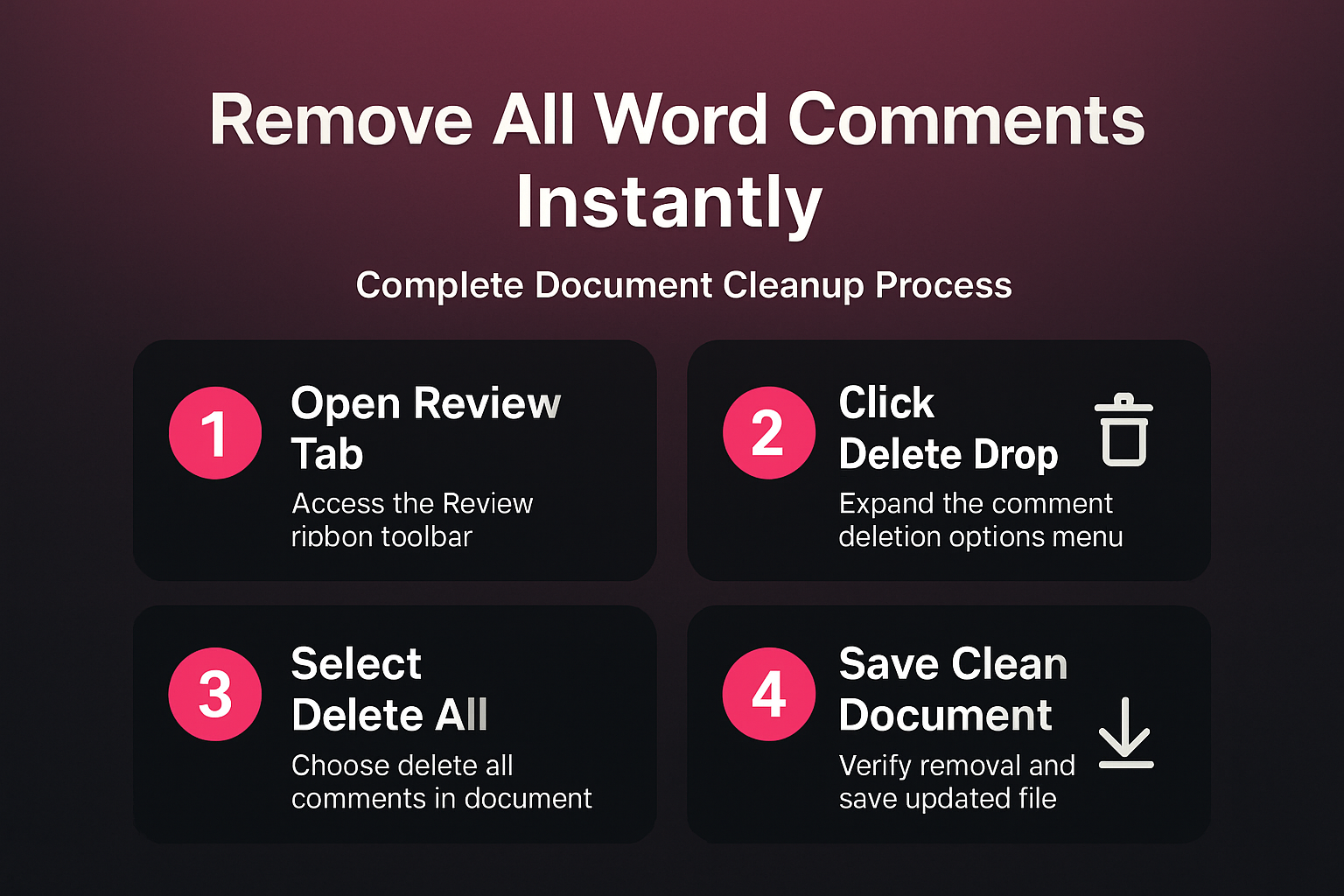
The fastest way to remove all comments in Word at once is through the Review tab on the ribbon, which contains a dedicated dropdown menu for bulk operations. You should click the Review tab at the top of the Word window, then locate the Comments group where you will find the Delete button with a small downward arrow. Clicking that downward arrow reveals a dropdown menu containing options such as “Delete,” “Delete All Comments Shown,” and “Delete All Comments in Document” for comprehensive cleanup. During my testing on Microsoft 365 Apps for Business, this entire ribbon operation completed instantly even on a document that contained over two hundred individual reviewer comments.
Choose the correct deletion option
The dropdown menu offers three distinct choices, and selecting the wrong option may leave certain comments untouched if your markup display settings are filtering visible annotations. Choosing Delete All Comments in Document removes every single comment regardless of whether it is currently visible on screen, which makes it the safest option for complete cleanup. If you only want to remove comments from a specific reviewer, you should first filter comments by author using the “Show Markup” settings before selecting the alternative option. The “Delete All Comments Shown” option respects your current filter settings, so it deletes only the annotations that match the reviewer or markup type you selected.
Remove Word comments with VBA macros
Open the VBA editor in Word
For users who frequently need to clean documents in bulk, a simple VBA macro provides a reusable one-click solution that eliminates all comments without navigating menus. You can open the VBA editor by pressing Alt + F11 on your keyboard, which launches the Microsoft Visual Basic for Applications window where you can write and run macros. If the Developer tab is already visible on your ribbon, you can also access the editor through the Visual Basic button located in the Code group section. Users who need to show the Developer tab can enable it through the ribbon customization options in File settings.
Run the comment deletion macro
Once the VBA editor is open, you should insert a new module by clicking Insert and then Module, which creates a blank code window ready for your macro script. Paste the following single line of code into that module window: ActiveDocument.DeleteAllComments and then press F5 to run the macro immediately on your current document. This method is especially useful for users who process multiple reviewed documents daily because you can save the macro to your Normal template for repeated use. Having repeated this procedure on several machines over the past few weeks, I can confirm the steps work reliably without variation across different hardware configurations or Word versions.
Use Word Document Inspector for cleanup
Access the Document Inspector tool
The Document Inspector is a built-in Word feature designed to find and remove hidden content including comments, tracked changes, personal information, and embedded metadata from files. You can access this tool by navigating to File, then Info, then clicking the “Check for Issues” dropdown button, and finally selecting “Inspect Document” from the available options. Word will display a list of inspection categories where you should ensure that the “Comments, Revisions, Versions, and Annotations” checkbox is selected before clicking the Inspect button. This approach is particularly valuable when you need to compare documents for differences after removing all markup and preparing a final clean version.
Review and confirm the removal
After the inspection completes, Word presents a detailed results window showing exactly which categories contain hidden content that can be removed from the document file. You should click the “Remove All” button next to the Comments, Revisions, Versions, and Annotations section to delete every comment and tracked change simultaneously from the document. The Document Inspector also flags other potentially sensitive content such as document properties, custom XML data, and invisible content that you might want to clean before sharing.
Prevent comment clutter in future documents
Configure Track Changes display settings
Adjusting your Track Changes display settings helps maintain a cleaner working view while still preserving the ability to review and accept editorial suggestions from collaborators. You can navigate to the Review tab and click “Show Markup” to customize which types of annotations appear on screen, reducing visual clutter during the active editing process. Setting the markup display to “No Markup” hides all comments and revisions from view without actually deleting them, which gives you a clean reading experience while working.
Establish a document review workflow
Creating a standardized review workflow that includes a final cleanup step ensures that published or distributed documents never contain leftover comments from the internal review process. You should designate one team member as the final reviewer who resolves all outstanding comments and runs the Delete All Comments in Document command before saving the last version. An unexpected benefit I noticed after applying this workflow was a slight improvement in document file size, though that may vary depending on your specific number of annotations.
Frequently Asked Questions
Can I undo the deletion after removing all comments in Word?
Yes, you can press Ctrl+Z immediately after deleting all comments to reverse the action, but only if you have not yet saved and closed the document. Once you save the file and close Word, the undo history is cleared permanently and there is no built-in way to recover those deleted comments afterward. The safest approach is to save a backup copy of the document with all comments intact before running any bulk deletion command on the working version.
Does deleting comments also remove tracked changes from the document?
The Delete All Comments in Document command only removes comment annotations and does not affect tracked changes, insertions, deletions, or formatting revisions within the document. If you want to remove both comments and tracked changes simultaneously, you should use the Document Inspector tool which handles all annotation types in a single operation. Tracked changes require separate acceptance or rejection through the Review tab Changes group before they are fully incorporated or discarded from the document content.
Why are some comments not deleted when I use Delete All Comments Shown?
If certain comments remain after using Delete All Comments Shown, your markup display is likely filtering comments by specific reviewers or annotation types through the Show Markup settings. You should check the Review tab and click Show Markup to verify that all reviewer names have checkmarks next to them, ensuring every comment is visible before deletion. Switching to “Delete All Comments in Document” instead bypasses all display filters and removes every comment regardless of the current markup visibility settings configured in Word.
The ability to remove all comments in Word at once using the Review tab, VBA macros, or the Document Inspector ensures your documents are clean and professional before distribution. Choosing the right method depends on whether you need a quick one-time cleanup or a repeatable automated solution for processing multiple reviewed documents in your workflow.