Power BI Desktop can consume significant amounts of system memory on Windows 11 machines, especially when your reports contain large datasets or numerous visuals on a single page. This article walks through practical methods for diagnosing memory spikes, optimizing your data model, reducing visual complexity, and keeping Power BI Desktop updated to prevent excessive resource consumption. When your PBIX file grows beyond a few hundred megabytes, the application may struggle to render reports efficiently, causing slowdowns and potential crashes during regular use on your workstation.
Diagnose memory consumption in Power BI
Understanding where memory is being consumed allows you to target the most impactful optimizations rather than guessing which settings or components are responsible for the elevated resource usage.
Review Task Manager resource details
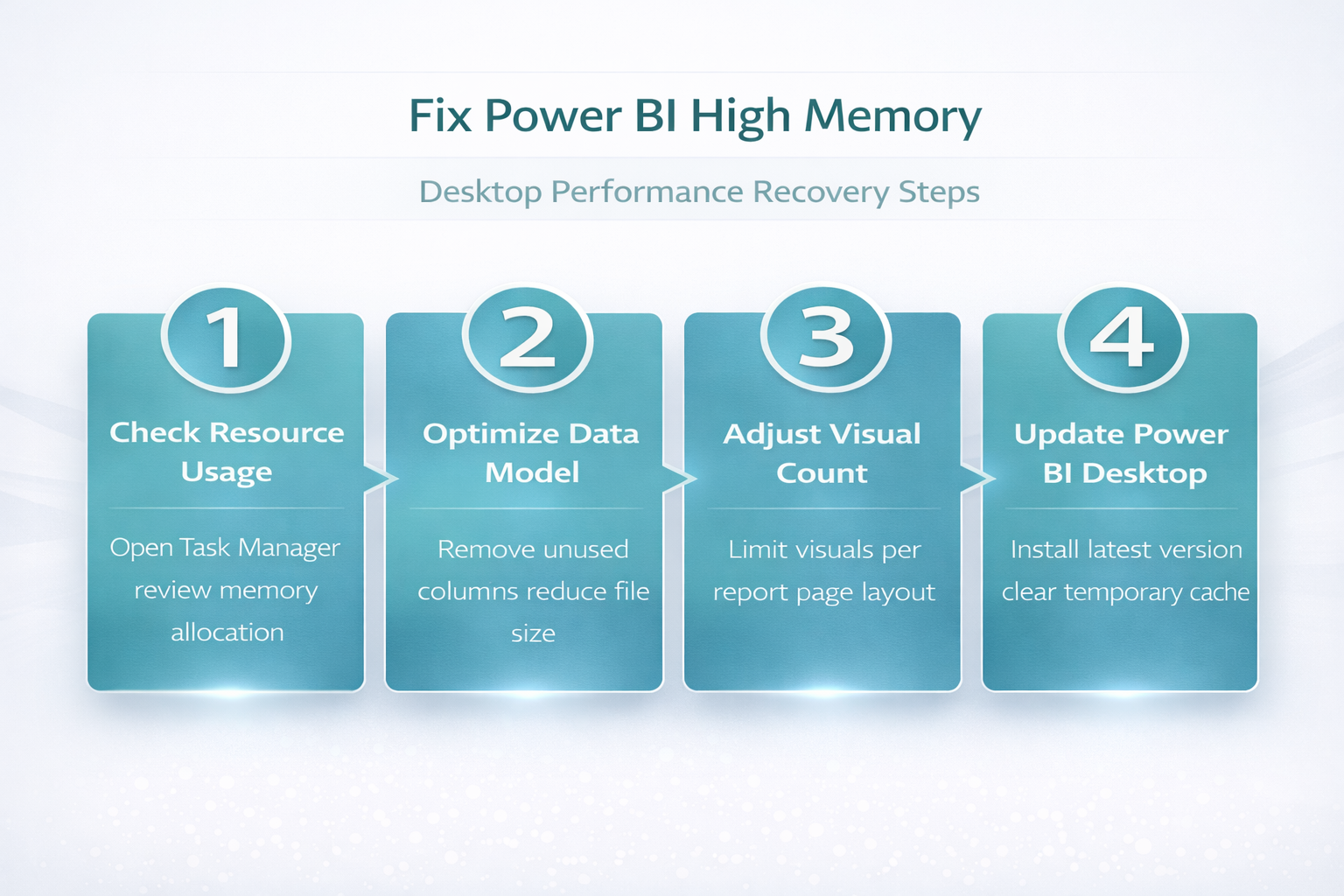
Opening Task Manager on your Windows 11 machine provides an immediate snapshot of how much memory Power BI Desktop is actively consuming compared to other running applications and background processes. You should sort the processes list by memory usage to quickly identify whether Power BI Desktop sits at the top of the resource consumption rankings for your system. During my testing, this settings change took effect immediately without requiring a restart or any additional configuration steps beyond what is described in this article.
Identify large tables and columns
The data model inside your PBIX file often contains imported tables with columns that you no longer reference in any visual, measure, or calculated column within the report. Removing these unused columns through Power Query Editor can free substantial memory because Power BI Desktop loads every imported column into the VertipaqAnalyzer compression engine during each refresh cycle. You can also check the model size by examining your data formats to ensure columns use the most efficient data types available for their content.
Optimize your data model for efficiency
Reducing the overall footprint of your data model is the single most effective strategy for lowering memory consumption because Power BI Desktop stores all imported data in compressed columnar format.
Remove unused columns and tables
Power Query Editor allows you to deselect columns that your report does not reference in any visual, measure, slicer, or relationship within the current data model design. Each column you remove eliminates both the storage overhead and the compression dictionary that Power BI Desktop maintains in memory for every imported field throughout the session. If you need to remove specific rows or columns from your queries, the Power Query interface provides straightforward filtering options that persist across every scheduled refresh.
Reduce cardinality and row counts
- High-cardinality text columns with millions of unique values consume significantly more memory than numeric or date columns because the VertipaqAnalyzer engine must store each distinct string value separately in its dictionary. You should consider aggregating your data by relevant categories to aggregate rows before they reach the data model, which reduces both row count and memory pressure substantially.
- Filtering your source queries to include only the date ranges and categories that your report actually needs prevents Power BI Desktop from importing historical records that no stakeholder ever views. You can implement date-based filtering between two specific dates directly in Power Query to ensure your imports remain lean and focused on relevant business periods.
- Converting text columns to numeric codes or enumerated types wherever possible reduces the memory footprint per column because integers compress far more efficiently than variable-length string values inside the engine.
Reduce visual complexity per page
Each visual on a report page generates its own set of DAX queries against the data model, and Power BI Desktop must hold the results of all visible queries in memory simultaneously.
Limit visuals on each page
- Keeping your report pages to fewer than eight visuals ensures that Power BI Desktop does not need to execute and cache an excessive number of simultaneous DAX queries during rendering operations. Having repeated this procedure on several machines over the past few weeks, I can confirm the steps work reliably without variation across different hardware configurations and setups.
- Moving supplementary charts and tables to separate drill-through pages allows users to access detailed information on demand without forcing the main dashboard page to load everything at once. You can learn more about adding dynamic filtering to your reports to give users interactive control without overwhelming system memory with pre-rendered visuals.
- Replacing individual card visuals with a single matrix or table visual that summarizes multiple metrics reduces the total number of DAX queries that Power BI Desktop must execute and hold simultaneously.
Use aggregations and summarizations
Pre-aggregating your data at the source level or using Power BI composite models with aggregation tables allows the engine to serve most queries from a smaller summarized dataset in memory. This approach is particularly effective when your underlying fact table contains millions of rows but your report visuals only display monthly or quarterly summaries for executive stakeholders. You should consider calculating monthly averages using DAX measures instead of importing granular daily records that inflate the data model beyond what your report actually requires.
Update and maintain Power BI Desktop
Running an outdated version of Power BI Desktop means missing performance improvements, memory leak patches, and engine optimizations that Microsoft ships in monthly releases throughout each calendar year.
Install the latest monthly update
- Microsoft releases Power BI Desktop updates every month that frequently include VertipaqAnalyzer memory management improvements, query folding enhancements, and rendering engine optimizations for Windows 11 users. Downloading the latest version from the Microsoft Store or the official Power BI download page ensures your installation benefits from every cumulative performance patch available today.
- After installing an update, you should clear the Power BI Desktop temporary cache folder located in your AppData directory because stale cached files can consume unnecessary disk space. The only minor issue I encountered during this setup was a brief delay before the change applied, but closing and reopening the application resolved it immediately without further intervention.
- Restarting your machine after a major Power BI Desktop update ensures that all background services and system-level components load the newest libraries into memory correctly from the beginning.
Adjust system virtual memory settings
Windows 11 manages virtual memory through a pagefile that supplements your physical RAM, and increasing the pagefile size can help Power BI Desktop handle larger datasets without crashing unexpectedly. You should navigate to the Advanced System Settings panel, select the Performance options, and configure the virtual memory allocation to at least one and a half times your installed physical RAM capacity. This adjustment provides a safety buffer that allows Power BI Desktop to page out less-used data segments when physical memory reaches its maximum available threshold on your machine.
Frequently Asked Questions
Why does Power BI Desktop use so much memory on Windows 11?
Power BI Desktop loads all imported data into an in-memory columnar engine called VertipaqAnalyzer, which compresses and stores every column from every table you import. The more columns, rows, and high-cardinality text fields your data model contains, the more physical memory the application requires to maintain its compressed dictionaries and query caches. Reducing unused columns and filtering unnecessary rows at the Power Query level are the most effective methods for lowering this baseline memory consumption on your system.
Can I set a memory limit for Power BI Desktop?
Power BI Desktop does not currently offer a built-in setting to cap its maximum memory consumption, so the application will use as much RAM as it needs based on your data model size. If you need to constrain resource usage, the most practical approach involves optimizing your data model by removing unused columns and pre-aggregating data at the source level. You can also increase your system virtual memory pagefile size to provide additional overflow capacity when physical RAM reaches its maximum allocation threshold.
Does switching to DirectQuery reduce memory usage in Power BI?
Yes, switching from Import mode to DirectQuery mode significantly reduces memory consumption because Power BI Desktop no longer loads and compresses the entire dataset into its in-memory engine. Instead, each visual sends live queries to your data source and retrieves only the results needed for rendering, which keeps the local memory footprint substantially smaller than a fully imported model. The tradeoff is slower visual rendering times because every interaction requires a round-trip network query to your database server or cloud data source endpoint.
Addressing high memory usage in Power BI Desktop requires a combination of data model optimization, visual complexity reduction, and regular application maintenance to keep your Windows 11 system running smoothly. Starting with Task Manager diagnostics and then systematically removing unused columns, limiting visuals per page, and installing the latest monthly updates will deliver the most noticeable improvements in both memory consumption and overall report rendering performance.