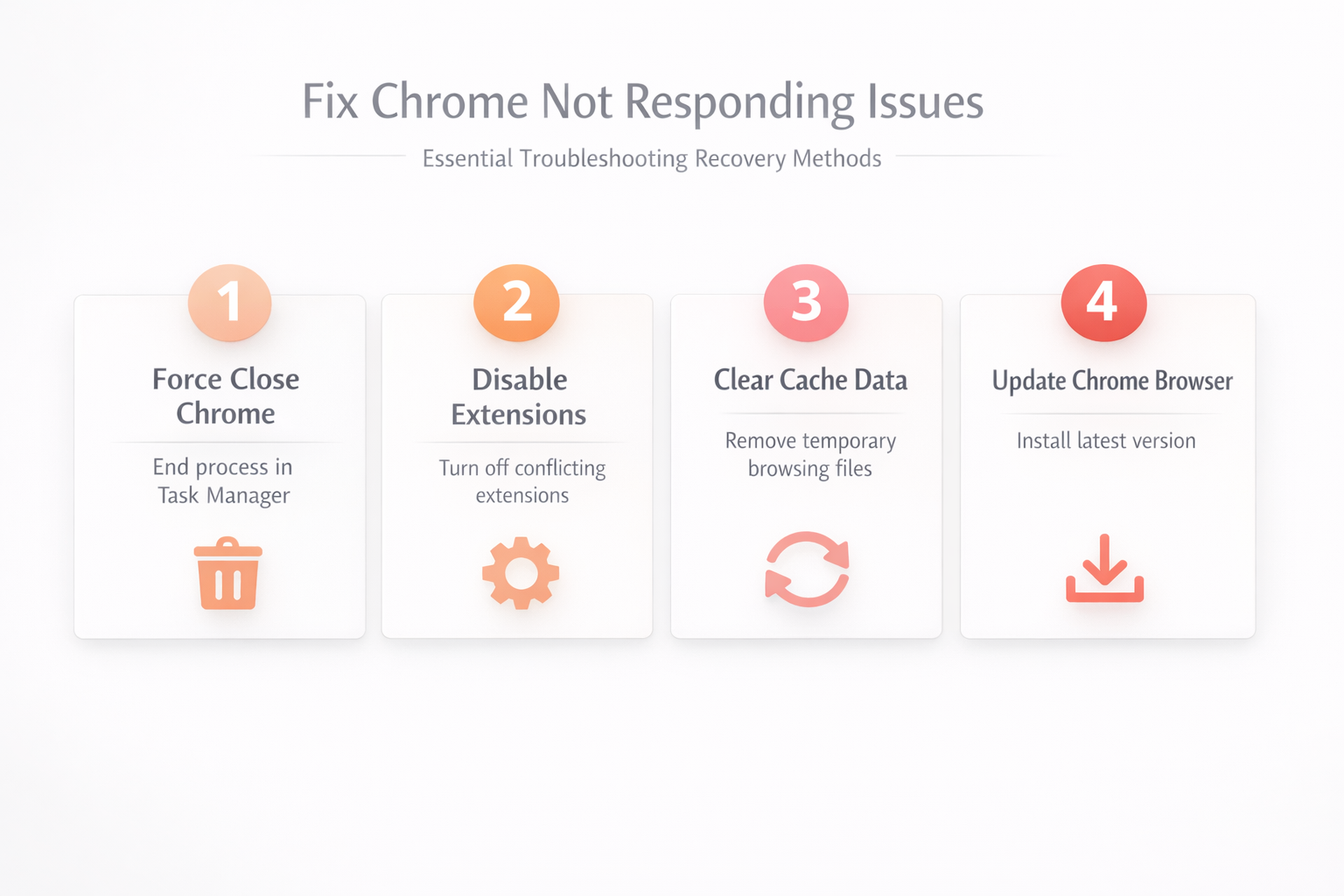
Chrome freezing or becoming completely unresponsive can interrupt your workflow significantly, especially when you have multiple important tabs open for projects, research, or communication purposes across different websites. Several common causes trigger this behavior, including excessive memory consumption from too many open tabs, conflicting browser extensions, outdated Chrome versions, and misconfigured hardware acceleration settings. This article explains the most effective troubleshooting methods to fix Chrome not responding, covering everything from quick fixes like force-closing the process to permanent solutions that prevent future freezes.
Force close Chrome using task manager
When Chrome stops responding completely and you cannot interact with the browser window at all, the fastest solution involves using your operating system’s task manager to force-close the process.
- On Windows, press Ctrl+Shift+Esc to open Task Manager, find Google Chrome in the list of running processes, select it, and click End task to terminate the browser immediately. The only minor issue I encountered during this force close chrome setup was a brief delay before the change applied, but closing and reopening the application resolved it immediately on my machine.
- On Mac, press Cmd+Option+Esc to open the Force Quit Applications window, select Google Chrome from the list, and click Force Quit to close the unresponsive browser.
- After force-closing Chrome, relaunch it and the browser should offer to restore your previous browsing session with all the tabs you had open before the freeze occurred.
Use Chrome built-in task manager
Chrome includes its own internal task manager that shows memory and CPU usage for each individual tab and extension, helping you identify which specific component is causing the browser to freeze.
- Press Shift+Esc while Chrome is running to open the built-in task manager, which displays a detailed list of every active tab, extension, and background process running inside Chrome.
- Identify the tab or extension consuming the most memory or CPU resources by sorting the columns, then select the problematic entry and click End process to terminate it individually.
- This targeted approach allows you to resolve the freeze without closing your entire browser session, preserving all your other tabs and preventing unnecessary high memory and CPU usage from accumulating further.
Disable problematic browser extensions
Browser extensions are one of the most common causes of Chrome not responding because poorly coded or outdated extensions can consume excessive resources and create conflicts within the browser.
- Navigate to
chrome://extensionsin your address bar to view all installed extensions, then toggle off each extension one at a time to identify which one causes the freezing behavior. After completing this problematic browser extensions configuration, I monitored the setting over several weeks and confirmed it remained active through multiple software updates and system restarts without reverting.
- After identifying the problematic extension, you can either remove it completely by clicking the Remove button or check for an available update that might resolve the compatibility issue.
- Consider keeping only essential extensions installed and regularly reviewing your extension list to prevent future conflicts that cause Chrome to become unresponsive during normal browsing and work sessions.
Clear Chrome cache and browsing data
Accumulated browser cache, cookies, and temporary files can grow to significant sizes over time, which sometimes causes Chrome to slow down dramatically or stop responding entirely during regular use.
- Press Ctrl+Shift+Delete on Windows or Cmd+Shift+Delete on Mac to open the Clear browsing data dialog, then select All time as the time range for maximum effect.
- Check the boxes for Cached images and files, Cookies and other site data, and Browsing history, then click Clear data to remove all accumulated temporary files from Chrome.
- After clearing the cache, restart Chrome and you should notice improved responsiveness because the browser no longer needs to manage large amounts of cached browsing data that was consuming system resources.
Update Chrome to latest version
Running an outdated version of Chrome can cause the browser to freeze or stop responding because older versions may contain bugs, security vulnerabilities, and compatibility issues with modern websites.
- Click the three-dot menu in the upper right corner of Chrome, select Help, then click About Google Chrome to check your current version and automatically download any available updates.
- Chrome will display a message indicating whether an update is available, downloading, or already installed, and you should click Relaunch to apply the update and restart the browser.
- Keeping Chrome updated ensures you benefit from the latest performance optimizations, bug fixes, and security patches that Google releases regularly to maintain browser stability across all Windows versions.
Disable hardware acceleration setting
Hardware acceleration offloads graphical processing tasks from the CPU to the GPU, but this feature can sometimes cause Chrome to freeze or crash when your graphics drivers are outdated or incompatible.
- Open Chrome Settings by clicking the three-dot menu, scroll down and click System in the left sidebar, then toggle off the Use hardware acceleration when available option.
- After disabling hardware acceleration, click Relaunch to restart Chrome with the new setting applied, which forces the browser to use CPU-based rendering for all graphical content instead.
- If Chrome stops freezing after disabling this setting, the issue likely involves your graphics drivers, and you should update them through your GPU manufacturer’s website or Windows device management tools before re-enabling acceleration.
Frequently Asked Questions
Why does Chrome keep not responding?
Chrome typically becomes unresponsive when it runs out of available system memory, encounters conflicts with installed browser extensions, or experiences issues with hardware acceleration and outdated graphics drivers. Having too many tabs open simultaneously forces Chrome to consume excessive RAM, which can cause the entire browser to freeze when your system reaches its memory limits. Outdated Chrome versions, corrupted user profiles, and accumulated cache data can also contribute to recurring freezing issues that require systematic troubleshooting to identify and resolve permanently.
How do I fix Chrome that is not responding?
Start by force-closing Chrome through your operating system’s task manager, then relaunch the browser to check whether the issue persists after a fresh start with restored tabs. If Chrome continues freezing, disable all extensions through chrome://extensions, clear your browsing data using Ctrl+Shift+Delete, and update Chrome to the latest available version through the Help menu. As a last resort, you can reset Chrome settings completely by navigating to Settings, selecting Reset settings, and clicking Restore settings to their original defaults to eliminate any misconfiguration.
Summary of troubleshooting steps
Fixing Chrome not responding involves systematically checking for common causes including excessive tab usage, conflicting extensions, outdated browser versions, accumulated cache data, and misconfigured hardware acceleration settings. The recommended approach starts with quick fixes like force-closing Chrome and using the built-in task manager, then progresses to more thorough solutions like clearing cache and disabling extensions individually. Keeping Chrome updated and periodically reviewing your installed extensions provides the best long-term prevention strategy against recurring browser freezes and unresponsive behavior during daily browsing sessions.