OneDrive cloud file synchronization keeps your documents accessible across every device, but sync failures on Windows 11 can leave you working with outdated versions of critical files. When OneDrive stops syncing properly, your local changes may not reach the cloud, which creates frustrating gaps between your devices and potential data loss situations. This article walks you through the most effective methods to fix OneDrive not syncing on Windows 11, starting with quick checks and progressing to deeper solutions.
Verify OneDrive sync status icons
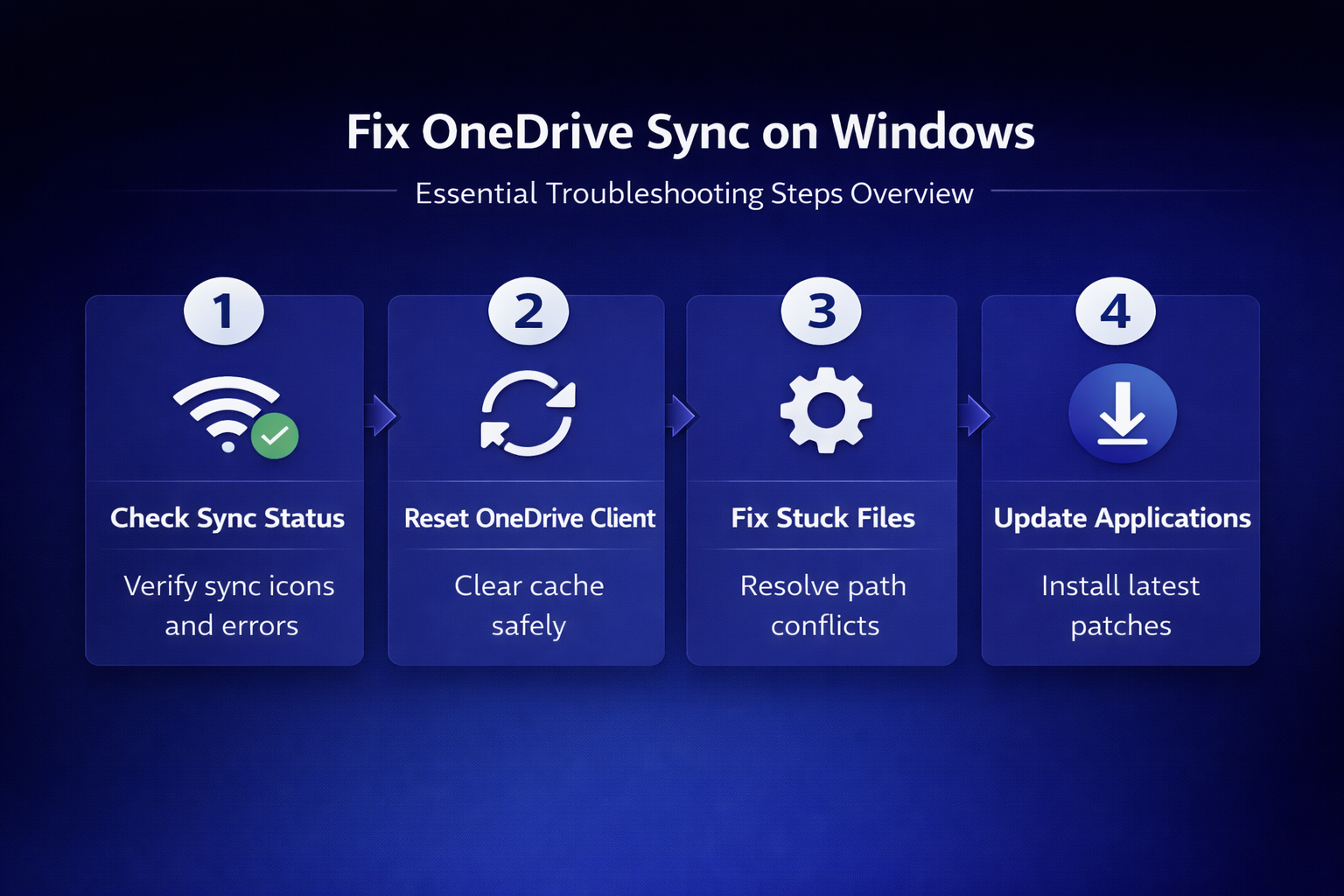
The OneDrive sync status icons in your system tray and File Explorer provide immediate visual feedback about whether your files are uploading, downloading, or stuck in a pending state. A blue circular arrow icon means OneDrive is actively syncing your files, while a red circle with a white cross indicates a sync error that requires your attention. You should right-click the OneDrive cloud icon in your system tray and select View sync problems to see a detailed list of every file currently experiencing issues.
Check internet and storage limits
OneDrive sync issues on Windows 11 frequently stem from unstable network connections or insufficient Microsoft 365 cloud storage space, both of which prevent normal file uploads from completing successfully. Open your browser and navigate to onedrive.live.com to confirm you can access your files online, which verifies that the problem exists on your local machine. You should also check your available storage by clicking the OneDrive tray icon and selecting Settings then Account to view how much space remains in your plan.
Confirm account and sign-in status
Sometimes OneDrive not syncing files results from an expired authentication token or a disconnected Microsoft account that needs to be re-authorized through the desktop client settings. Open OneDrive settings and navigate to the Account tab, then click Unlink this PC followed by signing back in with your Microsoft credentials to refresh the connection. This process re-establishes the cloud file synchronization link between your local machine and the OneDrive servers without removing any of your locally stored files or folders.
Reset OneDrive sync on Windows 11
Performing an OneDrive client reset is one of the most reliable methods for resolving persistent sync errors because it clears corrupted cache data without touching your stored files. Open the Run dialog by pressing Windows + R, then paste the following command to initiate the reset process: %localappdata%\Microsoft\OneDrive\onedrive.exe /reset. After running this command, OneDrive will disappear from your system tray for approximately one to two minutes before automatically restarting and beginning a fresh synchronization cycle.
Restart OneDrive after client reset
If OneDrive does not restart automatically within two minutes after the reset command, you can manually launch it by searching for OneDrive in the Windows 11 Start menu. The application will perform a full re-scan of your OneDrive folder and begin syncing all files from scratch, which resolves most file conflict resolution issues caused by corrupted metadata. You can also sync files between computers using OneDrive on Windows 11 to verify that multi-device synchronization works correctly after completing the reset process.
Resolve OneDrive sync stuck pending
Files showing a perpetual pending status usually indicate that OneDrive encountered a specific problem with those individual files rather than a system-wide synchronization failure affecting your entire library. Common causes for stuck files include names containing special characters, file paths exceeding 400 characters, or individual files larger than the 250 GB upload limit imposed by Microsoft. You can identify which files are stuck by right-clicking the OneDrive tray icon and selecting View sync problems to get the complete list of affected items.
- File path length — Windows 11 supports long paths but OneDrive sync encounters problems when the full path including the filename exceeds approximately 400 characters total from root to file.
- Special characters in names — Files containing characters like #, %, or & in their names often trigger OneDrive sync errors that prevent those specific files from uploading to the cloud.
- File size restrictions — OneDrive enforces a maximum individual file size of 250 GB, and any files exceeding this limit will remain stuck in a pending state indefinitely until addressed.
- File lock conflicts — Applications that maintain exclusive locks on files prevent OneDrive from reading the latest version, which causes the sync engine to report a perpetual pending status.
Update Windows and OneDrive application
Running outdated versions of Windows 11 or the OneDrive desktop application can introduce OneDrive sync error conditions that Microsoft has already patched in more recent releases of the software. Navigate to Settings then Windows Update and click Check for updates to ensure your operating system has all the latest fixes that improve cloud synchronization reliability. You should also verify your OneDrive application version by opening OneDrive settings and checking the About tab, and if system corruption persists you may need to reinstall Windows 11 without losing files as a last resort.
Prevent future OneDrive sync issues
Taking proactive steps to maintain your OneDrive configuration helps you avoid recurring sync failures and ensures your cloud file synchronization operates reliably across all your connected Windows 11 devices. You should enable the Files On-Demand feature through OneDrive settings to reduce local storage consumption, which prevents sync conflicts that arise when your hard drive runs low on available space. Understanding Windows backup files storage locations helps you manage disk usage effectively so that OneDrive always has sufficient local space to complete synchronization operations without interruption. If you use Teams alongside OneDrive, learning how to to link your Teams folders to OneDrive ensures that collaborative files synchronize correctly across both applications and reduces the chance of encountering duplicate file conflicts.
Frequently asked questions
Why is my OneDrive not syncing on Windows 11?
OneDrive sync failures on Windows 11 typically result from network connectivity problems, expired authentication tokens, insufficient cloud storage space, or corrupted local cache files that interfere with normal operations. Running the built-in sync troubleshooter and checking your account status in OneDrive settings can help you identify the specific root cause of the sync failure quickly.
How do I force OneDrive to sync on Windows 11?
You can force OneDrive to sync by right-clicking the OneDrive system tray icon, selecting the Resume syncing option, or performing a full client reset using the OneDrive reset command. The reset command path is %localappdata%\Microsoft\OneDrive\onedrive.exe /reset, which clears cached sync data and forces a complete re-synchronization of all your connected OneDrive files and folders.
Does resetting OneDrive delete my files?
Resetting OneDrive through the reset command does not delete any of your files stored locally on your computer or saved in the cloud on Microsoft servers, because the process only clears cached synchronization metadata. After the reset completes, OneDrive performs a fresh scan and re-syncs everything, which means your documents, photos, and other files remain completely safe and accessible throughout the entire process.
OneDrive sync problems on Windows 11 are common but almost always fixable through the systematic troubleshooting steps covered in this article, from basic connectivity checks to full client resets. Start with verifying your sync status icons and internet connection, then progress to resetting the OneDrive client if simpler fixes do not resolve the underlying issue for your specific situation.