Few things disrupt your workday more than discovering that scheduled Teams meetings have completely vanished from your Outlook calendar without any warning or explanation whatsoever. This common Teams Outlook sync problem affects thousands of Microsoft 365 users who depend on seamless calendar integration between these two essential productivity applications every single day. When Teams meetings not syncing to Outlook becomes your reality, you may miss critical calls, double-book time slots, or lose track of upcoming commitments entirely. This article walks you through every proven fix for restoring reliable synchronization between Microsoft Teams and Outlook so your calendar stays accurate and complete.
Why Teams meetings stop syncing with Outlook
Understanding the root causes behind a Teams calendar sync error helps you apply the correct fix faster instead of wasting time on solutions that address unrelated problems. Several distinct factors can break the connection between Microsoft Teams and Outlook, ranging from simple configuration oversights to deeper account-level synchronization failures within your tenant.
Exchange Online connectivity issues
Microsoft Teams relies on Exchange Online as the backbone service that bridges calendar data between Teams and Outlook across your entire Microsoft 365 environment. When Exchange Online experiences connectivity disruptions or throttling events, meeting invitations created in Teams may fail to propagate over to your Outlook calendar properly. You can verify Exchange Online service health by visiting the Microsoft 365 admin center and checking the Service health dashboard for any active incidents reported.
Disabled or missing Teams add-in
The Teams Meeting add-in for Outlook enables users to schedule Teams meetings directly from Outlook and maintains the critical synchronization pathway between both applications. If this add-in becomes disabled, crashes repeatedly, or gets blocked by a Group Policy setting, you will experience a persistent Outlook Teams integration issue. Check whether the Teams add-in is working properly in Outlook before attempting more advanced troubleshooting steps for your sync problem.
Check your Microsoft 365 account and licenses
A Microsoft Teams calendar not updating often traces back to licensing gaps or account configuration problems that prevent the calendar integration from functioning as intended. Your account must have both an Exchange Online mailbox and an active Teams license assigned within the same Microsoft 365 tenant for synchronization to work.
Verify license assignments
Open the Microsoft 365 admin center, navigate to Users > Active users, and select the affected account to confirm that both Exchange Online and Teams licenses appear. Accounts with only a Teams Exploratory license or standalone Exchange plan may lack the required entitlements for full bidirectional calendar synchronization between applications. Contact your IT administrator to resolve any licensing gaps if you discover that one or both required service licenses are missing from your assignment.
Confirm mailbox provisioning
Even with correct licenses assigned, the Exchange Online mailbox must be fully provisioned and healthy before Teams can write meeting data into Outlook calendars. Run the Get-Mailbox PowerShell cmdlet against the affected user account to verify that the mailbox exists, has a valid primary SMTP address, and shows no errors. A mailbox that was recently migrated from on-premises Exchange may require up to twenty-four hours before Teams calendar synchronization begins working reliably again.
Re-enable the Teams Meeting add-in for Outlook
The Teams Meeting add-in serves as the primary bridge that keeps your Outlook calendar linked connected to Teams for scheduling and synchronization. Restoring this add-in often resolves cases where Teams meeting missing Outlook symptoms appear suddenly after an application update or configuration change within your environment.
Steps to re-enable the add-in
- Open Outlook and click File, then select Options from the navigation menu to access the application configuration settings for your Outlook profile.
- Select Add-ins from the left sidebar, locate Microsoft Teams Meeting Add-in, and check whether its current status shows as Disabled or Inactive.
- Click the Manage dropdown at the bottom, select COM Add-ins, then click Go to open the full list of registered add-in components.
- Place a checkmark next to Microsoft Teams Meeting Add-in for Microsoft Office, click OK, and then restart Outlook completely to activate the change.
If the add-in keeps disabling itself after every Outlook restart, you may need to address a deeper Teams connection to Outlook issue involving registry settings.
Clear the Teams and Outlook cache
Corrupted cache files frequently cause a Teams Outlook sync problem because both applications store local copies of calendar data that can become stale or inconsistent. Clearing these caches forces both applications to pull fresh calendar information directly from Exchange Online, which often resolves stubborn synchronization failures immediately.
Clear the Teams cache
- Close Microsoft Teams completely by right-clicking its icon in the system tray and selecting Quit to ensure no background processes remain running.
- Open File Explorer and navigate to
%appdata%\Microsoft\Teams, then delete all contents within the Cache, blob_storage, databases, and GPUCache folders entirely. - Restart Microsoft Teams and sign back in with your Microsoft 365 credentials, allowing the application to rebuild its local cache from server-side data.
Clear the Outlook cache
Close Outlook completely and navigate to %localappdata%\Microsoft\Outlook\RoamCache, then delete all files within that folder to remove potentially corrupted calendar data. Reopen Outlook and allow it several minutes to resynchronize all calendar items from Exchange Online before checking whether your Teams meetings now appear correctly. Users who experience Teams appointments not showing in Outlook often find that this cache-clearing procedure resolves their synchronization issues entirely.
Reset the Teams calendar sync settings
When basic troubleshooting fails to resolve a Microsoft Teams calendar not updating scenario, resetting the calendar synchronization settings within Teams itself can force a complete refresh. This approach addresses configuration drift that accumulates over time as Teams applies updates and policy changes to your client application settings automatically.
Navigate to your Teams profile picture, select Settings, then choose General and ensure that the Register Teams as the chat app for Office option remains enabled. Toggle this setting off and back on again, then restart both Teams and Outlook to trigger a fresh calendar integration handshake between the two applications. You should also verify that your Microsoft Teams calendar integration settings align with your organization’s policies for meeting synchronization and scheduling.
Repair or reinstall Microsoft Teams and Outlook
Persistent sync failures that survive all previous troubleshooting steps may indicate corrupted application installations that require repair or complete reinstallation to resolve permanently. Microsoft 365 applications include a built-in repair utility accessible through Windows Settings that can fix damaged files without requiring a full uninstallation process.
Use the Office repair tool
Open Settings > Apps > Installed apps in Windows, locate Microsoft 365, click the three-dot menu, and select Modify to launch the repair utility. Choose Online Repair for the most thorough fix, as this option redownloads all Office components and restores them to their default installation state completely. After the repair completes and your computer restarts, open both Teams and Outlook to verify that calendar synchronization has resumed and meetings appear correctly.
If repair alone proves insufficient, uninstall Microsoft Teams completely, download the latest installer from the official Microsoft website, and perform a clean installation. Ensure you also check whether Teams meeting links appear correctly in Outlook after reinstallation to confirm full functionality has been restored.
Conclusion
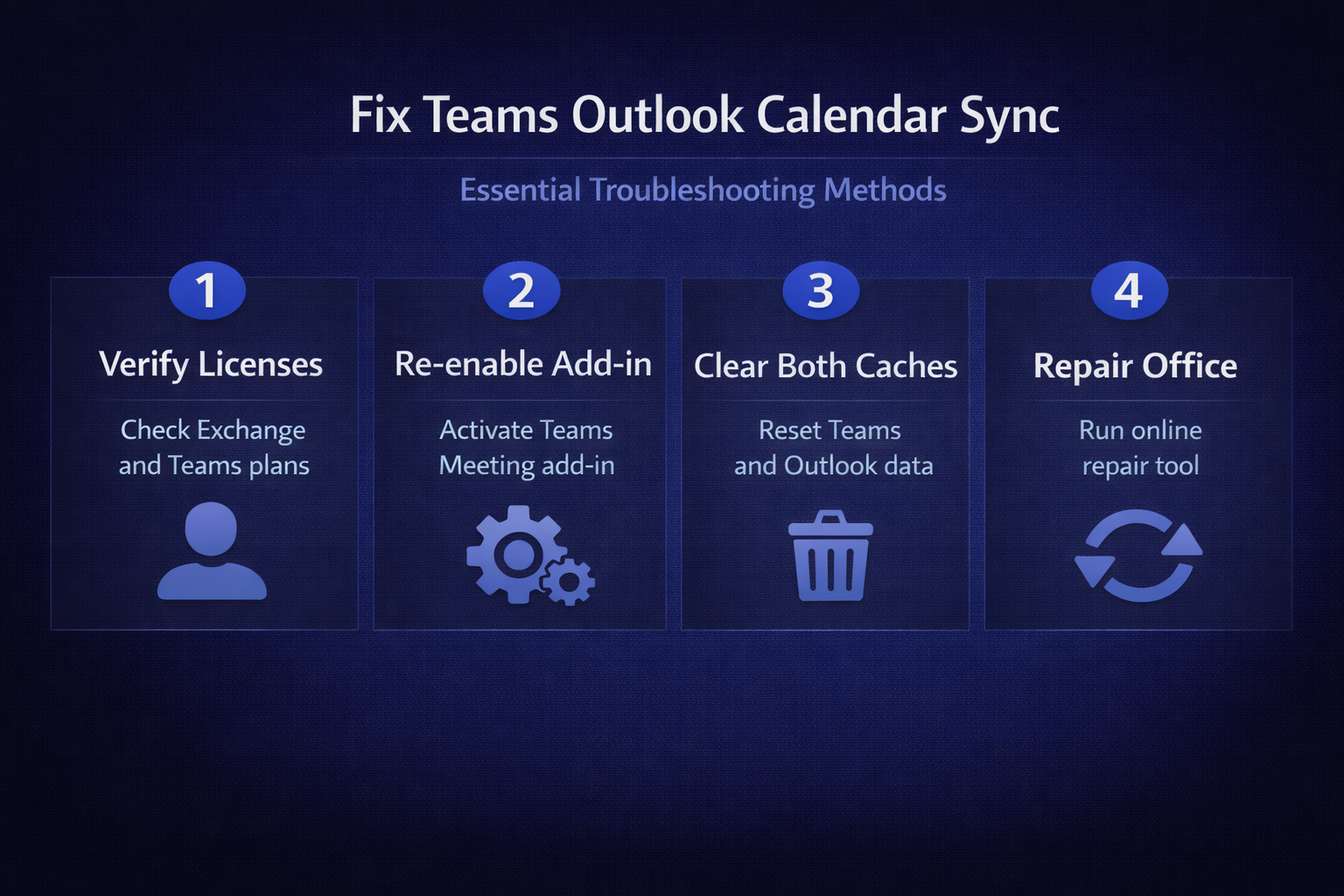
Resolving Teams meetings not syncing to Outlook typically requires a systematic approach that starts with verifying licenses and add-in status before progressing to cache clearing. Each troubleshooting step in this article targets a specific failure point in the synchronization chain connecting Microsoft Teams, Exchange Online, and Outlook together seamlessly. Apply these fixes in sequence, testing calendar synchronization after each step, so you can identify the exact cause and avoid unnecessary changes to your configuration. Bookmark this page for future reference, and share it with colleagues who encounter similar Teams calendar sync error issues within your organization today.