Closing a browser tab by accident is one of the most frustrating experiences that happens to nearly every computer user during their regular daily workflow activities. Learning how to bring back closed tabs can save you significant time and prevent the hassle of searching through your browsing history for lost pages. This article covers multiple methods for browser tab recovery across Google Chrome, Microsoft Edge, and Mozilla Firefox so you can quickly restore your browsing session.
How to reopen closed tabs using keyboard shortcuts
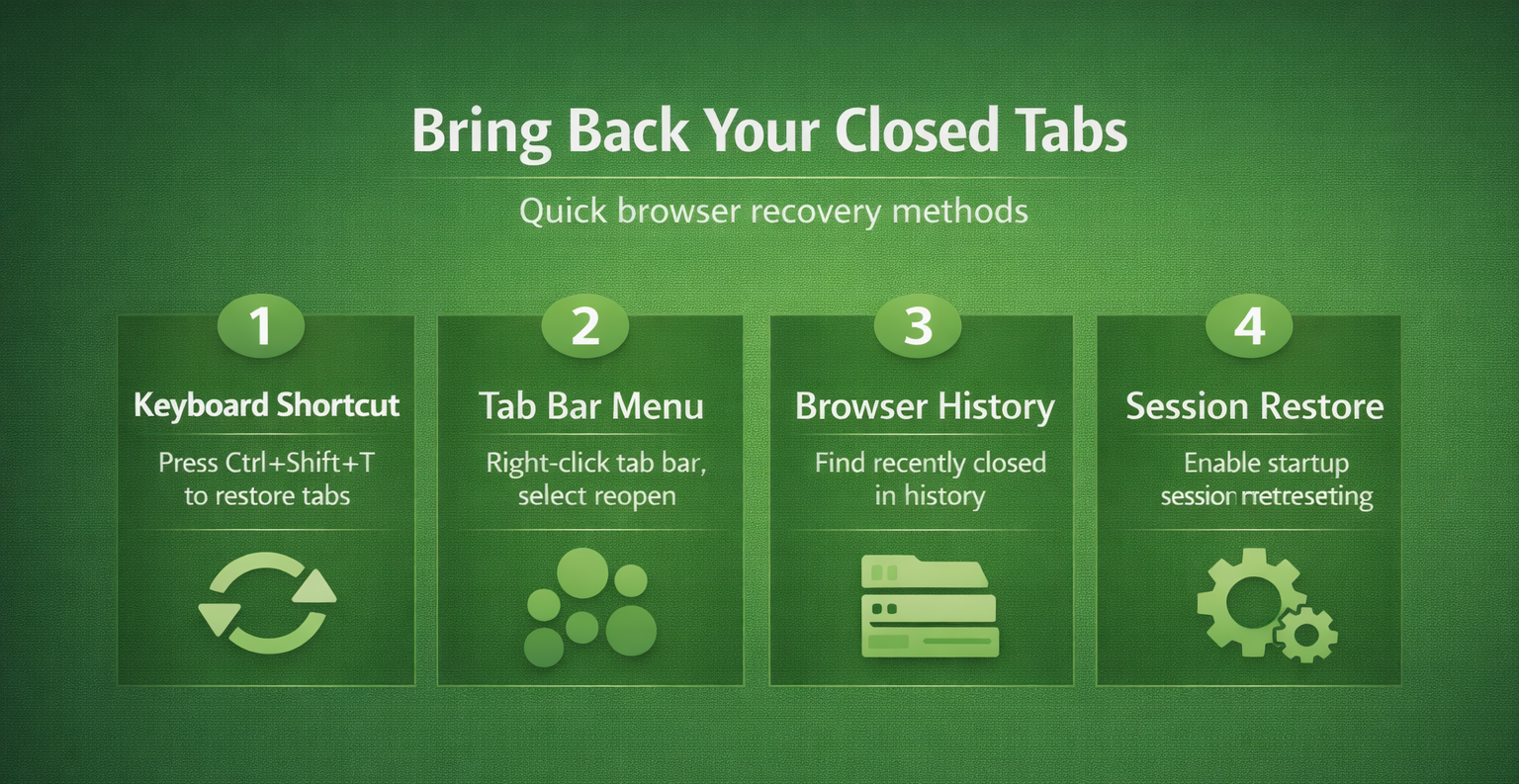
The fastest method to bring back closed tabs in virtually any modern browser involves pressing a simple keyboard shortcut that works across all major platforms today. On Windows or Linux computers, you can press Ctrl + Shift + T to instantly reopen the most recently closed tab without navigating through any menus at all. On macOS devices running Safari or Chrome, the equivalent keyboard shortcut to reopen closed tabs is Command + Shift + T which performs the same restoration function seamlessly.
You can press this Ctrl Shift T shortcut multiple times in a row to restore several closed tabs in reverse chronological order of when they were closed. This particular browser tab recovery method works reliably in Google Chrome, Microsoft Edge, Mozilla Firefox, Opera, and Brave browsers because they all share similar underlying architecture. Memorizing this single shortcut will handle the vast majority of accidental tab closure situations you encounter, making it the most practical first step to try.
Restore closed tabs in browser using the tab bar
Right-click the tab bar in Google Chrome
If you prefer using your mouse instead of keyboard shortcuts, right-clicking on any open tab or on the empty tab bar area reveals a helpful context menu. Select the option labeled Reopen closed tab from this context menu to restore the last closed tab directly without needing to remember any keyboard shortcut combinations. This method to bring back closed tabs Chrome works identically whether you right-click on an existing tab or on the blank space beside your open tabs.
Use the tab bar context menu in Microsoft Edge
Microsoft Edge provides the same right-click functionality on its tab bar, making it straightforward to recover closed tabs Edge without memorizing any keyboard combinations at all. You can also click the small dropdown arrow located at the right edge of your tab bar to see a list of recently closed tabs available for restoration. Both of these mouse-driven approaches offer an accessible alternative for users who find keyboard shortcuts difficult to remember or execute during their regular browsing sessions.
Open recently closed tabs through browser history
Every modern browser maintains a comprehensive browsing history that allows you to find and reopen pages you visited recently, even from previous browsing sessions entirely. In Google Chrome, navigate to the three-dot menu in the upper right corner, hover over History, and you will see a list of recently closed tabs. Microsoft Edge offers a similar history panel accessible through its three-dot menu or by pressing Ctrl + H to open the full browsing history sidebar directly.
The browser history recently closed section is particularly useful when you need to recover tabs that were closed a while ago and the keyboard shortcut would require too many presses. Mozilla Firefox users can access this same functionality by clicking the hamburger menu, selecting History, and then choosing Recently Closed Tabs from the available submenu options. This method provides the most comprehensive view of your tab session restore options because it shows tabs from both current and previous browsing sessions clearly.
How to bring back closed tabs after restarting browser
Sometimes an accidental tab closure happens because the entire browser window was closed or the computer restarted unexpectedly, losing all of your previously open tabs simultaneously. Most modern browsers include a built-in session restore feature that can automatically reopen all your previous tabs when you launch the browser after an unexpected closure. In Google Chrome, navigate to Settings, then select On startup, and choose the option labeled “Continue where you left off” to enable this automatic restoration feature.
Microsoft Edge provides a nearly identical startup setting that lets you configure the browser to restore your previous session tabs automatically every time the application launches freshly. Firefox users can enable this functionality through Settings, then General, and selecting “Open previous windows and tabs” under the startup section of the preferences panel. Configuring this tab session restore setting ensures you never lose your entire browsing session again, even when unexpected crashes or restarts occur without any advance warning.
If you experience issues with Microsoft Edge tabs disappearing after a restart, you may want to check the detailed steps in our article on how to restore lost pinned tabs in Microsoft Edge for additional troubleshooting approaches. Users who find that their Edge tabs are not showing up properly after a browser update should also review our walkthrough for solving Edge tabs not showing or restoring correctly to address that specific scenario.
Best practices to prevent accidental tab closure
- Enabling the tab confirmation prompt in your browser settings will display a warning dialog whenever you attempt to close a window containing multiple open tabs simultaneously. This simple setting prevents the most common scenario of accidental tab closure that results in losing many important pages at once during your browsing activities.
- Installing a dedicated tab management extension from your browser’s web store can provide additional features like automatic tab saving, tab grouping, and session backup capabilities. These extensions continuously save your open tabs in the background, creating reliable restore points that persist even through complete browser crashes or system restarts effectively.
- Bookmarking important pages before closing them ensures you always have a permanent record of critical websites that you may need to access again in the future. If your bookmarks are not appearing as expected, our article about fixing Edge favorites and bookmarks not loading provides step-by-step solutions to resolve common syncing issues.
- Customizing your browser’s new tab page layout can help you keep frequently visited sites accessible so you can quickly reopen important pages without relying on tab history. You can learn how to customize your Edge new tab layout and pages to create a personalized browsing dashboard that works for your workflow.
- Clearing your browser cache periodically helps maintain optimal performance, but you should know where your session data is stored before doing so to avoid losing important information. Our article about the Edge browser cache location on Windows explains exactly where Microsoft Edge stores cached data and browsing session files on your computer.
Frequently asked questions about bringing back closed tabs
How do I reopen a tab I accidentally closed?
The quickest way to reopen an accidentally closed tab is pressing Ctrl + Shift + T on Windows or Command + Shift + T on macOS in any major browser. You can also right-click on the tab bar and select the reopen closed tab option, which achieves the same result through a visual menu interface.
What is the keyboard shortcut to bring back closed tabs?
The universal keyboard shortcut to bring back closed tabs across Chrome, Edge, Firefox, and most other browsers is Ctrl + Shift + T on Windows and Linux systems. On macOS, the equivalent shortcut is Command + Shift + T, and pressing it multiple times will restore additional previously closed tabs in the reverse order they were closed.
Can you recover closed tabs after restarting your browser?
Yes, you can recover closed tabs after restarting your browser by configuring the startup settings to restore your previous session automatically upon launching the application again. In Chrome, go to Settings and select On startup and choose Continue where you left off to enable this persistent tab session restore functionality permanently.
Conclusion
Bringing back closed tabs is a straightforward process once you know the right keyboard shortcuts, browser menu options, and session restore settings available in modern browsers today. Whether you accidentally closed a single tab or lost an entire browsing session, the methods described in this article will help you recover your pages quickly and efficiently. Configure your browser startup settings to restore previous sessions automatically, and consider installing a tab management extension for additional protection against future accidental tab closures.