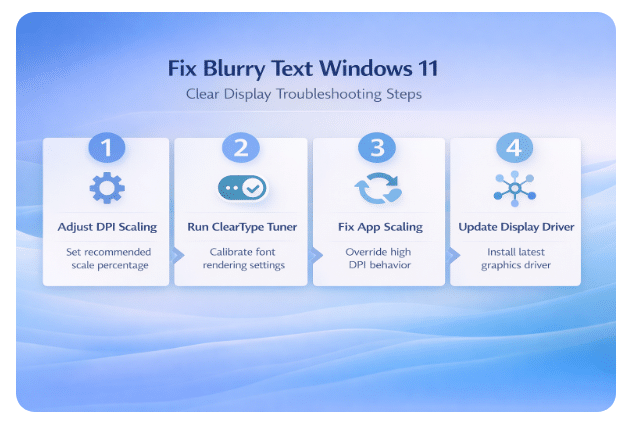
Blurry text on Windows 11 makes reading documents, browsing websites, and working with applications unnecessarily difficult, especially when you rely on sharp font rendering throughout your daily workflow. This fuzzy text Windows 11 problem typically results from incorrect DPI scaling settings, outdated display drivers, or misconfigured ClearType font smoothing options that affect how your screen renders characters. You can fix blurry text Windows 11 displays by following the structured troubleshooting steps in this article, which covers every common cause and the specific resolution for each situation.
What causes blurry font rendering on Windows 11 displays?
Several factors contribute to the blurry font Windows 11 issue, ranging from simple display scaling mismatches to deeper graphics driver conflicts that require targeted adjustments within your system configuration. Understanding why text rendering Windows 11 appears fuzzy helps you select the correct fix without spending unnecessary time on troubleshooting steps that do not apply to your particular setup.
Display scaling and DPI settings conflicts
Windows 11 uses DPI scaling to adjust the size of text and interface elements on high-resolution monitors, but incorrect scaling percentages can produce blurry or fuzzy output. When you connect an external monitor with a different native resolution than your primary display, Windows may apply a scaling factor that does not match the panel perfectly. The mismatch between the recommended scaling percentage and the one currently applied on your system is the most frequent cause of blurry text across applications.
Outdated or incompatible graphics drivers
Your graphics driver translates system font rendering instructions into the pixel output displayed on your monitor, and outdated versions may handle high DPI scaling incorrectly. Intel, NVIDIA, and AMD regularly release driver updates that improve text clarity and fix known display scaling bugs affecting Windows 11 systems running on modern hardware. If your computer is running slow after a Windows 11 update, the same outdated driver causing performance issues may also be responsible for blurry fonts.
How to fix blurry text Windows 11 through display settings
The Windows 11 Settings application provides built-in controls for adjusting display scaling, resolution, and font smoothing that directly affect how clearly text appears on your screen. Accessing these options requires navigating to Settings > System > Display where you can review and modify the scaling percentage and resolution currently applied to each connected monitor.
Adjust the DPI scaling percentage to the recommended value
Setting the display scaling to the value Windows 11 recommends for your specific monitor resolution ensures that fonts render at the correct size without interpolation artifacts causing blurriness.
- Open display settings — Right-click your desktop and select Display settings to access the scaling controls, then locate the Scale dropdown menu under the Display resolution section. Select the percentage value marked as Recommended by Windows 11, which is calculated based on your monitor’s native resolution and physical screen size for optimal clarity.
- Apply per-monitor scaling — If you use multiple monitors with different resolutions, click each display in the arrangement diagram and set the recommended scaling percentage individually for that panel. Windows 11 supports independent scaling values for each connected monitor, which prevents a single global setting from producing blurry text on displays with mismatched resolutions.
Set the correct native screen resolution
Running your monitor at anything other than its native resolution forces Windows 11 to scale the output image, which introduces blurriness across all text and interface elements. Open Settings > System > Display and verify that the Display resolution dropdown shows the value marked as Recommended, which corresponds to the physical pixel count your panel supports.
Run the ClearType text tuner to sharpen font rendering
ClearType is a font smoothing technology built into Windows 11 that optimizes how subpixel rendering displays text characters on LCD and LED monitors for improved readability. Running the ClearType tuner walks you through a visual calibration process where you select the sharpest text samples, and Windows applies those preferences to all font rendering.
- Press the Windows key, type
ClearType, and select Adjust ClearType text from the search results to open the tuner application on your Windows 11 device. - Enable the checkbox labeled Turn on ClearType if it is not already active, then click Next to begin the five-step visual calibration process for your display.
- Select the text sample that appears sharpest and clearest on each screen during the calibration, and click Finish to apply the optimized ClearType Windows 11 settings immediately.
If your system experiences high CPU or disk usage alongside display issues, resolving the resource bottleneck first may improve font rendering performance and eliminate the blurry appearance.
Fix blurry text in specific applications using DPI override
Some older desktop applications do not support the high DPI scaling mode that Windows 11 applies by default, which causes those specific programs to display blurry or fuzzy text. You can override the DPI scaling behavior for individual applications by modifying their compatibility properties, which forces Windows to handle the scaling at the system level instead.
- Access compatibility settings — Right-click the application shortcut or executable file, select Properties, and navigate to the Compatibility tab where you can find the DPI scaling override options. Click Change high DPI settings and enable the checkbox labeled Override high DPI scaling behavior with the scaling performed by selecting System from the dropdown menu.
- Apply the fix system-wide — Navigate to Settings > System > Display > Graphics to configure DPI scaling preferences for multiple applications simultaneously using the Windows 11 graphics settings panel. This approach is particularly useful when you have several legacy programs that all exhibit the blurry text problem and need the same override applied consistently.
Update your graphics driver to resolve display scaling bugs
Graphics driver updates frequently include fixes for text rendering issues, font smoothing improvements, and better high DPI scaling support that directly address blurry text problems. Open Device Manager by pressing Win + X and selecting it from the menu, then expand the Display adapters section to find your installed graphics card hardware.
Right-click your graphics adapter and select Update driver, then choose Search automatically for drivers to let Windows find and install the latest compatible version. For the best results, download the most recent driver directly from your GPU manufacturer’s website because the Windows Update driver catalog may not contain the newest release. Keeping your system updated also helps reduce CPU usage on Windows 11 while ensuring your display pipeline operates with the latest optimizations available from your hardware vendor.
Best practices to prevent blurry text on Windows 11
Adopting consistent display configuration habits keeps text rendering sharp across all applications and prevents the blurry font Windows 11 problem from recurring after system changes.
- Use recommended scaling values — Always select the scaling percentage marked as Recommended in your display settings, and avoid using custom scaling values that produce non-integer multipliers likely to blur fonts. When you customize your Windows 11 Start menu or other interface elements, verify that your scaling settings remain at the recommended value afterward.
- Keep drivers and Windows updated — Enable automatic driver updates through Windows Update and periodically check your GPU manufacturer’s website for newer versions that may include font rendering improvements. Ensuring your system receives the latest patches by enabling automatic Windows 11 updates helps prevent display regressions introduced by outdated software components on your machine.
- Calibrate ClearType after display changes — Run the ClearType tuner again whenever you connect a new monitor, change your screen resolution, or update your graphics driver to ensure font smoothing settings match your current configuration.
Frequently asked questions about blurry text on Windows 11
Why is my text blurry on Windows 11?
Text appears blurry on Windows 11 when your display scaling percentage does not match the recommended value for your monitor’s native resolution, causing the system to interpolate fonts. Outdated graphics drivers, disabled ClearType font smoothing, and applications that lack high DPI scaling support are additional common causes that produce fuzzy text rendering on your screen. Adjusting your DPI scaling to the recommended percentage and running the ClearType tuner resolves the issue in the majority of cases encountered on Windows 11 devices.
How do I fix blurry fonts in Windows 11?
You can fix blurry fonts in Windows 11 by setting your display scaling to the recommended percentage, running the ClearType text tuner, and updating your graphics driver to the latest version. For applications that remain blurry after these system-level changes, right-click the program executable and override the high DPI scaling behavior through the Compatibility tab properties dialog. Following all the troubleshooting methods described in this article systematically addresses every common cause of the blurry font Windows 11 problem on desktop and laptop computers.
Does ClearType fix blurry text on Windows 11?
ClearType improves font rendering clarity by optimizing how Windows 11 uses subpixel rendering to display text characters on LCD and LED panels with greater sharpness and definition. Enabling and calibrating ClearType through the built-in tuner tool resolves blurry text caused by font smoothing misconfiguration, which is one of the most common causes on Windows 11 systems. However, ClearType alone cannot fix blurriness caused by incorrect DPI scaling percentages or outdated graphics drivers, so you may need additional troubleshooting steps for complete resolution.