You’re working on an important project deadline when Microsoft Copilot suddenly closes without warning. You reopen it, type your prompt, and moments later it crashes again. After the third attempt, you start wondering if the problem is with your system, your network, or Copilot itself.
Understanding the issue and what causes Copilot crashes
Microsoft Copilot crashing repeatedly on Windows 11 can stem from several technical factors including outdated system components, conflicting applications, corrupted cache files, or service disruptions. This tutorial will walk you through a systematic approach to diagnose why Copilot keeps shutting down and provide actionable solutions to restore stable functionality. You’ll need administrator access to your Windows 11 device and an active internet connection. The fixes apply to both the integrated Windows 11 Copilot and the standalone Copilot app, though some steps are version-specific.
Important Tip: Before diving into complex troubleshooting, check if Microsoft is experiencing service outages by visiting the Microsoft 365 Service Health Dashboard or searching for recent Copilot status updates online.
How to diagnose and resolve persistent Copilot crashes
When Copilot crashes on startup or during use, methodically working through potential causes will help you identify the root issue and implement the right fix for your situation.
Quick fixes to stop Copilot from crashing immediately
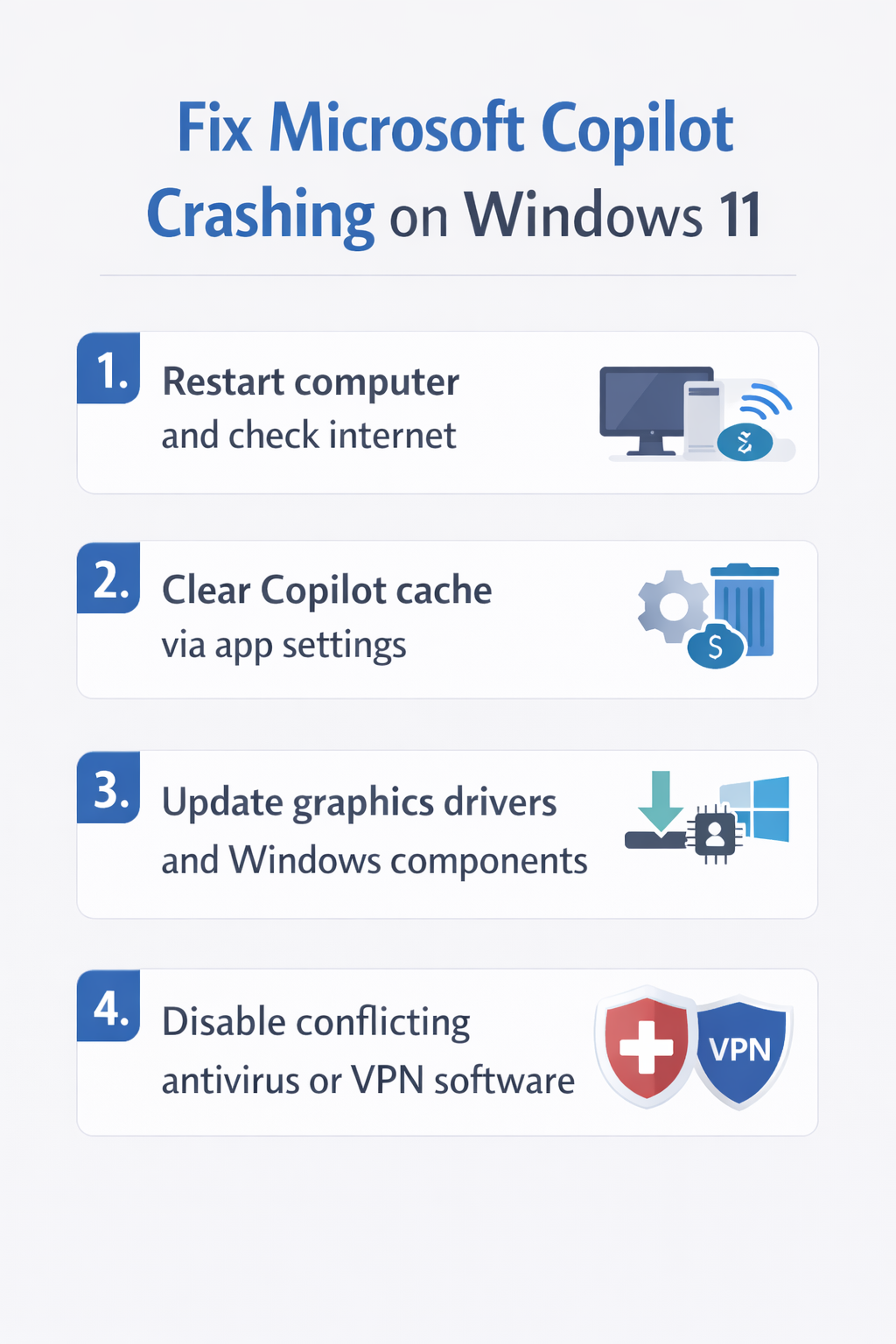
- Restart your computer to clear temporary system states that might be causing Copilot to malfunction, as many crash issues resolve after a simple reboot.
- Check your internet connection stability by opening a web browser and loading several websites, since Copilot requires consistent connectivity to Microsoft cloud services.
- Close unnecessary background applications especially resource-intensive programs like video editors or virtual machines that might be consuming memory Copilot needs to function properly.
- Update Windows 11 to the latest version by opening Settings, navigating to Windows Update, and clicking Check for updates to ensure system compatibility. If you’re experiencing similar issues with other Microsoft applications, you might also want to review how to fix Microsoft Teams not working as these solutions often share common troubleshooting approaches.
Clearing cache and resetting the Copilot application
- Open Windows Settings by pressing Windows key plus I, then navigate to Apps followed by Installed apps to locate Microsoft Copilot in your application list.
- Click the three-dot menu next to Copilot and select Advanced options, then scroll down to find the Reset section with options to repair or reset.
- Try the Repair option first by clicking the Repair button, which attempts to fix corrupted files without deleting your settings or preferences.
- If Copilot continues crashing after repair, return to Advanced options and click Reset to completely clear all app data and restore default configurations.
- For the integrated Windows 11 Copilot, open Command Prompt as administrator and run the command “wsreset.exe” to clear the Microsoft Store cache that might affect Copilot.
- Navigate to the local app data folder by typing “%localappdata%\Packages” in File Explorer’s address bar and locate folders containing “Copilot” or “Microsoft.Copilot” in their names.
- Delete these Copilot-related folders after closing the application completely, then restart your computer to allow Windows to regenerate fresh configuration files on next launch.
Expert Tip: Always create a system restore point before deleting application folders manually, giving you a rollback option if something goes wrong during troubleshooting.
Updating graphics drivers and system components
- Open Device Manager by right-clicking the Start button and selecting it from the menu, then expand the Display adapters section to view your graphics card.
- Right-click your graphics adapter and select Update driver, then choose Search automatically for drivers to let Windows find the latest compatible version from Microsoft’s servers.
- Visit your graphics card manufacturer’s website directly, whether that’s NVIDIA, AMD, or Intel, to download the most recent drivers since manufacturer sites often have newer versions.
- Install any pending Windows updates by opening Settings, clicking Windows Update, and selecting Advanced options to check for optional updates including driver updates.
- Update Microsoft Edge browser to the latest version since Copilot relies on Edge WebView2 components, which you can do by opening Edge and navigating to Settings then About Microsoft Edge.
Disabling conflicting software and security settings
- Temporarily disable third-party antivirus software by right-clicking its system tray icon and selecting disable or pause protection, then test if Copilot launches successfully without crashes.
- Open Windows Security by searching for it in the Start menu, navigate to Virus and threat protection, then click Manage settings under protection settings.
- Add Copilot to your antivirus exclusions list by navigating to the exclusions section and adding the Copilot executable file location to prevent security software from interfering.
- Disable VPN connections temporarily to test if network routing or firewall rules within your VPN configuration are blocking Copilot’s connection to Microsoft cloud services.
- Check Windows Firewall settings by opening Control Panel, selecting System and Security, then Windows Defender Firewall, and clicking Allow an app through Windows Firewall to verify Copilot permissions.
Common problems when Copilot keeps shutting down
- Copilot crashes immediately on startup without displaying any interface, which typically indicates corrupted installation files that require a complete uninstall and reinstall from the Microsoft Store.
- Error messages mentioning WebView2 appear before crashes, meaning you need to download and manually install the latest Microsoft Edge WebView2 Runtime from Microsoft’s official download page.
- Copilot works for a few minutes then suddenly closes during active conversation, suggesting memory or resource constraints that you can address by closing other applications or upgrading system RAM.
- The application crashes only when using specific features like image generation or document analysis, pointing to feature-specific service issues that may require waiting for Microsoft to deploy backend fixes.
Remember: If crashes persist after trying all troubleshooting steps, consider creating a new Windows user profile to test whether user-specific settings or corruptions are causing the instability.
By systematically working through these troubleshooting steps, you should be able to identify why Microsoft Copilot keeps crashing on your Windows 11 system and implement the appropriate fix. Most crash issues resolve through cache clearing, driver updates, or addressing software conflicts, though occasional service outages may require patience while Microsoft resolves backend infrastructure problems.