Understanding file extension visibility challenges
Have you ever received a file from a colleague and couldn’t immediately identify its format because Windows 11 hides file extensions by default? This common scenario affects IT professionals and end users alike when trying to quickly assess file types, verify document formats, or troubleshoot compatibility issues across different applications and systems.
Problem overview and configuration approach
Windows 11 ships with file extensions hidden to create a cleaner visual experience for everyday users. However, this default setting can create confusion in professional environments where file type identification is critical for workflow management, security assessments, and application compatibility.
This tutorial covers multiple methods to enable file extension visibility in Windows 11, including the standard File Explorer ribbon method, the classic Folder Options dialog, and registry modifications for enterprise deployment. You will learn to configure these settings for individual users and understand the implications for organizational policy management.
Prerequisites include Windows 11 with administrator access for registry modifications. The primary tools involved are File Explorer, Windows Settings, and Registry Editor for advanced configurations.
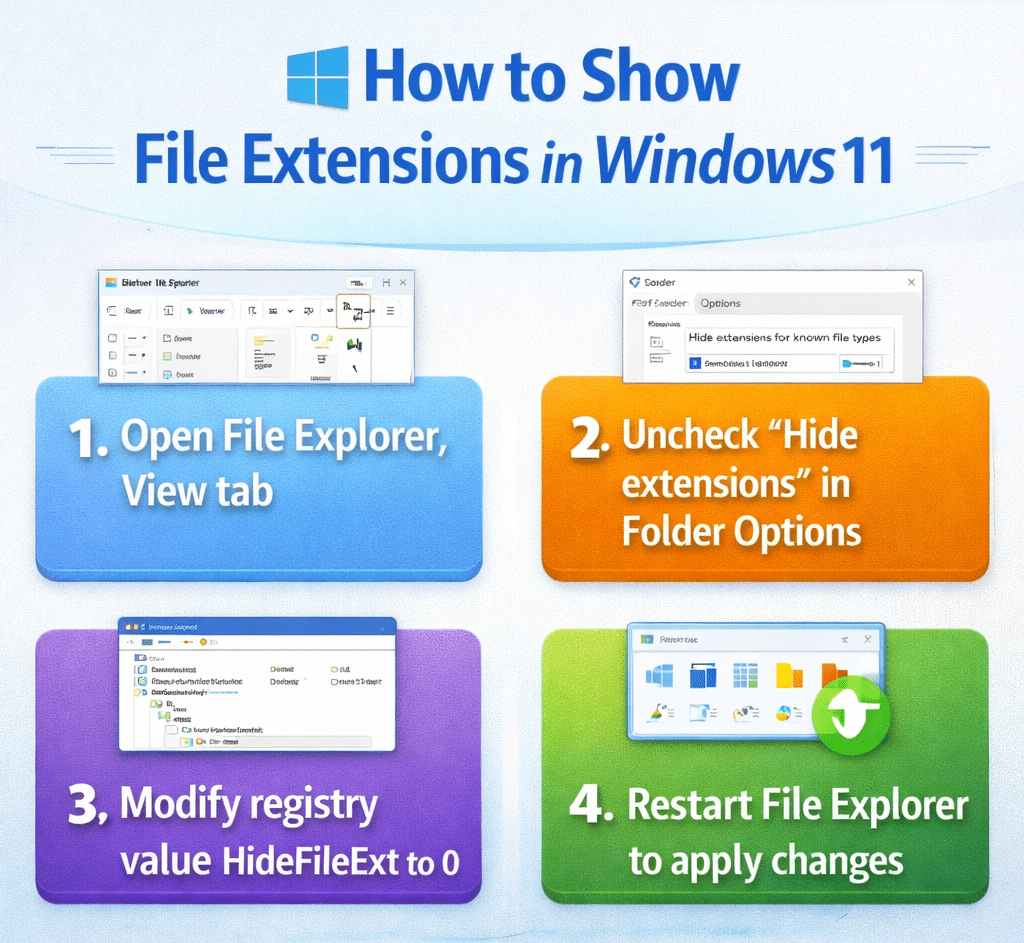
Enabling extensions through File Explorer ribbon
The most straightforward method involves using the File Explorer ribbon interface that provides immediate access to view customization options.
- Open File Explorer by clicking the folder icon in the taskbar or pressing Windows key + E to launch the file management interface.
- Navigate to any folder containing files with various extensions to observe the current display behavior before making changes.
- Click the View tab in the File Explorer ribbon to access the display and layout customization options available in the current interface.
- Locate the Show section within the View ribbon and check the box next to File name extensions to immediately enable extension visibility.
- Verify the change by observing that file names now display their complete extensions such as .docx, .pdf, or .xlsx throughout the File Explorer interface.
Expert Tip: The ribbon method applies changes immediately without requiring system restarts or additional confirmation dialogs, making it ideal for quick adjustments during active work sessions.
Using traditional Folder Options dialog
The classic Folder Options dialog provides additional customization capabilities and remains available for users familiar with previous Windows versions.
- Access Folder Options by clicking the three-dot menu in File Explorer and selecting Options from the dropdown menu that appears.
- Navigate to the View tab within the Folder Options dialog to access advanced display settings that control file and folder presentation.
- Scroll through the Advanced settings list to locate the Hide extensions for known file types option that controls extension visibility behavior.
- Uncheck the Hide extensions for known file types checkbox to enable extension display for all recognized file formats throughout the system.
- Click Apply to save the configuration changes, then click OK to close the dialog and implement the new display settings immediately.
Common configuration troubleshooting
Several challenges may arise when configuring file extension visibility, particularly in managed enterprise environments or systems with restricted user permissions.
- Extension visibility changes not applying immediately across all File Explorer windows requires closing and reopening File Explorer instances to refresh the display settings properly.
- Group Policy restrictions preventing individual users from modifying file display settings necessitates administrator intervention or policy exceptions for specific user accounts or organizational units.
- Registry modifications failing due to insufficient permissions indicates the need for elevated administrator access or alternative deployment methods through enterprise management tools.
- Some file types continuing to hide extensions despite configuration changes occurs when specific applications or file associations override system-wide display settings through their own registration entries.