
Teams not detecting microphone during important meetings
You join a client presentation, click unmute, and nothing happens because Microsoft Teams isn’t detecting your microphone. Your colleagues can’t hear your contributions, and you’re frantically checking device settings while the meeting continues without you. This technical hiccup transforms productive collaboration into a source of professional embarrassment and missed opportunities.
Teams your microphone isn’t working – problem and solution
Microsoft Teams microphone detection failures stem from various system-level conflicts including Windows privacy settings, driver incompatibilities, and application permission restrictions. When Teams doesn’t recognize your microphone, the root cause typically involves incorrect default audio device configurations, outdated drivers, or restrictive privacy controls blocking microphone access across the operating system.
We will be troubleshooting microphone detection issues in Microsoft Teams. You’ll learn systematic approaches to diagnose audio device conflicts, configure Windows privacy settings, update audio drivers, and verify Teams-specific microphone permissions. The solution covers both desktop application and web browser versions of Teams. We’ll primarily use Windows built-in audio troubleshooting tools, Device Manager, and Teams application settings throughout this resolution process.
Microsoft Teams microphone not detected resolution
Begin troubleshooting by verifying your microphone functions correctly outside of Teams to isolate whether the issue affects only Teams or your entire system. Open Windows Sound settings by right-clicking the speaker icon in your system tray, select “Open Sound settings,” then scroll to “Input” section and speak into your microphone while monitoring the volume level indicator.
- Test your microphone using the Windows Voice Recorder application to confirm hardware functionality before proceeding with Teams-specific troubleshooting steps
- Navigate to Windows Settings by pressing Windows key + I, select “Privacy & security,” then click “Microphone” to review which applications have microphone access permissions enabled
- Ensure the “Microphone access” toggle is enabled and scroll down to verify Microsoft Teams appears in the “Allow apps to access your microphone” list with permission granted
- Right-click the Windows Start button, select “Device Manager,” expand “Audio inputs and outputs,” then right-click your microphone device and choose “Update driver” to resolve potential driver conflicts
Microphone not showing on Teams configuration steps
Launch Microsoft Teams and click your profile picture in the top-right corner, select “Settings” from the dropdown menu, then navigate to “Devices” in the left sidebar to access audio device configuration options. Verify your preferred microphone appears in the “Microphone” dropdown list and conduct a test call to confirm Teams recognizes the selected input device properly.
- Click the “Make a test call” button in Teams device settings to verify microphone detection and audio quality before joining actual meetings or calls with colleagues
- If your microphone doesn’t appear in the dropdown list, close Teams completely, disconnect and reconnect your microphone, then restart Teams to refresh the available audio device list
- For USB microphones, try connecting to different USB ports on your computer to eliminate potential port-specific connection issues affecting device recognition in Teams
- Set your microphone as the default communication device by opening Windows Sound Control Panel, selecting the “Recording” tab, right-clicking your microphone, and choosing “Set as Default Communication Device”
Teams doesn’t recognize my microphone advanced troubleshooting
Access Windows Audio troubleshooter by opening Settings, navigating to “System,” selecting “Troubleshoot,” then “Other troubleshooters,” and clicking “Run” next to “Recording Audio” to automatically detect and resolve system-level microphone issues. This built-in diagnostic tool identifies common audio driver problems, permission conflicts, and hardware connectivity issues that prevent Teams from properly accessing your microphone.
- Clear Teams application cache by pressing Windows key + R, typing “%appdata%\Microsoft\Teams” and deleting the contents of this folder, then restart Teams to rebuild configuration files
- For browser-based Teams, check site permissions by clicking the lock icon next to the URL, ensuring microphone access is allowed, and refreshing the page to re-establish device connections
- Disable exclusive mode for your microphone by opening Sound Control Panel, selecting “Recording” tab, double-clicking your microphone, navigating to “Advanced” tab, and unchecking “Allow applications to take exclusive control”
- Update Teams to the latest version through the application settings or download the newest installer from Microsoft’s official website to resolve known microphone compatibility issues.
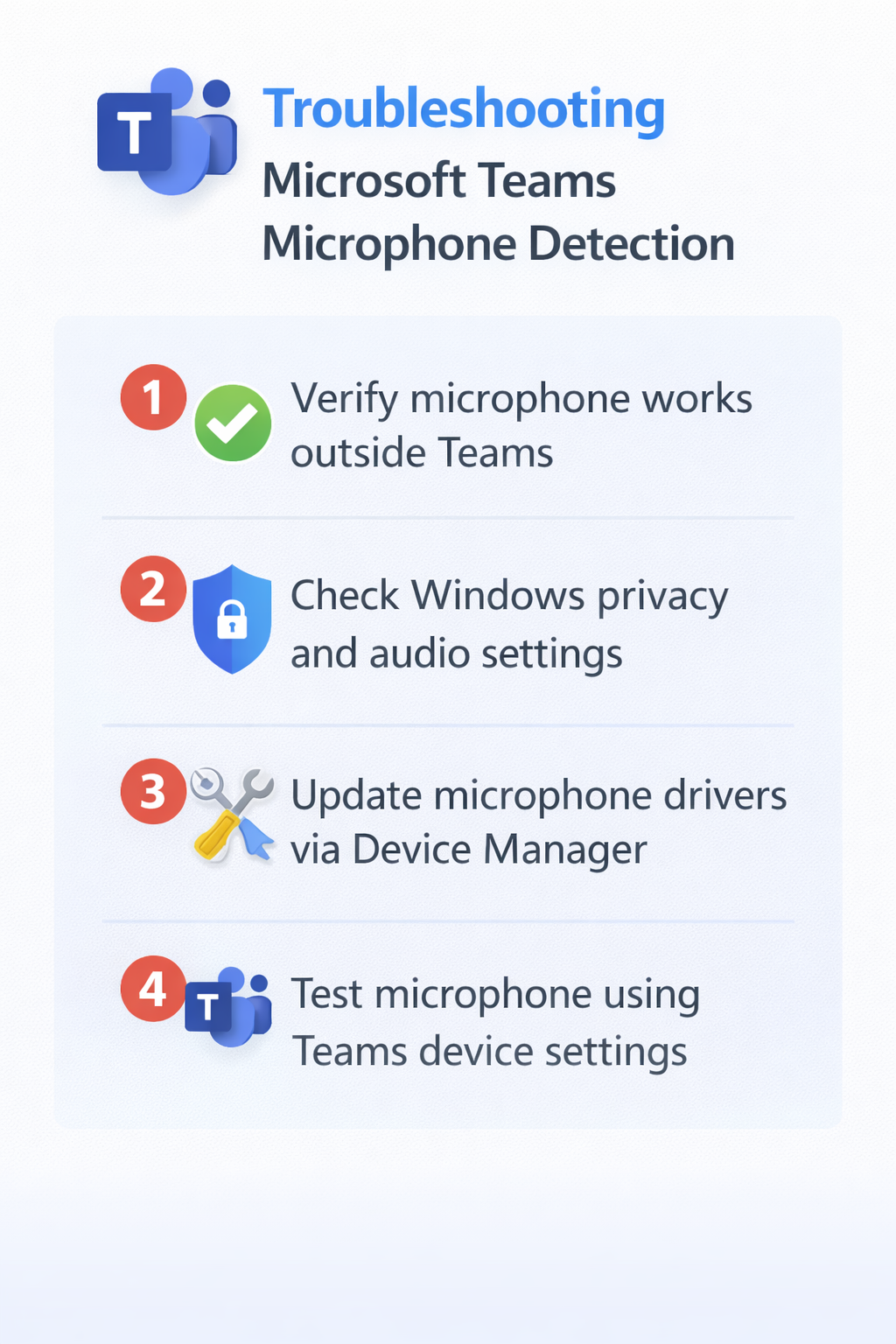
Teams not picking up microphone troubleshooting scenarios
When Teams fails to detect your microphone after system updates or new hardware installations, the issue often relates to Windows Audio Service conflicts that prevent proper device enumeration across applications.
- Restart Windows Audio Service by opening Services application, locating “Windows Audio” and “Windows Audio Endpoint Builder,” stopping both services, waiting thirty seconds, then restarting them in reverse order to refresh audio device detection
- Multiple audio devices connected simultaneously can confuse Teams device selection algorithms, causing the application to default to incorrect or inactive microphone inputs during meeting initialization
- Check for conflicting audio software like virtual audio cables, streaming applications, or recording programs that may be exclusively accessing your microphone and preventing Teams from establishing proper device connections
- Browser permission conflicts occur when Teams web version lacks proper microphone access, requiring manual permission grants through browser settings and potential security policy adjustments for enterprise environments
Expert Tip: Always test your microphone in Teams device settings before important meetings to prevent audio issues during critical business communications.