Why does my Windows 11 computer become completely unresponsive immediately after I enter my password and reach the desktop? This common scenario affects users across various hardware configurations, leaving them staring at frozen screens or dealing with systems that simply won’t respond to any input commands.
Understanding when Windows 11 freezes and not responding
Windows 11 login responsiveness issues typically manifest as system freezes, black screens, or complete unresponsiveness immediately following successful authentication. These problems often stem from driver conflicts, corrupted system files, startup program interference, or hardware compatibility issues that weren’t present in previous Windows versions.
We will go step by step to resolve situations where Windows 11 won’t respond after login, focusing on systematic diagnosis and repair techniques. You’ll learn to identify root causes, implement targeted solutions, and (we certainly hope :-)) prevent future occurrences through proper system maintenance and configuration adjustments.
Prerequisites include administrative access to your Windows 11 system, basic familiarity with Windows settings and system tools, and the ability to boot into Safe Mode if normal startup fails. We’ll cover solutions ranging from simple startup repairs to advanced system file restoration techniques.
Resolving Windows 11 not responding to computer input
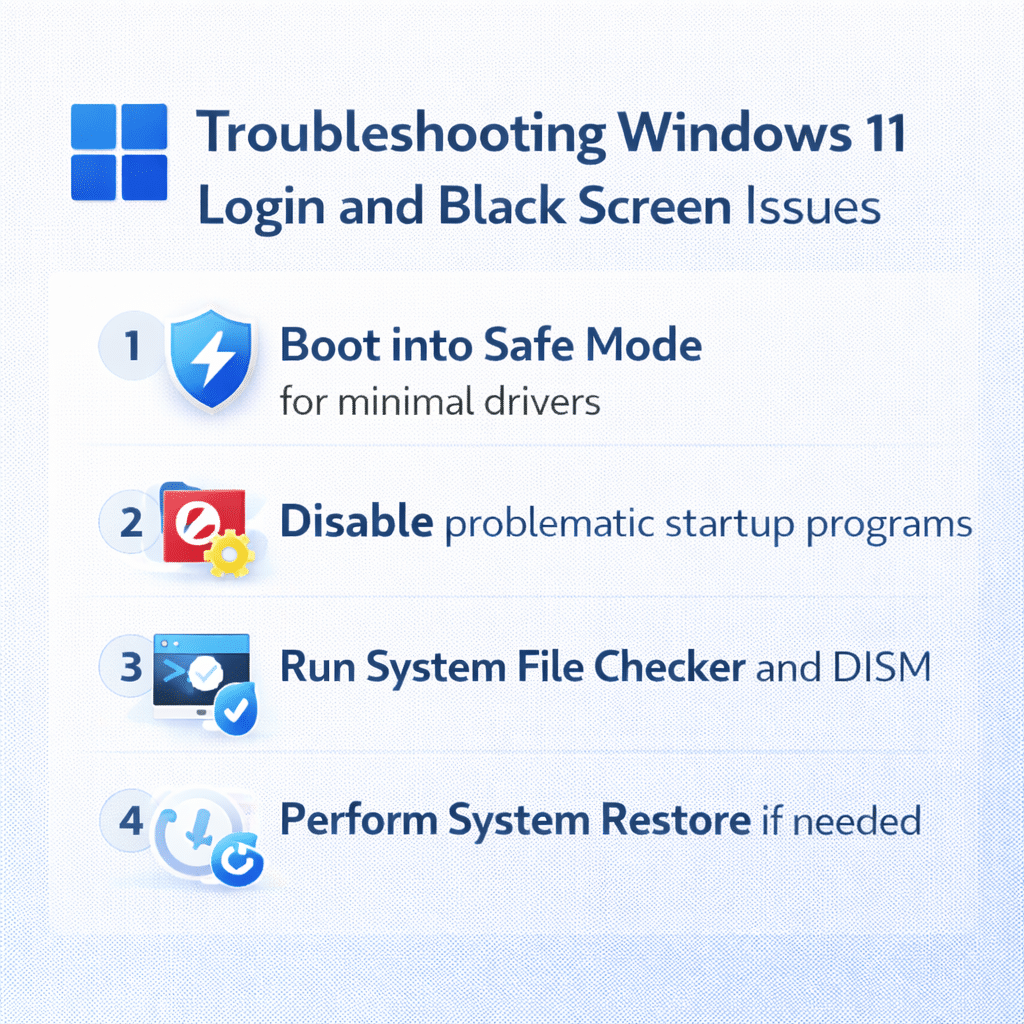
Begin troubleshooting by accessing Safe Mode, which loads Windows with minimal drivers and services to isolate problematic software or hardware conflicts causing system freezes.
- Restart your computer and immediately press F8 repeatedly during startup, or hold Shift while clicking Restart from the login screen to access Advanced Startup Options.
- Navigate to Troubleshoot > Advanced options > Startup Settings, then click Restart and select option 4 or F4 to boot into Safe Mode.
- Once in Safe Mode, open Task Manager by pressing Ctrl+Shift+Esc and review the Startup tab to identify programs with high startup impact ratings.
- Right-click problematic startup programs and select Disable, focusing on recently installed software or programs you don’t recognize as essential system components.
Expert Tip: Document which programs you disable during troubleshooting so you can systematically re-enable them later to identify the specific cause of your login issues.
Update your graphics drivers through Device Manager, as outdated or corrupted display drivers frequently cause post-login responsiveness problems in Windows 11 systems.
- Right-click the Start button and select Device Manager, then expand the Display adapters section to locate your graphics card.
- Right-click your graphics adapter and choose Update driver, selecting Search automatically for drivers to allow Windows to find the latest compatible version.
- If automatic updates fail, visit your graphics card manufacturer’s website directly to download the most recent Windows 11 compatible drivers for your specific model.
- After installing updated drivers, restart your computer normally and test whether the login responsiveness issue has been resolved.
Addressing Windows 11 black screen after login
Run the System File Checker utility to repair corrupted system files that might prevent proper desktop loading and cause black screen conditions after successful authentication.
- Open Command Prompt as administrator by right-clicking the Start button and selecting Terminal (Admin) or Windows PowerShell (Admin) depending on your system configuration.
- Execute the command
sfc /scannowand wait for the process to complete, which typically takes 15-30 minutes depending on your system specifications. - If SFC finds corrupted files it cannot repair, run the DISM command
DISM /Online /Cleanup-Image /RestoreHealthto repair the Windows image before repeating the SFC scan. - Restart your computer after completing both scans to allow repaired system files to take effect during the next login sequence.
Reset Windows Explorer process manually if your desktop appears but remains unresponsive, as Explorer crashes can cause apparent system freezes while core Windows functions continue running.
- Press Ctrl+Shift+Esc to open Task Manager, then locate Windows Explorer in the Processes tab and click to select it.
- Click the Restart button at the bottom of the Task Manager window to refresh the Explorer process, which should restore desktop responsiveness within seconds.
- If Task Manager doesn’t open, press Ctrl+Alt+Del and select Task Manager from the security screen options to access process management tools.
- Create a new Explorer task manually by clicking File > Run new task in Task Manager, typing explorer.exe, and pressing Enter if the restart option fails.
Advanced system recovery for persistent issues
Perform a System Restore to return your Windows 11 installation to a previous working state before login problems began occurring, preserving your personal files while reversing system changes.
- Boot into Safe Mode using the methods described earlier, then search for “Create a restore point” in the Start menu and open System Properties.
- Click the System Restore button and choose a restore point dated before your login issues started, typically within the past week or following recent software installations.
- Follow the wizard prompts to complete the restoration process, which may take 30-60 minutes and will require a system restart to finalize changes.
- Test normal login functionality after the restoration completes, and create a new restore point if the issue has been successfully resolved.
Troubleshooting common Windows 11 login problems
Address these frequent complications that can prevent successful resolution of Windows 11 responsiveness issues after authentication and desktop loading.
- Safe Mode access failures occur when hardware problems prevent alternative boot modes from functioning properly, requiring Windows 11 installation media to access recovery tools. Create a Windows 11 installation USB drive on another computer, boot from it, and select Repair your computer to access Advanced troubleshooting options.
- Driver update conflicts can worsen responsiveness problems if incompatible versions are installed automatically through Windows Update or manufacturer software. Use Device Manager to roll back recently updated drivers by right-clicking devices, selecting Properties, navigating to the Driver tab, and clicking Roll Back Driver.
- System File Checker reports it found corrupt files but cannot fix them, indicating deeper system damage requiring more comprehensive repair methods. Boot from Windows 11 installation media, open Command Prompt from repair tools, and run DISM commands against the offline Windows installation before attempting SFC repairs again.
- Task Manager becomes inaccessible during severe system freezes, preventing manual process management and requiring alternative approaches to regain system control. Use Ctrl+Alt+Del security screen to sign out and sign back in, or perform a hard restart followed by Safe Mode troubleshooting if software solutions remain unavailable.
Important Tip: Keep a Windows 11 installation USB drive readily available for emergency repairs, as severe login issues may prevent access to built-in recovery tools.