Managing multiple email accounts in New Outlook
Many professionals struggle with managing multiple email accounts when transitioning to New Outlook, especially when they need to ensure emails are sent from the correct primary address. A common scenario involves users who have both personal and business email accounts configured in New Outlook but find that replies and new messages are being sent from the wrong account by default. This creates confusion for recipients and can impact professional communication standards when personal addresses appear on business correspondence.
Account priority configuration and workflow setup
The challenge stems from New Outlook’s automatic account detection and priority assignment system, which may not align with your preferred sending preferences. When multiple email accounts are configured, New Outlook assigns a default sending account based on the order accounts were added or their authentication priority rather than user preference.
We will walk you through the complete process of changing your default email account in New Outlook, including configuring account priorities, managing send-from preferences, and ensuring consistent email delivery from your preferred address. You’ll learn to navigate New Outlook’s account management interface and establish proper email routing for both new messages and replies.
Set Primary email account configuration steps
Begin by opening New Outlook and accessing the account management settings to review your current email account configuration and identify which account is currently set as the default sending address.
- Click the Settings gear icon in the top-right corner of New Outlook and select Mail from the dropdown menu to access email configuration options.
- Navigate to Accounts in the left sidebar menu and review the list of configured email accounts to see the current order and priority assignment.
- Locate your preferred default email account in the accounts list and note its current position, as New Outlook typically uses the first account as the default sender.
- Click Manage next to the email account you want to set as default to access detailed account configuration options and priority settings.
- Look for the Set as default option or Primary account setting within the account management interface and enable this option for your preferred sending address.
- Confirm the change by clicking Save or Apply to ensure New Outlook updates the default sending account configuration immediately.
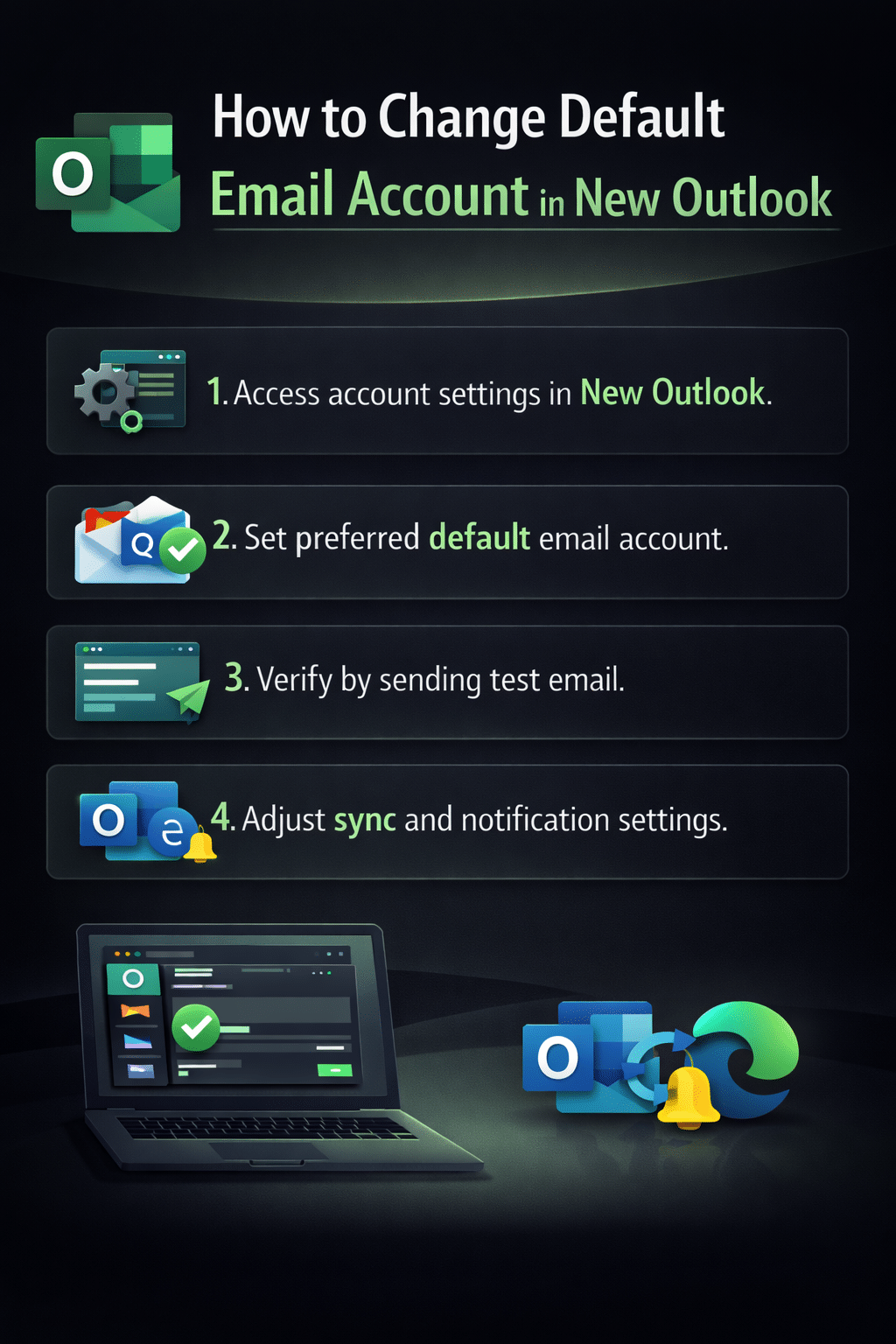
Verification and testing procedures
After making the configuration changes, verify that your default email account setting is working correctly by testing both new message composition and reply functionality.
- Compose a new email message by clicking New mail and check the From field to confirm it displays your newly configured default email address.
- Send a test email to yourself or a colleague to verify that recipients see the correct sending address in their inbox and that replies route back appropriately.
- Reply to an existing email in your inbox and verify that the From field automatically selects your new default account rather than matching the recipient account.
- Check your Sent Items folder to confirm that outgoing messages are properly attributed to your preferred default email account and stored in the correct location.
Expert Tip: If you frequently need to send from different accounts, consider creating email signatures that include your name and title for each account to maintain professional consistency regardless of the sending address.
Account synchronization and display settings
Beyond setting the default sending account, you may need to configure how New Outlook displays and prioritizes emails from multiple accounts in your unified inbox view.
- Return to Settings > Mail > Accounts and explore the Display options or Sync settings for each configured email account.
- Adjust the Sync frequency and Folder sync settings to ensure your default account receives priority in terms of notification timing and inbox prominence.
- Configure Notification settings to ensure alerts and badges prioritize messages arriving in your default email account over secondary accounts.
- Review Calendar integration settings to ensure appointments and meeting requests from your default email account take precedence in scheduling conflicts or availability displays.
Common configuration challenges and solutions
Users frequently encounter specific issues when attempting to change their default email account in New Outlook, particularly related to authentication permissions and account priority conflicts.
- Default account setting not appearing: This occurs when New Outlook hasn’t fully synchronized account permissions, requiring you to sign out of all accounts and re-authenticate each one individually through the account management interface.
- From field reverting to wrong account: New Outlook may continue using the previous default account due to cached settings, which requires clearing the application cache by going to Settings > General > Storage and selecting Clear cache and restart.
- Replies using incorrect sending address: When replying to emails, New Outlook might default to the account that received the original message rather than your preferred default, requiring manual selection of the From field for each reply until the system learns your preference.
- Synchronization delays affecting account priority: Changes to default account settings may take several minutes to propagate across all New Outlook components, particularly affecting calendar invitations and shared mailbox access, so allow 10-15 minutes for full synchronization before testing functionality.
Important Tip: Keep your secondary email accounts active in New Outlook even after changing the default, as completely removing them may cause issues with accessing historical emails and calendar events associated with those addresses.