Understanding network connectivity challenges in Windows 11
“I need to access files on our company server from my Windows 11 computer, but I’m not sure how to set up a permanent connection that appears in File Explorer like a regular drive letter.”
This is a big challenge – many organizations store critical files on network servers, and employees need reliable, persistent access to these resources without repeatedly entering network paths or credentials.
Windows 11 map network drive solution and workflow overview
Network drive mapping creates a permanent shortcut to shared folders on your network, assigning them drive letters that appear alongside your local drives in File Explorer. This functionality streamlines file access and improves productivity by eliminating the need to navigate complex network paths repeatedly.
Prerequisites for completing this tutorial:
- Windows 11 computer connected to a network
- Valid credentials for the target network resource
- Network path or IP address of the shared folder
- Administrative privileges may be required for certain network configurations
Tools used: Windows 11 File Explorer, Command Prompt, and Windows Credential Manager
Enable network drive Windows 11 through File Explorer
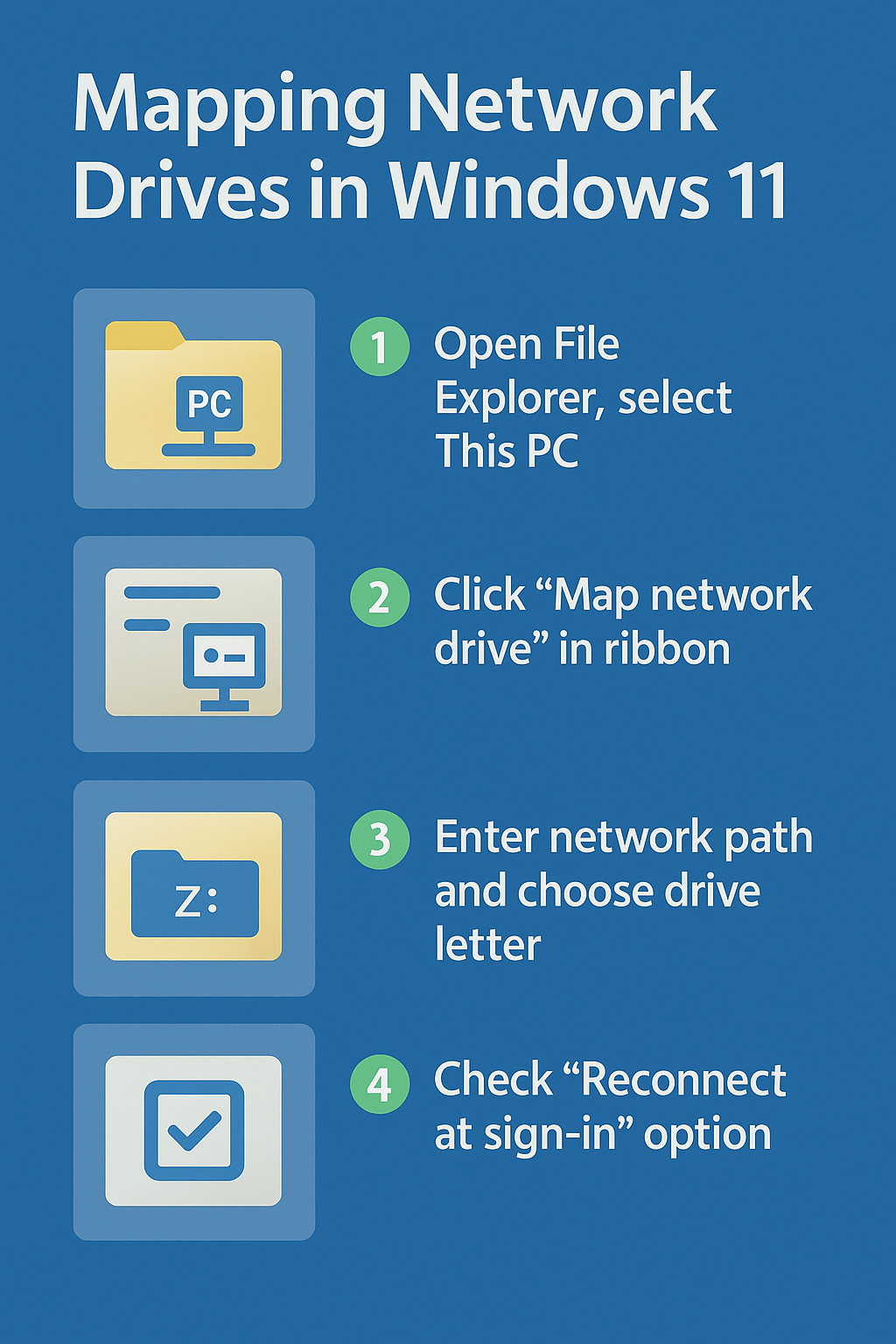
The most straightforward method for mapping network drives involves using File Explorer’s built-in functionality, which provides an intuitive interface for establishing persistent network connections.
- Open File Explorer by pressing Windows key + E, then locate and click “This PC” in the left navigation pane.
- Click the “Map network drive” button in the Computer tab of the ribbon menu, or right-click on “This PC” and select “Map network drive” from the context menu. If you’re having trouble locating network resources, you might need to map SharePoint or OneDrive drives to Windows using similar techniques for cloud-based storage solutions.
- Select an available drive letter from the dropdown menu, choosing any letter not currently assigned to local drives or existing network connections.
- Enter the network path in the “Folder” field using the Universal Naming Convention format (\servername\sharename or \IP-address\sharename), ensuring you use backslashes rather than forward slashes.
- Check the “Reconnect at sign-in” option if you want Windows 11 to automatically restore this network connection every time you log into your computer.
- If the shared folder requires different credentials than your current Windows login, check “Connect using different credentials” to specify alternative authentication information.
Accessing network drive Windows 11 with advanced options
- Click “Browse” next to the folder field to navigate through available network resources if you’re unsure of the exact path, allowing Windows to discover shared folders automatically.
- For connections requiring specific authentication, click “Finish” and enter the required username and password when prompted, using the format domain\username if connecting to a domain resource.
- Verify the connection by checking that the new drive letter appears under “Network locations” in File Explorer’s This PC section, confirming successful mapping.
- Test file access by double-clicking the mapped drive and attempting to open or create files, ensuring you have appropriate permissions for your intended operations.
Expert Tip: Save time by copying the network path from another computer already connected to the same resource, or ask your IT administrator for the exact UNC path format.
Windows 11 map network folder using Command Prompt
- Open Command Prompt as an administrator by right-clicking the Start button and selecting “Windows Terminal (Admin)” or searching for “cmd” and choosing “Run as administrator.”
- Use the net use command with the following syntax:
net use [drive letter]: \\servername\sharename /persistent:yesto create a permanent network drive mapping. - Add credentials directly to the command using:
net use Z: \\server\share /user:domain\username password /persistent:yesreplacing the placeholders with your actual network information. - Verify successful mapping by typing
net usewithout parameters to display all current network connections and their status information.
Create network path Windows 11 troubleshooting solutions
Network drive mapping can encounter various obstacles related to permissions, network connectivity, or Windows security settings that prevent successful connections.
- Connection timeout or “network path not found” errors typically indicate incorrect network paths, server unavailability, or network connectivity issues requiring verification of the server name, IP address, and network connection status.
- Access denied errors usually result from insufficient permissions or incorrect credentials, necessitating confirmation of your username, password, and access rights to the target shared folder with your network administrator.
- Drive letter conflicts occur when attempting to use already assigned letters, resolved by selecting different available letters or disconnecting existing mapped drives that are no longer needed.
- Persistent connection failures where mapped drives disappear after restart often stem from Windows security policies or credential storage issues, requiring adjustment of local security policies or manual credential entry in Windows Credential Manager.
Mapped network drives Windows 11 credential management
- Access Windows Credential Manager through Control Panel > User Accounts > Credential Manager, then select “Windows Credentials” to view and manage stored network authentication information.
- Add new credentials manually by clicking “Add a Windows credential” and entering the server address, username, and password to ensure automatic authentication for future connections.
- Remove outdated or conflicting credentials that might interfere with new connections by selecting existing entries and clicking “Remove” to clear authentication conflicts.
- Test credential functionality by disconnecting and reconnecting the mapped drive to verify that stored credentials work correctly and provide seamless access to network resources.
Important Tip: Document your network paths and drive letter assignments to maintain consistency across multiple computers and simplify future troubleshooting efforts.