Copilot slow today and what causes performance issues
Microsoft Copilot has become an essential productivity tool for millions of Microsoft 365 users who rely on it daily across Teams, Word, and Excel. When Copilot slow response time disrupts your workflow, the frustration can significantly reduce your overall output and derail carefully planned schedules for the entire workday. Understanding why Copilot is slow today requires examining several common factors that range from server-side outages to local device configurations that need your immediate attention.
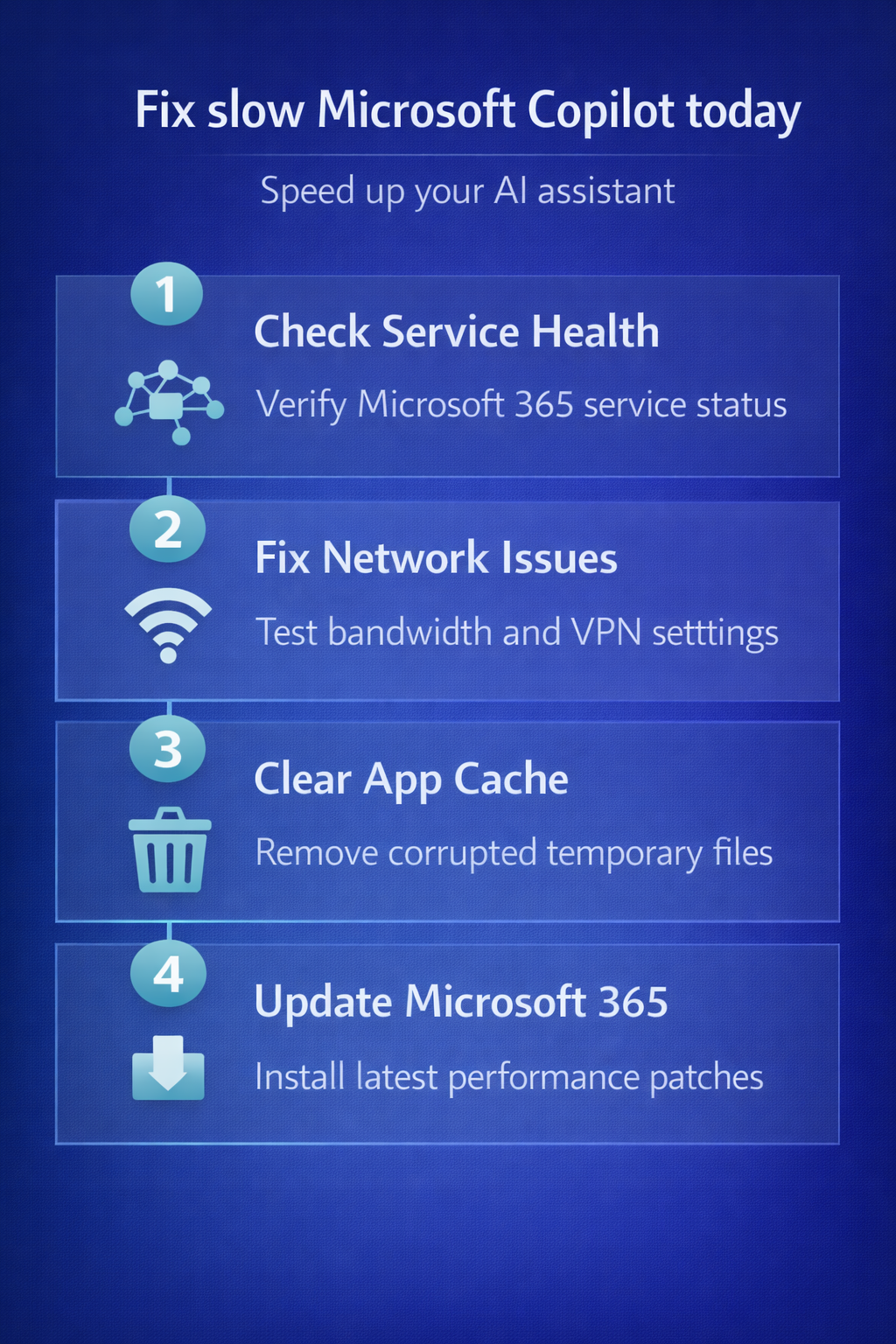
Check Microsoft service health status first
The most common reason for Microsoft Copilot running slow across an entire organization is a service-side incident that affects all users in your region simultaneously. Microsoft maintains a Service Health Dashboard inside the Microsoft 365 Admin Center where administrators can verify whether active incidents are impacting Copilot services right now. Before spending time troubleshooting your local setup, checking the copilot server status should always be your very first step when experiencing sudden performance degradation across multiple apps.
How to access the service health dashboard
- Sign into the Microsoft 365 Admin Center at admin.microsoft.com with your administrator credentials and navigate to the Health section
- Select Service Health from the left navigation panel, then filter the view to show only Microsoft Copilot and related service entries
- Review any active advisories or incidents that mention Copilot latency problems, degraded performance, or partial service availability in your geographic region
- Check the official Microsoft 365 Status account on X for real-time updates when the Admin Center itself experiences access delays or loading issues
Resolve network connectivity and bandwidth limitations
Microsoft Copilot requires a stable internet connection with adequate bandwidth because every prompt you submit travels to cloud servers that process your request and return results. Network congestion during peak business hours can cause copilot performance issues that manifest as delayed responses, timeout errors, or incomplete suggestions that cut off unexpectedly mid-sentence. Organizations using VPN connections or restrictive firewall policies may inadvertently block or throttle the specific endpoints that Copilot needs to function at full speed. You can also test Microsoft Teams connection and performance to identify whether Teams-specific network issues are contributing to Copilot delays.
Steps to improve your network performance
- Run a speed test at speedtest.net to confirm your download speed exceeds 10 Mbps and your upload speed exceeds 5 Mbps for optimal Copilot operation
- Disconnect from your VPN temporarily to determine whether the VPN tunnel itself is introducing the additional latency that causes Copilot to respond slowly
- Contact your IT department to verify that Microsoft 365 network endpoints are allowlisted in your organization firewall and proxy configuration settings without throttling
Clear cache and restart your Microsoft 365 applications
Accumulated cache data in Microsoft 365 applications can become corrupted over time and directly contribute to microsoft 365 copilot lag that worsens progressively with each session. Copilot cache clearing resolves many performance problems because it forces the application to establish fresh connections and download updated configuration files from Microsoft servers. Restarting applications after clearing the cache ensures that all background processes terminate cleanly and reinitialize with the corrected settings and updated service connections.
Cache clearing instructions for common applications
- Microsoft Teams: Close Teams completely, delete the contents of the %appdata%/Microsoft/Teams/Cache folder, then relaunch the application from your desktop shortcut. For a detailed walkthrough with screenshots, go ahead and delete the Microsoft Teams cache on Windows and Mac
- Microsoft Word and Excel: Open the application, navigate to File then Options then Advanced, scroll to the General section, and click Clear next to cached content
- Microsoft Edge with Copilot: Open Settings then Privacy then Clear Browsing Data, select cached images and files along with cookies, then restart the browser completely
Update Microsoft 365 apps to the latest version
Outdated Microsoft 365 applications frequently cause copilot not responding fast or failing to generate responses because older versions lack critical performance patches and optimizations. Microsoft releases monthly updates that include Copilot-specific improvements, bug fixes for known latency issues, and compatibility enhancements that significantly improve overall response times across all applications. Running the latest version ensures your applications use the most efficient communication protocols when connecting to the Copilot backend infrastructure and processing your requests. If Copilot stops functioning entirely rather than running slowly, see our separate walkthrough to on troubleshooting Microsoft Copilot not responding for additional troubleshooting steps.
How to check and install updates
- Open any Microsoft 365 application such as Word or Excel, click File, then select Account from the left sidebar to view your current version
- Click Update Options then select Update Now to trigger an immediate check for available updates that may resolve your Copilot slow response time issues
- Restart all Microsoft 365 applications after the update completes to ensure the new components load properly and replace any cached outdated service configurations
Reduce workload and optimize Copilot prompt complexity
Copilot performance issues sometimes result from overly complex prompts that require extensive processing, especially when working with large documents, spreadsheets, or lengthy Teams conversations. Simplifying your prompts and breaking complex requests into smaller sequential steps can dramatically reduce the time Copilot needs to generate accurate and comprehensive responses. Closing unnecessary Microsoft 365 applications that you are not actively using frees up system resources and reduces competing network requests that can slow Copilot operations. If Teams itself consumes excessive resources, follow our instructions to resolve Teams high memory and CPU usage before troubleshooting Copilot further.
Tips for faster Copilot responses
- Keep your prompts focused on a single specific task rather than combining multiple unrelated requests into one complex instruction that overloads the processing pipeline
- Close browser tabs and background applications consuming significant bandwidth because they compete directly with Copilot for your available network capacity and system resources
- Break large document summarization requests into section-by-section prompts that allow Copilot to process manageable chunks instead of analyzing the entire document simultaneously
Frequently asked questions
Why is Microsoft Copilot so slow and how can I speed it up?
Microsoft Copilot becomes slow due to server-side outages, network connectivity problems, outdated application versions, or corrupted cache files that degrade communication with Microsoft cloud services. Checking service health status, clearing your application cache, updating to the latest Microsoft 365 version, and optimizing your network connection are the most effective steps to fix slow Copilot. For cases where Copilot freezes completely, our walkthrough to fix Microsoft Copilot not responding covers additional recovery methods.
Is Copilot experiencing outages or server issues today?
You can verify current Copilot server status by visiting the Microsoft 365 Service Health Dashboard in your Admin Center or checking the official Microsoft 365 Status page. Widespread outages typically affect multiple users simultaneously and Microsoft publishes incident reports with estimated restoration times for all affected services and geographic regions directly on these platforms.
Does clearing cache and restarting fix slow Copilot performance?
Clearing the cache in Microsoft Teams, Word, Excel, and Edge removes corrupted temporary files that often cause microsoft 365 copilot lag and degraded response times. Restarting your applications after copilot cache clearing forces fresh connections to Microsoft servers, which resolves the majority of locally caused Copilot performance degradation issues effectively.
Take action now to fix slow Copilot performance
When you wonder why is Copilot slow today, a systematic troubleshooting approach starting with service health checks and progressing through network, cache, and update fixes resolves most issues. Bookmark the Microsoft 365 Service Health Dashboard and configure notifications so you receive immediate alerts whenever Copilot experiences service degradation in your specific region. Applying these proven steps consistently ensures that your Copilot experience remains fast, reliable, and productive across all your Microsoft 365 applications throughout each business day.