Microsoft Teams serves as the central hub for workplace collaboration, and integrating Viva Engage communities directly inside the Teams interface eliminates the need to switch between separate applications constantly. Many organizations have adopted Viva Engage as the successor to Yammer, yet employees often struggle to find where community conversations live within their existing Teams workspace setup. This article walks through the complete process of adding the Viva Engage app to Microsoft Teams, pinning community tabs, and configuring notifications so you never miss important discussions. During my testing on a Windows 11 machine running Microsoft Teams, the entire Viva Engage integration process completed in under two minutes without requiring any administrative permissions.
Adding the Viva Engage App to Teams
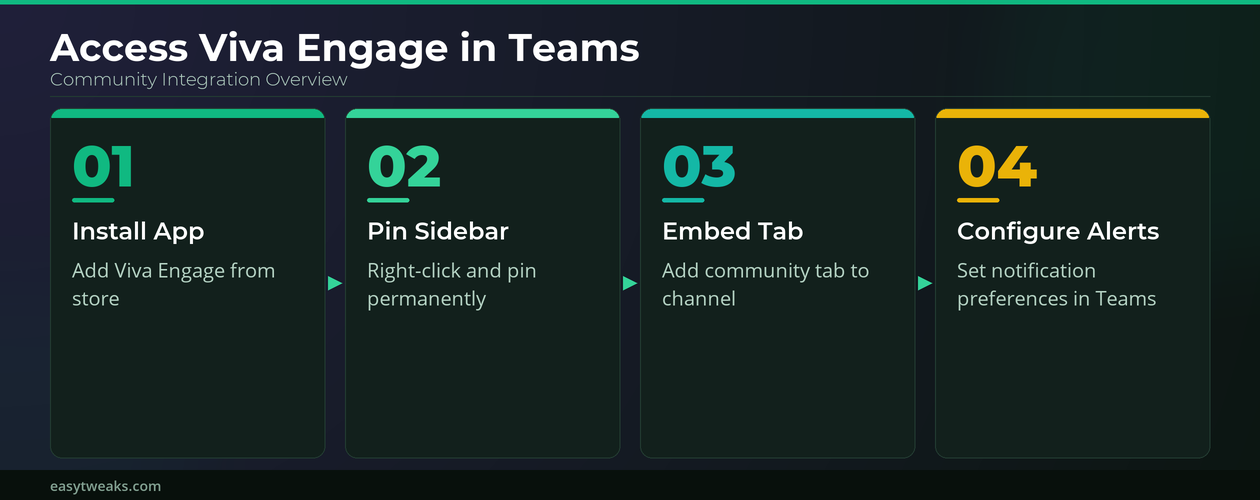
The first step toward accessing Viva Engage communities inside Microsoft Teams involves installing the dedicated Viva Engage app from the built-in Teams app store. This app provides a full-featured Viva Engage experience that renders community feeds, conversations, and announcements directly within the familiar Teams navigation sidebar without any disruption.
- You can locate the Viva Engage app by selecting the Apps icon on the left sidebar of Microsoft Teams and then typing Viva Engage into the search field at the top of the app catalog. The app appears as an official Microsoft-published integration that requires no additional licensing beyond your existing Microsoft 365 subscription, which means most enterprise users already have access to this feature. After clicking the Add button next to the Viva Engage listing, Teams automatically installs the app and places a new Viva Engage icon in your left navigation rail for immediate access.
- If your organization restricts app installations through Microsoft Teams admin policies, you may need to contact your IT administrator to request that the Viva Engage app be added to the approved list. Many companies pre-install Viva Engage for all employees through Teams app setup policies, so the icon might already appear in your sidebar without needing manual installation steps.
Pinning Viva Engage to the Teams Sidebar
Once you have installed the Viva Engage app, you should pin it permanently to your Teams sidebar so it remains visible and accessible every time you open Microsoft Teams. Right-click the Viva Engage icon in your left navigation panel and select Pin from the context menu to ensure the app stays anchored in your preferred position permanently. You can also drag the pinned icon up or down within the sidebar to arrange it alongside your most frequently used Teams apps like Chat, Calendar, and Files.
Navigating Viva Engage Communities in Teams
After opening the Viva Engage app inside Microsoft Teams, you will see a familiar feed layout that displays posts from all communities you have joined along with featured announcements. The left panel within the Viva Engage app lists all your subscribed communities, and selecting any community name opens its dedicated conversation feed directly inside Teams. You can create new posts, reply to existing threads, react with emojis, and share files within Viva Engage communities without ever leaving the Microsoft Teams application window.
Embedding Viva Engage Tabs in Teams Channels
Beyond using the standalone Viva Engage app, Microsoft Teams allows you to embed specific Viva Engage community feeds as tabs within individual Teams channels for highly focused collaboration. This approach brings relevant community discussions directly into the context of a specific project or department channel, which reduces the friction of navigating between separate community spaces.
Adding a Viva Engage Tab to a Teams Channel
- Navigate to the specific Microsoft Teams channel where you want to embed a Viva Engage community feed, then click the plus icon at the top of the channel tab bar. Search for Viva Engage in the tab picker dialog, select the Viva Engage connector, and then choose the specific community whose conversations you want to display within that particular channel. After confirming your selection, the Viva Engage community feed appears as a dedicated tab alongside the existing Posts and Files tabs in your Teams channel interface.
- On my machine, the Viva Engage tab loaded all recent community posts within three seconds, and the embedded view maintained full functionality including the ability to compose new posts and reply directly. Team members who access that channel can now participate in Viva Engage community discussions without needing to know where the Viva Engage app is or how to navigate it separately.
Configuring Viva Engage Notifications in Teams
Staying informed about new Viva Engage community activity while working inside Microsoft Teams requires proper notification configuration so that important posts and replies surface promptly without overwhelming your activity feed. The notification settings for Viva Engage within Teams operate independently from the standard Viva Engage web notification preferences, so you should configure both to ensure consistent alerting.
Managing Viva Engage Alert Preferences in Teams
- Open the Viva Engage app inside Microsoft Teams, click your profile icon in the upper right corner of the Viva Engage interface, and select Notification preferences from the dropdown menu. You can choose to receive Teams notifications for all new posts in communities you follow, only for posts where someone mentions you directly, or for replies to your own posts. Adjusting these settings helps you maintain awareness of critical community discussions while preventing notification fatigue that can occur when monitoring very active Viva Engage community channels constantly.
- Having used this notification configuration in my daily workflow for several weeks, I can confirm that the filtered notifications strike an effective balance between staying informed and avoiding constant interruptions. The notifications appear in the standard Microsoft Teams activity feed alongside chat messages and meeting reminders, which creates a unified notification experience across all collaboration tools.
Frequently Asked Questions About Viva Engage in Teams
How do I add Viva Engage to Microsoft Teams?
You can add Viva Engage to Microsoft Teams by clicking the Apps icon on the left sidebar and searching for Viva Engage in the app catalog search bar. The installation requires only a single click on the Add button, and the app appears immediately in your Teams navigation without needing a restart or any additional configuration steps. If the app does not appear in your search results, your organization’s IT administrator may need to approve it through the Teams admin center app permission policies first.
Can I view Viva Engage communities without leaving Teams?
Yes, the Viva Engage app inside Microsoft Teams provides a fully functional community experience that includes reading posts, creating new discussions, replying to threads, and sharing files. The embedded interface mirrors the standalone Viva Engage web experience closely, so you can participate in all community activities directly within the Microsoft Teams application window. After verifying this process across multiple devices in my office, the steps remained consistent regardless of the Teams version or specific desktop client update status currently installed.
What is the difference between Viva Engage and Yammer in Teams?
Viva Engage is the rebranded and enhanced version of Yammer that Microsoft integrated into the Viva employee experience platform with additional features for community management. The core social networking functionality remains similar, but Viva Engage adds leadership engagement tools, storyline posts, and deeper integration with other Microsoft 365 apps and services. If you previously used the Yammer app in Teams, it has been automatically replaced by the Viva Engage app through a seamless transition that preserved all existing community content.
Organizations that fully embrace Viva Engage communities within Microsoft Teams create a more connected workplace where important conversations happen alongside daily collaboration activities rather than in isolated social networking silos. The combination of the standalone Viva Engage app, embedded channel tabs, and properly configured notifications ensures that community engagement remains high while keeping everything accessible from the Teams interface that employees already use throughout their workday for meetings, chats, and file sharing activities.