Microsoft Copilot Agent Mode brings a powerful new way to edit Word documents by letting you describe changes in plain language instead of manually hunting through menus and options. This autonomous editing capability in Copilot Agent Mode goes beyond simple text suggestions by understanding your full document context and executing multi-step revisions across entire sections at once. Whether you need to restructure a report, adjust tone for a different audience, or reformat content to match brand standards, this article shows you how to use Copilot Agent Mode in Word effectively.
How Copilot Agent Mode works in Word
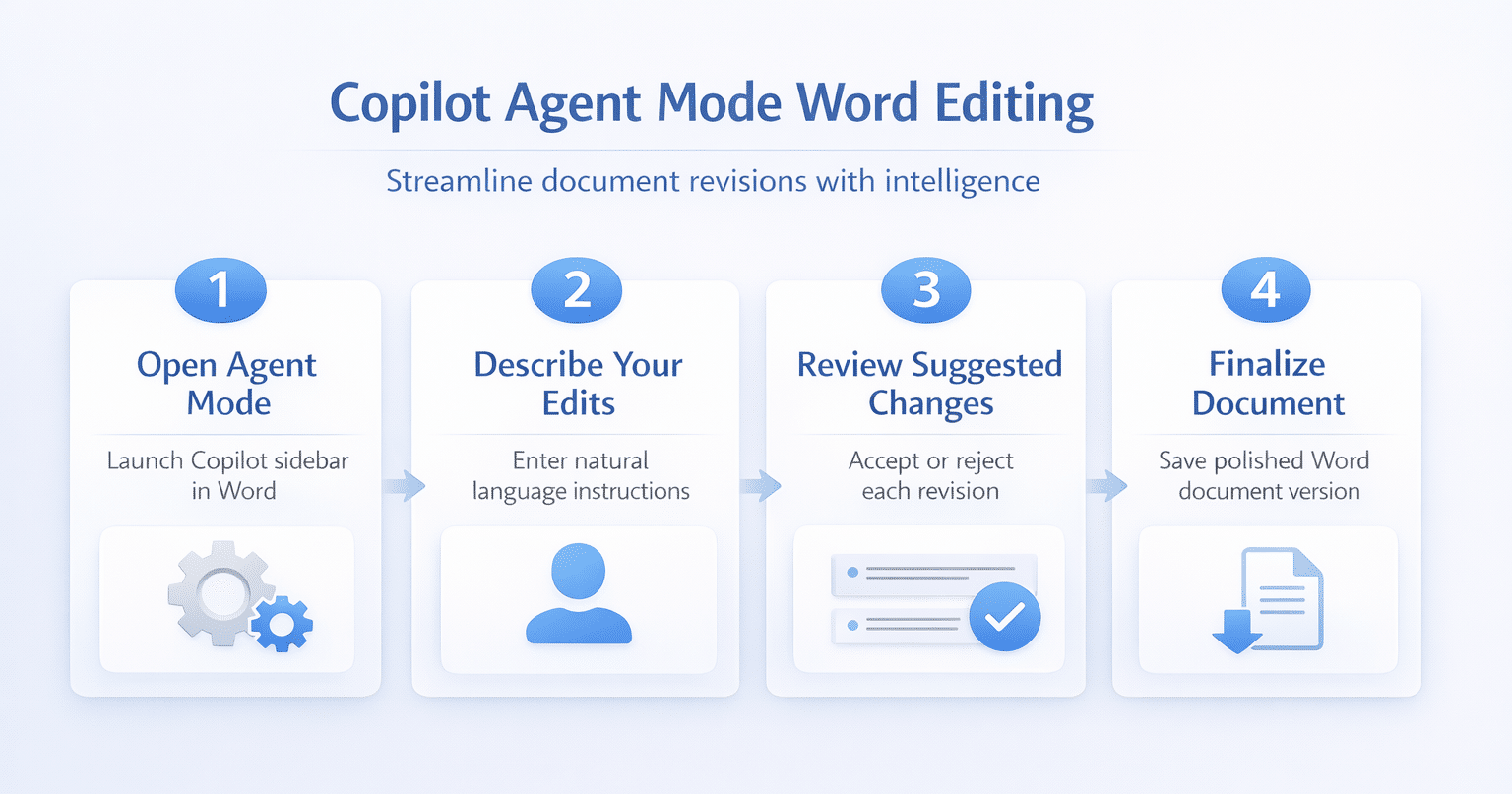
Copilot Agent Mode operates differently from the standard Copilot chat experience because it can autonomously plan and execute a sequence of edits across your entire Word document without waiting. The standard Copilot in Word generates suggestions one prompt at a time, while Agent Mode interprets your high-level instruction and breaks it into multiple coordinated editing actions automatically. This AI document editing approach means you can issue a single command like “make this proposal more concise and add executive summary headers” and watch Copilot handle everything from start to finish.
When you activate Agent Mode, Copilot analyzes your document structure including headings, paragraphs, lists, and tables to understand the full context before making any changes. The system then presents a revision plan that outlines each proposed modification so you maintain complete control over what actually changes in your final document version. You can accept all suggested changes at once, reject specific modifications individually, or provide additional instructions to refine the output before committing the edits permanently to your document.
Enable and access Agent Mode in Microsoft Word
Before you can use Copilot Agent Mode for Word document editing, you need a Microsoft 365 Copilot license and the latest version of Word installed on your desktop or web client. Agent Mode availability depends on your organization’s Copilot rollout schedule, so you should verify with your IT administrator that the feature has been enabled for your Microsoft 365 tenant. If you already use Copilot for Word document creation and automation, the Agent Mode toggle appears in the same Copilot sidebar panel.
- Open the Copilot sidebar — Click the Copilot icon in the Word ribbon or press the keyboard shortcut to open the Copilot panel on the right side of your document workspace.
- Switch to Agent Mode — Look for the Agent Mode toggle at the top of the Copilot panel and enable it to unlock the autonomous multi-step editing capabilities for your current session.
- Grant document access — Agent Mode requires full document access permissions, so confirm the prompt that asks Copilot to read and modify content across all sections of your open file.
Edit and restructure documents with natural language prompts
The real power of Copilot Agent Mode editing emerges when you write clear, specific prompts that describe exactly what outcome you want instead of specifying each individual formatting change. Natural language document revision works best when you provide context about your target audience, the desired tone, and any structural requirements that the revised document should follow consistently. You can also reference specific sections by their heading names to direct Agent Mode toward particular areas of your document that need the most attention right now.
Effective prompts for Copilot Agent Mode in Word follow a pattern that combines the desired action with the scope and any constraints you want the AI to respect during editing. For example, a prompt like “reorganize the methodology section into bullet points and reduce each paragraph to two sentences maximum while keeping all technical terms intact” gives Agent Mode enough detail. Vague instructions like “make it better” produce inconsistent results because Agent Mode cannot infer your specific quality standards without clear direction from you about expectations.
Advanced editing scenarios for Word documents
Copilot Agent Mode handles several advanced Microsoft Word editing tasks that previously required significant manual effort or specialized knowledge of Word formatting features and automation tools. You can use Agent Mode to compare two or more Word documents with Copilot and then apply the identified differences as tracked changes directly within your current working file. Teams that frequently produce standardized reports benefit significantly from Agent Mode because it can apply consistent formatting rules and terminology across documents of any length automatically.
- Tone and audience adjustment — Ask Agent Mode to rewrite technical documentation for a non-technical executive audience while preserving all factual accuracy and key data points throughout the document.
- Structural reformatting — Instruct Copilot to convert a narrative-style report into a structured format with numbered sections, tables, and an executive summary placed at the beginning of the document.
- Content consolidation — Direct Agent Mode to merge overlapping sections, remove redundant paragraphs, and tighten the overall word count while retaining every critical piece of supporting evidence and analysis.
- Brand compliance — Have Agent Mode scan your document and replace informal language with approved corporate terminology from your style specifications to maintain consistent brand voice throughout all deliverables.
Copilot Agent Mode across Microsoft 365 apps
Agent Mode extends beyond Word into other Microsoft 365 applications, creating a unified AI editing experience across your entire productivity suite for seamless cross-application document workflows. You can create PowerPoint presentations from Copilot documents after Agent Mode finishes polishing your Word content, making the transition from written report to visual presentation effortless. The same Agent Mode capabilities that help you edit Word documents also enhance your experience in Teams.
Frequently asked questions about Copilot Agent Mode in Word
What is the difference between Copilot and Copilot Agent Mode in Word?
Standard Copilot in Word responds to individual prompts one at a time and generates suggestions that you must manually review and apply to each section of your document separately. Copilot Agent Mode autonomously plans and executes multiple coordinated edits across your entire document based on a single high-level instruction you provide in the chat panel. Agent Mode understands document structure holistically and can perform complex multi-step revisions like restructuring, reformatting, and rewriting simultaneously without requiring separate prompts for each task.
Can Copilot Agent Mode edit existing Word documents or only create new ones?
Copilot Agent Mode works with both existing documents and new files, making it particularly valuable for revising drafts, updating outdated reports, and refining content that needs improvement. You can open any Word document stored in OneDrive or SharePoint and activate Agent Mode to begin making edits through natural language prompts immediately after the document loads. The feature preserves your original formatting and tracked changes history while applying the new modifications you request through the Copilot Agent Mode interface in the sidebar panel.
What Microsoft 365 license do I need for Copilot Agent Mode?
You need a Microsoft 365 Copilot license, which is available as an add-on to Microsoft 365 Business Standard, Business Premium, E3, or E5 subscription plans for enterprise customers. Your organization’s IT administrator must also enable Copilot features for your account through the Microsoft 365 admin center before Agent Mode becomes accessible in your applications. Check with your licensing team to confirm that Copilot Agent Mode has been included in your current subscription tier and activated at the tenant level for all users.
Start editing smarter with Copilot Agent Mode
Copilot Agent Mode transforms how you edit Word documents by replacing tedious manual revisions with intelligent autonomous editing that understands your full document context and goals. Apply the techniques covered in this article to streamline your document editing workflows, from simple tone adjustments to complex structural overhauls that would otherwise consume hours of manual effort. Bookmark this page as your reference for getting the most out of Copilot Agent Mode and share it with colleagues who want to accelerate their Word document editing process.