Managing sound notification settings in Outlook 365
“I keep missing important emails because I don’t hear any notification sounds when new messages arrive in Outlook. How can I make sure I get audio alerts for incoming emails and reminders on my Windows 11 computer?” This common workplace challenge affects productivity when critical communications go unnoticed without proper sound notifications configured in Microsoft Outlook.
Outlook email alert sound configuration and notifications
Email notification sounds play an important role in maintaining productivity, helping users stay responsive to new messages, meeting reminders, and time-sensitive communications. When Outlook sound alerts fail to work properly, users miss critical messages, meeting reminders, and time-sensitive communications that require immediate attention.
This guide explains how to configure and troubleshoot Outlook notification sounds across all key areas, including new email alerts, calendar reminders, and Windows 11 system sound settings. You’ll learn how to customize alert tones, resolve common sound playback issues, and fine-tune your notification preferences for different communication needs. To follow along, ensure you’re using Windows 11 with the Microsoft Outlook 365 desktop app and have administrative rights to change system sound settings. Basic familiarity with Outlook’s interface and Windows system settings will also be helpful.
Change reminder sounds in Outlook M365 notifications
Configuring basic Outlook email alert sound settings
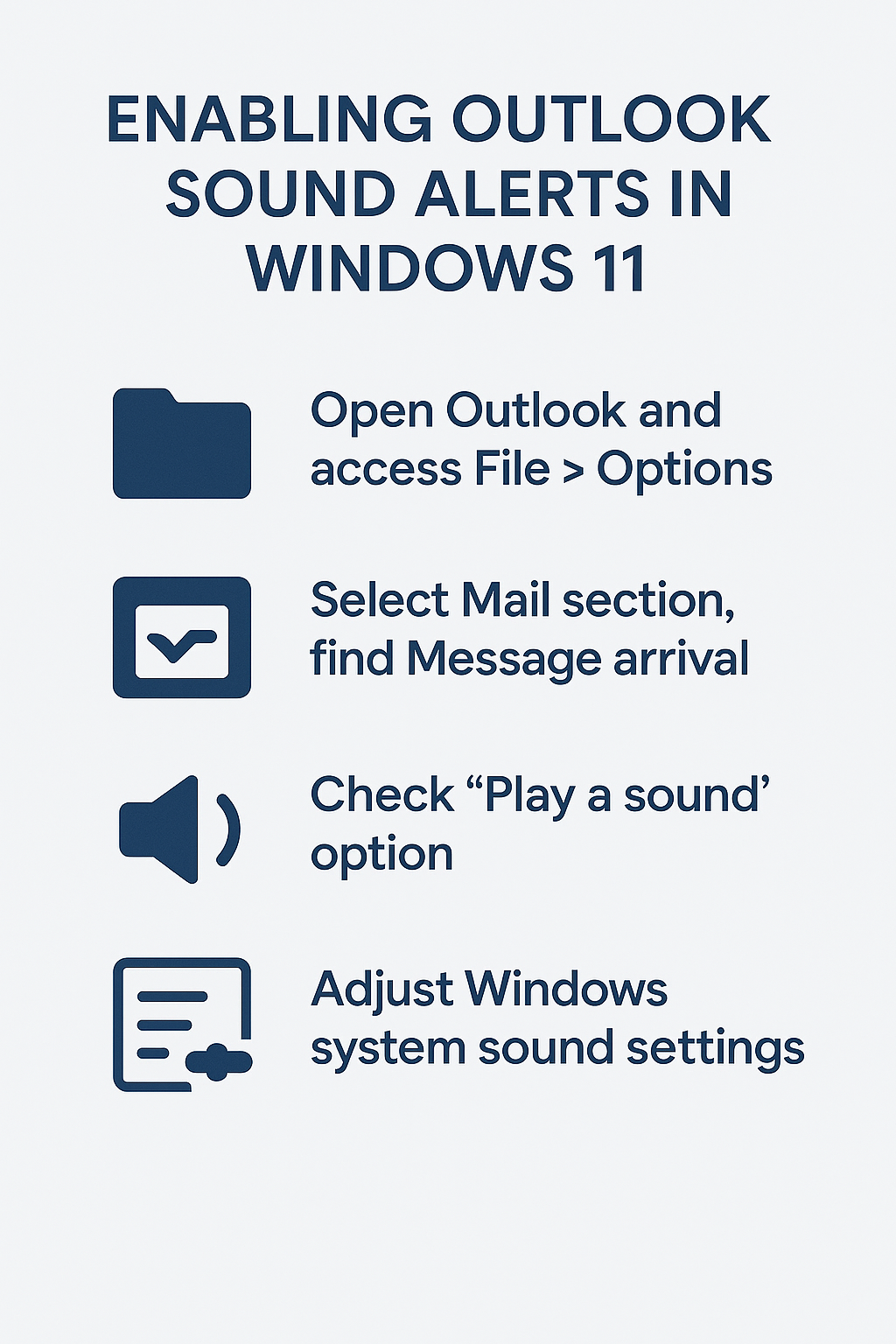
• Open Microsoft Outlook 365 desktop application and navigate to the File tab located in the upper-left corner of the ribbon interface to access account and application settings.
• Select Options from the left-side menu panel to open the comprehensive Outlook Options dialog box containing all customization and configuration settings for the application.
• Click on Mail in the left navigation pane of the Outlook Options window to access email-specific settings including message handling, signatures, and notification preferences.
• Scroll down to the Message arrival section and locate the checkbox labeled “Play a sound” to enable basic audio notifications for incoming email messages in your inbox.
• Check the “Play a sound” option to activate default notification sounds, then click the Browse button next to this option to select custom sound files from your computer’s audio library.
• Navigate through your Windows file system to locate desired sound files, typically stored in C:\Windows\Media folder, and select appropriate audio files with .wav format for compatibility.
Customizing advanced sound notification preferences in Outlook
• Return to the Message arrival section and examine additional notification options including “Briefly change the mouse cursor,” “Show an envelope icon in the notification area,” and “Display a Desktop Alert” for comprehensive notification coverage.
• Enable “Display a Desktop Alert” option to show popup notifications on your screen when new messages arrive, providing visual confirmation alongside audio alerts for enhanced message awareness.
• Click the Desktop Alert Settings button to customize the appearance, duration, and transparency of popup notifications that appear when new emails arrive in your Outlook inbox.
• Configure the alert duration by adjusting the slider control, typically setting between 3-10 seconds depending on your preference for notification visibility and screen real estate management.
Expert Tip: Combine multiple notification types (sound, visual, and cursor changes) for maximum effectiveness, especially in noisy office environments where audio alerts alone might be insufficient.
Adjusting Windows 11 system sound settings for Outlook notifications
• Right-click the speaker icon in the Windows 11 system tray located in the bottom-right corner of your screen to access audio and sound management options.
• Select “Open Sound settings” from the context menu to launch the Windows Settings app with audio configuration options including volume levels and notification sound management.
• Scroll down to the Advanced sound options section and click “App volume and device preferences” to configure individual application sound levels including Microsoft Outlook.
• Locate Microsoft Outlook in the application list and ensure the volume slider is set to an appropriate level, typically between 70-100% for clear notification audio playback.
• Navigate to Control Panel > Hardware and Sound > Sound to access the classic Sound dialog box for more granular notification sound customization options.
• Click the Sounds tab in the Sound dialog box and locate “New Mail Notification” in the Program Events list to customize the specific sound file used for Outlook email alerts.
Setting up calendar reminder sound notifications in Outlook M365
• Return to Outlook Options by clicking File > Options, then select Calendar from the left navigation menu to access meeting and appointment notification settings.
• Locate the Calendar options section and find “Default reminder time” settings along with sound notification preferences for calendar events and meeting reminders.
• Check the “Play reminder sound” option to enable audio alerts for upcoming meetings, appointments, and calendar events scheduled in your Outlook calendar application.
• Click the Browse button next to the reminder sound option to select custom audio files for calendar notifications, allowing different sounds for emails versus calendar reminders.
• Test the reminder sound by clicking the play button next to the sound file selection to ensure proper audio playback through your computer’s speaker system.
Solving common issues when turning off Outlook notifications
• No sound plays despite enabled settings: Verify that Windows 11 system volume is not muted and Outlook application volume is properly configured in Windows sound mixer settings.
• Intermittent notification sounds: Check Windows 11 Focus Assist settings by pressing Windows key + U, then selecting Focus Assist to ensure notification blocking is not interfering with Outlook alerts.
• Custom sound files not working: Ensure selected audio files are in .wav format and located in accessible file system locations, as Outlook may have difficulty accessing network drives or restricted folders.
• Sounds work but reminders don’t: Navigate to Outlook Calendar options and verify that “Play reminder sound” is enabled, and check that calendar items have reminder times set appropriately for notification triggers.
Important Tip: After making changes to sound settings, restart Outlook completely to ensure all notification preferences take effect properly across the application.