You place a call in Teams and hear nothing — no ring, no connection sound, just silence while you wait wondering whether the other person’s phone is even making noise. Incoming calls are worse because you do not know they happened until a missed-call notification appears minutes later. The problem usually comes down to Windows Focus Assist silently suppressing alerts, a mis-configured audio device in Teams, or the mobile app respecting your phone’s silent mode too aggressively. All three are fixable in a few minutes.
Fix desktop call notifications
Disable Focus Assist in Windows
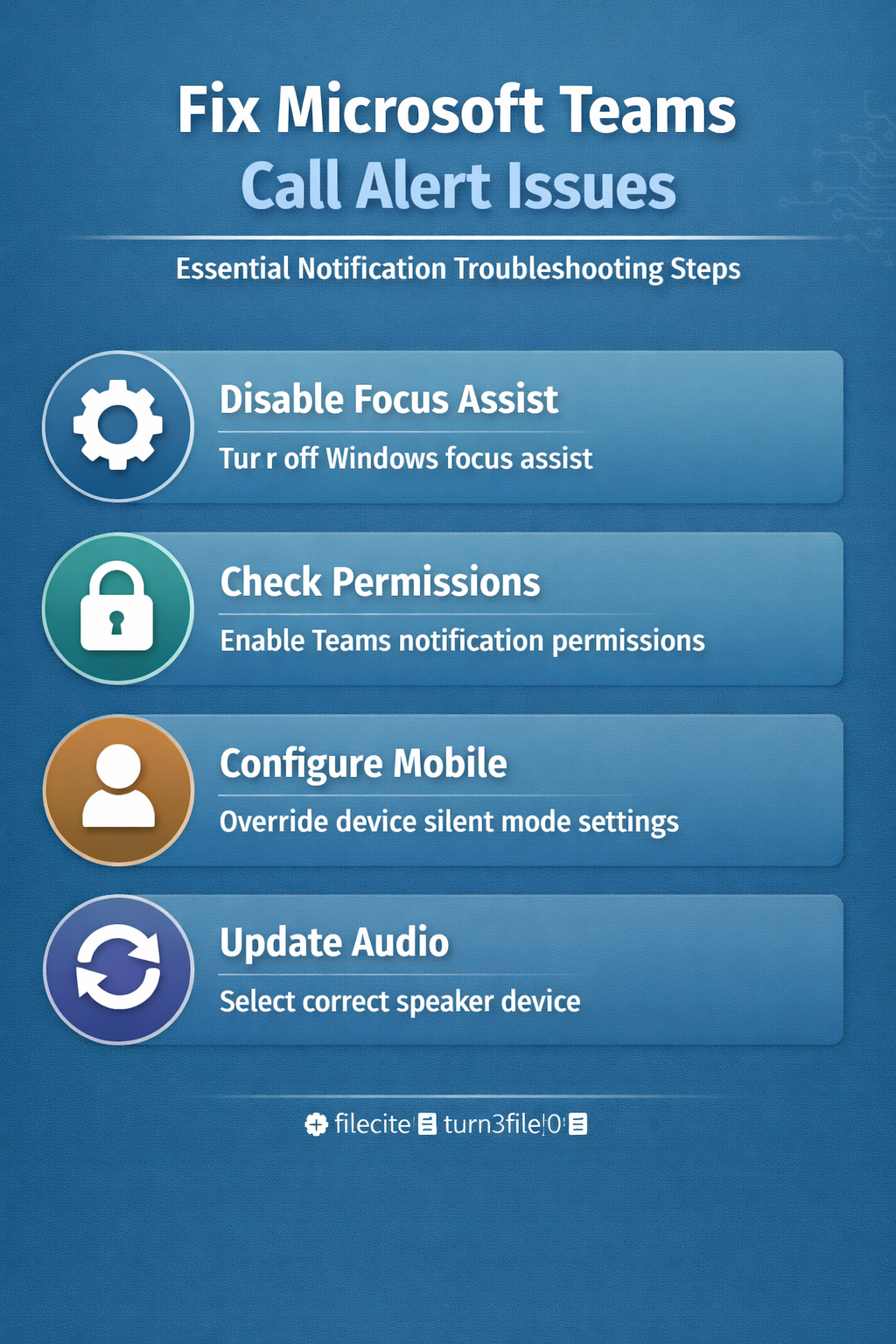
Open Windows Settings >> System >> Focus assist and set it to Off or Priority only. Focus Assist activates automatically during presentations, full-screen applications, and even the first hour after a Windows update completes — and it suppresses all Teams notifications without any visible warning or tray icon telling you it is active. If you need Focus Assist for concentration during deep work but still want call alerts, add Teams to the priority sender list so call notifications come through even when everything else is blocked. This is the single most common cause of silent Teams calls on desktop, and checking it takes about ten seconds.
Enable Teams notification permissions
Go to Windows Settings >> System >> Notifications, find Microsoft Teams in the app list, and toggle banners, sounds, and notification center alerts all to On. Windows security updates sometimes reset these permissions silently, which is why call alerts can stop working after a monthly patch even though you never changed any settings yourself. Inside Teams, navigate to Settings >> Notifications and verify that Incoming call is set to Banner and sound rather than just Banner only — the banner-only option suppresses the ringtone entirely, which is enough to miss a call when you are not staring at your screen.
Verify your audio device in Teams
Open Settings >> Devices inside Teams and check that the speaker dropdown points to the hardware you are actually using — not a monitor speaker with no external audio, a Bluetooth headset you unplugged last week, or “Default” when you have multiple output devices competing for attention. Click Make a test call to confirm the ringtone plays through the correct device and at an audible volume. A common gotcha is that Teams remembers the last-used device even after you disconnect it, so the ring sound plays to hardware that is no longer physically present and you hear absolute silence on your end while the call connects normally on the recipient’s side.
Solving mobile call notifications
Enable the do-not-disturb override
Open the Teams mobile app, go to Settings >> Notifications, and enable Override Do Not Disturb so Teams calls ring through even when your phone is in silent mode or focus mode. Unlike regular phone calling apps, Teams respects DND strictly by default and will not ring at all unless you grant this specific override permission.
Then, go ahead and Configure the Teams ringtone separately from your device default too, since Teams uses a dedicated audio channel that messaging and notification sounds do not share — lowering your system notification volume does not affect Teams call alerts when they are configured independently.
Grant background activity permissions
On iOS, go to Settings >> General >> Background App Refresh and make sure Teams is enabled so the app can receive push notifications even when it is not in the foreground.
On Android, navigate to Settings >> Apps >> Microsoft Teams >> Battery and select Allow background activity rather than letting the battery optimizer restrict it.
Without these background permissions, Teams cannot receive incoming call notifications when you are using another app, which means every call that arrives while you are checking email or browsing goes straight to voicemail without ever making a sound.
Reinstall to reset notification config
If toggling permissions did not help, uninstall and reinstall Teams from your device’s app store to wipe corrupted permission caches that sometimes survive manual settings changes. During the fresh install, grant every permission prompt immediately when it appears — delaying or dismissing a prompt can create an incomplete notification setup that fails intermittently in ways that are extremely hard to diagnose after the fact, because the app looks fully configured but is missing a specific background permission that only matters for incoming calls.
Check call routing and network
Review call forwarding rules
Go to Settings >> Calls >> Call forwarding in Teams and check whether forwarding is sending calls somewhere you do not expect, like a phone number or voicemail, before your desktop client ever gets the chance to ring. Aggressive forwarding rules set during a vacation or remote work period can persist long after you return and silently redirect every incoming call away from your active device. Enable Ring my mobile alongside desktop notifications if you want both devices to alert simultaneously, which is especially useful when you step away from your desk frequently. You can also sync Teams with your calendar to make sure your call availability automatically reflects your actual schedule rather than showing you as available when you are in a meeting.
Rule out network latency issues
Teams needs consistent, low-latency bandwidth for real-time call signaling, and packet loss above 2% typically causes notification delays or outright delivery failures where the call times out before the ring signal reaches your device. Switch between WiFi and cellular to isolate the problem — if calls ring on cellular but not on your office WiFi, the issue is network-side rather than device-side. Common network causes include QoS rules de-prioritizing Teams traffic, congested access points during peak hours when the whole floor is on video calls, or VPN configurations that add enough latency to time out the call signaling handshake.
Related Questions
Why are my Teams calls completely silent?
The most common cause is Windows Focus Assist suppressing all notifications, followed by an incorrect audio device assignment in Teams settings. Check both of these before trying anything more involved — together they account for the vast majority of silent call issues on desktop.
Can Teams override my phone silent mode?
Yes, but only after you enable “Override Do Not Disturb” in the Teams mobile app notification settings. Without this specific toggle, Teams respects silent mode strictly and will not ring for any incoming call regardless of its priority level.
Do outgoing calls also fail to ring?
Outgoing calls can appear silent when your speaker is routed to a disconnected device in Teams. The connection sound plays on the server side but you cannot hear it locally. Verify the speaker selection under Settings >> Devices and run a test call to confirm audio reaches hardware you can actually hear.
Check Focus Assist and your audio device first — those two settings alone fix the problem for most people in under a minute.