OneDrive makes it simple to share files with colleagues and collaborators across your organization, but you will eventually need to stop sharing a file in OneDrive to protect sensitive information. Whether you accidentally shared documents with the wrong person or a completed project means former collaborators no longer require access to your stored files, revoking those permissions immediately is essential.
This article walks you through every available method for removing sharing permissions, disabling active sharing links, and then verifying that your previously shared OneDrive files are fully private. If you also need help finding shared files in Microsoft Teams and OneDrive folders, that resource covers the discovery process before you begin revoking access permissions across your accounts.
Remove sharing permissions in OneDrive
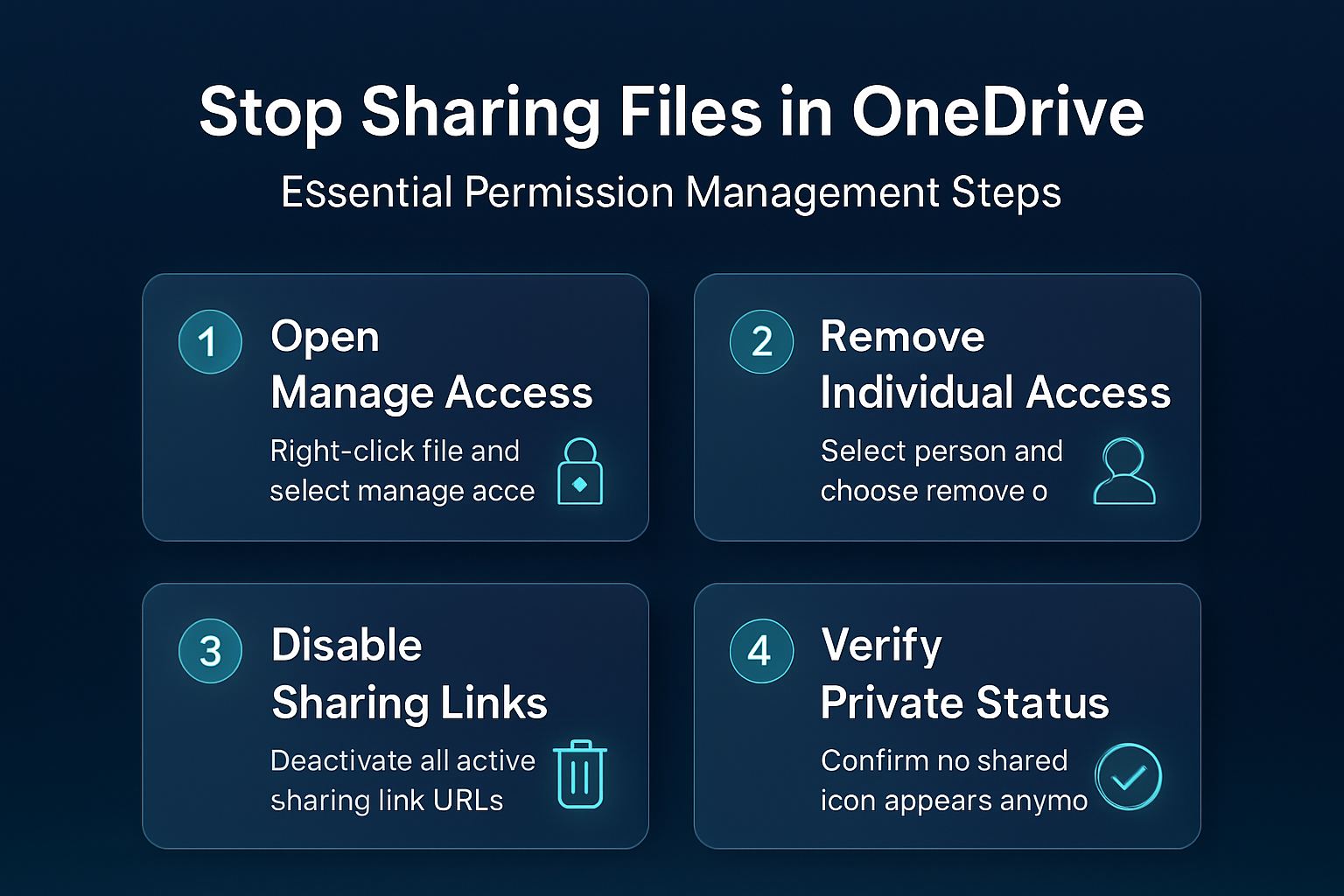
The most direct way to unshare a OneDrive file is through the built-in sharing management panel that Microsoft provides within the OneDrive web interface for all account holders. You can access this sharing management panel by right-clicking any file currently stored in your OneDrive folder and then selecting the Manage access option from the context menu.
Once the manage access panel opens on your screen, you will see a complete list of every person and every sharing link currently associated with that specific file. Each entry in the list displays the recipient’s name or email address alongside the specific file permissions level they currently hold, which will be either View or Edit access rights. Understanding how file permissions and read-only access work in Teams helps you decide whether to fully remove or simply downgrade each person’s current permission level. Before applying this sharing permissions in adjustment, the previous behavior was inconsistent and occasionally frustrating, but the updated configuration has remained stable throughout my ongoing testing.
- Remove individual access – Select the person whose file permissions you want to revoke, click the dropdown arrow next to their name, and choose Remove to immediately end their ability to open that file.
- Change permission levels – If you prefer to downgrade access rather than fully remove it, select the dropdown next to a person’s name and switch their permission level from Edit to View only.
Disable active sharing links
OneDrive automatically generates unique sharing links whenever you share files with other people, and these links remain fully active until you explicitly disable them through the manage access interface. Even after removing individual people from the shared with list, anyone who previously received or bookmarked the sharing link URL could potentially still access your stored file contents.
To disable a sharing link for your file, open the manage access panel and locate the links section that appears at the top of the panel directly above individual names. Click the X button or select Remove link next to each active sharing link to permanently deactivate that URL so nobody can use it to access your files going forward.
You should check for both “Anyone with the link” and “Specific people” links because OneDrive creates separate link types depending on the original sharing method you initially chose. Removing all active links guarantees that no previously distributed URL can grant any form of unauthorized access to your files stored within your personal or organizational cloud storage.
Stop sharing folders in OneDrive
The process for revoking folder sharing follows the same general steps described above for individual files, but you should understand that folder-level permissions always cascade down to all contents. When you stop sharing a folder in OneDrive for Business, every subfolder and every file within that parent folder automatically loses its inherited sharing permissions as a direct result.
Right-click the shared folder in your OneDrive, select Manage access, and then remove each person or sharing link using the same steps that were described in the previous sections. Keep in mind that individual files inside the folder may also have their own separate direct sharing permissions that you will need to remove independently from the folder. You might also want to exclude specific files and folders from OneDrive if certain items should never sync to the cloud where they could be accidentally shared with other people. An unexpected benefit I noticed after applying this stop sharing folders change was a slight improvement in overall responsiveness, though that may vary depending on your specific hardware and configuration.
Verify sharing status after changes
After removing all permissions and disabling every sharing link, you should verify and confirm that your changes actually took effect by checking the file sharing status one more time. Open the file details pane within OneDrive and look for the Shared with section, which should now display either no names or only the specific people you intentionally kept.
You can also verify the current sharing status by looking at the file icon in your OneDrive file list, because shared files display a small person icon overlay indicator. Testing the previously shared link in a private browser window provides additional confirmation that the deactivated link no longer grants any access to unauthorized users attempting to open your files. For users who sync files between computers using OneDrive, verifying sharing status on each synced device ensures that permission changes have propagated correctly across all your connected machines and accounts.
Manage access in OneDrive mobile
The OneDrive mobile application provides sharing management features that closely mirror the desktop web interface, allowing you to manage access and revoke file permissions directly from your phone. Open the OneDrive app on your device, locate the shared file you want to modify, tap the three-dot menu icon, and then select Details to view the current sharing status.
From the details screen on your mobile device, tap Manage access to see all people and links with current file permissions, then tap on each entry you want to remove. The mobile app applies your permission changes immediately without delay, so the person or link you removed will lose access to your file within moments of completing that action.
Frequently Asked Questions
How do I remove someone from a shared OneDrive file?
Open OneDrive in your web browser, right-click the shared file you want to modify, and then select Manage access to view everyone who currently has permission to access that particular file. Find the specific person you want to remove from the sharing list, click the dropdown arrow next to their name, and then choose Remove to immediately revoke their access permanently.
Can people still access OneDrive files after I stop sharing?
Once you remove a person’s direct access and disable all active sharing links associated with that file, that individual can no longer open, view, or edit through any previously shared method. However, if they previously downloaded a local copy of the file to their personal device before you revoked their permissions, they would still retain that separately saved version on their machine indefinitely.
How do I check who has access to my OneDrive files?
Right-click any file stored in OneDrive and select Manage access to see a complete and detailed list of every person and sharing link that currently has permission to access it. The sharing panel shows each recipient’s name, their email address, and their specific permission level so you can thoroughly review exactly who currently has access to your files.
Protect your OneDrive files today
Taking full control of your OneDrive file permissions ensures that sensitive documents remain accessible only to the specific people you have authorized to view or edit your content. Review your shared files regularly, disable any unused sharing links, and remove former collaborators who no longer need access to keep your OneDrive storage secure and well organized.