
Understanding Windows 11 restart loop problems
Your Windows 11 computer keeps restarting automatically without reaching the desktop, creating an endless cycle that prevents normal system operation. This frustrating scenario typically occurs after system updates, driver installations, or hardware changes that disrupt the normal boot sequence. The continuous restart loop can stem from corrupted system files, incompatible drivers, or hardware conflicts that Windows cannot resolve automatically. Understanding the root causes helps you apply the most effective troubleshooting approach to restore normal system functionality. For more details, see fix Windows restart reboot.
Common causes and comprehensive solution approach
Windows 11 restart loops commonly result from recent system updates, driver conflicts, corrupted boot files, or hardware compatibility issues that prevent the operating system from completing its startup sequence. The problem manifests when Windows encounters errors during the boot process and automatically restarts to attempt recovery, creating an infinite cycle. This tutorial covers systematic troubleshooting methods including Safe Mode access, system restore procedures, startup repair tools, and advanced recovery options.
You will need administrative access to your computer and potentially a Windows 11 installation media or recovery drive for advanced troubleshooting scenarios. The solutions progress from simple Safe Mode techniques to comprehensive system recovery methods. We will utilize built-in Windows recovery tools, System File Checker, and Windows Recovery Environment to diagnose and resolve the underlying issues causing the restart loop.
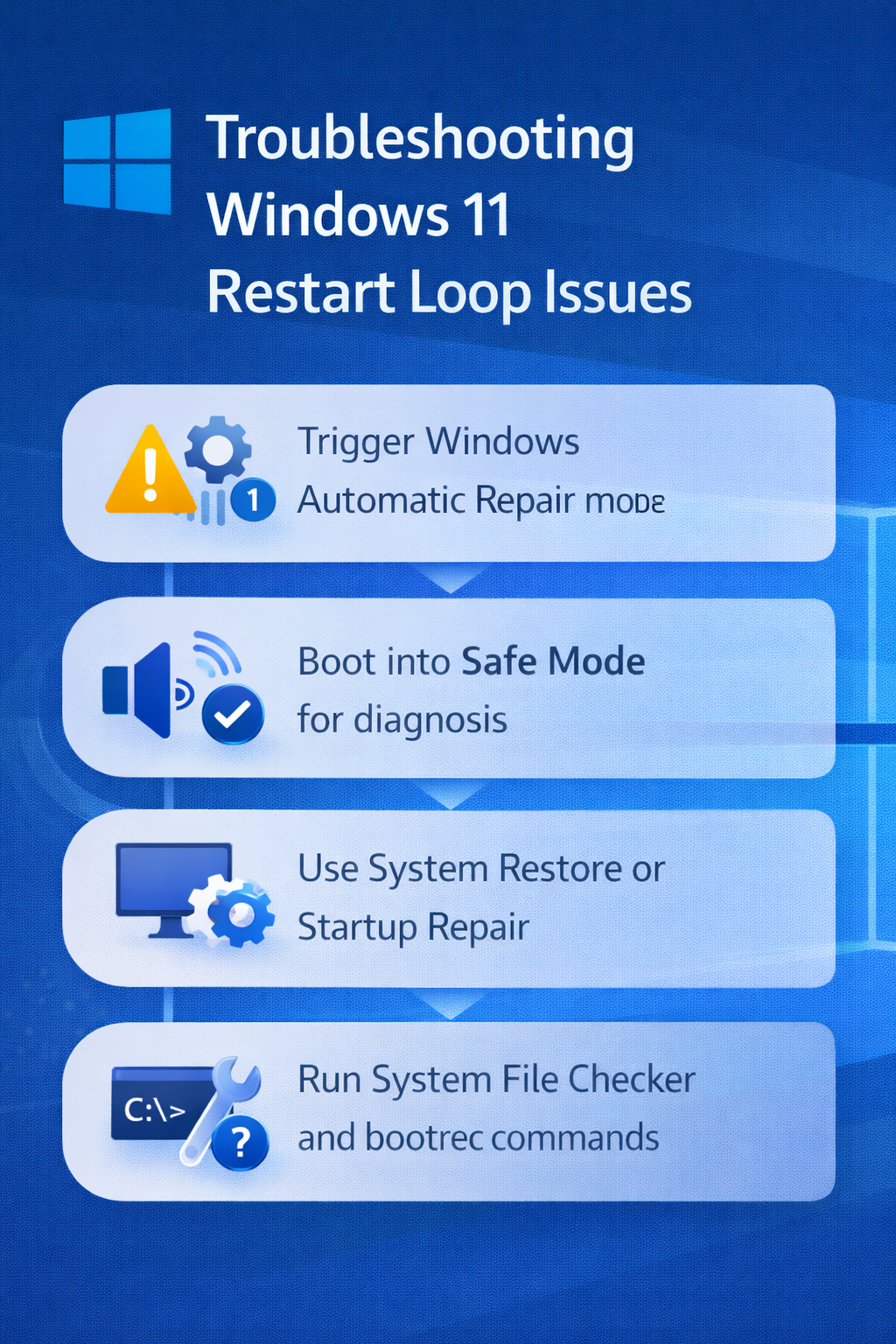
Accessing Safe Mode during restart loops
Safe Mode provides a minimal Windows environment that bypasses problematic drivers and services, allowing you to troubleshoot the restart loop from within the operating system itself. Learn how to access Safe Mode in Windows 11 restart issues.
- Power on your computer and wait for the Windows logo to appear, then immediately hold the power button for ten seconds to force shutdown during the boot process.
- Repeat this forced shutdown process three consecutive times to trigger Windows Automatic Repair mode, which activates when the system detects multiple failed boot attempts.
- Allow Windows to complete the automatic repair attempt, which may resolve simple boot file corruption issues that cause restart loops without additional intervention.
- Click “Advanced options” when the automatic repair screen appears, then select “Troubleshoot” followed by “Advanced options” to access the Windows Recovery Environment.
- Select “Startup Settings” from the advanced options menu, then click “Restart” to display the startup options menu with numbered choices for different boot modes.
- Press the number 4 key or F4 to boot into Safe Mode, which loads only essential Windows components and drivers necessary for basic system operation.
- Once in Safe Mode, open Device Manager by right-clicking the Start button and selecting “Device Manager” to identify recently installed or problematic hardware drivers.
- Look for devices marked with yellow warning triangles or red X symbols, which indicate driver conflicts or hardware problems that may cause restart loops.
Expert Tip: If Safe Mode also results in restart loops, the issue likely involves critical system files or hardware problems that require more advanced recovery methods.
Performing system restore and startup repair
System Restore and Startup Repair tools can resolve restart loops by reverting recent changes or repairing corrupted boot files that prevent normal Windows operation. Creating a reliable system restore point before major changes is recommended.
- Access the Windows Recovery Environment using the forced shutdown method described above, then navigate to “Troubleshoot” and “Advanced options” from the recovery screen.
- Select “System Restore” to open the restore point selection interface, which displays available restore points created before the restart loop problem began occurring.
- Choose a restore point dated before the restart issue started, preferably one created immediately before installing new software, drivers, or Windows updates that may have triggered the problem.
- Follow the system restore wizard prompts to confirm your restore point selection and begin the restoration process, which typically takes fifteen to thirty minutes to complete.
- Allow the system to restart automatically after restoration completes, as Windows will attempt to boot normally using the restored system configuration and driver settings.
- If system restore fails or no suitable restore points exist, return to the Advanced options menu and select “Startup Repair” to scan and fix boot-related issues.
- The Startup Repair tool automatically diagnoses boot problems, corrupted system files, and registry issues that prevent Windows from starting normally and applies appropriate fixes.
- Wait for the repair process to complete, which may take up to one hour depending on the extent of system damage and the speed of your storage device.
Using System File Checker and advanced recovery
When basic repair methods fail, System File Checker and advanced recovery tools provide deeper system diagnostics and repair capabilities for resolving persistent restart loops. Details on repairing corrupted system files are available at repair corrupted files.
- Boot from a Windows 11 installation USB or DVD by changing your computer’s boot order in BIOS settings to prioritize removable media over the internal hard drive.
- Select your language preferences on the Windows Setup screen, then click “Next” followed by “Repair your computer” instead of “Install now” to access recovery tools.
- Navigate to “Troubleshoot,” then “Advanced options,” and select “Command Prompt” to open a command-line interface with administrative privileges for system diagnostics.
- Type the command
sfc /scannow /offbootdir=C:\ /offwindir=C:\Windowsand press Enter to scan and repair corrupted system files that may cause restart loops. - Wait for the System File Checker to complete its scan and repair process, which typically takes thirty to sixty minutes depending on system size and corruption extent.
- Run the command
dism /image:C:\ /cleanup-image /restorehealthto repair the Windows image and resolve deeper system corruption issues that SFC cannot address. - Execute
bootrec /fixmbr,bootrec /fixboot, andbootrec /rebuildbcdcommands sequentially to repair Master Boot Record, boot sector, and Boot Configuration Database corruption. - Type
exitto close the command prompt, then select “Turn off your PC” and restart normally to test if the restart loop has been resolved.
Resolving common restart loop challenges
Several specific issues can complicate restart loop troubleshooting, requiring targeted approaches to achieve successful system recovery and prevent future occurrences.
- Windows Update conflicts often cause restart loops when incomplete or corrupted updates prevent normal system startup, requiring manual update removal or system rollback procedures.
- Driver signature enforcement issues in Windows 11 can trigger restart loops when unsigned or incompatible drivers attempt to load during system startup processes.
- Fast Startup feature conflicts with certain hardware configurations and can cause restart loops, requiring disabling through Power Options in Control Panel or registry modifications.
- Hardware compatibility problems with RAM modules, graphics cards, or storage devices can manifest as restart loops that persist even after software-based troubleshooting attempts.
Important Tip: Always create a system restore point before installing new software or drivers to ensure you have a reliable recovery option if restart loops occur.