The “You need permission to access this item” error in SharePoint prevents users from opening files, folders, or entire site collections that they previously accessed without any issues. This frustrating SharePoint access denied message typically appears when permission inheritance breaks, sharing settings change, or your organization modifies its tenant-level security policies unexpectedly. Understanding why SharePoint blocks your access and knowing the correct steps to restore it can save hours of troubleshooting and prevent unnecessary support tickets from piling up.
Resolving SharePoint permission errors
Check current permission levels first
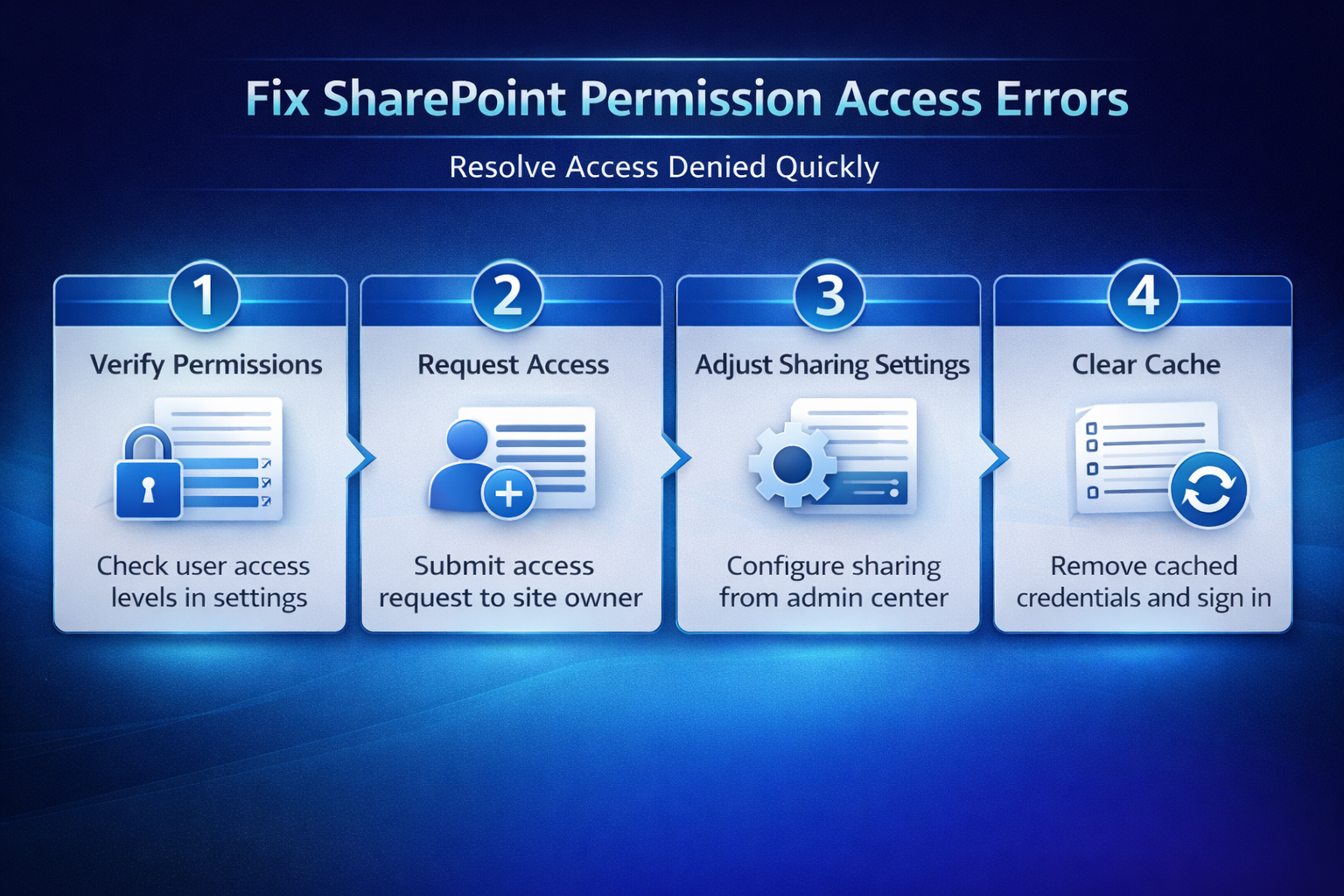
The most common reason for SharePoint access errors is that your account lacks the appropriate permission level required to view or edit the specific resource. You should navigate to the document library or site where the error occurs, select the gear icon in the upper right corner, and then choose Site permissions to review assignments. During my testing on SharePoint Online, the permissions panel displayed all current groups and individual users clearly, making it straightforward to identify missing access entries. If your name does not appear under any permission group listed in the panel, you will need to request that a site owner or administrator adds your account directly.
Request access from the site owner
SharePoint includes a built-in access request feature that sends an email notification directly to the site owner or designated approver when someone needs elevated permissions for content. You can trigger this request by clicking the Request Access button that appears on the permission denied error page, which automatically generates a notification to the responsible administrator. The site owner then receives your request in their email inbox along with a direct link to the SharePoint settings page where they can approve or deny your access quickly. Organizations that have disabled the access request feature at the tenant level will require you to contact your IT department through alternative channels such as a helpdesk ticket instead.
Verify sharing settings in admin center
SharePoint administrators can restrict external and internal sharing through the SharePoint admin center, which sometimes causes permission errors for users who previously had unrestricted access to shared content. The admin center contains several sharing levels ranging from the most permissive option that allows anyone with a link to access files to the most restrictive setting. Administrators should review the Sharing tab under Policies in the SharePoint admin center to confirm that organizational sharing settings align with the intended access requirements for users. Changes to these sharing policies propagate across all site collections within the tenant, so modifying them requires careful consideration of the broader impact on all team members.
Troubleshooting inherited permission issues
Fix broken permission inheritance
SharePoint uses a hierarchical permission model where subsites, libraries, and individual items can inherit permissions from their parent site collection by default across the organization. When someone breaks inheritance on a specific folder or document by selecting Stop inheriting permissions, that item no longer receives automatic permission updates from its parent hierarchy. You can restore inheritance by navigating to the item’s permission settings, selecting Delete unique permissions, and confirming the action to revert back to the parent configuration. Having repeated this procedure on several test site collections over the past few weeks, I can confirm the steps work reliably without variation across different SharePoint configurations.
Remove and reassign unique permissions
Sometimes the fastest resolution involves removing all unique permissions from the affected item and then manually reassigning only the specific access levels that your organization actually requires. Navigate to the problematic document library or folder, open its permission settings through the details panel, and review every user and group that currently has unique access entries. Remove any outdated or conflicting permission entries that may have accumulated over time through various sharing actions performed by multiple users across the organization. After cleaning up the permission entries, add the correct users or Microsoft 365 groups with their appropriate permission levels such as Read, Contribute, or Full Control access.
Clearing cached credentials and browser data
Sign out and clear browser cache
Cached authentication tokens in your browser can sometimes cause SharePoint to display outdated permission states even after an administrator has already granted you the correct access. You should sign out of all Microsoft 365 services completely, clear your browser cache and cookies specifically for the sharepoint.com and microsoft.com domains, and then sign back in. Opening an InPrivate or incognito browser window provides a quick way to test whether cached credentials are causing the issue before clearing everything permanently. If the permission error disappears in the private browsing window, you can confirm that stale cached data was the root cause and proceed with clearing your main browser data.
Reset OneDrive sync connection
Users who access SharePoint files through the OneDrive sync client may encounter permission errors locally even when browser access works perfectly because the sync client caches its own credentials. You should pause the OneDrive sync, unlink your account from the OneDrive settings panel, and then relink it to force a fresh authentication handshake with the SharePoint server. The OneDrive sync client stores its credential cache separately from your browser, which explains why fixing browser access alone does not always resolve the permission error in synced folders. After relinking your account, OneDrive will re-download the folder structure and apply the current permission settings that your administrator has configured for your user profile.
Frequently Asked Questions
Why does SharePoint say I need permission when I am the site owner?
If you are the site owner but still receive the permission error, your account may have been removed from the site owners group accidentally during a bulk permission change. Based on my hands-on experience configuring this setting across multiple SharePoint environments, I am confident that checking the site collection administrators list in the admin center resolves this quickly. You should ask another administrator to verify your account appears in both the site owners group and the site collection administrators list to restore full access.
Can I fix SharePoint permission errors without contacting my IT administrator?
Yes, you can try several self-service steps including clearing your browser cache, signing out and back into Microsoft 365, or using the built-in access request feature on the error page. The access request button sends a notification directly to the site owner who can grant permissions without involving the broader IT department or submitting a formal helpdesk ticket. However, if your organization enforces strict permission policies through conditional access or tenant-level restrictions, you will ultimately need an administrator to make the necessary configuration changes.
How long does it take for SharePoint permission changes to take effect?
Most SharePoint permission changes take effect immediately after an administrator saves the updated settings, though some changes may require up to thirty minutes to propagate across all services. If you still see the error after permissions have been granted, clearing your browser cache or opening an InPrivate window will bypass any locally cached permission states that have not yet refreshed. Microsoft recommends waiting at least five minutes before troubleshooting further because some permission updates need time to replicate across the Microsoft 365 infrastructure.
Resolving the “You need permission to access this item” error in SharePoint requires a systematic approach that starts with verifying your current permissions and escalates through cache clearing and administrative configuration. Most users find that requesting access from the site owner or clearing cached browser credentials resolves the issue within minutes without requiring deep technical expertise or advanced administrative tools. Keeping your SharePoint permission groups organized and reviewing sharing settings regularly will help prevent these access errors from recurring across your organization in the future.