
An IT administrator recently asked: “Our organization is migrating to new Windows devices, and users want to ensure their Microsoft Edge favorites transfer properly. Where exactly does Edge store these bookmarks, and how can we help users maintain access to their saved sites during the transition?”
This scenario represents a common challenge many organizations face when deploying new devices or troubleshooting browser issues. Understanding where Microsoft Edge stores favorites becomes crucial for backup strategies, device migrations, and user support.
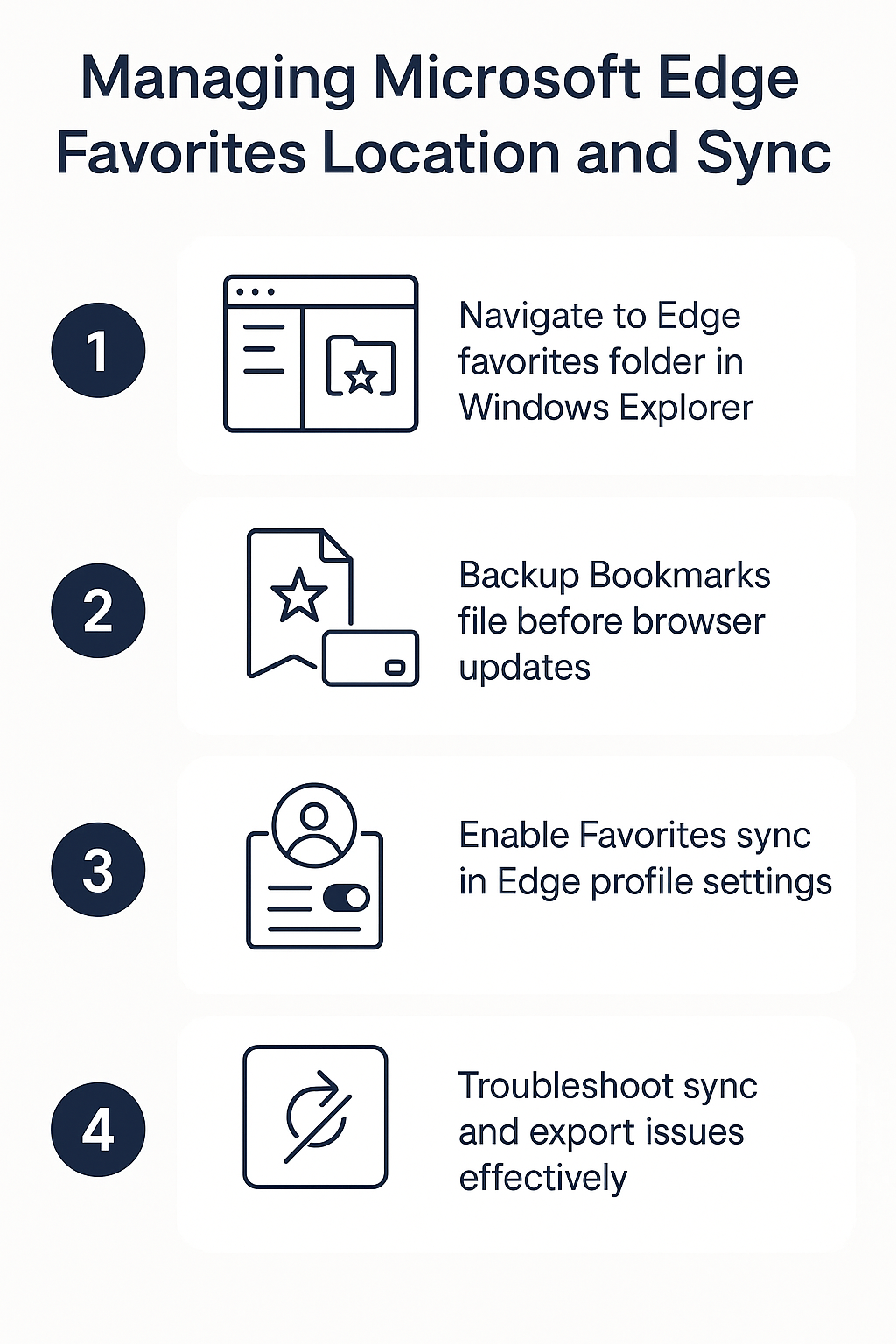
Locating and accessing Edge bookmarks storage
Microsoft Edge stores favorites in specific system folders that vary depending on your operating system and user profile configuration. The default storage location ensures favorites remain accessible across browser sessions while maintaining proper security permissions for each user account. Learn more about Edge cache location Windows.
This tutorial will demonstrate how to locate your Edge favorites folder, create backup copies, configure sync settings, and troubleshoot common storage issues. You’ll learn to navigate the Windows file system, understand Edge’s data structure, and implement proper backup procedures for organizational use.
Finding your Edge bookmarks file location in Windows 11
The Microsoft Edge favorites location depends on your Windows version and user profile setup, but the standard path provides a reliable starting point for most configurations.
- Open Windows Explorer by pressing Windows key + E to access the file system navigation interface.
- Navigate to your user profile directory by typing %USERPROFILE% in the address bar and pressing Enter to reach your personal folder structure.
- Access the Microsoft Edge data folder by navigating to AppData\Local\Microsoft\Edge\User Data\Default within your user profile directory.
- Locate the Bookmarks file (without extension) which contains all your Edge favorites data in JSON format for easy backup and restoration.
- Right-click the Bookmarks file and select Properties to verify the file size and last modified date, ensuring you’re working with current data.
Expert Tip: The Bookmarks file updates automatically whenever you add, remove, or modify favorites in Microsoft Edge, so always close the browser before creating backup copies.
Accessing favorites through Edge settings
- Launch Microsoft Edge and click the three-dot menu button in the upper right corner to access browser management options.
- Select Settings from the dropdown menu to open Edge’s comprehensive configuration panel for user preferences and data management.
- Choose Profiles from the left sidebar menu to view account-specific settings including sync status and data storage information.
- Click on Import browser data to access tools for exporting current favorites or importing bookmarks from other browsers or backup files.
- Select Export bookmarks to create an HTML file containing all your favorites in a portable format compatible with other browsers. For detailed tips, see Edge browser slow loading fix.
Understanding Edge sync and cloud storage
- Access your Microsoft account sync settings by clicking your profile picture in the upper right corner of Edge browser.
- Select Manage profile settings to view current synchronization status and configure which data types sync across your devices.
- Toggle the Favorites sync option to enable cloud storage of your bookmarks through your Microsoft account for cross-device accessibility.
- Verify sync functionality by signing into Edge on another device and confirming your favorites appear automatically without manual import procedures.
- Monitor sync status through the Settings > Profiles > Sync section to ensure continuous backup of your favorites to Microsoft’s cloud infrastructure.
Solving common Edge favorites issues
- Favorites not syncing across devices: Check your Microsoft account connection in Edge settings and verify internet connectivity, then sign out and back into your Microsoft account to refresh the sync connection and resolve authentication issues.
- Missing Bookmarks file in expected location: Ensure you’re looking in the correct user profile directory if multiple accounts exist on the device, and check if Edge is using a different profile folder by examining the User Data directory for additional numbered folders.
- Corrupted favorites data after system update: Create regular backups of the Bookmarks file before major system updates, and restore from a previous backup by copying the saved file back to the Edge User Data Default folder while the browser remains closed.
- Unable to export favorites through browser interface: Try accessing favorites through the Edge favorites manager by pressing Ctrl+Shift+O, then use the three-dot menu within the favorites interface to access export options that may not appear in the main settings menu. For backup troubleshooting advice see sync your Teams files.