
“I accidentally deleted an important project folder from my Windows 11 computer yesterday, and now I can’t find it anywhere – not even in the Recycle Bin. Is there any way to get my files back?” This scenario represents one of the most common data loss situations that Windows 11 users face, whether dealing with accidentally deleted documents, permanently removed folders, or files that bypassed the Recycle Bin entirely.
Understanding Windows 11 file deletion and recovery options
When files disappear from your Windows 11 system, the urgency of recovery depends on how they were deleted and where they were stored originally. Windows 11 provides multiple built-in recovery mechanisms, from the basic Recycle Bin restoration to advanced File History backups and System Restore points that can help retrieve lost data. This tutorial covers comprehensive methods to recover accidentally deleted files, restore permanently deleted folders, and retrieve recently deleted items using both native Windows 11 tools and free data recovery solutions. You’ll need administrative access to your Windows 11 computer and basic familiarity with File Explorer navigation to implement these recovery techniques effectively.
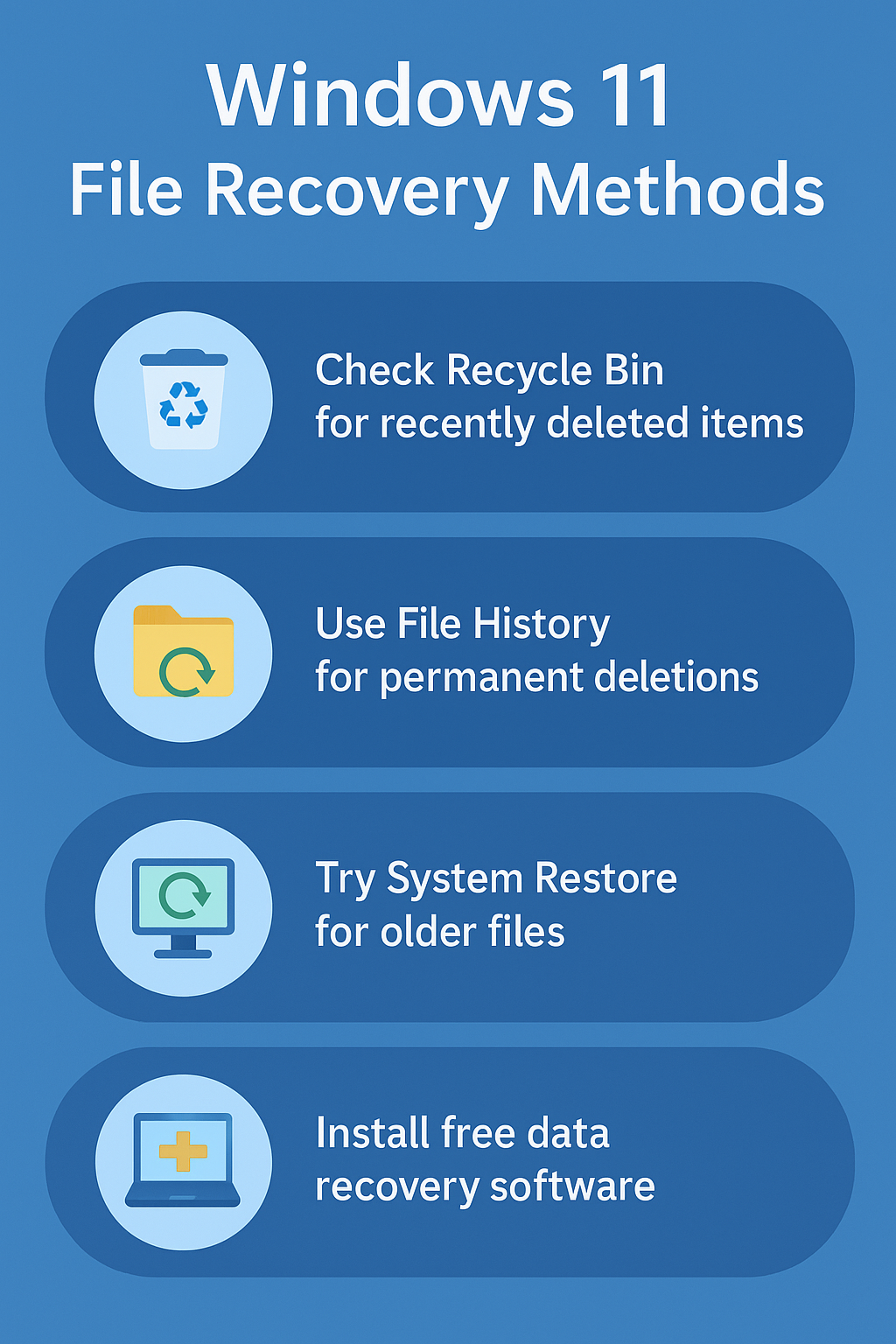
Step-by-step file recovery methods for Windows 11
Checking the Recycle Bin for recently deleted files
- Navigate to your desktop and locate the Recycle Bin icon, which appears as a trash can symbol in the upper-left corner of your screen by default.
- Double-click the Recycle Bin icon to open the folder containing all recently deleted files and folders that haven’t been permanently removed from your system yet.
- Browse through the list of deleted items by scrolling down or using the search box in the upper-right corner to locate specific files or folders by name.If you’re having trouble finding your files, you might need to show hidden files and folders in Windows to ensure nothing is being concealed by system settings.
- Right-click on any file or folder you want to recover and select “Restore” from the context menu to return the item to its original location automatically.
- Select multiple files simultaneously by holding the Ctrl key while clicking each item, then right-click and choose “Restore” to recover several files at once efficiently.
Expert Tip: If your Recycle Bin appears empty but you’re certain files were recently deleted, check if automatic deletion is enabled by right-clicking the Recycle Bin, selecting Properties, and reviewing the storage settings for each drive.
Using File History to retrieve permanently deleted files
- Press Windows key + I to open Settings, then navigate to Update & Security and click on “Backup” in the left sidebar menu to access File History options.
- Click “More options” under the “Back up using File History” section to view detailed backup settings and verify that File History has been actively running on your system.
- Select “Restore files from a current backup” to launch the File History interface, which displays snapshots of your files organized by date and time stamps.
- Navigate through the folder structure using the left and right arrow buttons to browse different backup versions and locate the deleted files or folders you need to recover.
- Select the files you want to restore by clicking on them, then click the green restore button (circular arrow icon) to return them to their original locations immediately.
- Choose “Replace the file in the destination” if prompted about existing files, or select “Skip this file” to avoid overwriting current versions of similarly named documents.
Recovering files through System Restore points
- Type “Create a restore point” in the Windows 11 search bar and select the matching result to open the System Properties dialog with the System Protection tab active.
- Click the “System Restore” button to launch the System Restore wizard, which will scan your computer for available restore points created automatically or manually over time.
- Select “Choose a different restore point” and click Next to view a comprehensive list of restore points with dates, descriptions, and the types of changes they can undo.
- Choose a restore point that was created before your files were deleted, keeping in mind that this process will revert system settings and installed programs to that earlier state.
- Click “Scan for affected programs” to review which applications and updates will be impacted by rolling back to the selected restore point before proceeding with the restoration.
- Follow the on-screen prompts to complete the system restore process, which will restart your computer and potentially recover deleted files that existed at the time of the selected restore point.
Utilizing Windows 11 free data recovery solutions
- Download and install Windows File Recovery from the Microsoft Store, which is Microsoft’s official command-line tool for recovering deleted files from various storage devices and file systems.
- Open Command Prompt as an administrator by right-clicking the Start button, selecting “Windows Terminal (Admin),” and confirming the User Account Control prompt that appears on screen.
- Use the basic syntax “winfr source-drive: destination-drive: [/mode] [/switches]” where source-drive is where files were deleted and destination-drive is where recovered files will be saved.
- Execute a command like “winfr C: D: /regular /n *.docx /n *.pdf” to recover specific file types from your C: drive to your D: drive using regular mode scanning.
- Monitor the recovery progress as the tool scans your drive and creates a “Recovery_[date]” folder on the destination drive containing any files that were successfully retrieved from deleted locations.
- Explore alternative free recovery tools like Recuva or PhotoRec if Windows File Recovery doesn’t locate your specific files, as different tools use varying scanning algorithms and recovery methods.
Advanced Recovery Scenarios and Alternative Methods
Recovering Files from Network Drives and OneDrive
If your deleted files were stored on a network location or synced through OneDrive, additional recovery options become available. For OneDrive files, navigate to the OneDrive web interface and check the Recycle Bin section, which maintains deleted files for up to 93 days by default. Network administrators can often restore files from server-level backups or Volume Shadow Copies on Windows Server environments. For SharePoint-connected folders, deleted items may be recoverable through the SharePoint site’s second-stage recycle bin, even after being removed from the first-stage recycle bin.
Windows 11 vs Windows 10 Recovery Differences
Windows 11 introduces enhanced integration with Microsoft 365 backup services and improved File History performance compared to Windows 10. The new Storage Sense feature in Windows 11 provides more granular control over automatic file deletion, potentially affecting recovery scenarios. Windows 11’s redesigned Settings interface places backup options in the “System” section rather than “Update & Security,” making File History configuration slightly different from Windows 10. Additionally, Windows 11’s improved search indexing can help locate recently moved files that weren’t actually deleted but simply relocated by system updates or application installations.
Troubleshooting common Windows 11 file recovery issues
- Verify that File History was enabled and actively backing up your files before the deletion occurred, as this feature must be configured in advance to create recoverable snapshots.
- Check if your deleted files were stored on a solid-state drive (SSD), which may make recovery more challenging due to TRIM commands that immediately clear deleted data blocks.
- Ensure you’re running data recovery scans as soon as possible after file deletion, since continued computer use can overwrite the disk space where deleted files were originally stored.
- Confirm that you have sufficient free space on your destination drive when using recovery tools, as the scanning process requires adequate storage to save recovered files without interruption.
- Restart your computer and try recovery methods again if initial attempts fail, as temporary system issues or locked files can sometimes interfere with the restoration process.
- Consider using different recovery modes in Windows File Recovery (regular, extensive, or segment) if the default scanning method doesn’t locate your missing files successfully.