PowerPoint does not provide a simple switch that prevents every user from changing a font size. The dependable way to control typography is to build the size into the Slide Master and its layouts, use placeholders rather than freeform text boxes, and distribute the presentation as a template. This creates a strong default, not an unbreakable lock.
That distinction saves time. Trying to protect individual text boxes often leaves authors with inconsistent slides and no clear repair path. A well-designed layout gives each content type a defined size and lets an editor restore the intended formatting by reapplying the layout or resetting the slide.
Decide what consistency should cover
List the text roles that need control: title, subtitle, body levels, captions, section headings, and footers. Choose sizes that remain readable in the expected room and on shared screens. Do not shrink body text merely to fit more words; reduce content or use another layout when a slide becomes dense.
Review accessibility at the same time. The master accessibility checklist is relevant because placeholder order, contrast, and layout semantics matter alongside type size. A visually consistent deck can still be difficult to navigate if every object is an unstructured text box.
- Define title and body size ranges.
- Create a layout for each recurring slide purpose.
- Reserve freeform text boxes for exceptions.
- Name layouts so authors can choose correctly.
Set sizes on the master and layouts
Open Slide Master view
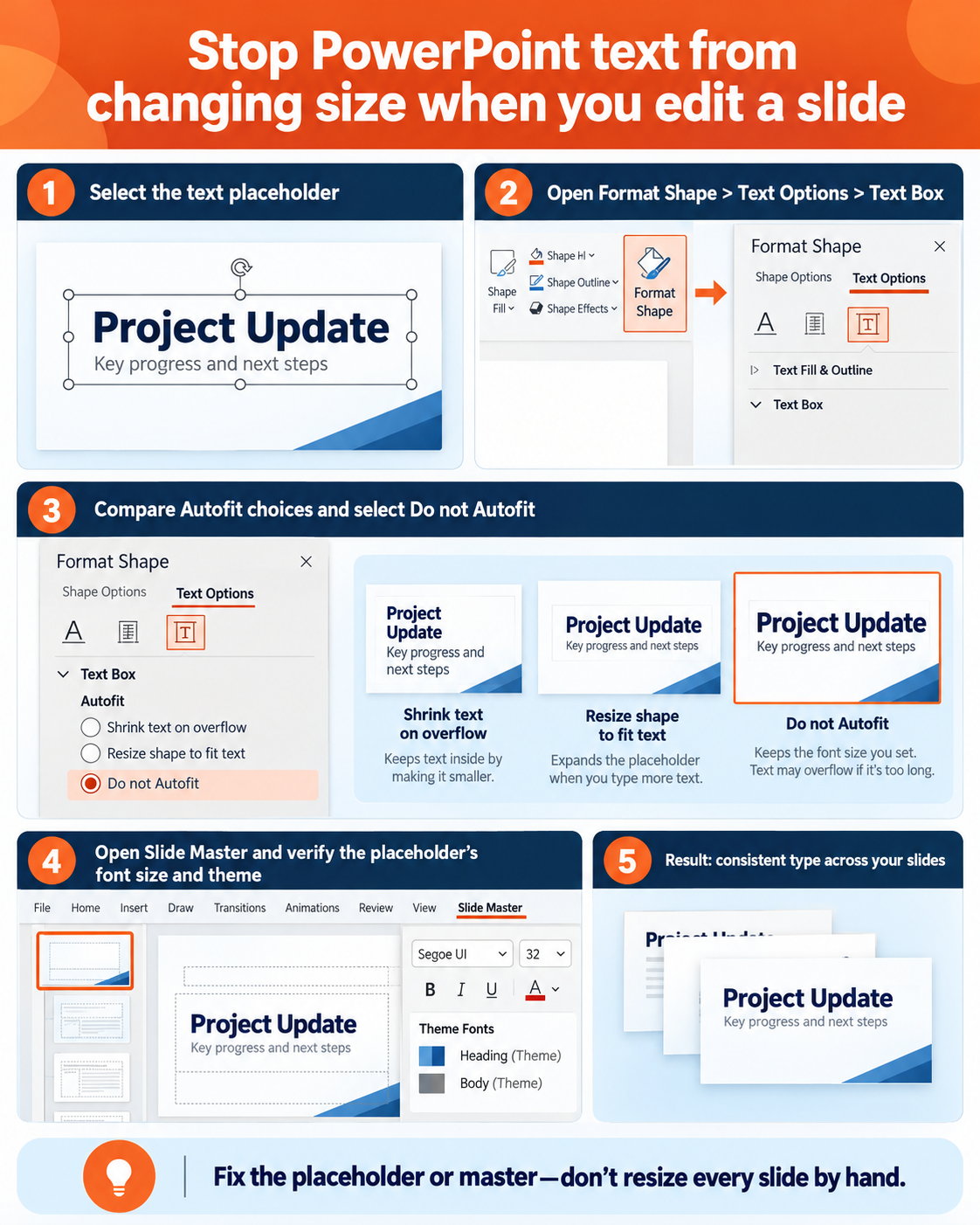
In desktop PowerPoint, select View and then Slide Master. The large thumbnail at the top is the master; related layouts appear beneath it. Change the master for broad defaults and a specific layout when only one slide type needs different typography.
Format each placeholder level
Select the title or content placeholder and highlight the placeholder level you want to change. On Home, choose the font size and related paragraph settings. Repeat for the body levels that authors actually use, keeping the hierarchy visibly distinct.
Create missing placeholders
If authors repeatedly add manual text boxes, edit the relevant layout and use Insert Placeholder to create the required title, text, or content area. Set its size and position in Slide Master view. Placeholder formatting is inherited more predictably than formatting pasted into arbitrary boxes.
Close and save as a template
Close Master View, create test slides from every important layout, and save the approved design as a PowerPoint template when it will be reused. Store the template in the organization’s normal governed location so authors start from the same source.
Repair slides that ignore the intended size
Select the affected slide, choose Home > Layout, and reapply the correct layout. Use Reset when the placeholder has been manually moved or reformatted and you want it to return to the layout defaults. Reset carefully because deliberate local formatting may also change.
Pasted content can carry source formatting or arrive in a freeform text box. Use the destination theme when pasting and move content into a placeholder. If slides were generated or heavily rewritten, the layout recovery guidance can help separate a content-generation issue from a master-formatting issue.
Reduce drift without claiming a hard lock
Train authors to choose layouts before entering content, and provide a small set of purpose-built layouts rather than dozens of near duplicates. A template owner should review new layouts, because users can otherwise solve a local problem by creating another inconsistent pattern.
For stricter distribution, share a PDF when recipients only need to view the presentation. When they must edit, accept that PowerPoint gives editors control over text. Governance, accessible layouts, and review are the practical controls; a hidden trick cannot guarantee that an editor will never change a size.
Control fonts without promising an impossible lock
PowerPoint does not provide a universal switch that freezes font size in every text box. The practical control is to define placeholder formatting in the Slide Master, use layouts instead of free-form boxes, and restrict template editing through process and permissions. Users can still override formatting when they have edit access, so the template should make the correct choice easier than the wrong one.
Test the template by inserting a fresh slide from each important layout, typing enough text to trigger AutoFit, and pasting text from another presentation. Check Windows, macOS, and the web app when those clients are in scope because font availability and paste behavior can differ. A successful test preserves the intended hierarchy without cutting off content.
Questions about PowerPoint text control
Can I completely prevent editors from changing font size?
Not through a normal PowerPoint font-size lock. Editors can override formatting or add their own text boxes. Slide Masters, layouts, templates, and review make the intended size easy to use and restore, but they do not remove all editing capability.
Why did changing the Slide Master not update one slide?
The slide may use a different layout, contain manually formatted placeholder text, or rely on a freeform text box. Reapply the intended layout and consider Reset after reviewing local changes. Move recurring text into a proper placeholder.
Should I change the master or an individual layout?
Use the master for defaults shared by many layouts, such as a common title hierarchy. Use an individual layout for a specific slide purpose that needs different sizes or positions. Testing every layout prevents an apparently global change from producing awkward exceptions.
Will the same template behave in PowerPoint for the web?
The web app can use the template’s established layouts, but advanced master editing is primarily a desktop-authoring task. Build and validate the master in desktop PowerPoint, then test normal slide creation and editing in the web experience your team uses.
Make the correct formatting the easy choice
Treat font-size control as template engineering rather than object protection. Define readable roles, format placeholders in Slide Master view, test every layout, and teach authors to reapply or reset layouts when slides drift. The result is not an absolute lock, but it is a maintainable system that keeps most decks consistent without fighting normal editing.