Generative actions in Power Automate represent a significant shift in how organizations build cloud flows because they allow the AI runtime to determine workflow steps automatically at execution time. Instead of manually configuring every connector, trigger, and condition within a traditional flow, you describe your automation intent using natural language and the generative action handles the rest. This article walks through the complete process of creating, configuring, and deploying generative actions so you can automate complex tasks across your Microsoft 365 environment without writing extensive logic from scratch.
In my experience working with Power Automate daily, generative actions have reduced the time spent building multi-step approval workflows from several hours down to roughly fifteen minutes of configuration and testing.
What Are Power Automate Generative Actions?
Generative actions are AI-powered components within Power Automate cloud flows that dynamically generate workflow steps based on a natural language description you provide during the design phase. Unlike traditional actions where you manually select connectors, map fields, and define conditional branches, generative actions use the Copilot AI runtime to interpret your intent and produce the necessary automation logic when the flow executes.
How Power Automate AI Runtime Processes Intent
The AI runtime behind generative actions analyzes your natural language prompt, identifies which connectors and data sources are relevant, and then assembles the appropriate sequence of operations each time the flow runs successfully. This intent-based automation approach means that the same generative action can adapt its behavior when your connected services change or when new data fields become available in your environment. The runtime evaluates available connectors, permissions, and data schemas before producing the final sequence of steps that the flow engine then executes in the correct logical order.
Key Differences Between Power Automate Traditional and Generative Actions
Traditional Power Automate actions require you to select a specific connector, choose an operation, and manually map every input field to a data source or expression within your cloud flow. Generative actions instead accept a natural language description of what you want to accomplish, and the AI runtime determines which connectors, operations, and field mappings are needed to fulfill that request dynamically. This fundamental difference means that generative actions significantly reduce the technical knowledge required to build complex automations involving multiple services like SharePoint, Teams, and Outlook simultaneously.
How to Create Power Automate Generative Actions?
Setting up your first generative action requires access to a Power Automate premium license and the cloud flow designer, which currently supports generative actions in preview mode for environments with Copilot enabled.
Opening the Power Automate Cloud Flow Designer
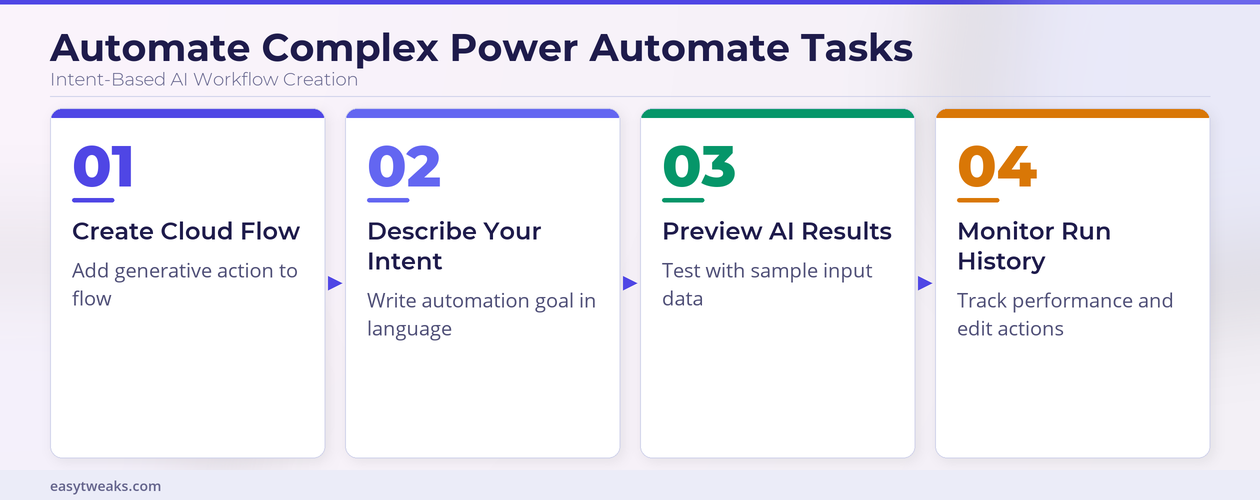
Navigate to the Power Automate portal, select the cloud flows section from the left navigation panel, and create a new automated or instant flow depending on your trigger preference. Once inside the cloud flow designer, you will notice the option to add a generative action alongside the traditional action picker that displays the standard connector library and available operations.
Adding a Power Automate Generative Action Step
Click the plus icon between existing steps or at the end of your flow, then select the generative action option from the action menu that appears in the cloud flow designer interface. A natural language input field appears where you describe the task you want the AI to perform, such as “send a Teams notification when a SharePoint list item is modified and the status column changes to approved.” The AI runtime then parses this description, identifies the required SharePoint and Teams connectors, and generates the necessary action configuration with dynamic inputs and outputs mapped automatically.
Configuring Power Automate Dynamic Inputs and Outputs
After the generative action processes your intent description, review the dynamic inputs and outputs that the AI runtime has proposed for your specific automation scenario within the flow designer. You can override any automatically mapped field by clicking on it and selecting an alternative data source, expression, or static value from the dynamic content panel available throughout Power Automate. Testing your configuration before deployment ensures that the AI-generated mappings correctly reference the data sources, columns, and fields you intend to use in production workflows.
I have found that reviewing the generated connector mappings carefully before activating any generative action prevents most runtime errors that occur when field names or data types differ slightly from expectations.
Power Automate Best Practices for Complex Task Automation
Building reliable automations with generative actions requires thoughtful prompt design, proper testing, and ongoing monitoring to ensure consistent results across different execution scenarios and data conditions.
Writing Effective Power Automate Intent Descriptions
Provide specific and detailed natural language descriptions that include the exact service names, list or channel names, column references, and desired output formats so the AI runtime generates accurate automation steps every time. Vague descriptions like “process my data” produce unpredictable results, while precise descriptions like “copy all rows from the Sales-Q1 Excel table where the Revenue column exceeds 50000 into a new SharePoint list called High Revenue Accounts” consistently generate correct and reliable action configurations.
Testing Power Automate Generative Actions in Preview Mode
Always use the test functionality within the cloud flow designer to validate your generative action against real data before enabling the flow for production use in your organization. The preview mode allows you to observe exactly which connectors the AI runtime selects, how it maps input fields to output fields, and whether the generated sequence of operations matches your intended automation logic completely. Running multiple test iterations with different data scenarios helps identify edge cases where the generative action might produce unexpected results or fail to handle null values, missing columns, or permission errors gracefully.
Power Automate Generative Actions FAQ
What are generative actions in Power Automate?
Generative actions are AI-powered flow components that use the Copilot runtime to automatically determine and execute workflow steps based on natural language descriptions you provide when designing your cloud flow. They differ from traditional actions because you describe the desired outcome in plain language rather than manually configuring every connector, field mapping, and conditional branch within the Power Automate designer interface.
How do I add a generative action to a Power Automate cloud flow?
Open the cloud flow designer in Power Automate, click the plus icon to add a new step, and select the generative action option from the action picker that appears alongside traditional connectors. Enter a detailed natural language description of your intended automation task, and the AI runtime will automatically generate the required connector configurations, field mappings, and operational logic for your scenario.
After deploying several generative actions across different departments, I consistently noticed that teams with no prior Power Automate experience could build functional multi-step workflows within their first session using this approach.
Which connectors work with Power Automate generative actions?
Generative actions currently support the most commonly used Microsoft 365 connectors including SharePoint, Teams, Outlook, Excel Online, OneDrive, and Planner, along with several popular third-party connectors that have been enabled for AI runtime compatibility. The available connector list continues to expand as Microsoft rolls out additional generative action support through regular Power Automate platform updates released on a monthly cadence throughout the current preview program.