
Can you connect your new Bluetooth mouse to your Windows 11 computer but keep running into pairing issues or connection failures? Many users struggle with establishing a reliable wireless connection between their mouse and their system, especially when switching from wired peripherals or upgrading from older Windows versions that handled Bluetooth differently.
Connect devices to Windows 11 with Bluetooth
Windows 11 introduced updated Bluetooth management features that require specific steps to establish proper device pairing. Unlike previous Windows versions, the new Settings interface streamlines the connection process but can be confusing for users familiar with older control panel methods. In this post, we will go through a complete process of pairing your Bluetooth mouse with Windows 11, from initial discovery through final configuration.
We will cover the standard pairing workflow using Windows 11’s Settings app, explore alternative methods through Device Manager when needed, and address common connectivity challenges. You will need administrative access to your Windows 11 computer and a compatible Bluetooth mouse that supports standard pairing protocols. The process typically takes 2-3 minutes once you understand the correct sequence of steps.
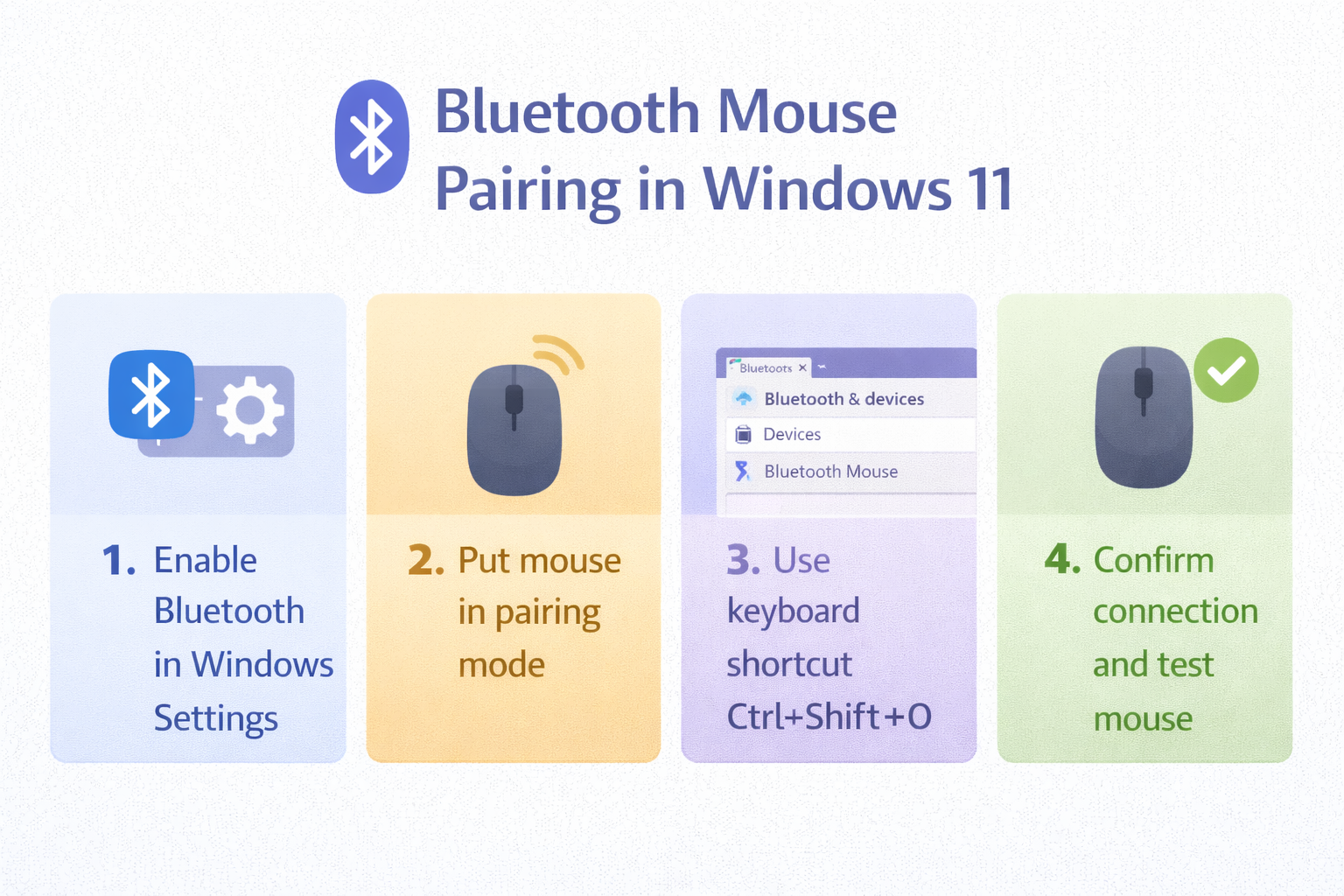
Windows 11 Bluetooth mouse pairing process
The primary method for connecting your Bluetooth mouse involves using the Windows 11 Settings interface, which provides the most reliable pairing experience for most devices.
- Navigate to Settings by pressing the Windows key + I or clicking the Start button and selecting the gear icon from the pinned applications section.
- Select “Bluetooth & devices” from the left sidebar menu, which will display your current Bluetooth status and any previously connected devices in the main panel.
- Ensure Bluetooth is enabled by checking the toggle switch at the top of the page, and click the slider to turn it on if it appears grayed out or disabled.
- Put your Bluetooth mouse into pairing mode by locating the pairing button on the device, typically found on the bottom or side, and holding it for 3-5 seconds until the LED indicator begins flashing rapidly.
- Click “Add device” near the top of the Bluetooth settings page, which will open a new window with different device type options for pairing.
Expert Tip: If your mouse doesn’t have a visible pairing button, try holding down the left and right mouse buttons simultaneously for 5 seconds to activate pairing mode.
Completing the device connection
- Select “Bluetooth” from the device type options, which will initiate Windows 11’s scanning process to discover nearby Bluetooth devices ready for pairing.
- Wait for your mouse to appear in the discovered devices list, which usually takes 15-30 seconds depending on your system’s Bluetooth adapter performance.
- Click on your mouse name when it appears in the list, which will trigger Windows to attempt establishing a connection with the device.
- Confirm the pairing by clicking “Done” when Windows displays the successful connection message, and test the mouse functionality by moving it around your screen.
- Access additional mouse settings by returning to Settings > Bluetooth & devices > Mouse if you need to adjust scroll speed, button assignments, or pointer sensitivity for your newly connected device.
Troubleshooting common pairing issues
Several factors can prevent successful Bluetooth mouse pairing, ranging from driver conflicts to interference from other wireless devices in your environment.
- Mouse not appearing in discovery results often indicates the device isn’t properly in pairing mode, so restart the pairing process by turning the mouse off and on, then holding the pairing button for at least 10 seconds.
- Connection attempts failing repeatedly may stem from outdated Bluetooth drivers, which you can resolve by opening Device Manager, expanding Bluetooth, right-clicking your adapter, and selecting “Update driver” to download current software.
- Intermittent connectivity or cursor lag typically results from interference from other 2.4GHz devices, so move your router, wireless keyboards, or other Bluetooth devices further away from your computer during the pairing process.
- Previous pairing conflicts can block new connections, requiring you to clear the Bluetooth cache by opening Settings > Bluetooth & devices, finding any old mouse entries, clicking the three dots, and selecting “Remove device” before attempting to pair again.