“I spend hours every day managing my Outlook inbox, responding to routine emails, and organizing messages. Is there a way to automate these repetitive tasks so I can focus on more important work?” This question reflects a common challenge faced by professionals who rely heavily on email communication for their daily operations.
Outlook automation email solutions and workflow overview
Managing email efficiently requires strategic automation that reduces manual intervention while maintaining professional communication standards. Modern Outlook 365 provides multiple automation pathways through Power Automate integration, built-in rules, and automatic reply functionality that can transform your email management experience.
This tutorial will demonstrate how to create automated workflows for common email scenarios including message filtering, automatic responses, task creation from emails, and inbox organization. You will learn to leverage both Outlook’s native automation features and Power Automate’s advanced workflow capabilities to streamline your email processes.
Important Tip: Before implementing automation, audit your current email patterns to identify which tasks consume the most time and would benefit most from automation.
Prerequisites include an active Microsoft 365 subscription with Outlook 365 access and Power Automate licensing. We will use Outlook web interface, Power Automate portal, and Outlook desktop application depending on the specific automation requirements.
Outlook 365 task automation using Power Automate workflows
Creating your first email automation workflow begins with accessing Power Automate through your Microsoft 365 portal and selecting the appropriate trigger for your specific business needs.
- Navigate to flow.microsoft.com and sign in with your Microsoft 365 credentials to access the Power Automate dashboard where you can create new automated workflows.
- Click “Create” from the left navigation menu and select “Automated cloud flow” to begin building a workflow that responds to specific email events in your Outlook account.
- Search for “Outlook” in the trigger selection and choose “When a new email arrives (V3)” as your primary trigger for processing incoming messages automatically.
- Configure the trigger settings by specifying the folder to monitor, typically your Inbox, and add conditions such as sender email addresses or subject line keywords that will activate the automation.
- Add your first action by clicking the “New step” button and selecting “Create a task” from the Microsoft To Do connector to automatically generate tasks from important emails.
Expert Tip: Use the “importance” and “has attachments” conditions in your trigger to focus automation on high-priority emails that require immediate attention.
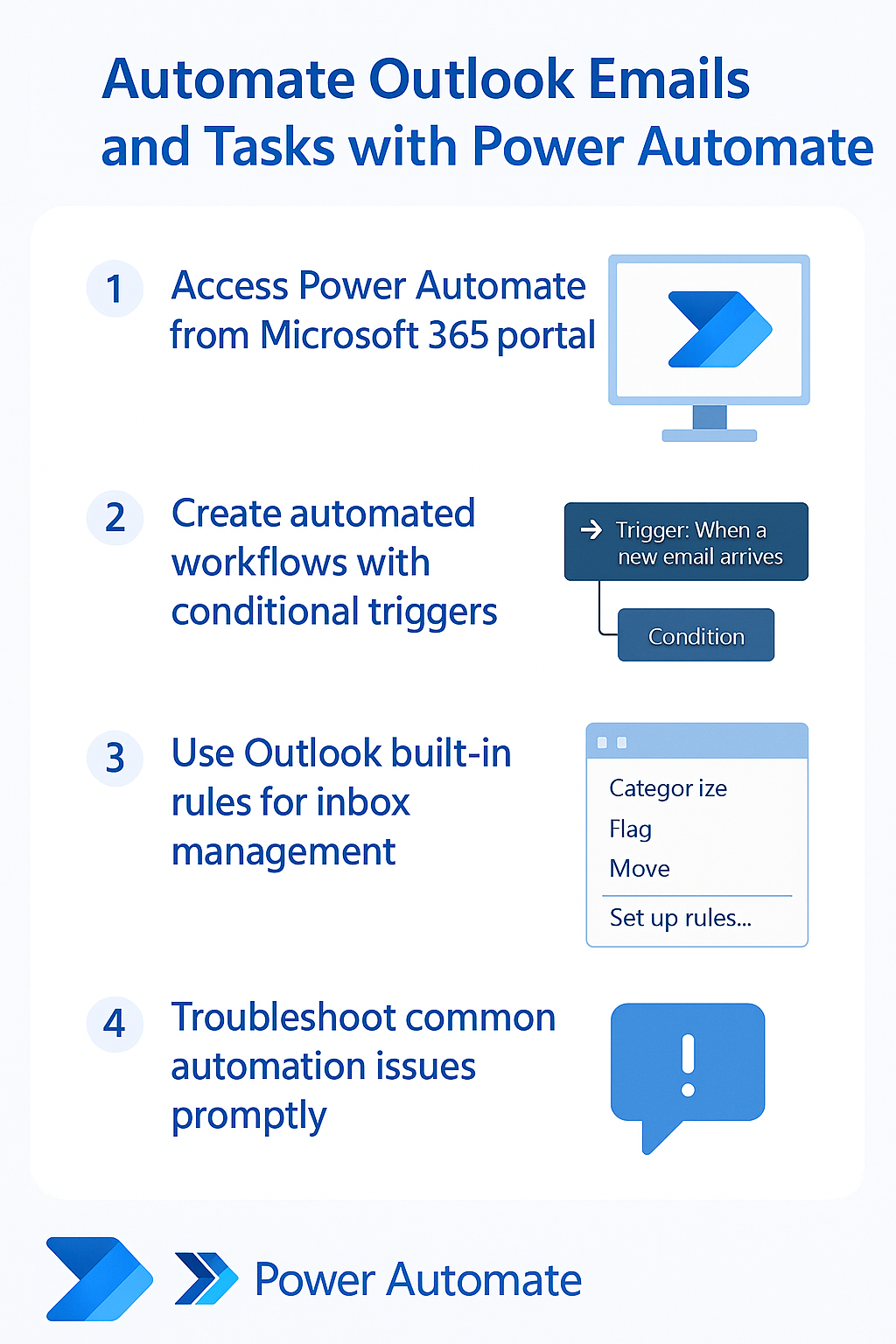
How to automate Outlook emails with conditional logic?
- Implement conditional logic by adding a “Condition” action that evaluates email properties such as sender domain, subject keywords, or attachment presence before executing specific automation steps.
- Configure the “Yes” branch to handle emails that meet your criteria by adding actions like moving messages to specific folders, forwarding to team members, or creating calendar appointments.
- Set up the “No” branch for emails that do not match your conditions, which might include applying different organizational rules or leaving messages in the default location for manual review.
- Test your workflow using the “Test” function in Power Automate to ensure proper email processing and verify that automated actions execute correctly without affecting important communications.
- Enable the workflow by clicking “Save” and monitor its performance through the run history to identify any issues or optimization opportunities in your email automation process.
Power Automate in Outlook integration and advanced features
- Access Power Automate directly within Outlook by selecting an email message and clicking the “Automate” button in the ribbon to create instant workflows based on specific email content.
- Create approval workflows by connecting email triggers to Microsoft Teams or SharePoint approval processes that route decision requests automatically based on email content or sender information.
- Implement data extraction automation by using AI Builder features within Power Automate to extract key information from email attachments and populate SharePoint lists or Excel spreadsheets automatically.
- Configure notification systems that send Teams messages or mobile push notifications when specific email types arrive, ensuring immediate awareness of critical communications without constant inbox monitoring.
Automate Outlook inbox management with built-in rules
Outlook’s built-in rules engine provides powerful automation capabilities that operate directly within your email client without requiring external workflow tools or additional licensing considerations.
- Open Outlook and navigate to File menu, then select “Manage Rules & Alerts” to access the comprehensive rule management interface where you can create sophisticated email processing automation.
- Click “New Rule” and choose “Apply rule on messages I receive” to create server-side rules that process emails automatically even when Outlook is not actively running on your device.
- Define conditions for your rule by specifying sender criteria, subject line patterns, message size limits, or attachment requirements that determine which emails trigger the automated processing actions.
- Configure actions such as moving messages to specific folders, marking as read, forwarding to colleagues, or deleting unwanted emails to maintain organized inbox management without manual intervention.
- Set exceptions for your rules to prevent important messages from being processed inappropriately, ensuring critical communications always receive proper attention despite automated filtering systems.
Remember: Server-side rules have priority over client-side rules, so design your automation hierarchy accordingly to prevent conflicts between different rule sets.
Outlook automatic reply settings for comprehensive communication
- Access automatic reply configuration through File menu, then “Automatic Replies (Out of Office)” to set up professional automated responses for various absence scenarios and communication needs.
- Configure separate automatic reply messages for internal organization contacts and external senders to provide appropriate information levels while maintaining professional communication standards across different audiences.
- Set specific date ranges for automatic replies to ensure activation and deactivation occur precisely when needed, preventing inappropriate automated responses during normal working periods.
- Create rule-based automatic replies that respond differently based on sender importance, subject keywords, or message urgency levels to provide contextually appropriate automated communication responses.
- Enable automatic reply scheduling to activate during regular non-working hours, providing immediate acknowledgment to senders while setting appropriate expectations for response timing during off-hours periods.
How to automate Outlook macros for advanced customization
Outlook macros provide the highest level of customization for email automation, allowing complex logic and integration with other Office applications through Visual Basic for Applications programming.
- Enable macro functionality by navigating to File menu, selecting “Options,” then “Trust Center Settings” and configuring macro security settings to allow properly signed or trusted macro execution.
- Access the Visual Basic for Applications editor by pressing Alt+F11 in Outlook to begin creating custom automation scripts that can perform complex email processing beyond standard rule capabilities.
- Create event-triggered macros by implementing Application_NewMailEx or Application_ItemSend procedures that automatically execute when specific email events occur within your Outlook environment.
- Develop custom automation logic using VBA code to perform advanced operations like parsing email content, updating external databases, or generating reports based on email communication patterns and content analysis.
Suggestion: Start with simple macro automation like auto-categorizing emails before progressing to complex integration scenarios that require extensive VBA programming knowledge.
Troubleshooting common Outlook automation challenges
Email automation implementations can encounter various technical challenges that require systematic troubleshooting approaches to maintain reliable workflow operation and user productivity.
- Power Automate workflows may fail when Outlook connectivity issues prevent trigger execution, requiring workflow restart and connection verification through the Power Automate portal administration interface.
- Automatic reply settings might not activate properly due to Exchange server configuration conflicts, necessitating coordination with IT administrators to verify server-side rule processing capabilities and permissions