If New Teams keeps putting you back to Offline, do not start by reinstalling the app. Offline is a special presence choice, so the first checks should answer one simple question: is Teams remembering a manual status, following another signed-in client, or reacting to calendar and activity signals?
The fastest fix is usually to reset the status, check the duration, then compare desktop, web, and mobile. If Offline comes back after those checks, you have a better signal that the problem is account, policy, or client related instead of a one-time presence glitch.
Start with the status override
Teams can set some presence states automatically when you are in a call, in a meeting, idle, or locked. Offline is different because it is normally a user-facing choice that tells others you are not signed in, even though Teams may still deliver messages.
That distinction matters. If the profile menu still contains a remembered Offline choice or a duration rule, Teams may keep returning to that state after you restart the desktop app.
Reset a manual Offline choice
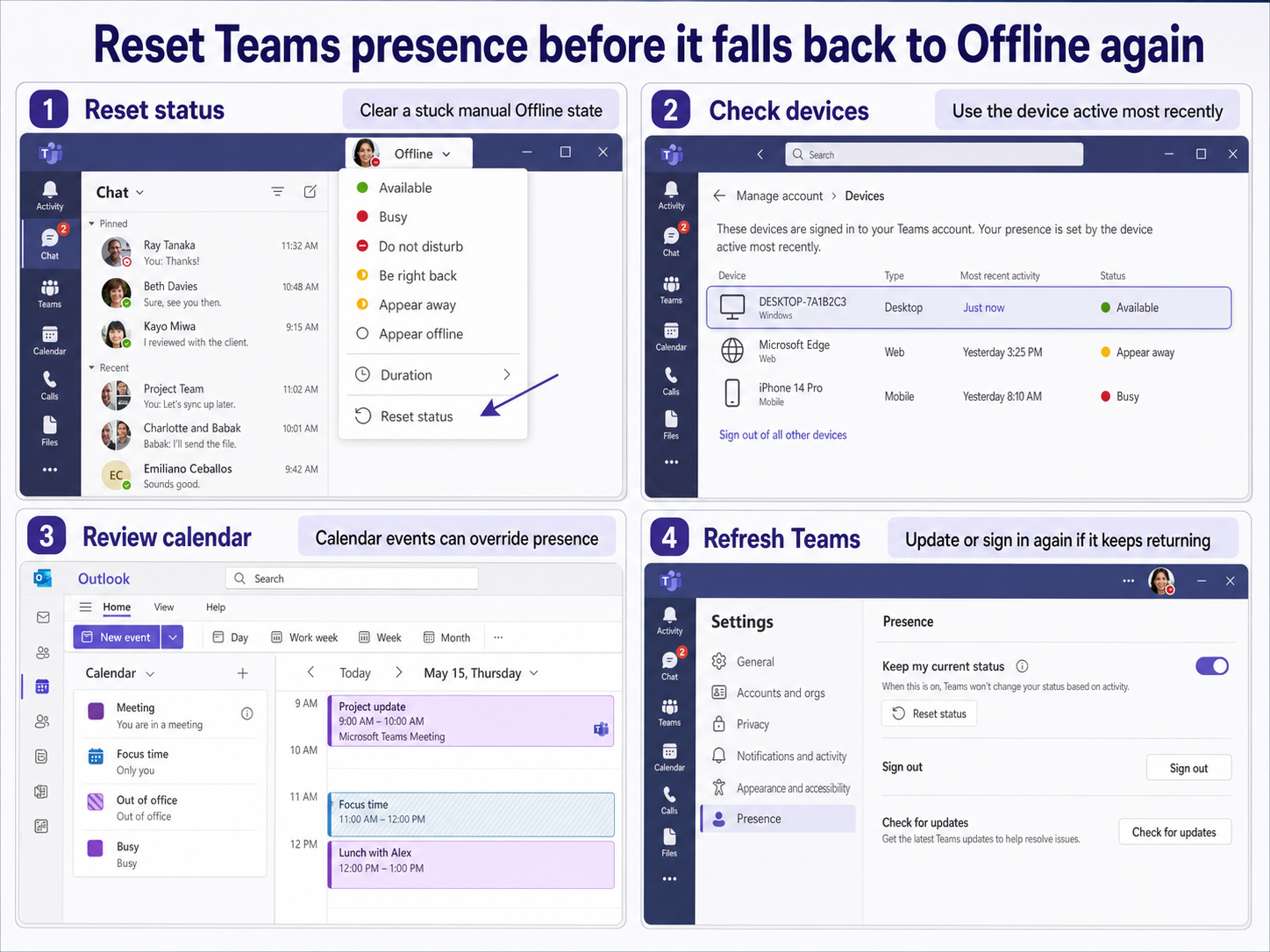
Open New Teams and select your profile picture or initials in the upper-right corner. Select the current status, choose Available, and then open the status menu again and select Reset status if the option appears.
Wait a minute before testing with another user. Presence can take a short time to refresh across Teams, Outlook, and mobile clients. If the status changes to Available and then returns to Offline only after you switch devices, move to the device checks below.
If the visible status is no longer Offline but coworkers still see the wrong presence, run a separate pass through our broader Teams presence cleanup guide before changing account settings.
Remove a status duration
In the status menu, check Duration. If Offline or another less-available status was set with a custom reset time, change it to a short test value or clear it by selecting a new status and using Reset status.
This is especially useful after travel, focused work, or a temporary privacy choice. A duration can make the status look like it is reverting by itself, when Teams is actually following the reset rule that was saved earlier.
Check whether Teams is only idle
Do not confuse Offline with Away. Away is often activity driven. If your computer locks, sleeps, or stays idle long enough, Teams can move you from Available to Away.
If the complaint is truly Offline, focus on manual status, sign-in state, and other clients. If the complaint is Away, adjust sleep, browser activity, and focus-time behavior instead.
Look for another source changing presence
Presence is not controlled by only the desktop window you are staring at. Teams may also consider your web session, mobile session, calls, meetings, computer state, and calendar.
A second Teams device can win
Check every Teams client where you are signed in: desktop, browser, phone, tablet, and any spare laptop. If one device is open with an Offline status or stale session, sign out of that device or set it to Available and reset the status there too.
This is the most common reason the desktop app looks repaired for a moment and then slips back. A phone that was last used during travel or a browser tab left open under another organization can keep sending a presence signal.
Calendar state can pull the status away
Open Outlook and review your current calendar block. Meetings, calls, focus time, and out-of-office entries can change the presence people see in Teams. They should not normally force a manual Offline choice, but they can make the status look inconsistent while you troubleshoot.
If the issue started after setting vacation time or an automatic reply, check the Outlook side as well as Teams. The Outlook-related status setup is the better path when the presence change follows an out-of-office block instead of a Teams menu choice.
Confirm the active account and organization
Many users are signed into more than one tenant or guest organization. In New Teams, open the account and organization switcher and confirm that you are testing the same work account that coworkers are checking.
If one organization shows the correct status and another keeps showing Offline, capture that detail for IT. It points away from a local app problem and toward account, tenant, or federation behavior.
Refresh the client without losing the signal
After you reset the status and check other devices, refresh Teams in a way that preserves what you learned. Do not clear data first unless you can reproduce the problem, because a blind reset can hide the cause.
Compare desktop, web, and mobile
Open Teams for web in Microsoft Edge or Chrome and sign in to the same account. If the web app shows Available while the desktop app returns to Offline, the desktop client is the likely problem.
If web, desktop, and mobile all show Offline after you reset the status, the problem is probably following the account rather than one app installation. That is when administrator review becomes more useful.
Use the web presence setting when browser work matters
If you spend most of the day in browser tabs outside Teams, open Teams for web settings and check the presence option for keeping your status when you are active outside Teams. Allow the browser permission if your organization permits it.
This setting is mainly for Away behavior, but it can reduce confusion while you isolate the Offline issue. It helps separate a real Offline reversion from normal inactivity changes.
Update, restart, and sign in cleanly
In the desktop app, open Settings and more and install any available Teams update. Then quit Teams fully, reopen it, and sign in again. If the status holds after a restart, the client was probably stuck on stale presence state.
If it immediately flips back to Offline, record the exact sequence: which client you changed, how long it stayed Available, which other devices were signed in, and whether a calendar item was active.
Run a same-organization presence observation test
Your own profile menu does not always prove what coworkers receive from the presence service. Use one trusted colleague in the same organization to observe a controlled reset while you record exact times and client states. Schedule the test outside a real meeting so calendar activity does not create an expected Busy or In a meeting state.
Close competing Teams sessions
Sign out of unused browser profiles and close Teams on secondary computers. On mobile, confirm the correct organization is active and remove any manual Appear offline selection. Keep one desktop or web session open for the test.
Reset the status from the active client
Select your profile picture, choose the current status, and select Reset status. Then select Available if appropriate. Do not set a duration during the test. Record the local time and whether a meeting, call, screen share, locked device, or focus period is active.
Ask the observer to check two locations
Have the colleague view your presence in a one-to-one chat and in the team member list. They should report the displayed state and time without sending repeated messages. A stale value in one view but not the other is useful evidence.
Trigger one normal state change
Lock the computer briefly, unlock it, and resume activity. Wait for Teams to recalculate presence, then ask the observer to check again. Avoid manually switching several statuses because that makes it harder to identify which event caused the change.
Compare desktop and web results
If the observer still sees Offline, open Teams for the web with the same account and repeat Reset status once. Record whether the self-view and observer view agree in each client. Give IT the timestamps, organization, account, client versions, active devices, and observer result. This distinguishes a local display problem from an account-level presence issue without clearing caches prematurely. Repeat the observation once after five minutes to show whether the incorrect state is stable or only delayed.
Questions before you escalate
Why does Teams show Offline even when I can still receive messages?
Appear offline is a presence state that tells other people you are not signed in or not responding. It does not necessarily block Teams from delivering messages. That is why you can sometimes receive chats while coworkers still see an Offline dot.
Should I clear the Teams cache first?
Not first. Reset the status, remove duration rules, check other signed-in devices, and compare the web app before clearing local data. Cache cleanup is more useful after you know the problem belongs to the desktop client and not to your account or calendar.
Can Outlook make Teams look Offline?
Outlook calendar items usually affect states such as Busy, In a meeting, Focusing, or Out of office. They are still worth checking because they can make presence look inconsistent while you are trying to prove whether Offline is the real status being restored.
When should an administrator get involved?
Escalate when the same account returns to Offline across desktop, web, and mobile after you reset the status everywhere. Include the account, organization, device list, calendar state, and the time of the last test so the admin can check tenant-side presence or sign-in behavior.
What to do next
If New Teams only reverted once, resetting the status and clearing a duration is enough. If Offline keeps returning, treat the issue like a source hunt: one client, calendar state, account context, or stale desktop session is usually sending the signal.
Work through the checks in order and stop as soon as the status holds for several minutes across desktop and web. That gives you a cleaner fix than reinstalling Teams too early, and it gives IT a useful timeline if the account keeps forcing the same Offline state.