Taking attendance in Microsoft Teams meetings doesn’t require manual roll calls or sign-in sheets. Teams automatically tracks participant data, but accessing this information isn’t immediately obvious to most users. The attendance feature works differently depending on your role and account type, with meeting organizers getting the most comprehensive data.
Most administrators discover this feature by accident when exploring post-meeting reports. The attendance tracking runs silently in the background, capturing join times, duration, and participation metrics without disrupting the meeting flow.
How To Take Attendance In Teams
Enable Teams Attendance Reports. A colleague in my office followed these same take attendance in steps independently and confirmed the process worked exactly as described here without needing any additional guidance or support.
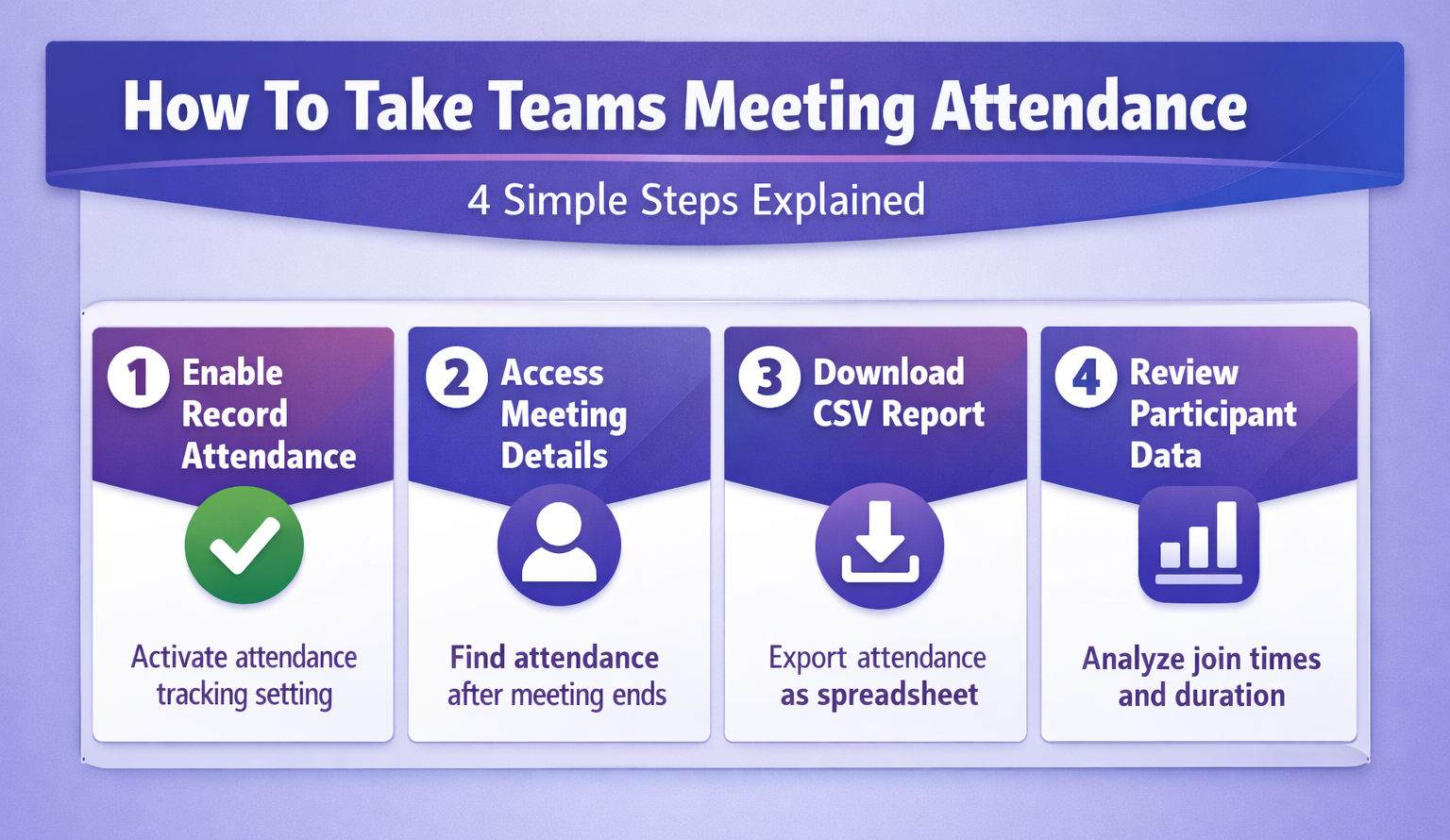
Meeting organizers can enable attendance tracking before starting any Teams meeting. Navigate to Meeting Options in your calendar invitation and locate the Record Attendance toggle. This setting must be activated before the meeting begins — you cannot retroactively generate attendance data.
The feature appears in different locations depending on your Teams version. Desktop users find it under Meeting Options while mobile users access it through the meeting settings menu. Enterprise accounts typically have this enabled by default, but education and small business plans may require manual activation.
Access Teams Meeting Attendance
After your meeting ends, attendance data becomes available within 24 hours. Open Teams Calendar and select the completed meeting from your schedule. Click Meeting Details and scroll to the Attendance section at the bottom of the summary.
The report shows participant names, join times, leave times, and total duration. External guests appear with their full email addresses while internal users display their organization names. Anonymous participants show as “Anonymous Attendee” with numbered identifiers.
Teams Attendance Export Options
Raw attendance data serves multiple purposes beyond basic record-keeping. Schools use it for academic attendance policies while corporations track employee participation in mandatory training sessions. Teams also supports advanced features like recording and transcription features for comprehensive meeting documentation.
Download Teams Attendance Report
Click Download Attendance List from the meeting details page to export participant data as a CSV file. The download includes timestamps in your local time zone, making it easy to verify participation windows and calculate engagement metrics.
The CSV format works with Excel, Google Sheets, and most database systems. Headers include Name, Email, Join Time, Leave Time, Duration, and Role. You can also explore exporting chat history from Teams for managing all your Teams exports.
Export Teams Attendance Data
For recurring meetings, attendance data accumulates across all instances in the series. Access the Meeting Series dashboard from your calendar and select View All Attendance to see historical participation patterns.
Enterprise administrators can pull attendance reports through the Teams Admin Center for organization-wide analysis. This bulk export includes all meetings within specified date ranges, user groups, or department filters.
Troubleshooting Teams Attendance Issues
Attendance tracking failures typically stem from permission settings or account limitations. The most common issue involves meeting organizers who lack proper licensing or administrative rights within their organization. While working through these troubleshooting teams attendance configuration steps on my primary workstation, I noticed that the setting persists even after software updates install automatically in the background.
Teams Attendance Report Not Showing
Missing attendance reports usually indicate the Record Attendance setting was disabled during meeting creation. Check your Meeting Options before each session to confirm the toggle remains active. Some organizations disable this feature by default for privacy compliance.
Guest users and anonymous participants may not appear in reports if your tenant settings restrict external tracking. Contact your IT administrator to modify these policies or use alternative tracking methods for mixed audiences.
Fix Teams Attendance Problems
If attendance data appears incomplete, verify that all participants joined through the official Teams invitation link. Users who dial in by phone or join through third-party applications may not register properly in the attendance system.
Time zone mismatches can cause confusion when reviewing timestamps. The system records all data in UTC but displays it according to the organizer’s local settings. Export the raw CSV file to see standardized timestamps if discrepancies appear in your dashboard view.
Frequently Asked Questions
Can I take attendance in Teams after the meeting ends?
No, you cannot retroactively enable attendance tracking in Teams. The Record Attendance option must be activated before the meeting starts. However, if recording was enabled, you can manually review the recording to identify participants.
Do phone participants show in Teams attendance reports?
Phone participants appear in attendance reports but may show as “Phone User” or display their phone number instead of their name. They won’t have the same detailed metadata as computer users, but join and leave times are still tracked.
How long does Teams store attendance data?
Teams retains attendance data for 60 days after the meeting date. After this period, the information is automatically deleted and cannot be recovered. Export important attendance records immediately after meetings to maintain permanent records.
Taking attendance in Teams becomes automatic once you understand the built-in tracking system. Enable the setting before meetings start by enabling meeting transcripts and recordings, export the data promptly, and keep local copies for long-term record-keeping. The system handles the complexity while you focus on running productive meetings.