A system administrator recently asked our team: “We’re moving away from third-party password managers due to budget constraints, but our users need reliable password management across devices. Does Edge have password manager functionality that can handle our organization’s security requirements while syncing seamlessly between work computers and mobile devices?” This scenario reflects a common challenge many IT professionals face when balancing security, usability, and cost-effectiveness in password management solutions.
Edge built in password manager configuration
Microsoft Edge includes a comprehensive built-in password manager that eliminates the need for separate password management tools in many organizational environments. This integrated solution automatically captures, stores, and syncs login credentials across all devices where users sign in with their Microsoft account, providing enterprise-grade security without additional licensing costs.
We will go through activatation of Edge password manager sync, configure the built-in password management features, and establish synchronization with Microsoft Authenticator for enhanced security. You will learn to access password manager settings, manage stored credentials, and troubleshoot common sync issues that may arise during deployment.
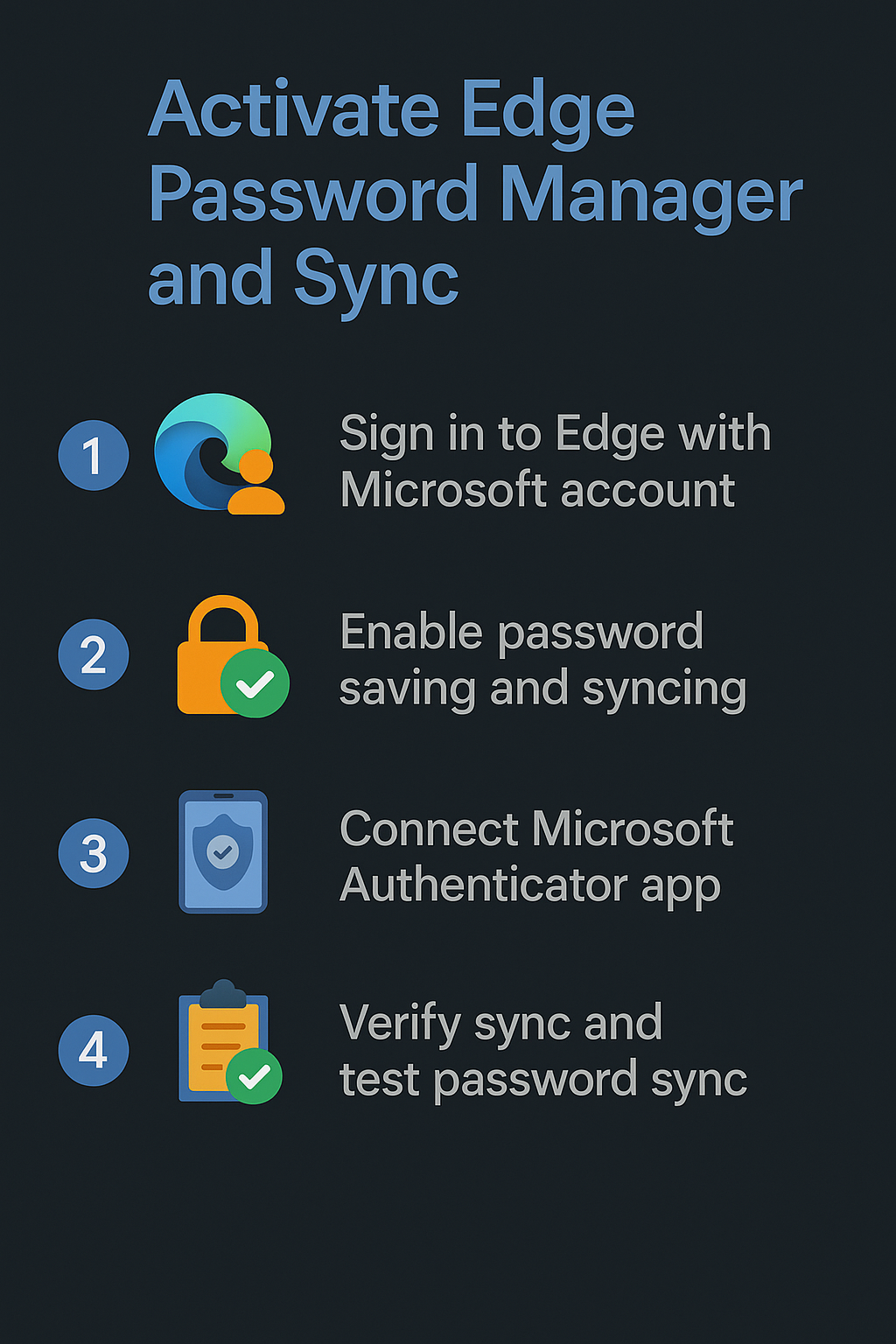
Turn on Edge Password manager to keep your passwords
Begin the activation process by launching Microsoft Edge and ensuring you are signed in with your Microsoft account or organizational credentials that will serve as the foundation for password synchronization across your devices.
- Navigate to the three-dot menu in the upper-right corner of Microsoft Edge and select “Settings” from the dropdown menu to access the browser configuration options.
- Click on “Profiles” in the left sidebar, then select “Passwords” to access the comprehensive password management interface where you will configure all synchronization and security settings.
* Toggle the “Offer to save passwords” switch to the enabled position, which allows Edge to automatically detect and capture login credentials when you sign in to websites and applications.
* Enable the “Automatically sign in” option to allow Edge to automatically fill saved credentials on websites where you have previously stored login information, streamlining your authentication workflow.
* Verify that the sync status indicator shows “On” next to your Microsoft account profile, confirming that password synchronization is active and will replicate your credentials across all signed-in devices.
Expert Tip: Enable the “Suggest strong passwords” feature to generate secure passwords automatically when creating new accounts, ensuring consistent password strength across your organization.
Where is password manager Edge settings for advanced configuration
- Access advanced password management options by clicking “Passwords” in the main settings menu, then selecting “Password Manager” to view your complete credential vault and additional security configurations.
* Click the gear icon next to “Saved passwords” to access advanced settings including password export, import functionality, and breach monitoring capabilities that enhance your overall security posture.
* Configure the “Password Monitor” feature by toggling it on, enabling Edge to continuously scan your saved passwords against known data breaches and alert you to potentially compromised credentials.
* Set up two-factor authentication requirements by navigating to “Security” settings and enabling “Use Windows Hello or security keys for passwordless sign-in” to add an additional security layer.
Enable Edge passwords sync with Authenticator app integration
Establishing synchronization between Edge password manager and Microsoft Authenticator creates a unified password management ecosystem that provides seamless access across mobile and desktop environments while maintaining enterprise security standards.
- Download and install Microsoft Authenticator from your device’s app store, ensuring you select the official Microsoft application to maintain security integrity and compatibility with Edge password sync.
* Open Microsoft Authenticator and sign in using the same Microsoft account credentials that you use in Edge browser to establish the connection between your desktop and mobile password management systems.
* Navigate to the “Passwords” tab within Microsoft Authenticator app and tap “Turn on sync” to enable bidirectional password synchronization between your mobile device and Edge browser installations.
* Return to Edge password settings and verify that “Sync passwords” displays as enabled, with your Microsoft account email address shown as the active sync profile for credential replication.
- Test the integration by adding a new password in Edge and confirming it appears in Microsoft Authenticator within a few minutes, demonstrating successful bidirectional synchronization functionality.
Important Tip: Configure automatic backup in Microsoft Authenticator settings to ensure your password vault remains accessible even if you replace or reset your mobile device.
Access password manager in Edge for daily credential management
- Use the keyboard shortcut Ctrl+Shift+Delete to quickly access password management options, or navigate through Settings > Passwords for comprehensive credential administration and security monitoring capabilities.
* Click on individual saved passwords to view, edit, or delete specific credentials, with options to copy usernames and passwords for manual entry when automatic filling is not available.
* Utilize the search functionality within the password manager to quickly locate specific website credentials from your growing collection of stored login information across multiple platforms and services.
* Export your password collection for backup purposes by clicking “More actions” and selecting “Export passwords,” creating an encrypted file that can be imported into other password management solutions if needed.
Manage passwords for Edge across multiple devices
Effective password management requires consistent administration across all devices where users access organizational resources, ensuring security policies are maintained while providing convenient access to necessary credentials and authentication information.
- Verify sync status on each device by signing into Edge with your Microsoft account and checking that the password count matches across all installations, indicating successful credential replication.
* Configure identical security settings on each Edge installation by accessing Settings > Passwords and ensuring “Offer to save passwords,” “Automatically sign in,” and “Password Monitor” are consistently enabled across devices.
- Test cross-device functionality by saving a new password on one device and confirming it appears on other signed-in Edge installations within the expected synchronization timeframe of approximately five to ten minutes.
- Set up consistent two-factor authentication across all devices by enabling Windows Hello, Touch ID, or security key requirements in Edge security settings to maintain uniform access control standards.
Edge password manager sync troubleshooting solutions
Password synchronization issues can disrupt productivity and create security gaps when users resort to unsecured password storage methods, making effective troubleshooting essential for maintaining organizational security standards and user satisfaction.
- Sync delays or failures often occur when network connectivity is intermittent or when Microsoft account authentication has expired, requiring users to sign out and sign back into Edge to refresh authentication tokens.
- Password discrepancies between devices typically result from individual devices being signed in with different Microsoft accounts, which can be resolved by verifying account consistency in Edge Settings > Profiles section.
- Missing passwords in Microsoft Authenticator usually indicate that password sync was not enabled before credentials were saved in Edge, requiring manual re-saving of affected passwords to trigger synchronization.
- Import failures from other password managers may occur due to formatting incompatibilities, which can be addressed by exporting passwords in CSV format and using Edge’s import wizard in Settings > Passwords > Import options.
Remember: Clear Edge sync data and re-establish synchronization if persistent issues occur, but ensure you have backed up critical passwords before performing this reset operation.