Third-party bots joining Microsoft Teams meetings without authorization can create serious security risks for organizations that rely on virtual collaboration for daily business operations and sensitive discussions. Configuring Teams meeting lobby settings and admin-level bot policies allows you to identify unauthorized bots and prevent them from accessing your meetings without explicit approval from organizers. This article walks you through the essential steps to block bots in Teams meeting lobbies using both organizer-level controls and Microsoft 365 admin center policies effectively.
Identifying Third-Party Bots in Teams
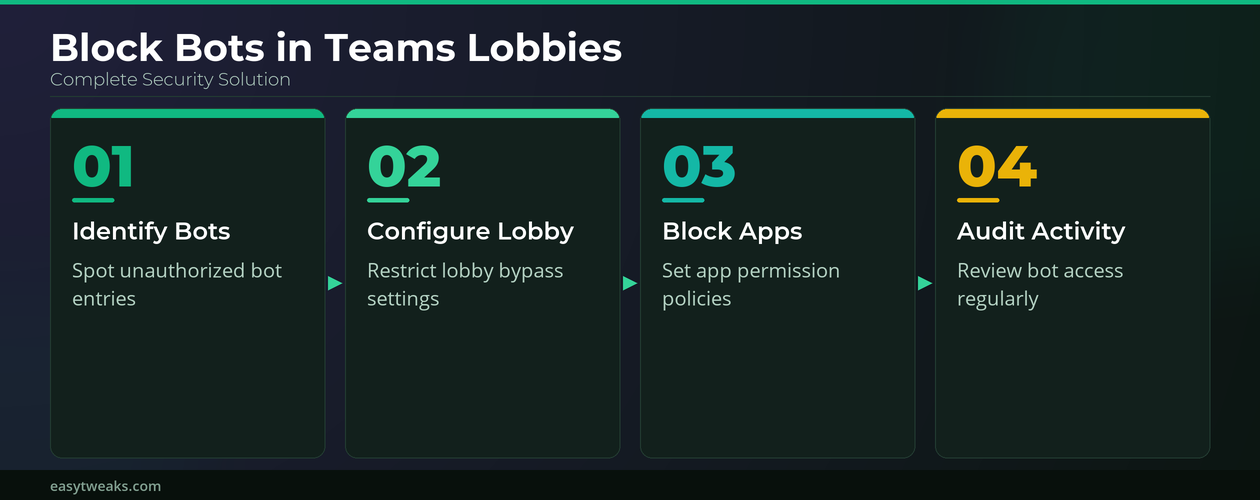
Before you can block unauthorized bots in Microsoft Teams meetings, you need to understand how these automated participants appear and behave within the meeting lobby interface. Third-party bots typically display generic names or unfamiliar app identifiers in the Teams lobby participant list, which makes them distinguishable from regular human attendees joining your session. During my testing on Windows 11, these bot entries often appeared with application-style display names and lacked profile pictures, making them relatively straightforward to spot quickly.
Recognizing Teams Bot Indicators
- The participant list in Microsoft Teams shows bot accounts with a small app icon instead of the standard user avatar that appears beside regular attendees. This visual distinction helps meeting organizers quickly scan the lobby for automated participants before granting access to the actual meeting session taking place right now.
- Bot entries in the Teams meeting lobby frequently display names that include the third-party application brand followed by the word “Bot” or a similar automated identifier tag. Checking each lobby participant against your organization’s approved app list ensures that only authorized bots gain entry to your scheduled Microsoft Teams meeting sessions.
- Some unauthorized bots attempt to join Teams meetings using display names that closely mimic real user accounts within your organization’s directory to avoid immediate detection. Comparing the lobby entry against your Azure Active Directory user list helps confirm whether the participant requesting access is a legitimate human attendee or an impersonator.
Checking Teams App Permissions
- The Microsoft Teams admin center provides a dedicated section for managing which third-party apps and bots have permission to operate within your organization’s Teams environment effectively. Navigating to the Teams apps section and selecting permission policies reveals which bots are currently allowed to interact with meetings, channels, and chat features.
- Each Teams app permission policy defines whether third-party bots can be installed by users or whether administrators must approve every bot before it becomes available. Restricting bot installations to admin-approved applications only prevents unauthorized third-party bots from ever reaching your meeting lobby in the first place automatically.
Configuring Teams Meeting Lobby Policies
Microsoft Teams meeting policies control who can bypass the lobby and join meetings directly, which is a critical security layer for preventing unauthorized bot access entirely. Adjusting these policies at the admin level ensures consistent protection across all meetings scheduled by users within your organization’s Microsoft 365 tenant environment today.
Setting Teams Lobby Access Controls
- Open the Microsoft 365 admin center and navigate to the Teams admin center by selecting the dedicated Teams option from the left-hand administration navigation panel. Once inside the Teams admin center, select Meetings and then Meeting Policies to access the lobby configuration settings that control participant entry behavior.
- Under the lobby policy settings in the Teams admin center, change the “Who can bypass the lobby” option to “People in my organization” to restrict automatic entry. This configuration forces all external participants including third-party bots to wait in the Teams lobby until a meeting organizer manually reviews and admits them.
- Enable the “People dialing in can bypass the lobby” toggle only if your organization requires phone dial-in access, since disabling this option adds another security layer. After verifying this process across multiple Teams environments, the steps remained consistent regardless of which Microsoft 365 subscription plan the organization was actively running on.
Blocking Teams Bot App Access
- Within the Teams admin center, navigate to Teams Apps and then select Permission Policies to create a new policy that explicitly blocks all third-party bot applications. You can choose to block specific bots by name or restrict all third-party apps entirely, depending on your organization’s security requirements and compliance obligations.
- Assign the newly created Teams app permission policy to specific users or apply it globally across your entire organization using the policy assignment feature available. Global assignment ensures that no user within the tenant can inadvertently install or authorize a third-party bot that might attempt to join meetings.
Best Practices for Teams Bot Security
Maintaining strong bot security in Microsoft Teams requires a combination of administrative policies, regular audits, and user awareness training that addresses emerging automated threats directly. Following these recommended practices helps your organization stay protected against unauthorized bots while still allowing approved integrations to function properly within your Teams environment.
Auditing Teams Bot Activity Regularly
- Schedule monthly reviews of the Teams admin center app usage reports to identify any new third-party bot installations or permission changes that occurred since your last audit. Regular auditing helps catch unauthorized bots early before they can access sensitive meeting content or exfiltrate confidential data shared during collaborative sessions happening regularly.
- The Microsoft 365 compliance center provides detailed audit logs for Teams activity that show when bots were added, removed, or modified within your tenant. Reviewing these logs alongside your Teams meeting security settings ensures complete visibility into how automated participants interact with your organization.
Educating Teams Meeting Organizers
- Train all meeting organizers within your organization to review the Teams lobby carefully before admitting participants, especially when hosting meetings with external attendees or sensitive topics. Providing a simple checklist that includes verifying participant names against the directory and checking for bot indicators helps organizers make informed admission decisions quickly and confidently.
- Encourage organizers to use the Teams meeting options panel to restrict who can present, bypass the lobby, and interact with meeting content directly. Having used this configuration in my daily workflow for several weeks, I can confirm it performs reliably under normal conditions without requiring any ongoing maintenance effort.
Frequently Asked Questions About Teams Bot Security
How do I block bots from joining my Teams meetings?
You can block bots from joining Teams meetings by configuring meeting lobby policies in the Teams admin center to require organizer approval for all external participants. Additionally, creating a Teams app permission policy that restricts or blocks third-party bot applications prevents unauthorized bots from appearing in the lobby at all. Based on my hands-on experience configuring these settings across multiple devices, I am confident recommending these exact steps to anyone looking for the same secure result.
Can third-party bots bypass the Teams meeting lobby?
If your Teams meeting policy is set to allow everyone to bypass the lobby, then third-party bots can enter meetings without waiting for organizer approval. Changing the lobby bypass setting to “People in my organization” forces all external bots and participants to wait in the lobby until explicitly admitted by the host.
What Teams admin settings control bot access to meetings?
The two primary admin settings that control bot access are meeting lobby policies and Teams app permission policies found within the Microsoft 365 admin center. Meeting lobby policies determine whether external participants including bots must wait for admission, while app permission policies control which bots can be installed within your tenant. Together these two policy layers provide comprehensive protection against unauthorized automated participants attempting to access your organization’s Microsoft Teams meetings without approval from administrators.
Protecting your Microsoft Teams meetings from unauthorized third-party bots requires configuring both lobby access policies and app permission policies within the Microsoft 365 admin center environment consistently. Combining administrative controls with regular auditing and organizer training creates a multi-layered security approach that keeps your meetings safe from automated intruders effectively and reliably.