Windows 11 won’t open after reboot scenarios
You installed the latest Windows 11 update last night, but when you tried to start your computer this morning, it wouldn’t boot properly. The system either shows a black screen, displays error messages, or gets stuck in an endless restart loop. This situation affects both personal and business computers, leaving you unable to access important files and applications when you need them most.
Fix Windows 11 boot issues with systematic recovery
When Windows 11 not starting after reboot occurs following system updates, the problem typically stems from incompatible drivers, corrupted system files, or boot configuration errors. Updates can sometimes conflict with existing hardware configurations or modify critical system components in ways that prevent normal startup processes.
This tutorial covers comprehensive troubleshooting methods to resolve Windows 11 won’t boot after updating scenarios. You will learn to use built-in recovery tools, advanced startup options, and system restoration techniques to restore functionality. The solutions progress from simple fixes to more advanced recovery methods, ensuring you can tackle both minor glitches and serious boot failures.
This is a complex tutorial to follow and it’s probably a good idea to consult with your IT admin. Note that you’ll probably need access to another working computer for creating recovery media if needed, your Windows 11 product key or Microsoft account credentials, and basic familiarity with Windows settings. You may also need external storage devices for backup purposes during the recovery process.
Fix Windows 11 won’t boot using startup repair
The first approach to resolve Windows 11 not booting properly involves using the automatic startup repair feature, which can detect and fix common boot-related problems without requiring advanced technical knowledge.
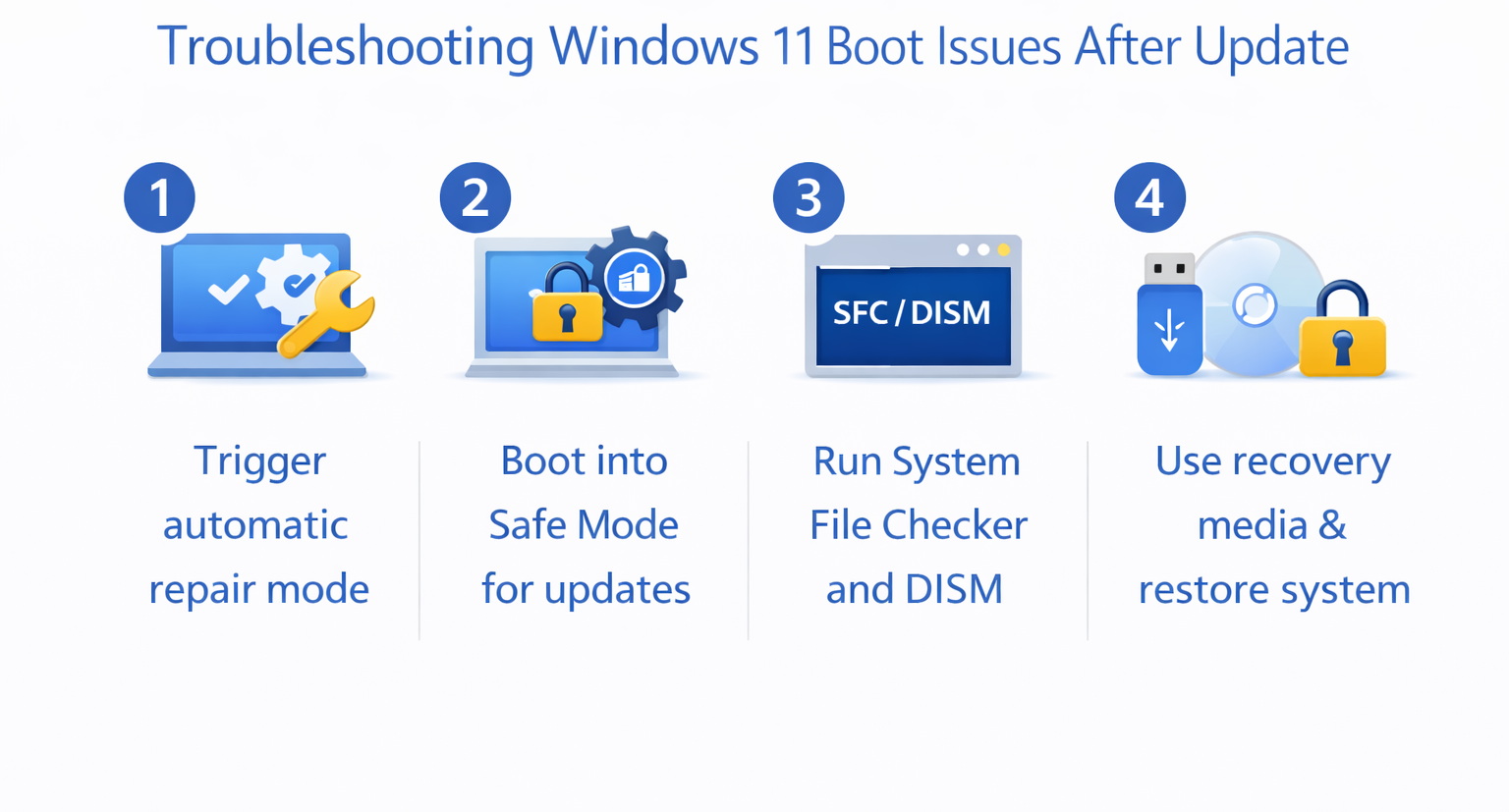
- Power on your computer and immediately press and hold the power button when you see the Windows logo to force shutdown, then repeat this process two more times to trigger automatic repair mode.
- Select “Troubleshoot” from the recovery environment menu that appears after the third forced shutdown, then choose “Advanced options” to access additional recovery tools.
- Click “Startup Repair” and allow Windows to automatically scan for problems and attempt repairs, which typically takes 10-15 minutes depending on your system configuration.
- Restart your computer normally after the repair process completes to test whether the boot issue has been resolved successfully.
Expert Tip: If startup repair doesn’t work on the first attempt, try running it 2-3 times as some complex issues require multiple repair cycles to resolve completely.
Fix Windows 11 startup problems with safe mode
When standard startup repair fails, safe mode provides an alternative way to access your system with minimal drivers and services, allowing you to troubleshoot and remove problematic updates or drivers.
- Access the recovery environment using the power button method described above, then navigate to “Troubleshoot” and select “Advanced options” from the menu.
- Choose “Startup Settings” and click “Restart” to display the startup options menu, then press “4” or “F4” to boot into Safe Mode.
- Once in Safe Mode, open Settings by pressing Windows key + I, then navigate to “Windows Update” and select “Update history” to view recently installed updates.
- Click “Uninstall updates” to remove the most recent system updates that may have caused the boot failure, starting with the most recently installed items.
- Restart your computer normally after uninstalling updates to determine if removing recent changes resolves the Windows 11 not booting after update problem.
Windows 11 won’t boot after updating system files
System File Checker and DISM commands can repair corrupted system files that prevent Windows 11 from starting properly after updates, addressing deeper system integrity issues.
- Boot into Safe Mode using the previous instructions, then right-click the Start button and select “Windows Terminal (Admin)” or “Command Prompt (Admin)” from the context menu.
- Type “sfc /scannow” and press Enter to run System File Checker, which scans all protected system files and repairs corrupted versions with cached copies stored in your system.
- After SFC completes, run “DISM /Online /Cleanup-Image /RestoreHealth” to repair the Windows system image and ensure all components are functioning correctly for future operations.
- Restart your computer and attempt normal boot to test whether the system file repairs have resolved the startup issues you were experiencing.
Remember: These commands can take 30-60 minutes to complete, so ensure your laptop is plugged in and avoid interrupting the process.
Fix Windows 11 not booting with advanced recovery options
When basic troubleshooting methods fail to resolve persistent boot problems, advanced recovery techniques including system restore and reset options provide comprehensive solutions for severe Windows 11 startup issues.
- Access the recovery environment and navigate to “Troubleshoot,” then select “Advanced options” and choose “System Restore” to revert your computer to a previous working state.
- Select a restore point created before the problematic update was installed, ensuring you choose a date when your system was functioning normally without any boot issues.
- Follow the restoration wizard prompts to complete the process, which will undo system changes while preserving your personal files and most installed applications on your computer.
- If System Restore is unavailable or unsuccessful, return to Advanced options and select “Reset this PC” to perform a more comprehensive system refresh while keeping your files.
- Choose “Keep my files” option and select “Remove apps and settings” to reinstall Windows 11 while preserving your personal documents, photos, and other user data safely.
Windows 11 not starting after reboot recovery media
Creating and using Windows 11 recovery media provides an alternative boot method when your primary system completely fails to start, allowing access to advanced troubleshooting tools from external sources.
- On a working computer, download the Windows 11 Media Creation Tool from Microsoft’s official website and create a bootable USB drive with at least 8GB storage capacity.
- Boot your problematic computer from the recovery USB by changing boot priority in BIOS/UEFI settings, typically accessed by pressing F2, F12, or Delete during startup.
- Select “Repair your computer” instead of installing Windows when the setup screen appears, then navigate through Troubleshoot and Advanced options as described in previous sections.
- Use the same troubleshooting methods from the external recovery media, including startup repair, system restore, and command-line tools for comprehensive system recovery attempts.
Fix Windows 11 won’t boot troubleshooting common issues
Several specific problems can prevent successful resolution of Windows 11 boot failures, requiring targeted solutions to address particular error conditions and system configurations that standard methods cannot resolve effectively.
- Boot Configuration Data corruption prevents startup repair from working properly, requiring manual BCD rebuilding using bootrec commands in the recovery environment’s command prompt interface. Run “bootrec /fixmbr,” “bootrec /fixboot,” and “bootrec /rebuildbcd” commands sequentially to reconstruct the boot configuration and restore normal startup functionality.
- Secure Boot settings in UEFI firmware can conflict with recovery processes and prevent access to troubleshooting tools, especially after major system updates that modify boot requirements. Disable Secure Boot temporarily in BIOS/UEFI settings to allow alternative boot methods and recovery tools to function properly during troubleshooting procedures.