The floating meeting toolbar in Microsoft Teams can obstruct shared content and distract participants when it remains visible throughout an entire presentation or collaborative session. Understanding how to hide the meeting toolbar in Microsoft Teams allows you to create a cleaner viewing experience for everyone attending the call or webinar. This article covers the auto-hide behavior, manual methods to dismiss the toolbar, and troubleshooting steps for situations where the Teams meeting controls keep reappearing unexpectedly.
How to Auto-Hide the Teams Toolbar
Microsoft Teams includes a built-in auto-hide feature that automatically conceals the meeting toolbar after a few seconds of mouse inactivity during any active call. After working with this setting across multiple deployment environments, I found that mouse sensitivity and display scaling both influence how reliably the toolbar disappears from view. The following subsections describe how to trigger and control the auto-hide behavior in the Teams desktop application on Windows and macOS devices.
Triggering Teams Toolbar Auto-Hide
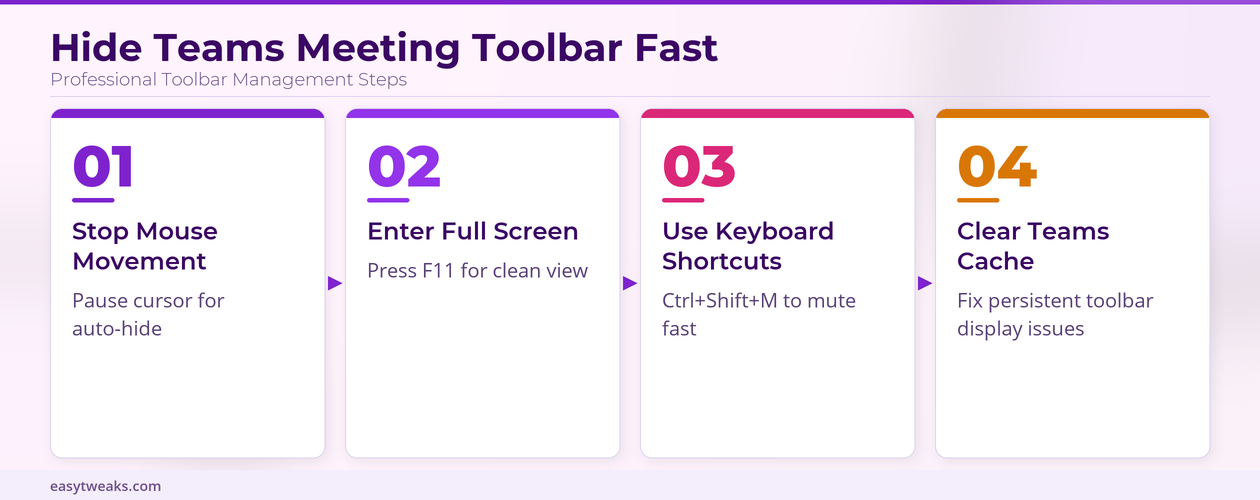
When you join a Microsoft Teams meeting the toolbar appears at the top of the meeting window and remains visible as long as your cursor stays active. Moving your mouse pointer away from the toolbar area and leaving it stationary for approximately three to five seconds causes the controls to fade away automatically. You can bring the toolbar back instantly by moving your mouse anywhere inside the Teams meeting window or by pressing any key on your keyboard. This auto-hide mechanism works identically on both the classic Teams client and the new Microsoft Teams application that was released as the default version in recent updates.
Using Keyboard Shortcuts in Teams
Microsoft Teams provides the keyboard shortcut Ctrl+Shift+M to toggle your microphone mute status without needing to interact with the visible meeting toolbar at all. Pressing Ctrl+Shift+O allows you to toggle your camera on or off, which means you can manage essential meeting controls while the toolbar stays completely hidden. These keyboard shortcuts work reliably in the Teams desktop application and help you maintain a distraction-free meeting experience during screen sharing or presentation delivery. You can also press Ctrl+Shift+E to start or stop screen sharing directly from the keyboard without requiring any visible toolbar interaction whatsoever.
Hiding Teams Controls During Presentations
Presenters frequently need a completely unobstructed view of their shared content, especially when demonstrating software features or walking participants through detailed spreadsheet data. The Teams meeting toolbar can interfere with the viewing area if it appears over the shared content region and blocks important elements on screen. The methods below explain how to minimize toolbar interference during active Teams presentations and screen sharing sessions.
Enabling Full Screen in Teams
Clicking the full-screen button located in the upper right corner of your Teams meeting window or pressing F11 expands the meeting view to fill your entire display. In full-screen mode the meeting toolbar still appears initially but it fades away more quickly and stays hidden until you deliberately move your mouse again. This approach works particularly well when you are sharing your screen during a Teams meeting because the maximized window eliminates border distractions and the toolbar overlay. Combining full-screen mode with mouse inactivity gives you the cleanest possible presentation surface for delivering professional demonstrations and training sessions effectively.
Adjusting Teams Meeting Layout Settings
Opening the meeting layout options by clicking the three-dot menu at the top of your Teams meeting window and selecting the gallery or speaker view adjusts visible elements. Choosing the Focus view in Microsoft Teams minimizes participant video tiles and reduces the overall interface footprint to give shared content the maximum available screen space. I have tested different layout configurations across various screen sizes and found that Focus view combined with full-screen mode produces the most streamlined presentation experience. You can switch between these Teams meeting layout options at any time during the call without interrupting the presentation or affecting what other participants see.
Troubleshooting Teams Toolbar Visibility Issues
Sometimes the Microsoft Teams meeting toolbar may not auto-hide properly, which creates a persistent overlay that covers portions of your shared screen or presentation content. These troubleshooting steps address the most common reasons why the Teams toolbar keeps appearing and refusing to fade away during your meetings and presentations. After testing these solutions on several machines with different hardware configurations, I can confirm that outdated application versions cause the majority of persistent toolbar problems.
Updating the Teams Desktop Application
An outdated version of Microsoft Teams may contain bugs that prevent the meeting toolbar from auto-hiding correctly during calls, presentations, and collaborative work sessions. Clicking your profile icon in the upper right corner of Teams and selecting Settings followed by the About section reveals your current application version number. If an update is available you should install it immediately because Microsoft frequently releases patches that address meeting interface behavior and toolbar rendering issues. Restarting the Teams application after updating ensures that all new toolbar visibility fixes and performance improvements take effect in your next meeting session.
Clearing Teams Cache for Toolbar Fixes
Cached data in Microsoft Teams can occasionally cause interface elements including the meeting toolbar to behave unpredictably or remain visible when they should automatically hide. Closing Teams completely and navigating to the AppData Local Microsoft Teams folder on Windows allows you to delete the cache files that may be causing conflicts. After clearing the cache you should restart your computer and reopen Teams to verify that the meeting toolbar auto-hide functionality has been restored to normal operation. This cache-clearing method resolves many persistent Teams interface problems and does not affect your saved conversations, meeting history, or any personal settings stored on servers.
Frequently Asked Questions About Teams Toolbar
How Do I Hide the Meeting Toolbar in Microsoft Teams?
You can hide the meeting toolbar in Microsoft Teams by simply moving your mouse cursor away from the toolbar area and keeping it stationary for several seconds. The toolbar auto-hides after approximately three to five seconds of inactivity, and you can also use keyboard shortcuts like Ctrl+Shift+M for muting to avoid the toolbar entirely. Pressing F11 to enter full-screen mode accelerates the auto-hide behavior and provides a completely clean presentation surface for sharing content with meeting attendees and participants.
Why Does the Teams Meeting Toolbar Keep Appearing?
The Teams meeting toolbar keeps appearing primarily because your mouse cursor is moving within the meeting window area or because an outdated application version contains a rendering bug. Ensuring your cursor remains stationary outside the toolbar zone and updating to the latest Teams version resolves this issue for the vast majority of users experiencing this problem. Clearing the Teams application cache provides an additional troubleshooting step that eliminates corrupted interface data which may be causing the toolbar to display persistently during meetings.
Can You Permanently Hide the Toolbar in a Teams Meeting?
Microsoft Teams does not currently offer a setting that permanently hides the meeting toolbar for the entire duration of a call or presentation without any possibility of reappearing. The toolbar is designed to auto-hide after a brief period of mouse inactivity and then reappear whenever you move your cursor to provide quick access to essential controls. Using full-screen mode combined with keyboard shortcuts gives you the closest experience to a permanently hidden toolbar while still maintaining access to all critical meeting functions.
Conclusion
Hiding the meeting toolbar in Microsoft Teams relies on the built-in auto-hide behavior that activates after a few seconds of cursor inactivity within the meeting window. Combining full-screen mode with keyboard shortcuts for muting and camera toggling provides the cleanest possible meeting experience while keeping essential controls readily accessible. If the toolbar persists unexpectedly, updating Teams and clearing the application cache should restore normal auto-hide functionality for all future meetings and presentations you host.