Are you frustrated with how long your Windows 11 computer takes to boot up? Many users experience this common issue after upgrading or on new devices. You might find yourself waiting several minutes before your system is fully operational, watching that spinning circle and wondering why your modern computer is so sluggish at startup. Let’s explore how to diagnose and fix these slow boot times in Windows 11.
The causes behind slow Windows 11 startup
Slow boot times in Windows 11 can stem from multiple sources including unnecessary startup programs, outdated drivers, system file corruption, or hardware limitations. Similar to how high CPU usage can slow down Teams, these issues affect productivity and create frustration at the beginning of each work session. The good news is that most slow startup problems can be resolved through built-in Windows tools and simple configuration changes without requiring advanced technical knowledge or third-party software.
How to diagnose and fix Windows 11 slow start issues?
Before making changes, it’s helpful to understand your current boot time and identify specific bottlenecks. We’ll use Windows’ built-in performance tools, Task Manager, and system settings to identify and eliminate factors contributing to slow startup. This approach ensures you’re addressing the actual causes rather than making random changes that might not help or could potentially create new problems.
Solutions to decrease Windows 11 boot time
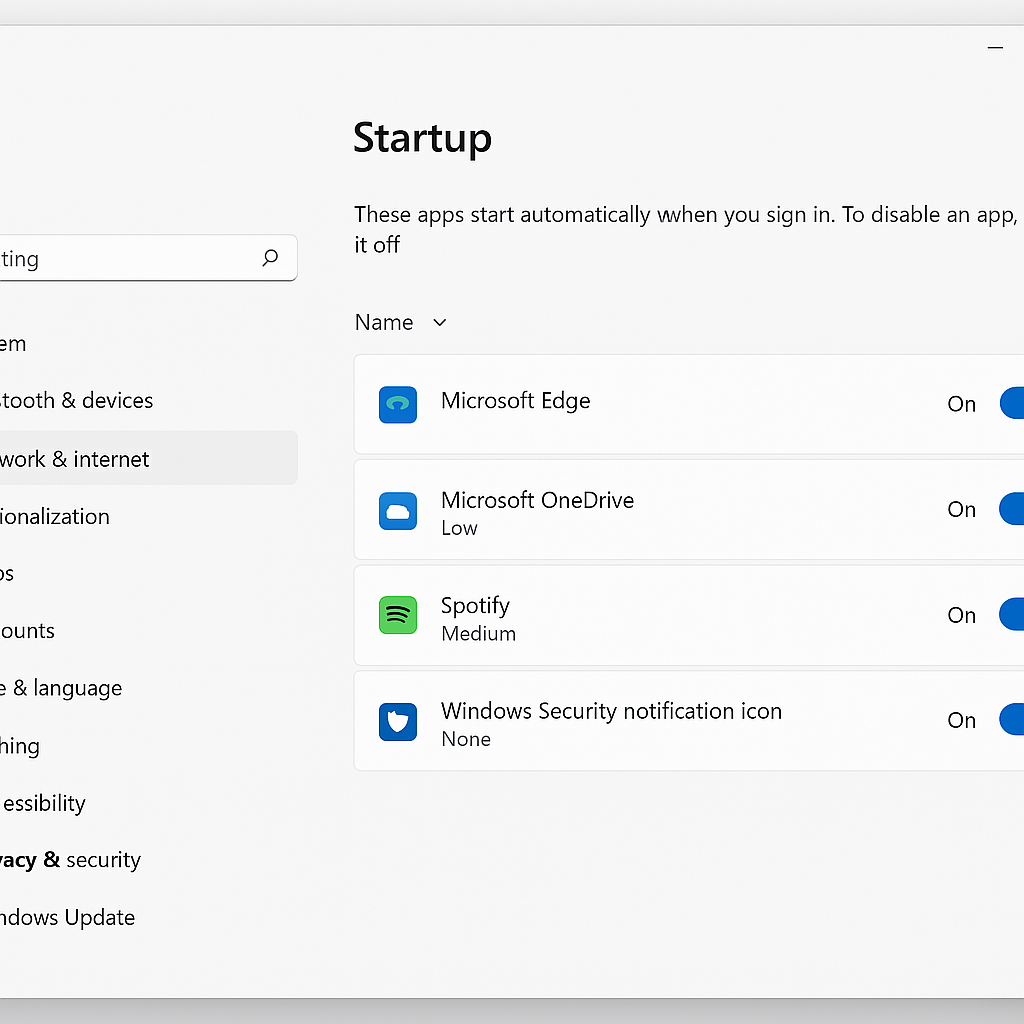
- Disable unnecessary startup applications by pressing Ctrl+Shift+Esc to open Task Manager, selecting the “Startup” tab, and disabling programs you don’t need immediately after boot by right-clicking them and selecting “Disable.”
- Check and update device drivers through Device Manager by right-clicking the Start button, selecting “Device Manager,” and looking for any devices with warning symbols that might indicate driver issues requiring updates.
- Run the Windows Performance Troubleshooter by opening Settings > System > Troubleshoot > Other troubleshooters, then running the “Performance” troubleshooter to automatically detect and fix common performance issues.
- Enable Fast Startup by navigating to Control Panel > Power Options > Choose what the power button does, clicking “Change settings that are currently unavailable,” and ensuring “Turn on fast startup” is checked under Shutdown settings.
- Perform disk cleanup and optimization by searching for “Disk Cleanup” in the Start menu, selecting your system drive, clicking “Clean up system files,” and then using the Defragment tool (search “Defragment” in Start) to optimize your drives.
- Check for and install Windows updates by going to Settings > Windows Update and installing any pending updates, as these often include performance improvements and bug fixes that can affect boot time.
- Run System File Checker by opening Command Prompt as administrator (right-click Start and select “Windows Terminal (Admin)”) and typing “sfc /scannow” to repair corrupted system files that might be causing slow boots.
- Adjust visual effects for performance by right-clicking on “This PC,” selecting Properties > Advanced system settings > Performance Settings, and choosing “Adjust for best performance” or customizing which visual effects to disable.
Frequently Asked Questions on speeding up Windows boot time
Q: Should I use third-party startup optimization tools?
A: Generally, Windows 11’s built-in tools are sufficient for most boot optimization needs. Third-party “PC optimizer” software often provides minimal benefit and may introduce additional startup overhead or system instability.
Q: How do I know if my antivirus is slowing down boot time?
A: Check Task Manager’s Startup tab for your antivirus software’s startup impact rating. Temporarily disable real-time protection and restart to test boot performance, though remember to re-enable protection immediately afterward for security.
Q: Why does my computer boot faster on some days than others?
A: Inconsistent boot times often result from Windows Update background processes, automatic maintenance tasks, or applications updating themselves during startup. These processes typically run during off-peak hours but can occasionally overlap with your boot time.
Windows 11 slow startup time issues
- If your computer still boots slowly after trying the above solutions, consider checking your BIOS/UEFI settings by restarting and pressing the appropriate key during startup (often F2, F10, or Del) to access BIOS, then look for and enable any fast boot options available in your system’s firmware.
- When experiencing extremely long boot times with a black screen before the Windows logo appears, this often indicates hardware detection issues or conflicts that can be resolved by updating your motherboard firmware from the manufacturer’s website or simplifying your hardware configuration temporarily.
- If boot times suddenly increased after a recent Windows update or software installation, consider using System Restore by searching for “Create a restore point” in Start, clicking System Restore, and selecting a restore point from before the problem began to undo potentially problematic changes.
- SSD vs. HDD Considerations: If you’re still using a traditional hard disk drive (HDD), this could likely the primary bottleneck in your boot process. Windows 11 performs significantly better on solid-state drives (SSD), with typical boot times dropping from 60-90 seconds on HDD to 10-20 seconds on SSD. Consider upgrading to an SSD if budget allows, or at minimum ensure your HDD has adequate free space (at least 20% of total capacity) and run regular disk defragmentation. For hybrid systems with both SSD and HDD, verify that Windows 11 is installed on the SSD partition through Disk Management.
Tip: Use the built-in Windows Performance Recorder (WPR) and Windows Performance Analyzer (WPA) for advanced boot performance analysis if you’re comfortable with technical tools. These provide detailed insights into exactly what’s causing delays during startup.