
Windows 11 search bar keeps loading and won’t respond
“Why does my Windows 11 search bar just spin endlessly when I try to find files or applications? Ever since the latest update, clicking on the search icon does nothing, or it shows a loading animation that never completes. This is affecting my daily productivity as I rely heavily on search to quickly access documents and launch programs across my system.”
Start menu search not working: Common causes
Windows 11 search functionality can become unresponsive due to various factors including corrupted system files, indexing service issues, or conflicts introduced by recent system updates. The search bar may display continuous loading animations, fail to return results, or become completely unresponsive when clicked.
Today we would like to show the effective methods to restore Windows 11 search functionality through systematic troubleshooting approaches. We’ll go through registry modifications, service resets, system file repairs, and indexing rebuilds to resolve persistent search issues. The solutions target both immediate fixes and long-term stability improvements for the Windows Search service.
Prerequisites include administrative access to your Windows 11 system and basic familiarity with Windows Settings and Command Prompt operations. These methods apply to Windows 11 versions 21H2, 22H2, and the latest 24H2 update where search problems frequently occur.
How to fix search issues in Windows 11 through systematic troubleshooting
Basic Windows 11 search bar troubleshooting steps
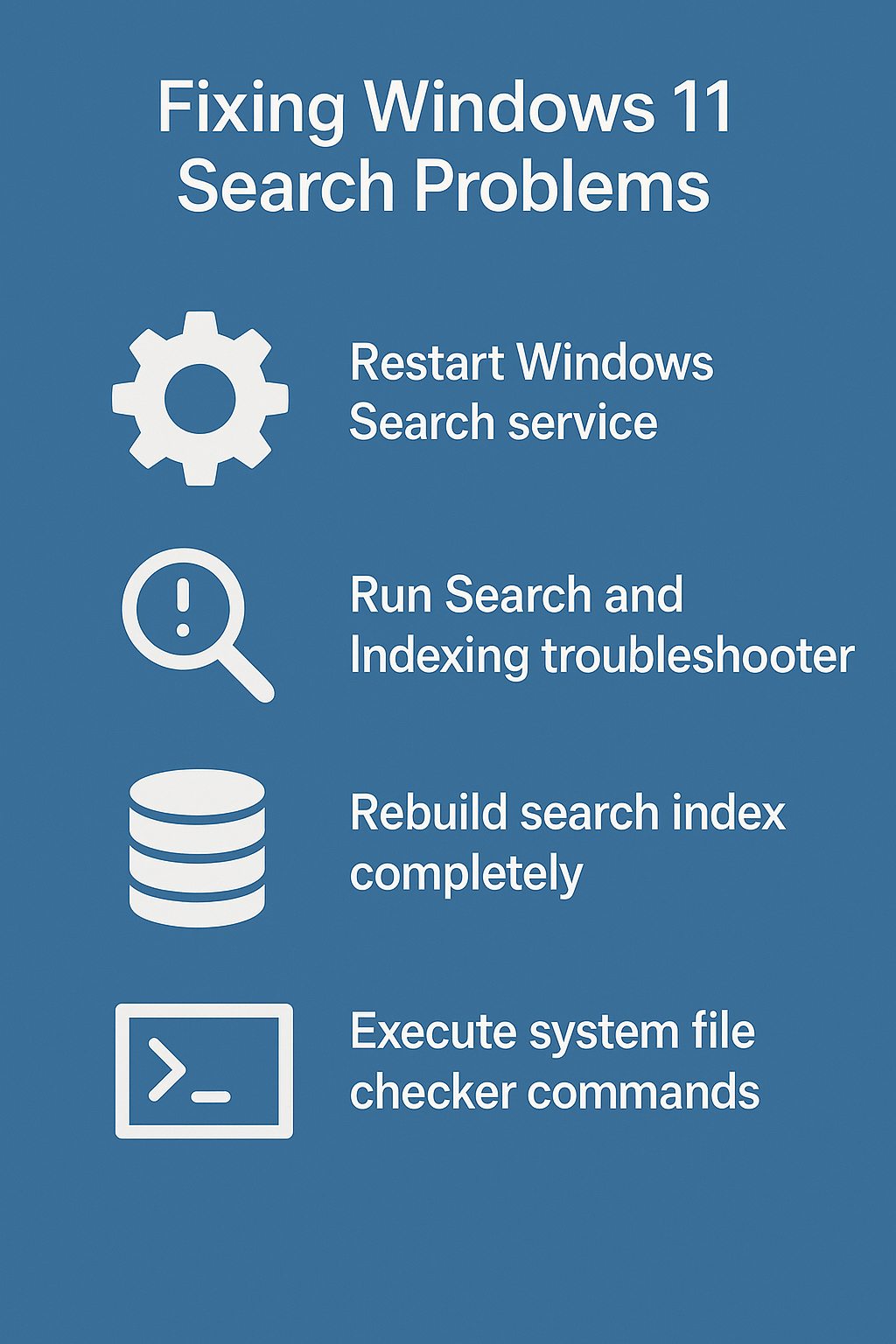
• Restart the Windows Search service by opening Task Manager using Ctrl+Shift+Esc, navigating to the Services tab, locating “Windows Search,” right-clicking it, and selecting “Restart” to refresh the search indexing process.
• Clear the search history and reset search preferences by opening Settings through Windows key + I, selecting Privacy & Security, clicking on Search permissions, and selecting “Clear device search history” to remove potentially corrupted search data.
• Run the built-in Search and Indexing troubleshooter by accessing Settings, navigating to System, selecting Troubleshoot, clicking on Other troubleshooters, and running the “Search and Indexing” troubleshooter to automatically detect and resolve common search problems.
• Verify that the Windows Search service is set to start automatically by pressing Windows key + R, typing “services.msc,” locating “Windows Search,” double-clicking it, and ensuring the Startup type is set to “Automatic (Delayed Start)” with the service status showing as “Running.”
• Reset the search box functionality by opening Command Prompt as administrator and executing the PowerShell command “Get-AppXPackage -AllUsers | Foreach {Add-AppxPackage -DisableDevelopmentMode -Register “$($_.InstallLocation)\AppXManifest.xml”}” to re-register Windows 11 system applications including search components.
Advanced Windows 11 search repair methods
• Rebuild the search index completely by opening Control Panel, navigating to Indexing Options, clicking “Advanced,” selecting “Rebuild” under Troubleshooting, and confirming the action to create a fresh search database that resolves corruption issues.
• Execute system file checker and deployment image servicing commands by opening Command Prompt as administrator, running “sfc /scannow” followed by “DISM /Online /Cleanup-Image /RestoreHealth” to repair corrupted system files that may be affecting search functionality. Note: If you’re encountering other system issues, you might also need to fix Windows 11 file access denied errors which can sometimes interfere with search indexing permissions.
• Reset Windows 11 search through PowerShell by opening PowerShell as administrator and executing “Get-AppxPackage Microsoft.Windows.Search | Remove-AppxPackage” followed by restarting the computer to allow Windows to reinstall the search component automatically.
Fix search bar not working Windows 11 through service management
• Stop all search-related services by opening Command Prompt as administrator and executing “net stop wsearch,” “net stop searchindexer,” and “net stop searchfilterhost” to completely halt the search indexing process before applying repairs.
• Clear search database files by navigating to “C:\ProgramData\Microsoft\Search\Data\Applications\Windows” in File Explorer, deleting all files in this directory while search services are stopped, and ensuring Windows can rebuild the search database from scratch.
• Restart search services in the correct sequence by executing “net start wsearch” followed by “net start searchindexer” in Command Prompt as administrator, allowing each service to fully initialize before starting the next one.
• Configure search locations and file types by opening Settings, selecting Privacy & Security, clicking on Searching Windows, and ensuring that all necessary drives and folders are included in the search index while excluding unnecessary locations that might slow down indexing.
• Verify search functionality by testing various search queries including file names, application names, and content searches to confirm that all search capabilities are restored and responding appropriately across different search scenarios.
Windows 11 Search Bar Issues
Q: Does resetting the search index delete my files or documents?
No, rebuilding the search index only affects the database Windows uses to catalog your files—it does not delete any actual documents, photos, or applications. The process simply recreates the index to fix corruption, which may take several hours depending on the number of files on your system. During this time, search results may be incomplete until indexing finishes.
Q: Why does my search bar work in Safe Mode but not in normal Windows?
If search functions correctly in Safe Mode, a third-party application or startup service is likely interfering with Windows Search. Common culprits include antivirus software, system optimization utilities, or shell extensions. Use Task Manager’s Startup tab to systematically disable startup items, then restart normally to identify the conflicting program.
Q: Can I still use Windows Search if the indexing service is disabled?
Yes, but performance will be significantly slower. Without indexing, Windows must scan files in real-time rather than consulting a pre-built database. This means searches can take minutes instead of seconds, especially when searching file contents or large drives. For optimal performance, keep the Windows Search service enabled and running.
Windows 11 search just spins: Troubleshooting persistent issues
• Search bar shows loading animation indefinitely: Terminate SearchUI.exe process through Task Manager, navigate to the Details tab, locate SearchUI.exe, end the process, and allow Windows to automatically restart the search interface component.
• Start menu search returns no results: Reset the Start menu layout by opening PowerShell as administrator and executing “Get-AppxPackage Microsoft.Windows.StartMenuExperienceHost | Remove-AppxPackage” to force Windows to rebuild the Start menu search integration.
• Search indexing service crashes repeatedly: Check Windows Event Viewer for search-related errors by pressing Windows key + X, selecting Event Viewer, navigating to Windows Logs > System, and filtering for events related to SearchIndexer to identify specific error patterns.
• Search functionality works intermittently: Disable fast startup by opening Control Panel, selecting Power Options, clicking “Choose what the power buttons do,” selecting “Change settings that are currently unavailable,” and unchecking “Turn on fast startup” to prevent search service conflicts during system startup.