“I’m not receiving any notifications on my Windows 11 computer, and I’m missing important emails, calendar reminders, and app alerts throughout my workday.” This notification failure disrupts productivity and causes users to miss critical updates from Microsoft Teams, Outlook, and other essential business applications. Windows 11 notification problems stem from various system settings, focus modes, or application permissions that require systematic troubleshooting to restore proper alert functionality.
Windows messages disabled – basic troubleshooting
Windows 11 notifications depend on multiple interconnected components including the notification service, focus assist settings, individual app permissions, and system-wide notification preferences. When notifications stop working, the issue typically involves disabled notification settings, overly restrictive focus assist configurations, corrupted notification databases, or blocked app permissions that prevent alerts from reaching users.
We will restore Windows 11 notifications by examining system settings, verifying app permissions, resetting notification services, and configuring focus assist appropriately. You will learn to diagnose notification failures systematically and implement targeted solutions based on the specific cause affecting your system.
YNote ou will need basic familiarity with Windows Settings app navigation, and identification of which specific applications or notification types are not working properly.
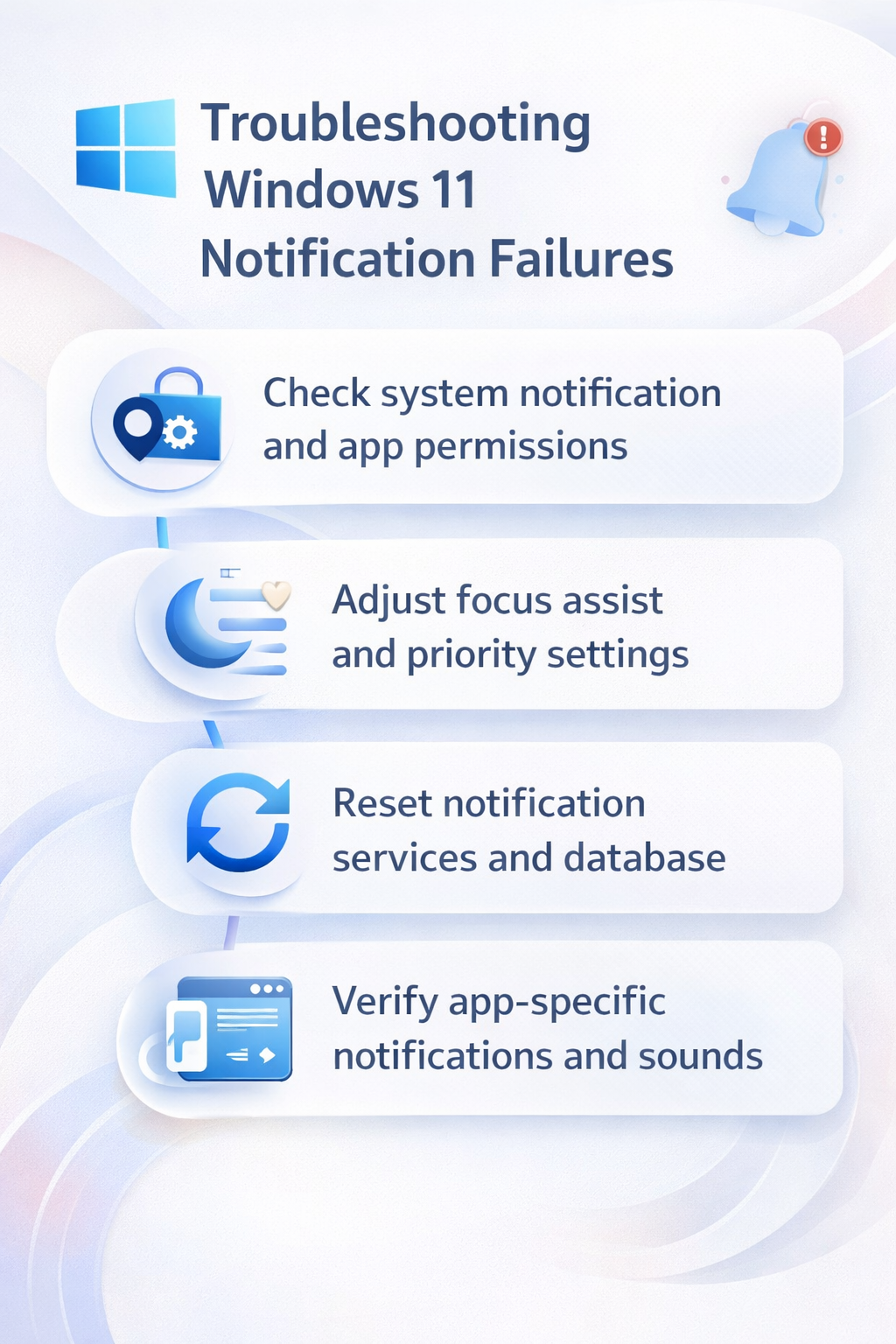
Solve Windows 10 and 11 alerts and notifications issues
Verify system notification settings configuration
- Open Windows Settings by pressing Windows key + I, then navigate to System and select Notifications from the left sidebar menu. Ensure that the main “Notifications” toggle at the top of the page is turned on, as this master switch controls all system notifications regardless of individual app settings.
- Scroll down to review the notifications from apps and other senders section, where you can see a comprehensive list of installed applications and their notification permissions. Check that important applications like Microsoft Outlook, Teams, Calendar, and Mail have their notification toggles enabled and are not accidentally disabled.
- Click on individual apps in the notifications list to access detailed notification settings, including options for notification banners, sounds, and priority levels. Verify that each critical application has appropriate notification types enabled, such as showing notification banners and playing notification sounds when alerts arrive.
Expert Tip: Many users accidentally disable notifications for specific apps during initial Windows 11 setup. Review your most important business applications first to quickly identify permission issues.
Configure focus assist and do not disturb settings
- Access Focus assist settings by going to Settings > System > Focus assist, where you can control when Windows suppresses notifications to minimize distractions. Review your current focus assist mode and ensure it is set to “Off” if you want to receive all notifications immediately without any filtering or delays.
- If you prefer using focus assist during specific times, click on “Automatic rules” to review scheduled do not disturb periods that might be blocking notifications during work hours. Examine the “During these times” rule and any custom rules you have created to ensure they align with your actual work schedule and notification needs.
- Configure priority notifications by selecting “Priority only” mode and customizing which contacts and apps can break through focus assist restrictions. Add your most important business contacts and critical applications like Microsoft Teams to the priority list so urgent communications reach you even during focused work periods.
Application-specific notification troubleshooting
- For Microsoft Teams notifications, open the Teams application and navigate to Settings > Notifications to verify that desktop notifications are enabled for chat messages, meeting invitations, and other important activities. Ensure that Teams has permission to run in the background by checking Settings > Privacy & security > Background apps and enabling Teams background execution.
- Fix Outlook notification problems by opening Outlook, going to File > Options > Mail, and scrolling to the Message arrival section to enable desktop alerts and notification sounds. Verify that your Outlook profile is configured correctly and that the application is set as the default email program in Windows default apps settings.
- Resolve third-party application notification issues by checking each application’s internal notification settings and ensuring they have proper Windows permissions through Settings > Privacy & security > Notifications. Some applications require specific Windows permissions to display notifications and may need manual configuration after installation or system updates.
Common notification troubleshooting solutions
- Notifications appear briefly then disappear immediately: This behavior typically indicates that focus assist is enabled in priority mode or automatic rules are suppressing notifications during specific timeframes. Navigate to Settings > System > Focus assist and temporarily disable all automatic rules to test notification behavior without restrictions.
- Some apps show notifications while others do not work: Individual application permission problems cause selective notification failures that require checking both Windows notification permissions and application-specific settings. Review Settings > System > Notifications and verify that affected applications have notification permissions enabled, then check each app’s internal notification configuration.
- Notifications work inconsistently after Windows updates: System updates occasionally reset notification permissions or corrupt notification service components, requiring service restarts and permission verification. Restart the Windows Push Notifications System Service through Services.msc and review all notification permissions to ensure they remain properly configured after the update process.
- Notification banners appear but no sounds play: Audio-related notification problems often stem from disabled notification sounds in specific applications or system-wide sound scheme configurations. Check Settings > System > Sound > Advanced sound options and verify that applications have permission to play notification sounds, then review individual app sound settings for proper audio configuration.