Teams notification but no message troubleshooting
You’ve been expecting an important message from your project manager all morning, but Microsoft Teams remains silent. Your colleagues mention they’ve been trying to reach you through Teams chat, yet your Windows 11 system shows no notifications whatsoever. This scenario affects thousands of remote workers daily and disrupting communication flows. This issue can stem from various Windows 11 settings conflicts, application permissions, or configuration mismatches that require systematic troubleshooting.
Teams notifications not popping up solution approach
Remote teams rely on Teams notification settings for coordination. Windows 11’s enhanced notification management system, while powerful, sometimes conflicts with Teams notification requirements. Resolving these issues ensures seamless communication flow and maintains team connectivity across your organization.
In this post, we will examine system-level notification permissions, Teams application settings, and Windows Focus Assist configurations that commonly interfere with message alerts. We’ll cover covers both Windows notification center settings and Teams-specific notification preferences. For some of the fixes – you’ll need administrative access to your Windows 11 device and the latest Teams desktop application installed.
Microsoft Teams not working Windows 11
Configure Windows 11 notification permissions for Teams:
- Open Windows Settings by pressing Windows key + I, then navigate to System > Notifications section
- Locate Microsoft Teams in the app notification list and ensure the toggle switch is enabled
- Click on Microsoft Teams entry to access detailed notification settings for the application
- Enable “Show notifications on the lock screen” and “Show notifications in notification center” options
- Verify that “Play a sound when notifications arrive” is checked if you prefer audio alerts
- Set notification priority to “High” to ensure Teams messages appear prominently above other applications
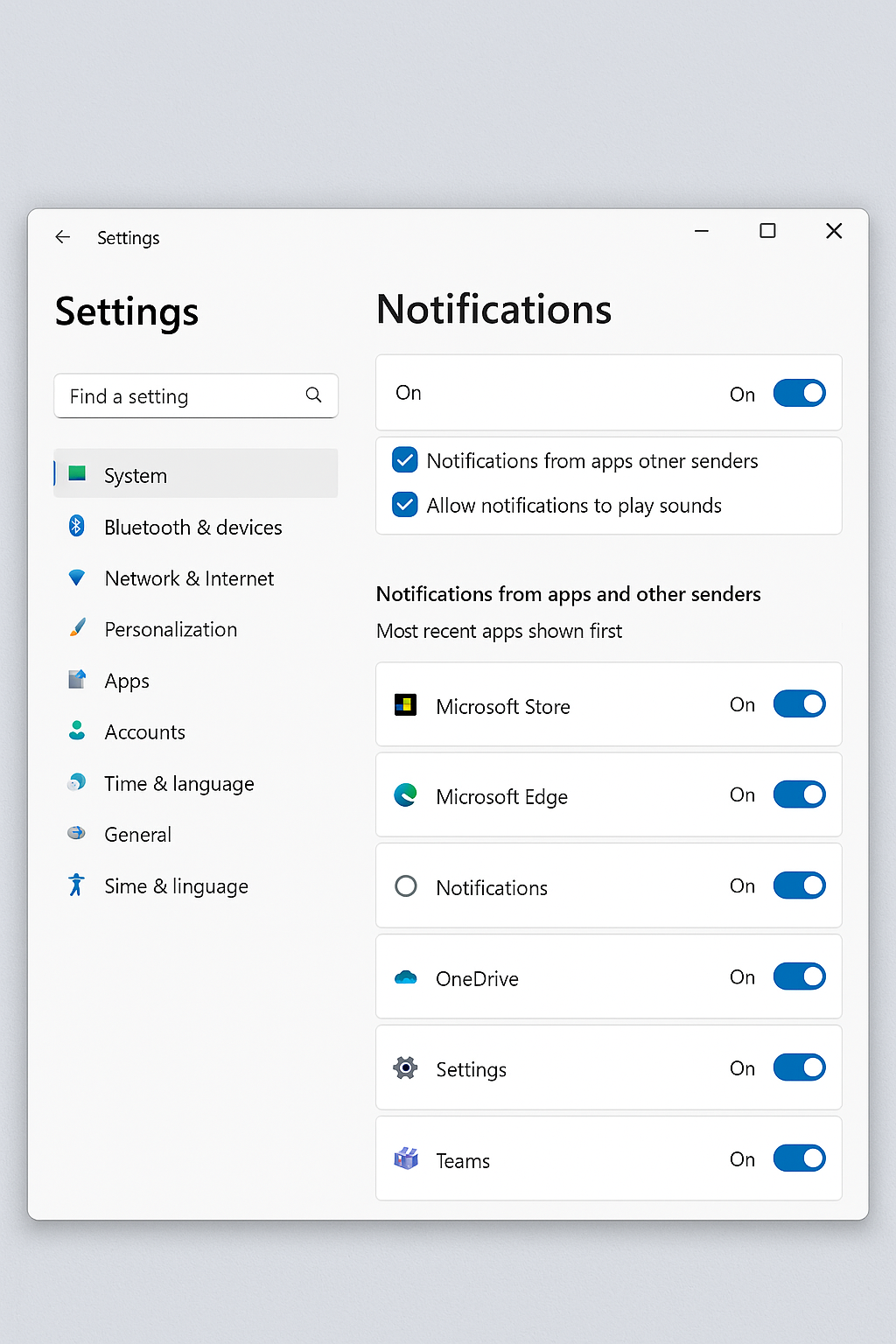
Adjust Teams internal notification settings:
- Launch Microsoft Teams desktop application and click your profile picture in the top-right corner
- Select “Settings” from the dropdown menu, then navigate to the “Notifications” tab on the left
- Under “Email notifications,” ensure “Chat messages and mentions” is set to “Only when I’m not active on desktop”
- Configure “Meetings” notifications to include “When a meeting starts” and “When someone joins or leaves”
- Enable “Missed activity emails” to receive backup notifications via email when desktop alerts fail
- Click “Edit custom notifications” to fine-tune specific notification types for channels, chats, and mentions
Disable Windows Focus Assist interference:
- Access Windows Settings > System > Focus Assist to review automatic notification blocking rules
- Select “Off” to completely disable Focus Assist, or choose “Priority only” for selective filtering
- If using Priority only mode, click “Customize priority list” and add Microsoft Teams as a priority application
- Review “Automatic rules” section and disable “During these times” if it conflicts with work hours
- Ensure “When I’m duplicating my display” and “When I’m playing a game” don’t block Teams notifications unnecessarily
Reset Teams notification cache and permissions:
- Close Microsoft Teams completely by right-clicking the system tray icon and selecting “Quit”
- Press Windows key + R, type “%appdata%\Microsoft\Teams” and press Enter to open Teams data folder
- Delete the “logs.db” file and restart Teams to rebuild notification tracking database
- Open Windows PowerShell as administrator and run:
Get-AppxPackage Microsoft.Teams* | Reset-AppxPackageto reset Teams permissions - Restart your computer to ensure all permission changes take effect properly across the system
Trace the notification from Teams to Windows
A Teams alert must be enabled in the conversation, allowed by Teams, and permitted by Windows. Test one layer at a time. Ask a colleague to send a direct message with a unique phrase while Teams is open but not focused. Check whether the message appears in Activity, whether the notification enters Windows notification center, and whether a banner appears.
If Activity updates but Windows shows nothing, open Windows Settings and review System > Notifications for Teams. Confirm notifications, banners, and sounds are allowed. If the item reaches notification center without a banner, inspect Windows Do not disturb and automatic rules for full-screen apps, gaming, display duplication, and scheduled times.
Check the Teams category and conversation. In Teams Settings, open Notifications and activity. Review general behavior, chat and channel categories, meeting alerts, and app notifications separately. A muted conversation or channel-specific choice can suppress one source while other Teams alerts continue normally. Compare a direct chat, channel mention, and meeting reminder instead of treating them as one feature.
Calls, requests to join, and meeting-start notices can behave differently from ordinary chat banners. Record the alert type that fails.
Verify the Windows app identity
Windows can retain notification settings for an older Teams package after an application replacement. Confirm that the Teams entry under Windows notifications matches the installed app you currently launch. Update Teams, quit it from the notification area, reopen it, and repeat the controlled message test carefully.
Avoid clearing every cache or resetting all Windows notifications before capturing evidence. Give IT the Teams version, Windows version, alert category, conversation setting, Windows permission, Do not disturb state, and whether Activity updated. This route identifies whether the event was never generated, was generated but suppressed by Teams, or reached Windows without displaying a banner.
Teams notifications not showing up troubleshooting
Teams notifications appear in notification center but don’t display pop-up banners on screen:
This occurs when Windows banner notification duration is set too low or Focus Assist blocks pop-ups. Navigate to Windows Settings > System > Notifications and increase “Show notifications for” duration to 30 seconds or longer. Additionally, check Focus Assist settings and ensure Teams is added to the priority list. Restart Teams after making these changes to refresh notification behavior.
Microsoft Teams shows online status but notifications still don’t work despite correct settings:
Teams notification service might be corrupted or conflicting with Windows notification broker. Open Task Manager and end all Teams-related processes completely. Navigate to %localappdata%\Microsoft\Teams and rename the “Current” folder to “Current_backup”. Restart Teams to rebuild the application cache and notification handlers. This forces Teams to recreate its notification registration with Windows 11.
Teams notifications work intermittently, appearing for some messages but not others consistently:
This suggests Teams notification throttling or Windows notification queue overflow. Open Windows Event Viewer and check Application logs for Teams notification errors. Clear Windows notification database by running sfc /scannow in administrator PowerShell to repair system notification components. Additionally, sign out of Teams completely, wait 5 minutes, then sign back in to refresh notification subscriptions with Microsoft’s servers.