Windows 11 not displaying correctly after restarts
A user recently contacted our IT support team with a familiar frustration: “Every time I restart my computer, my dual monitor setup reverts to mirror mode instead of extended display, and my custom resolution settings disappear completely.” This scenario represents one of the most common Windows 11 configuration challenges affecting productivity in modern workplaces, particularly for users who rely on multiple monitor setups or specific display arrangements for their daily tasks.
Screen settings not saving Windows 11 root causes
Windows 11 display configuration persistence issues typically stem from outdated graphics drivers, corrupted user profiles, or system registry conflicts that prevent proper settings storage. This tutorial addresses the complete workflow for diagnosing and resolving persistent display setting problems, ensuring your monitor configurations remain stable across system restarts and user sessions. We will cover driver updates, registry modifications, and system file repairs using built-in Windows tools and PowerShell commands.
Prerequisites include administrative access to your Windows 11 system, basic familiarity with Device Manager, and willingness to modify system registry entries following our safety guidelines. The solutions apply to both integrated and discrete graphics configurations, including NVIDIA, AMD, and Intel graphics drivers across desktop and laptop systems.
Windows 11 forgets display settings repair process
Begin the resolution process by updating your graphics drivers through Device Manager, which often resolves underlying compatibility issues causing configuration loss. Right-click the Start button and select Device Manager from the context menu, then expand the Display adapters section to locate your graphics hardware. Right-click your primary graphics adapter and choose “Update driver” from the dropdown menu, selecting “Search automatically for drivers” to allow Windows to find and install the latest compatible version.
- Open Device Manager by pressing Windows key + X and selecting Device Manager from the power user menu
- Expand the Display adapters category and right-click your primary graphics card to access driver options
- Select “Update driver” and choose “Search automatically for drivers” to download the latest compatible drivers from Windows Update
- Restart your computer after driver installation completes to ensure proper initialization of the new driver components
- Test your display settings by configuring your preferred resolution and arrangement, then restart to verify persistence
Expert Tip: If Windows Update doesn’t find newer drivers, visit your graphics card manufacturer’s website directly to download the latest drivers for your specific model and Windows 11 version.
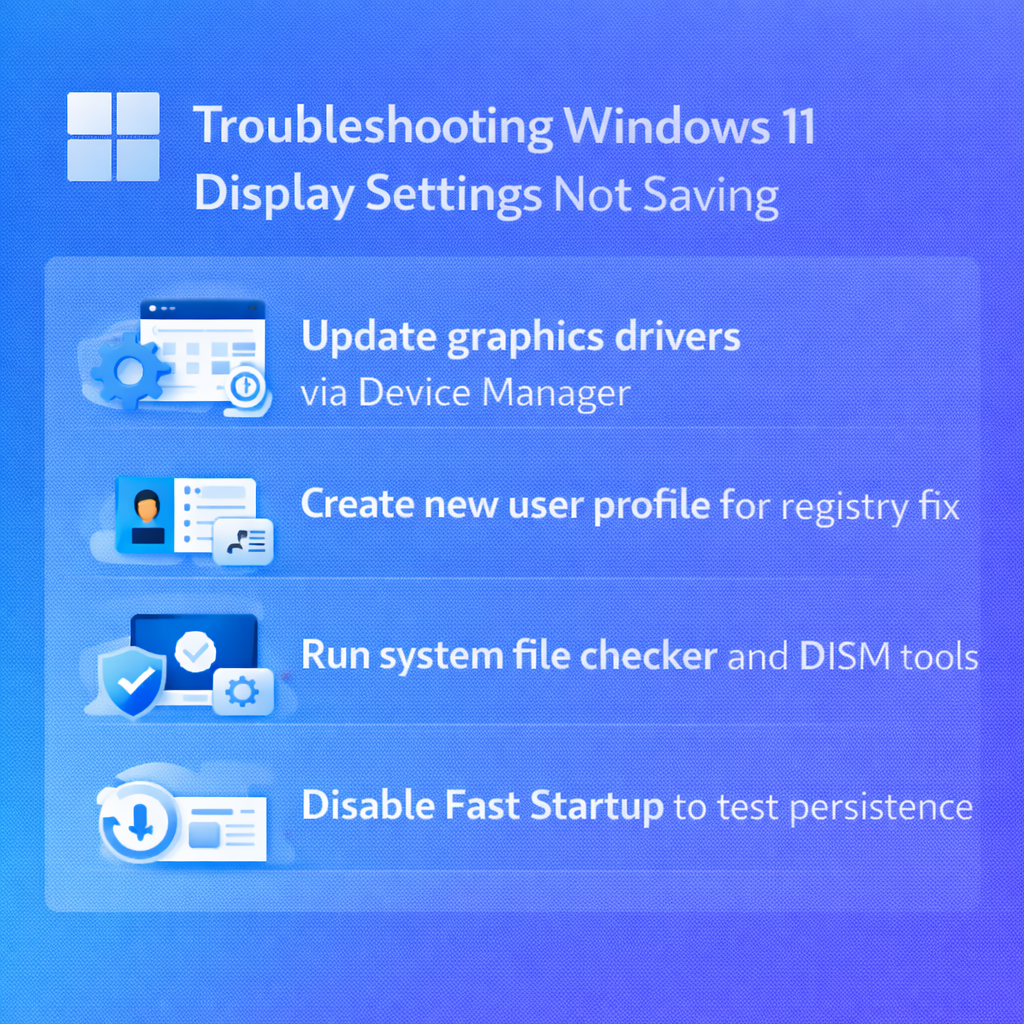
Windows 11 settings not saving system repair
Execute system file checker and deployment image servicing commands to repair corrupted system components that interfere with settings persistence. Open PowerShell as an administrator by right-clicking the Start button and selecting “Windows PowerShell (Admin)” or “Windows Terminal (Admin)” depending on your system configuration. Run the System File Checker scan first using the “sfc /scannow” command, which identifies and repairs corrupted system files that might prevent proper settings storage.
- Right-click the Start button and select “Windows PowerShell (Admin)” to open PowerShell with administrative privileges
- Type “sfc /scannow” and press Enter to initiate a comprehensive system file integrity scan
- Wait for the scan to complete, which typically takes 15-30 minutes depending on your system’s storage speed and file count
- Run “DISM /Online /Cleanup-Image /RestoreHealth” to repair the Windows image if SFC finds corrupted files
- Restart your computer after both commands complete successfully and test your display settings configuration
Remember: System file repairs can take considerable time to complete, so ensure your computer remains powered on and connected to the internet during the process.
Why is my display settings not saving troubleshooting
Several common issues can prevent Windows 11 from maintaining your display configurations, each requiring specific diagnostic approaches and solutions. Understanding these potential problems helps you identify the root cause more efficiently and apply the appropriate fix for your particular situation.
- Graphics driver conflicts occur when outdated or incompatible drivers fail to communicate properly with Windows 11’s display management system, causing settings to revert during system startup or driver initialization.
- User profile corruption affects the registry entries where Windows stores individual display preferences, resulting in settings that appear to save but don’t persist across sessions or reboots.
- Fast Startup feature interference happens when Windows uses hybrid shutdown mode, which can prevent proper saving of display configurations during the shutdown process, especially with multiple monitors connected.
- Hardware detection timing issues arise when monitors aren’t fully initialized during Windows startup, causing the system to fall back to default configurations instead of loading saved custom settings.
Important Tip: Disable Fast Startup temporarily by going to Power Options > Choose what the power buttons do > Change settings that are currently unavailable > uncheck “Turn on fast startup” to test if this resolves your display setting persistence issues.