Have you ever clicked on a video in Microsoft Edge only to see a blank screen, endless loading spinner, or error message instead of your content? This frustrating issue affects millions of Windows users daily, whether they’re trying to watch YouTube videos, stream Netflix content, or view embedded media on websites. Video playback problems in Microsoft Edge can stem from various causes, from outdated browser settings to conflicting extensions or corrupted media components.
Microsoft Edge video playback issues
Video playback failures in Microsoft Edge represent one of the most common browser-related challenges facing Windows 10 and Windows 11 users today. These issues manifest in multiple ways: videos may refuse to load entirely, display only audio without visual content, freeze during playback, or show error messages indicating codec problems. The underlying causes range from browser configuration conflicts and outdated graphics drivers to corrupted media foundation components and restrictive security settings.
I’ll show some basic configuration adjustments and advanced system-level repairs to fix edge loading problems. Those include simple browser resets and progresses to more comprehensive solutions involving Windows Media Feature Pack installations and graphics driver updates. The methods outlined here apply to all major video platforms including YouTube, Netflix, Amazon Prime, and embedded website content.
You will need administrative access to your Windows system and a stable internet connection for downloading updates. We’ll primarily use Microsoft Edge’s built-in settings, Windows System Settings, and Device Manager throughout this process.
Expert Tip: Before starting these troubleshooting steps, test video playback in another browser like Chrome or Firefox to confirm whether the issue is Edge-specific or affects your entire system.
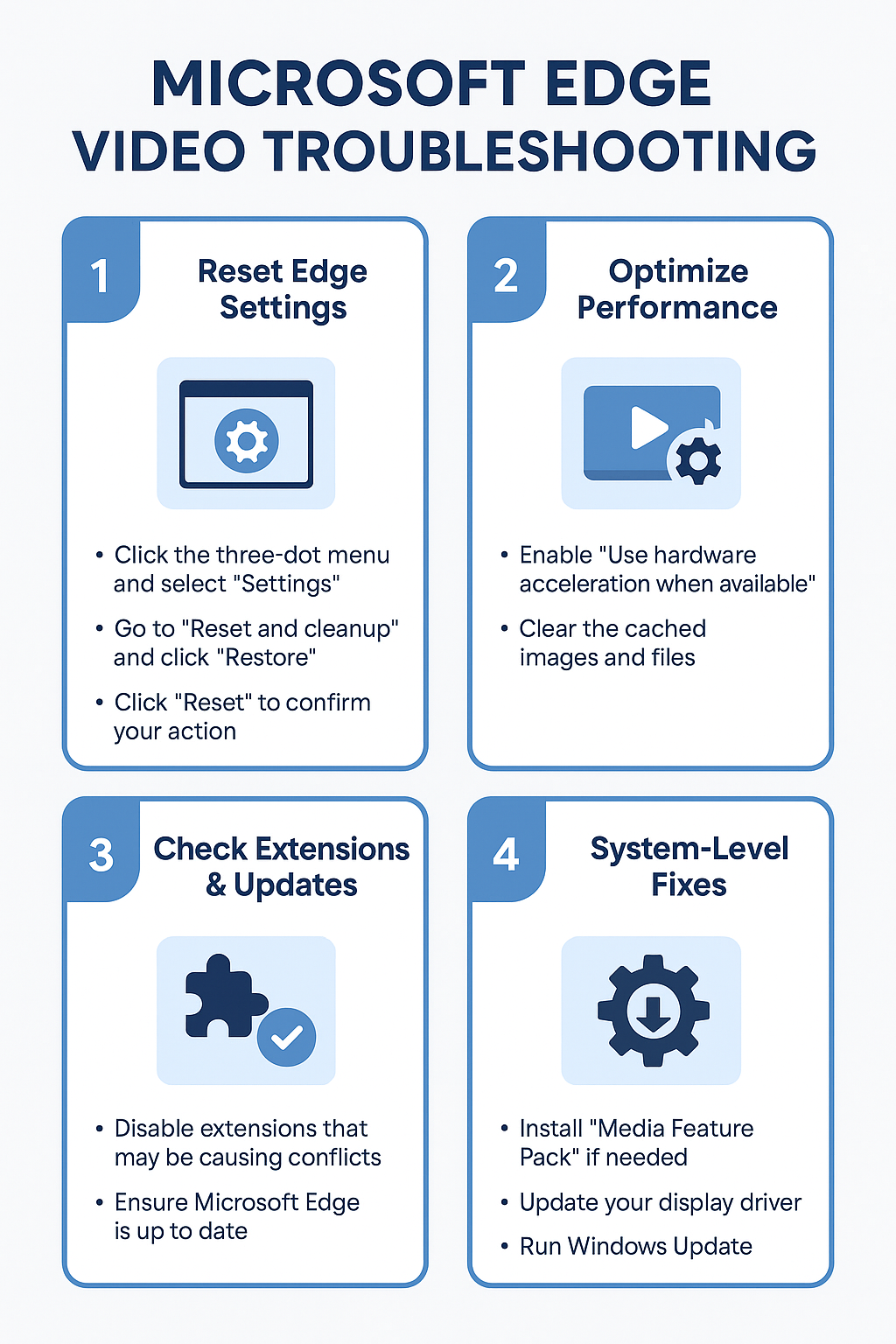
Step-by-step Microsoft Edge video troubleshooting implementation
- Navigate to Microsoft Edge settings by clicking the three-dot menu in the upper-right corner and selecting “Settings” from the dropdown menu to access browser configuration options.
- Select “Reset and cleanup” from the left sidebar menu, then click “Restore settings to their default values” to eliminate any corrupted preferences that might interfere with video playback functionality.
- Confirm the reset action by clicking “Reset” in the popup dialog, which will clear extensions, startup pages, and search engines while preserving your bookmarks and saved passwords for convenience.
- Access the “System and performance” section within Edge settings and ensure “Use hardware acceleration when available” is enabled to leverage your graphics card for smoother video rendering.
- Clear your browsing data by pressing Ctrl+Shift+Delete, selecting “All time” as the time range, and checking boxes for cached images, cookies, and site data before clicking “Clear now.”
- Disable problematic extensions by navigating to “Extensions” in the left sidebar, then toggle off each extension individually to identify potential conflicts with video streaming services.
- Update Microsoft Edge to the latest version by clicking the three-dot menu, selecting “Help and feedback,” then “About Microsoft Edge” to automatically download and install available updates.
- Open Windows Settings by pressing Windows key + I, navigate to “Apps,” then “Optional features,” and install “Media Feature Pack” if it’s not already present on your system.
- Access Device Manager by right-clicking the Start button, expand “Display adapters,” right-click your graphics card, and select “Update driver” to ensure optimal video acceleration support.
- Run Windows Update by opening Settings, selecting “Update & Security,” clicking “Check for updates,” and installing any pending system updates that might resolve media compatibility issues.
- Reset Microsoft Edge completely by opening Run dialog (Windows key + R), typing “ms-settings:appsfeatures,” finding Microsoft Edge in the list, and selecting “Advanced options” then “Reset.”
- Configure Windows Media Player components by opening “Turn Windows features on or off” from the Start menu, expanding “Media Features,” and ensuring Windows Media Player is enabled.
- Test video playback on multiple websites including YouTube, Vimeo, and news sites to verify that your troubleshooting efforts have successfully restored normal video functionality across different platforms.
Isolate website, profile, and protected-media failures
Before changing the configuration, establish one known-good test and preserve anything that may be difficult to recover. Test an InPrivate window to separate extensions and cached site data. Write down the account, client or device, and exact symptom so that later tests use the same conditions. Change one variable at a time; several simultaneous fixes can hide the real cause and make the problem return.
Check the deciding condition
Check site sound, autoplay, hardware acceleration, and graphics updates one at a time. Repeat the test with a simple sample that contains no confidential or business-critical data. If the sample works, compare permissions, file location, policy, and content with the failing case instead of reinstalling the whole product.
Do not disable security protections globally to make one stream play. Keep the original configuration or data until the new result has been checked. When a setting is unavailable, grayed out, or labeled as organization-managed, capture that message and ask the responsible administrator to review the policy.
Test the outcome without widening the change
undefined. Confirm the result after closing and reopening the relevant app, then repeat it from the normal user workflow rather than only from an administrator or owner account. A successful one-time test is not enough when synchronization, scheduled refresh, or another device is involved.
If behavior differs across clients, record the app version, account type, time of the test, and where the expected result appears. Use that evidence to decide whether the remaining fault is local, account-specific, data-specific, or service-side. This keeps troubleshooting narrow and protects working settings while support investigates the correct layer.
Finally, explain the intended outcome to another user and have that person repeat the shortest safe test. Their result can reveal hidden owner privileges, cached state, or assumptions about where data is stored. Preserve screenshots of error messages only after removing names, addresses, document content, and other private information.
Solving common Microsoft Edge video problems
- Videos display black screens with audio playing normally, indicating graphics driver conflicts that require updating your display adapter through Device Manager or manufacturer websites for optimal compatibility.
- Error messages stating “This video format is not supported” appear frequently, suggesting missing codec installations that can be resolved by installing K-Lite Codec Pack or enabling Windows Media Feature Pack.
- Videos buffer continuously without playing, typically caused by network connectivity issues, DNS problems, or corrupted browser cache that requires clearing browsing data and resetting network settings. This is similar to fixing Windows 11 file sharing problems which often involve network connectivity troubleshooting.
- Embedded videos on websites fail to load while YouTube works fine, pointing to site-specific compatibility problems that can be addressed by disabling tracking protection or adding sites to trusted exceptions.
Important Tip: If videos work in InPrivate browsing mode but fail in regular browsing, the issue likely stems from extensions or corrupted user data rather than system-level problems.