“I can’t see several Teams channels that my colleagues mention in meetings, and some of my messages aren’t appearing in conversations. What’s causing Microsoft Teams to hide content from me?”
Can’t find specific teams in Microsoft Teams?
This issue affects thousands of Microsoft Teams users who suddenly discover they cannot access channels, view team members, or see status updates that should be available to them. The problem typically stems from synchronization delays, permission changes, or cached data conflicts rather than actual content deletion. Understanding the root causes helps you restore full visibility across your Teams environment and prevent future access disruptions.For users experiencing broader Teams functionality problems, you might also need to troubleshoot Teams app crashes, freezes, and shutdowns which can compound visibility issues.
We will show how to diagnose and resolve common Microsoft Teams visibility problems including missing teams, hidden messages, absent member lists, and status display failures. You will learn to troubleshoot client-side cache issues and server-side permission configurations. The solutions apply to Teams desktop applications, web clients, and mobile versions across Windows, Mac, iOS, and Android platforms.
Restoring visibility for teams and channels that won’t appear
Microsoft Teams relies on continuous synchronization between local cache and cloud-based data to display your workspace accurately. When this synchronization breaks down, teams disappear from your sidebar, channels become inaccessible, and content appears missing even though it exists on Microsoft servers. Permission inheritance changes, tenant policy updates, or corrupted local cache files commonly trigger these visibility failures.
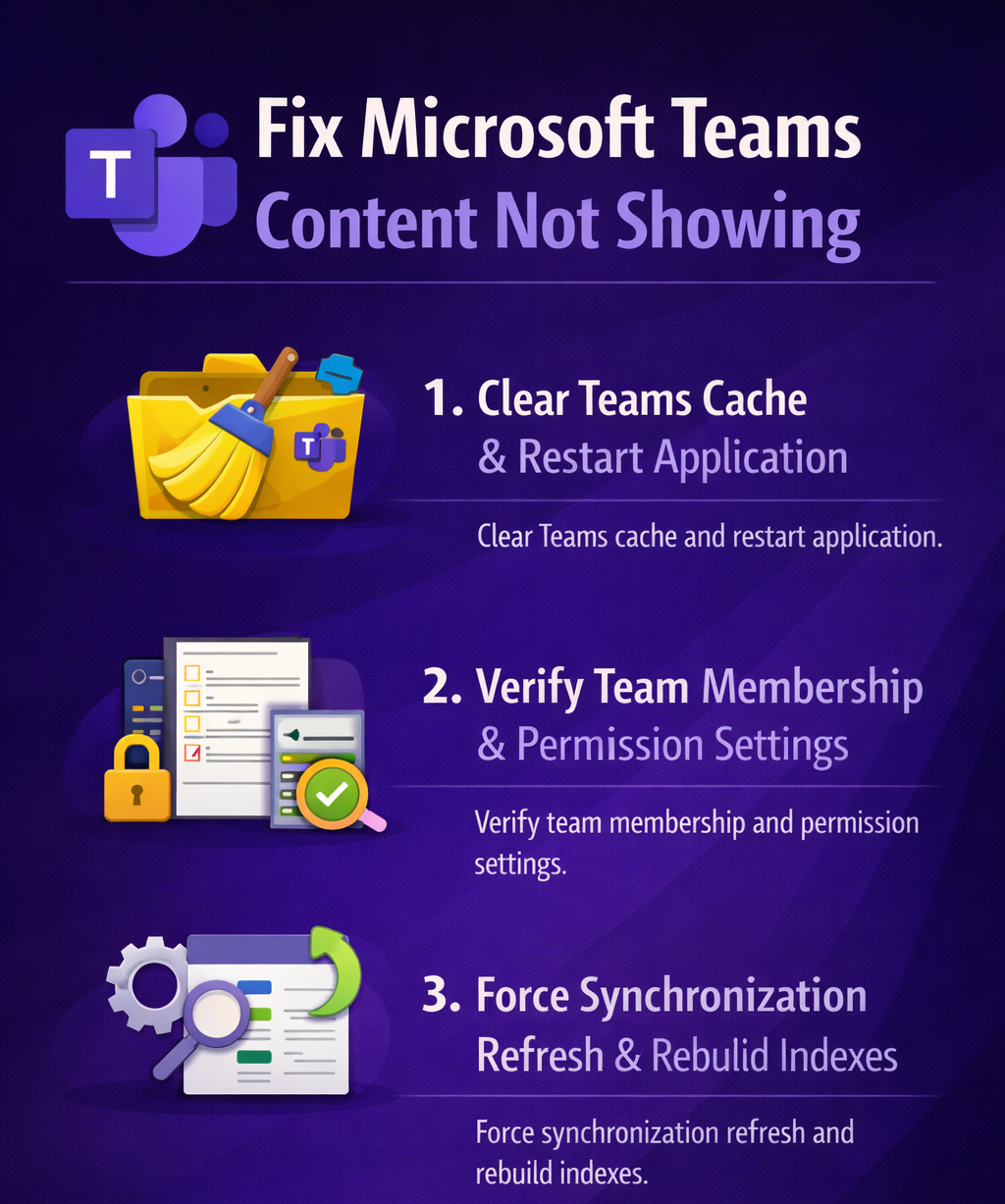
The workflow below addresses the most frequent scenarios where teams and their content become invisible to authorized users. You will clear problematic cache data, verify permission assignments, force synchronization refreshes, and validate tenant-level settings that control team discovery. This systematic approach resolves visibility issues without requiring administrator intervention in most cases.
Clearing cache and forcing Teams synchronization
- Close Microsoft Teams completely by right-clicking the Teams icon in your system tray and selecting Quit, ensuring no background processes continue running
- Navigate to the Teams cache location by pressing Windows Key + R, typing
%appdata%\Microsoft\Teamsand pressing Enter to open the folder containing your local Teams data - Delete the contents of these specific folders: Cache, blob_storage, databases, GPUcache, IndexedDB, Local Storage, and tmp to remove corrupted synchronization data that prevents proper content display
- Restart your computer to ensure all Teams processes terminate completely and Windows releases any locked cache files before relaunching the application
- Sign back into Microsoft Teams using your organizational credentials and wait three to five minutes for the initial synchronization to complete before evaluating whether missing teams reappear
- Verify your network connection stability during this synchronization period since interrupted connections cause incomplete team list population and missing channel data
- Check the Teams settings by clicking your profile picture, selecting Settings, then navigating to General to confirm “Auto-start application” is enabled for consistent synchronization on future launches
Expert Tip: Mac users should navigate to ~/Library/Application Support/Microsoft/Teams instead of the Windows path, then follow the same folder deletion process to clear cache data.
Verifying team membership and permission assignments
- Access the Microsoft Teams admin center at admin.teams.microsoft.com using administrator credentials to review organization-wide team visibility settings and membership configurations
- Navigate to Teams, then Manage teams to view the complete list of teams in your organization and verify whether the missing team appears in the administrative interface
- Click on the specific team name, select the Members tab, and confirm your account appears in either the Members or Owners list with appropriate role assignments
- Review the team’s Privacy settings to determine whether it’s configured as Private, Public, or Org-wide since Private teams require explicit membership invitations before appearing in user interfaces
- Return to your Teams client, click the Join or create a team button, then select the Discover teams option to search for public teams that might not automatically appear in your sidebar
- Use the search bar at the top of Teams to enter the exact team name since hidden teams often remain accessible through direct search even when they don’t display in the standard team list
- Contact the team owner directly if the team doesn’t appear in search results, requesting they verify your membership status and resend an invitation if necessary
Forcing team list refresh and rebuilding indexes
- Sign out of Microsoft Teams completely by clicking your profile picture, selecting Sign out, then waiting thirty seconds before signing back in to trigger a fresh authentication and synchronization cycle
- Enable the Developer Preview mode by clicking your profile picture, selecting About, then clicking Developer Preview to access experimental features that sometimes resolve synchronization issues
- Press Ctrl + Shift + I on Windows or Command + Option + I on Mac to open Developer Tools, then navigate to the Console tab and type
localStorage.clear()followed by Enter to manually clear browser-based storage - Close Developer Tools and restart Teams to allow the application to rebuild its local database indexes from scratch using current server data
- Check for pending Teams updates by clicking your profile picture, selecting Check for updates, then installing any available versions since Microsoft frequently releases fixes for synchronization problems
- Verify your Teams version matches your organization’s deployment by navigating to Settings, About, and comparing the version number against your IT department’s approved release schedule
Remember: Organizations using Teams policies might restrict certain features or team types from appearing in user interfaces, so verify with your IT administrator if visibility issues persist after cache clearing.
Resolving message visibility and member list display issues
- Navigate to the specific channel where messages aren’t appearing, click the three dots next to the channel name, and select Channel settings to verify you haven’t accidentally muted notifications or hidden the channel
- Check the message filters by clicking the Filter icon at the top of the conversation pane and ensuring “All messages” is selected rather than filtered views like “Unread” or “Saved” that limit visible content
- Verify your Teams client isn’t operating in offline mode by checking the connection indicator in the title bar, since offline status prevents new message synchronization and displays only cached content
- Access the same conversation through Teams web client at teams.microsoft.com to determine whether the visibility issue affects only your desktop application or represents a broader synchronization problem
- Review the channel’s member list by clicking the three dots next to the channel name and selecting Manage channel to confirm you maintain proper access permissions for viewing messages and member information
- Check whether your organization uses sensitivity labels or information barriers that might restrict message visibility based on compliance policies configured in the Microsoft Purview compliance portal
- Request that message senders verify their posts weren’t accidentally deleted or moved to different channels, since user actions sometimes create the appearance of missing content when messages were intentionally relocated
Restoring status visibility and presence information
- Navigate to Teams Settings by clicking your profile picture, selecting Settings, then Privacy to verify “Show when people see I’ve read their messages” is enabled since this setting affects bidirectional presence visibility
- Check your status manually by clicking your profile picture and selecting a specific status like Available or Busy, then waiting two minutes for the status to propagate across Microsoft 365 services
- Verify your Outlook calendar permissions since Teams derives presence information from calendar availability, and restrictive calendar sharing settings prevent accurate status display to other users
- Access the Microsoft 365 admin center at admin.microsoft.com, navigate to Settings, then Org settings, and select Microsoft Teams to confirm presence sharing is enabled at the tenant level
- Review your network firewall settings to ensure Teams can communicate with presence service endpoints at *.teams.microsoft.com and *.skype.com since blocked connections prevent status synchronization
- Disable VPN connections temporarily to test whether network routing issues interfere with presence service communication, then work with your IT department to configure appropriate VPN split tunneling
- Sign out of all Microsoft 365 applications including Outlook, Teams, and OneDrive, then sign back in to refresh your authentication tokens and reestablish presence service connections across the entire suite
Addressing persistent visibility and synchronization challenges
- Teams appear in admin center but not in user client: This discrepancy indicates a synchronization delay between Azure Active Directory group membership and Teams client cache. Sign out of Teams, wait five minutes for directory replication to complete, then sign back in to force a fresh membership query. If the issue persists, remove and re-add the affected user to the team through the admin center, which triggers immediate synchronization notifications.
- Search finds teams that don’t appear in sidebar: Teams configured with specific privacy settings or archived status remain searchable but don’t automatically display in the active teams list. Click the three dots next to the team name in search results and select “Show” to pin the team to your sidebar permanently. Verify the team isn’t archived by checking its status in the admin center, since archived teams require restoration before appearing in standard navigation.
- Status shows as “Unknown” or “Presence Unknown”: This error indicates communication failures between Teams and the Microsoft 365 presence service. Clear your Teams cache as described earlier, then verify your organization hasn’t disabled presence sharing through tenant-wide policies in the Teams admin center. Check whether affected users have licenses that include presence features, since some Microsoft 365 plans exclude real-time status synchronization capabilities.
- Messages visible on mobile but not desktop: Platform-specific cache corruption causes this inconsistency where content synchronizes correctly to one client but fails on another. Uninstall the Teams desktop application completely using Windows Settings or Mac Applications folder, delete the cache folders manually, then reinstall the latest version from teams.microsoft.com. This clean installation eliminates corrupted files that selective cache clearing might miss.
- Team members list shows “Unable to load members”: This error typically results from Microsoft Graph API throttling or temporary service disruptions affecting directory queries. Wait fifteen minutes for automatic retry mechanisms to resolve the issue, then refresh the member list by navigating away from the team and returning. If the problem persists beyond one hour, verify your organization’s Microsoft 365 service health dashboard for reported Teams or Azure Active Directory incidents.
- Public teams don’t appear in discovery: Organizations can disable public team discovery through Teams policies, preventing users from browsing available teams without direct invitations. Contact your Teams administrator to verify whether the “Allow users to discover private teams” policy is enabled in the Teams admin center. Request that team owners share direct join links as an alternative discovery method when organizational policies restrict team browsing features.