Why doesn’t Microsoft Edge respond after system updates?
After installing the latest Windows 11 update, you notice Microsoft Edge keeps stopping and displaying “not responding” messages whenever you try to browse websites or access your bookmarks. The browser either freezes completely requiring a force-close through Task Manager, or it crashes unexpectedly while loading pages, disrupting your workflow and making it impossible to complete essential web-based tasks for your organization.
Microsoft Edge keeps idle after updates on Windows 11
Windows updates occasionally introduce compatibility conflicts with Microsoft Edge’s rendering engine, extension framework, or cached profile data that can cause the browser to become unresponsive. These issues typically manifest as frequent freezing, delayed page loading, or complete application crashes that prevent normal browsing activities and can significantly impact productivity for users who rely on Edge for daily business operations.
We’ll show how you can easily resolve Microsoft Edge not responding issues that occur specifically after Windows updates, covering browser reset procedures, profile rebuilding, extension management, and system-level troubleshooting techniques. You will also learn to identify why exactly Edge crashes and implement both quick fixes and comprehensive solutions to restore stable browser performance on Windows 11 systems.
The solutions require administrative access to your Windows 11 computer and will involve modifying browser settings, clearing cached data, and potentially reinstalling Edge components.
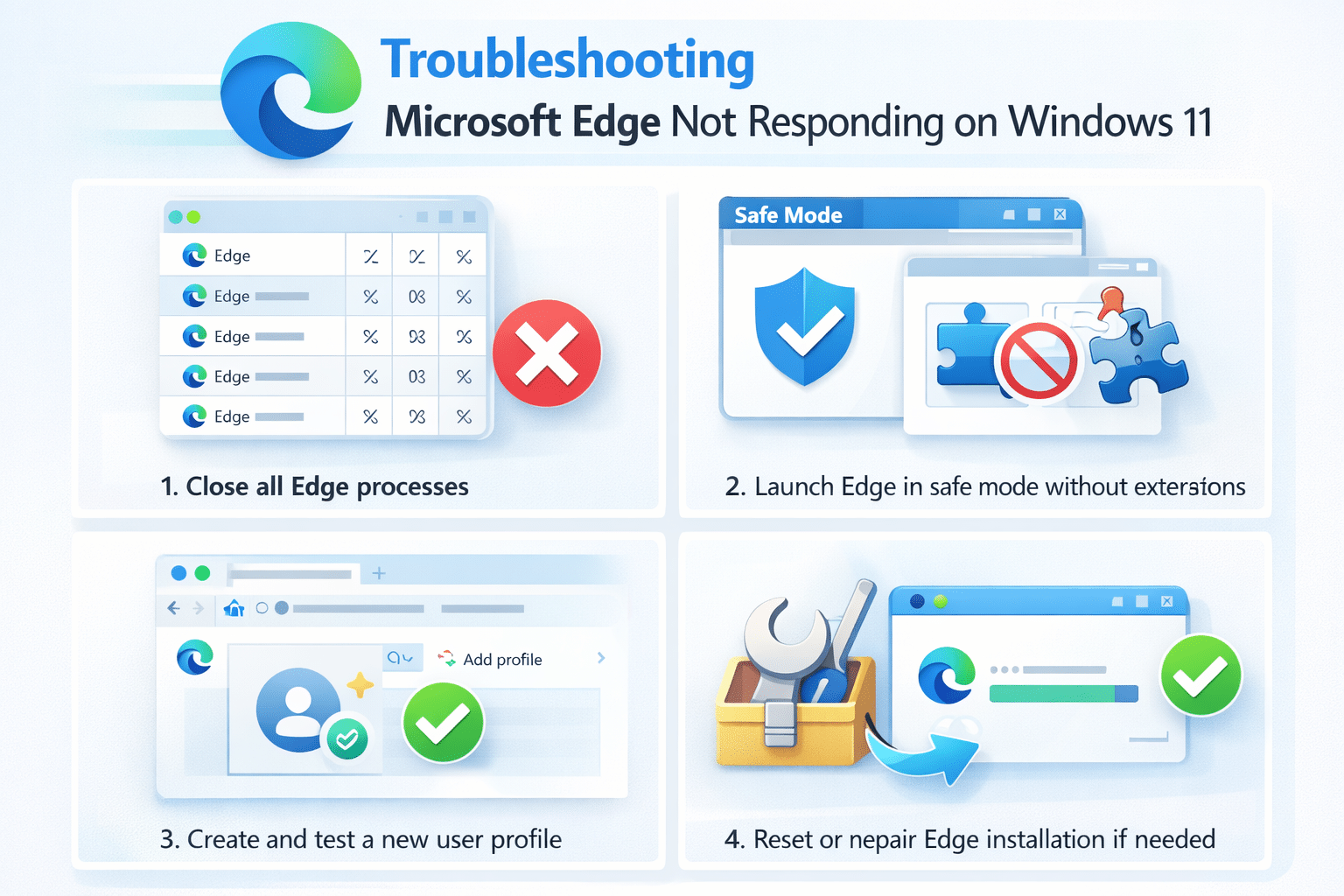
How to fix Microsoft Edge not responding ?
Begin troubleshooting by closing all Microsoft Edge windows and processes completely through Task Manager to ensure a clean restart environment for testing browser stability and functionality.
- Open Task Manager by pressing Ctrl + Shift + Esc simultaneously, then locate all Microsoft Edge processes in the Processes tab and click “End task” for each Edge-related entry including main browser processes and background tasks.
- Launch Microsoft Edge in safe mode by opening the Run dialog with Windows + R, typing
msedge --disable-extensions --disable-plugins, and pressing Enter to start Edge without extensions or plugins that might cause conflicts. - Test browser functionality by navigating to multiple websites including Microsoft.com and your organization’s primary web applications to determine if the not responding issue persists in safe mode configuration.
- Clear Microsoft Edge browsing data by clicking the three-dot menu in the upper-right corner, selecting “Settings,” navigating to “Privacy, search, and services,” and clicking “Clear browsing data now” with all options selected.
Expert Tip: If Edge works normally in safe mode, the issue is likely caused by a problematic extension or corrupted browser cache rather than a fundamental compatibility problem with the recent Windows update.
Microsoft Edge stopped responding Windows 11 profile repair
- Create a new Microsoft Edge user profile by clicking your profile icon in the browser toolbar, selecting “Add profile,” and setting up a fresh user account to isolate profile-specific corruption issues.
- Transfer essential bookmarks and passwords by signing into your Microsoft account within the new profile, which will sync your saved data from Microsoft’s cloud services automatically without transferring potentially corrupted local files.
- Test the new profile extensively by using Edge for typical browsing activities, opening multiple tabs, and accessing web applications that previously triggered not responding messages to verify stability improvements.
- Remove the old profile if the new one works correctly by going to Edge Settings, selecting “Profiles,” clicking “Manage profile settings,” and deleting the problematic profile to prevent future conflicts.
Why isn’t Microsoft Edge responding to system commands
- Reset Microsoft Edge to default settings by navigating to Settings, clicking “Reset and cleanup” in the left sidebar, selecting “Restore settings to their default values,” and confirming the reset to eliminate configuration conflicts.
- Repair Microsoft Edge installation through Windows Settings by opening “Apps & features,” searching for Microsoft Edge, clicking the three-dot menu next to Edge, and selecting “Modify” followed by “Repair” to fix corrupted program files.
- Update Microsoft Edge manually by visiting edge.microsoft.com in an alternative browser, downloading the latest stable version, and running the installer to ensure you have the most recent compatibility patches for Windows 11.
- Run Windows System File Checker by opening Command Prompt as administrator, typing
sfc /scannow, and allowing the scan to complete, which repairs corrupted system files that might interfere with Edge functionality.
Microsoft Edge frequently not responding troubleshooting
When Microsoft Edge continues experiencing not responding issues despite basic troubleshooting, several underlying problems may require more targeted solutions to restore proper browser functionality and prevent recurring crashes.
- Microsoft Edge not responding message appears immediately upon startup – This typically indicates corrupted user profile data or conflicting startup extensions that prevent the browser from initializing properly, requiring profile reset or selective extension disabling to resolve the startup failure.
- Edge crashes only when accessing specific websites or web applications – Compatibility issues with certain web technologies, outdated browser components, or conflicting security settings may cause site-specific crashes that require clearing site data, updating browser components, or adjusting security configurations.
- Microsoft Edge keeps stopping during file downloads or media playback – Insufficient system resources, corrupted download cache, or conflicts with antivirus software scanning can interrupt Edge processes during resource-intensive operations, necessitating cache clearing, memory optimization, or security software configuration adjustments. See also download location settings.
- Browser becomes unresponsive after extended use with multiple tabs open – Memory leaks, accumulated cache data, or inefficient extension management can cause performance degradation over time, requiring regular cache maintenance, extension auditing, and potentially increasing virtual memory allocation for improved stability.
Remember: Document which specific actions trigger the not responding behavior, as this information helps identify whether the issue stems from browser configuration, system resources, or specific website compatibility problems.