Why won’t Edge browser launch after Windows 11 update?
Microsoft Edge serves as the default browser for Windows 11, but you might encounter situations where the browser refuses to launch or stops responding entirely. This frustrating issue often emerges after system updates, profile corruption, or conflicting applications that interfere with Edge’s normal operation.
Edge browser common Windows 11 compatibility issues
When Microsoft Edge refuses to open on Windows 11, the problem usually traces back to corrupted user data, damaged installation files, or background conflicts that prevent the browser from launching correctly. These glitches often surface after major Windows updates that disrupt existing Edge configurations or permissions.
This walkthrough takes you through several ways to get Edge running again, from repairing user profiles and restoring system files to completely reinstalling the browser. You’ll learn how to pinpoint what’s actually stopping Edge from opening and apply the fix that fits your specific situation. To follow along, you’ll need administrative access to your Windows 11 PC and a basic comfort level with Windows Settings and Command Prompt.
The process uses built-in tools such as PowerShell, Microsoft Edge’s repair options, and other native Windows utilities.
How to fix Microsoft Edge if stops working on Windows 11
Basic Edge browser restart and profile repair methods
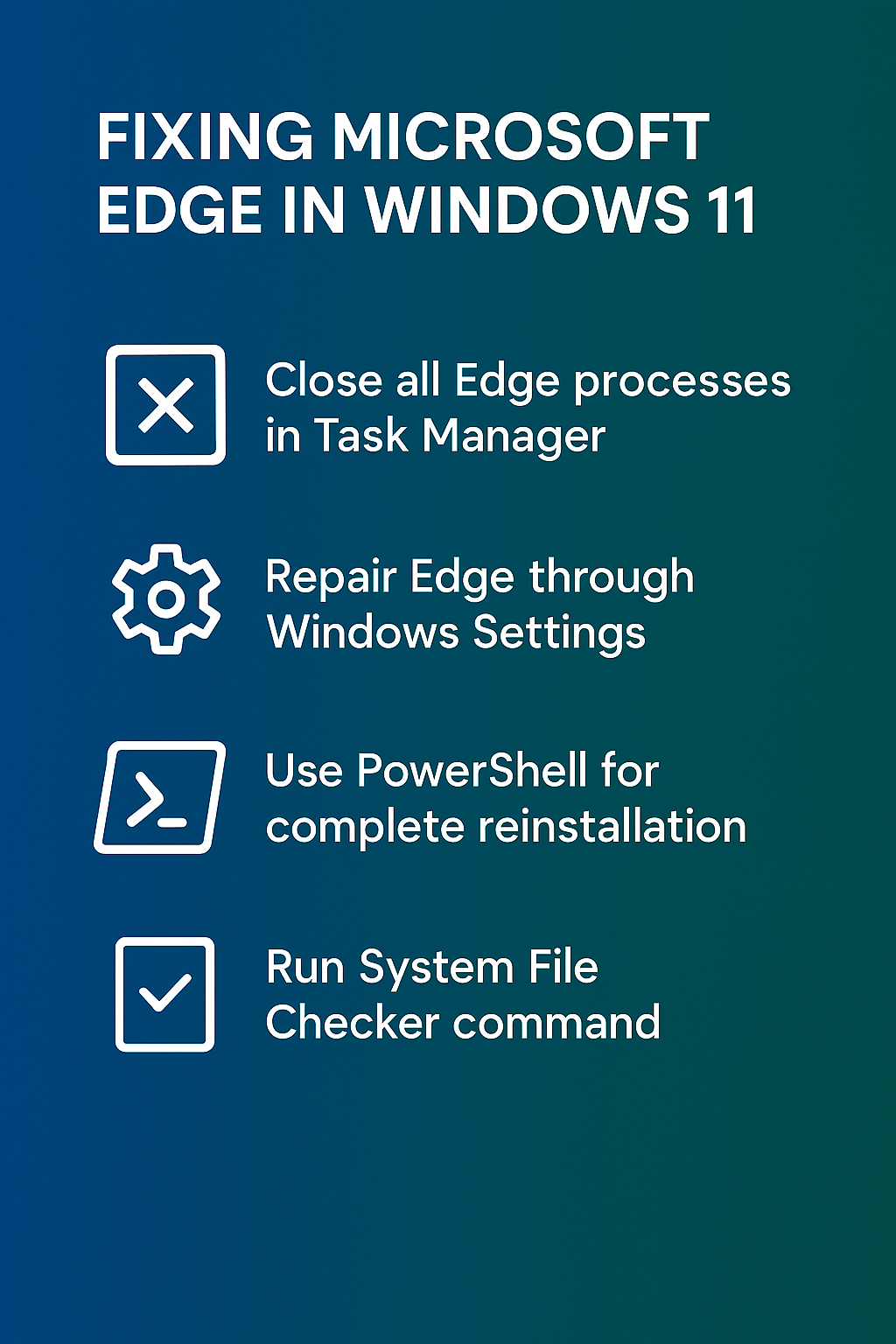
- Close all Microsoft Edge processes completely by opening Task Manager using Ctrl+Shift+Esc, locating any Microsoft Edge entries under the Processes tab, and selecting “End task” for each instance.
- Navigate to Windows Settings by pressing Windows key + I, select “Apps” from the left sidebar, then click “Installed apps” to locate Microsoft Edge in the application list.
- Click the three-dot menu next to Microsoft Edge and select “Advanced options” to access the built-in repair tools that can resolve common browser launching issues similar to when you need to fix Windows 11 file sharing problems.
- Use the “Repair” button first, which attempts to fix Edge without affecting your browsing data, bookmarks, or saved passwords stored in your current profile.
- If the repair option doesn’t resolve the launching problem, click “Reset” to restore Microsoft Edge to its default state while preserving your essential browsing data.
- Restart your computer after completing the repair or reset process to ensure all system changes take effect and Edge can initialize with the corrected configuration.
Advanced PowerShell commands for Edge reinstallation
- Open PowerShell as Administrator by right-clicking the Start button, selecting “Windows PowerShell (Admin)” or “Windows Terminal (Admin)” depending on your system configuration.
- Execute the command
Get-AppxPackage Microsoft.MicrosoftEdge* | Remove-AppxPackageto completely remove the current Microsoft Edge installation from your Windows 11 system.This process is similar to when you need to solve Edge browser slow loading pages on Windows systems. - Download the latest Microsoft Edge installer directly from the official Microsoft website to ensure you’re installing the most current version with all security updates.
- Run the downloaded Edge installer with administrative privileges to perform a clean installation that replaces any corrupted files or registry entries from the previous installation.
Expert Tip: Always create a backup of your Edge bookmarks and passwords before performing a complete reinstallation, even though modern Edge versions sync this data automatically.
System file repair for persistent Edge launching problems
- Launch Command Prompt as Administrator by typing “cmd” in the Start menu, right-clicking “Command Prompt,” and selecting “Run as administrator” from the context menu.
- Execute
sfc /scannowto scan and repair corrupted system files that might prevent Microsoft Edge from launching correctly on your Windows 11 installation. - Run
DISM /Online /Cleanup-Image /RestoreHealthafter the SFC scan completes to repair the Windows image and resolve deeper system-level corruption affecting Edge functionality. - Use the Windows 11 built-in troubleshooter by navigating to Settings > System > Troubleshoot > Other troubleshooters, then running the “Windows Store Apps” troubleshooter specifically.
- Clear the Microsoft Edge cache and temporary files by navigating to
%localappdata%\Microsoft\Edge\User Datain File Explorer and deleting the contents while Edge is completely closed. - Check for pending Windows 11 updates in Settings > Windows Update, as Microsoft frequently releases patches that resolve browser compatibility issues and launching problems.
Test Edge repair without deleting the working profile first
Before troubleshooting Edge startup, define what success looks like and preserve the current configuration. A short comparison between working and failing conditions usually provides more evidence than several resets performed together.
Run a controlled comparison
Check Task Manager for an existing Edge process, end only the stalled browser processes, and try a new InPrivate window or separate profile. A damaged profile, extension, or startup page can block one user while Windows remains healthy.
Install Windows and Edge updates and use Settings > Apps repair where available. Avoid PowerShell reinstallation commands that remove provisioned components unless current Microsoft guidance specifically requires them.
Verify across a new session
Back up favorites through sync or export before resetting. Record whether Edge opens from Start, a link, and another Windows account, plus any crash event and time; those comparisons narrow the fault safely.
Keep security and data protection intact during the test. Use sample content, preserve backups or recovery information, and avoid disabling organization-managed controls merely to make a feature appear.
Confirm the result from another affected user’s perspective when appropriate. Preserve the final configuration and undo experimental changes that did not contribute to the solution.
Prefer supported settings, current releases, and vendor-documented recovery paths. Experimental flags, registry edits, cache deletion, and reinstallation should follow only after the failing layer is identified. Before a disruptive step, preserve user data and record how to restore the previous configuration.
If a destructive repair is proposed, pause and verify backups, recovery keys, export files, or source data first. Recovery preparation is part of troubleshooting, especially when profiles, encryption, plans, or synchronized content are involved.
Before handing the issue back, write down the final setting, expected behavior, and one quick verification step. This gives the user a practical recovery check and prevents an unsupported workaround from becoming permanent.
Common Microsoft Edge problems and their solutions on Windows 11
- Edge crashes immediately upon startup: This typically indicates profile corruption, which you can resolve by navigating to
%localappdata%\Microsoft\Edge\User Dataand renaming the “Default” folder to “Default.old” to force Edge to create a fresh profile. - Browser opens but displays blank pages: Clear Edge’s browsing data by pressing Ctrl+Shift+Delete within the browser, selecting “All time” as the time range, and checking all available data categories before clicking “Clear now.”
- Edge won’t respond to clicks or keyboard input: Disable hardware acceleration by opening Edge settings, navigating to “System and performance,” and toggling off “Use hardware acceleration when available” to resolve graphics-related conflicts.
- Extensions prevent Edge from launching properly: Start Edge in safe mode by creating a desktop shortcut with the target
"C:\Program Files (x86)\Microsoft\Edge\Application\msedge.exe" --disable-extensionsto bypass problematic add-ons temporarily.