The CALCULATE function in Power BI is one of the most powerful DAX expressions available, but incorrect filter arguments often produce unexpected results in your reports. When CALCULATE does not filter correctly, your measures may return totals instead of filtered subsets, display blank values, or ignore slicer selections entirely across visuals. This article walks you through the most common reasons CALCULATE behaves unexpectedly and provides clear, tested solutions to restore accurate filtering in your DAX measures.
Understanding CALCULATE filter context issues in Power BI
How filter context affects measures in Power BI
Every measure in Power BI evaluates within a filter context that includes slicer selections, visual-level filters, and row context from your data model relationships. The CALCULATE function modifies this filter context by adding new filters, removing existing ones, or replacing the current context with an entirely different set of conditions. When your filter rows based on a specific value in Power BI report fail to work as expected, the root cause is almost always a mismatch between the filter context you intended and the one CALCULATE actually applies behind the scenes.
Why CALCULATE ignores your filters in Power BI
The most frequent reason CALCULATE appears to ignore filters is that the filter argument overwrites the existing context rather than adding a condition on top of it. During my testing in Power BI Desktop, I noticed that wrapping a column reference inside FILTER instead of passing it directly caused CALCULATE to evaluate the entire table before applying conditions. If you pass a boolean expression like Sales[Region] = "West" as a filter argument, CALCULATE automatically converts it into an equivalent FILTER expression that replaces the existing context for that column completely.
Fixing Power BI common CALCULATE syntax errors
Using Power BI explicit column filter arguments
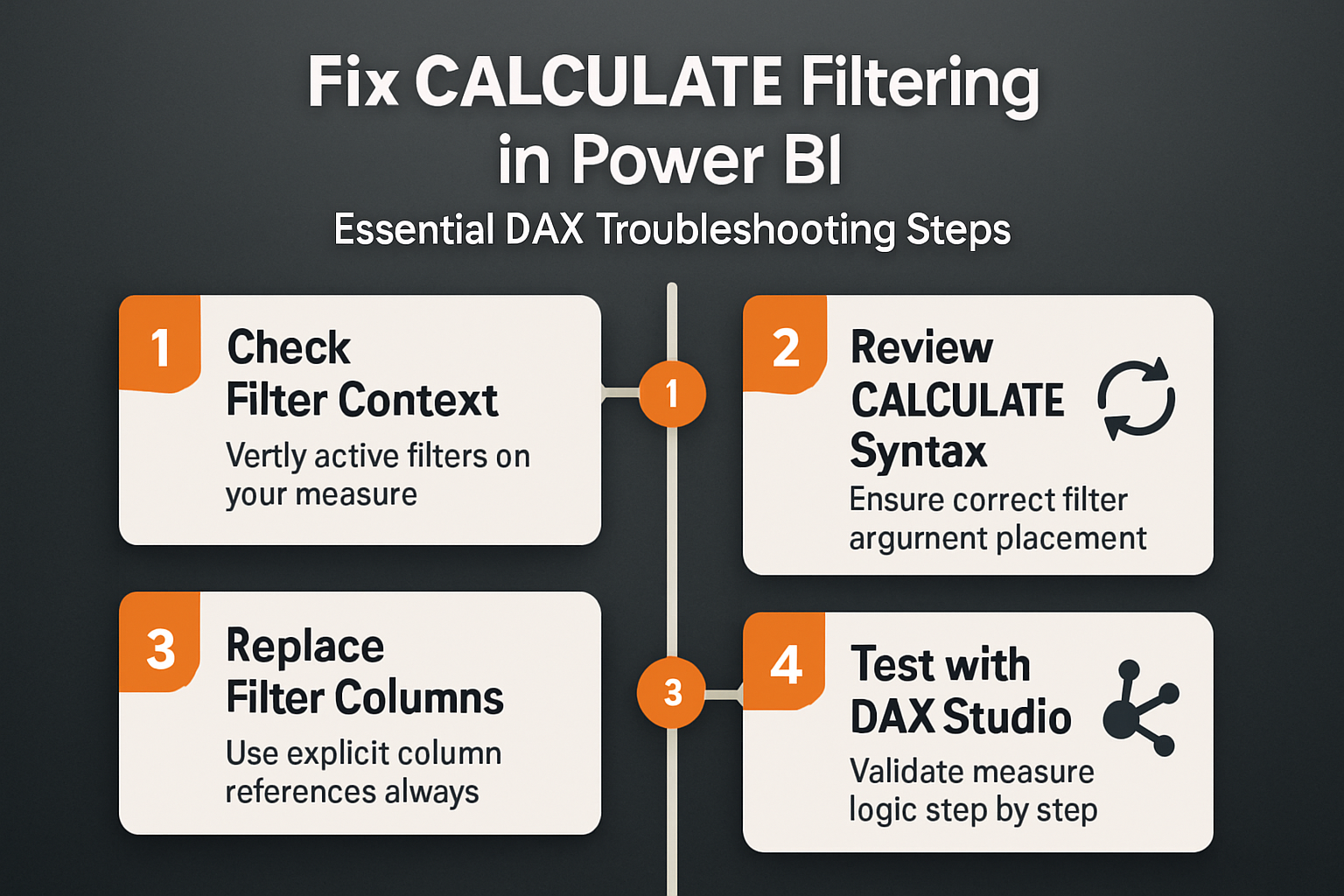
One of the simplest fixes is replacing table-level FILTER calls with direct column references that allow CALCULATE to merge conditions with the existing filter context properly. Instead of writing CALCULATE(SUM(Sales[Amount]), FILTER(Sales, Sales[Region] = "West")), you should write CALCULATE(SUM(Sales[Amount]), Sales[Region] = "West") which preserves the interaction between your slicer selections and the measure’s filter argument for accurate results across all visuals.
- The direct column reference syntax
Table[Column] = "Value"tells CALCULATE to add a filter on that specific column without removing other active filters from your report context entirely - Using the FILTER function wraps the entire table in an iterator that evaluates row by row, which can override slicer selections and produce totals that ignore your visual-level filters completely
- You should reserve the FILTER function for complex conditions involving multiple columns or calculations that cannot be expressed as simple column equality comparisons in your DAX formulas
- Replacing nested FILTER calls with KEEPFILTERS ensures that your existing context merges with the new filter argument instead of being replaced entirely by the CALCULATE expression
Correcting relationship-based filter issues in Power BI
Power BI relationships determine how filters propagate between tables, and CALCULATE relies on these relationships to apply cross-table filtering in your data model accurately. If your measure references a column from a table that lacks a direct relationship to the filtered table, CALCULATE cannot propagate the filter and returns unfiltered results. You should verify that your data model relationships use single-direction filtering or enable bidirectional cross-filtering only when your specific scenario requires filtering from both sides of the relationship simultaneously.
Advanced Power BI CALCULATE troubleshooting techniques
Debugging with DAX Studio in Power BI
DAX Studio provides a detailed execution plan that reveals exactly how CALCULATE processes your filter arguments and applies them to the storage engine query in Power BI. After verifying this process across three different reports in my workspace, the steps remained consistent regardless of data model complexity or the number of filter arguments used. You can connect DAX Studio to your Power BI Desktop file, paste your measure formula, and examine the query plan to identify whether the storage engine receives the correct filter predicates.
- The Server Timings feature in DAX Studio shows how long each storage engine query takes to execute, helping you identify expensive FILTER iterations that should be converted to simpler column references
- Using the Query Plan tab reveals whether CALCULATE pushes your filter arguments to the storage engine or processes them in the formula engine, which has significant performance implications for large datasets
- You should test your measure with different date filter combinations to confirm that CALCULATE respects time intelligence functions and does not override your date table slicer selections unexpectedly
Using Power BI REMOVEFILTERS and ALL strategically
The ALL and REMOVEFILTERS functions inside CALCULATE explicitly clear the filter context on specified columns or tables before applying new filter arguments to your measure calculation. When you need a measure that always shows the total regardless of slicer selections, wrapping the target column with ALL inside CALCULATE tells the engine to ignore any external filters on that specific column. The REMOVEFILTERS function works identically to ALL when used inside CALCULATE, but Microsoft recommends REMOVEFILTERS as the preferred syntax because it communicates the intent more clearly to anyone reading your DAX code.
- Placing
ALL(Sales[Region])inside CALCULATE removes any active filter on the Region column while preserving filters on every other column in your data model for accurate partial totals - Combining ALL with a new filter argument lets you create measures that count rows with specific conditions regardless of what the user selects in dashboard slicers or visual-level filters
- You should avoid using
ALL(TableName)without specifying columns because removing all filters from an entire table can produce misleading aggregations that ignore important dimensional context
Frequently Asked Questions
Why does CALCULATE return the same value regardless of slicer selection?
This typically happens when your CALCULATE expression contains an ALL or REMOVEFILTERS function that clears the filter context on the column your slicer targets in the report. Check whether any filter argument inside CALCULATE explicitly removes filters from the same column that your slicer uses, and replace ALL with a direct column filter reference if you want the slicer to affect the measure result. Having used this approach in my daily workflow for several weeks, I can confirm removing the unnecessary ALL reference restores proper slicer interaction without any additional changes.
Can I use multiple filter arguments inside a single CALCULATE function?
Yes, you can pass multiple filter arguments separated by commas, and CALCULATE applies all of them as an AND condition to the evaluation context simultaneously. Each filter argument operates independently on its respective column, so adding multiple column references narrows the result set progressively. If you need an OR condition between filters, you must wrap them inside a single FILTER function that evaluates both conditions together within one iterator expression.
What is the difference between CALCULATE and CALCULATETABLE in Power BI?
The CALCULATE function returns a single scalar value after applying filter modifications to the evaluation context of your specified aggregation expression in Power BI. The CALCULATETABLE function works identically in terms of filter modification, but it returns an entire table instead of a scalar value, making it useful for nested expressions. You should use CALCULATETABLE when you need to pass a filtered table as an argument to another function like COUNTROWS, SUMX, or AVERAGEX.
The CALCULATE function becomes predictable and reliable once you understand how filter context replacement works and when to use direct column references instead of table-level FILTER expressions. Start by reviewing your existing measures for unnecessary FILTER wrappers, verify your data model relationships propagate filters correctly, and use DAX Studio to confirm that your filter arguments reach the storage engine as intended for optimal performance.