To update the right Excel row from SharePoint, give both records a stable identifier first. Then build the flow around that key, an Excel table, and explicit field mapping. A small test will show whether the matching works before you sync more items.
This guide builds a one-way update from SharePoint into Excel. It assumes SharePoint is the source of truth and Excel is a reporting or handoff copy. That boundary matters: a second flow pushing Excel changes back into SharePoint can create loops, stale overwrites, and hard-to-explain run history.
Define the row identity before opening the designer
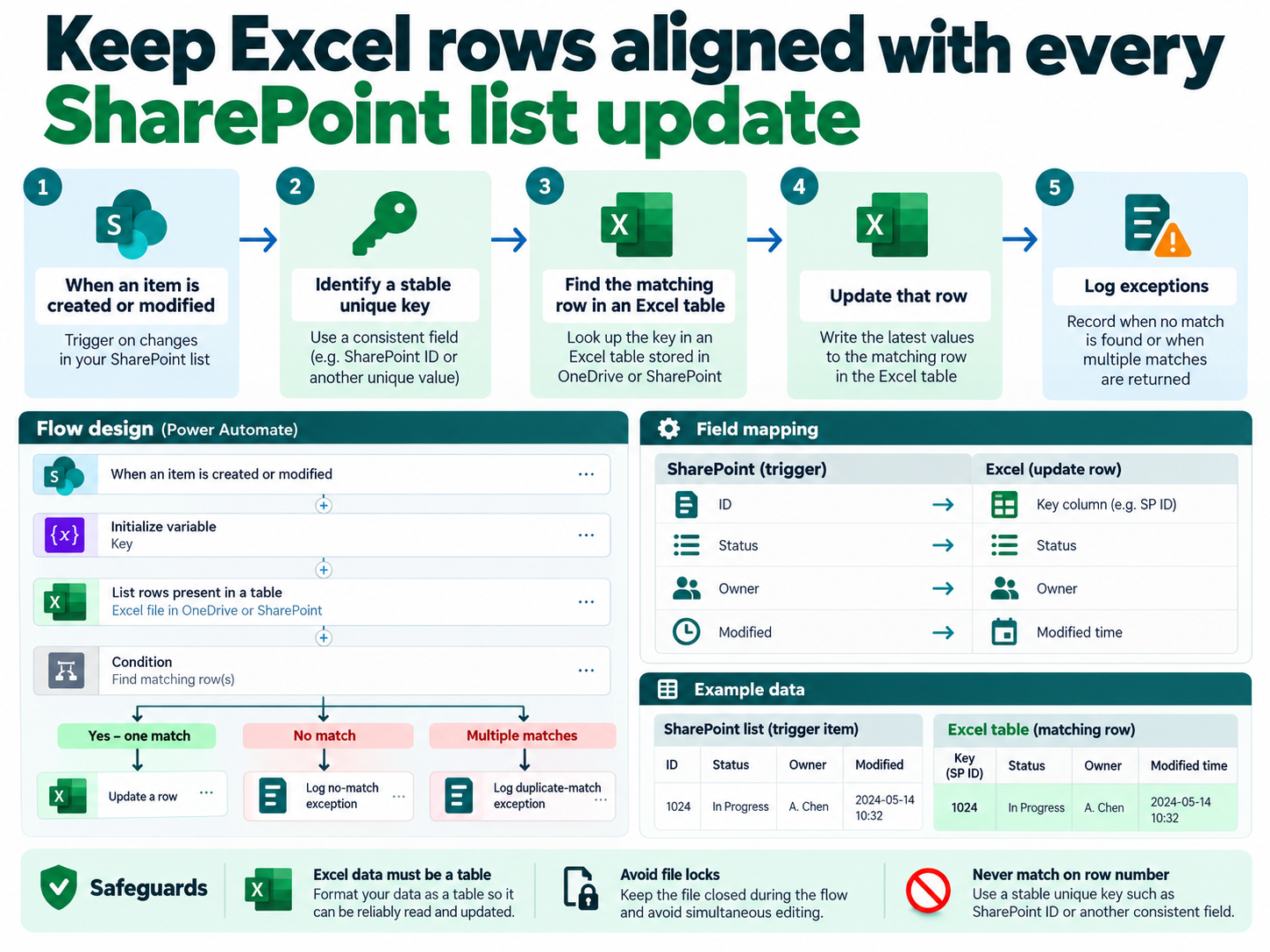
The safest key is usually the SharePoint item ID copied into a dedicated Excel column such as SharePointID. The values in that column must be unique. The Excel Online (Business) connector updates only the first matching row when a key appears more than once, so duplicates can quietly direct a change to the wrong record.
Format the destination range as an Excel table and give the table a clear name. Store the workbook in OneDrive for Business or a SharePoint document library available to the flow connection. Avoid merged cells, totals embedded in the data range, and formulas in the key column. These choices make the connector schema predictable.
Before building the live trigger, compare the workbook with the row-matching checks. A five-minute key audit is quicker than tracing an update that landed on a similarly named project weeks later.
Build the synchronization path
Choose the SharePoint change trigger
Create an automated cloud flow and select the SharePoint trigger for an item being created or modified. Set the exact Site Address and List Name. The flow will run for every qualifying change, including edits made by another flow, so keep the design one-way and add trigger conditions later if only certain records should reach Excel.
Point the action to the table
Add Excel Online (Business) Update a row. Select the workbook location, document library, file, and named table. If the table does not appear, open the workbook in Excel, confirm it is saved, close it, and refresh the action. Do not type a worksheet name where the action expects a table.
Match the item to one row
Set Key Column to SharePointID and Key Value to the SharePoint item ID from the trigger. This is the join between the systems. For an existing workbook, populate the ID column before enabling the flow. A blank key cannot reliably locate a row, and a newly created list item will need a separate add-row path if no corresponding Excel row exists.
Map only fields that SharePoint owns
Map the list columns into their equivalent Excel columns. Keep report-only formulas, local comments, and workbook calculations unmapped. The connector documentation notes that supplied values overwrite the selected cells, while columns left blank in the action are not updated. That behavior lets the flow preserve Excel-only calculations when the mapping is intentionally narrow.
Save and test one controlled edit
Save the flow, change one harmless SharePoint value, and open the resulting run. Confirm the trigger item ID, action key value, selected file, table, and mapped output. Excel connector changes can take a short time to become visible. Refresh the workbook rather than immediately rerunning the flow and producing competing writes.
Handle missing rows without corrupting the table
An update action fails when its key has no matching Excel row. Decide whether that is an error or an expected first-time state. If it is expected, use a lookup or a guarded branch: update when the key exists and add a row when it does not. Keep both branches tied to the same immutable SharePoint ID.
Do not solve missing rows by changing the key to Title. Titles are often edited and may repeat. If the Excel table already has duplicate IDs, stop the flow, clean the data, and retest a single record. Broad retries only make duplicate-key problems harder to untangle.
For a team-owned flow, document the connection owner and workbook location in the flow description. A broader SharePoint flow setup is useful when the designer cannot see the site, list, or library under the current connection. Fix access first instead of hard-coding paths that another owner cannot maintain.
Read the run history like a data audit
The trigger output proves which SharePoint item changed. The Excel action inputs prove which file, table, key, and column values the flow attempted to write. Compare those two views before changing the design. A successful action with the wrong visible row usually points to a duplicate key or a user viewing a cached workbook, not a failed connector.
If runs overlap, reduce unnecessary trigger activity and avoid bulk edits while the workbook is being reviewed. Excel is a collaborative file, not a high-throughput database. For large or highly concurrent processes, keep SharePoint as the operational store and use Excel only for controlled reporting exports.
Row sync questions
Why does the action update the wrong Excel row?
The key column probably contains duplicates or the flow is matching a mutable field such as Title. Check the exact key value in run history, filter the Excel table for that value, and remove duplicates before testing again. Use the SharePoint item ID or another immutable business key.
Can the same flow add missing rows?
Yes, but Update a row does not create a row when the key is absent. Add a lookup and condition, then use Add a row into a table only in the missing-key branch. Retest both an existing ID and a new ID so the branches cannot both write the same record.
Why is the workbook unchanged after a successful run?
First refresh or reopen the workbook because connector writes may not appear instantly. Then verify that the action points to the intended file and named table, especially when similarly named copies exist. If the workbook is locked by a desktop session, close that session and run one controlled test.
Should Excel changes update SharePoint too?
Only if the business process has a clear conflict rule. Two independent flows can trigger each other and overwrite newer values. If bidirectional sync is unavoidable, add a source marker, change-detection logic, and ownership rules for every mapped field.
A stable sync is deliberately narrow
Keep one source of truth, one immutable key, and a small mapping surface. Test a single modification, inspect the action inputs, and only then enable the flow for routine use. When a row is missing, branch explicitly instead of weakening the key. That discipline makes the workbook useful without pretending it is the system of record.