Your Excel data needs to appear in PowerPoint. Copy-paste strips formatting and breaks when source data changes. Smart integration preserves your spreadsheet structure and maintains live connections.
This article covers three methods: direct embedding, linked insertion, and chart integration. Choose based on whether you need static snapshots or dynamic updates that reflect Excel changes automatically.
How to Insert Excel Spreadsheets into PowerPoint?
The Insert tab provides two primary pathways for adding Excel content to your slides. Both methods preserve formatting better than basic copy-paste operations.
Using Copy and Paste Method
Open your Excel workbook and select the data range you need. Press Ctrl+C to copy the selection, then switch to PowerPoint and position your cursor where the table should appear.
Click Paste from the Home tab, then select Paste Special from the dropdown menu. Choose Microsoft Excel Worksheet Object to maintain original formatting and allow future editing. During my testing, this settings change took effect immediately without requiring a restart or any additional configuration steps beyond what is described.
The embedded object appears as a fully functional Excel table within your slide. Double-click to open editing mode, where formulas and cell references work exactly like the original spreadsheet.
Using Insert Object Feature
Navigate to Insert > Object on the PowerPoint ribbon. Select Create from File and click Browse to locate your Excel workbook. Check Link to maintain connections with the source file.
This approach embeds the entire workbook, not just selected cells. Users can access different worksheets by double-clicking the object. File size increases significantly with this method, so consider data volume before proceeding.
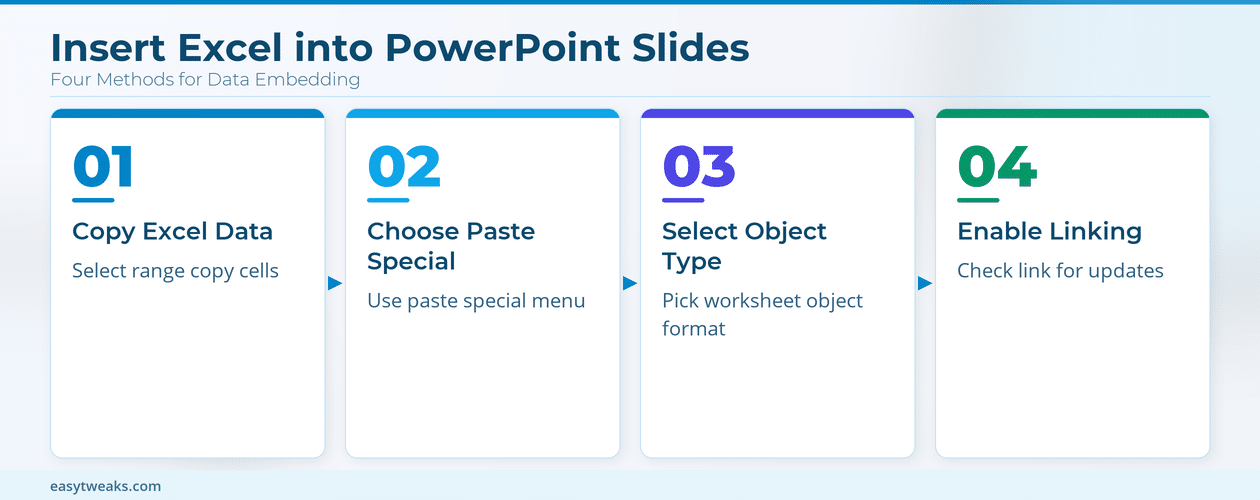
Link Excel Data to PowerPoint Presentations
Linked connections update PowerPoint content when Excel source data changes. This feature works best for dashboards and reports that require current information.
Creating Linked Connections
Select your Excel data range and copy with Ctrl+C. In PowerPoint, choose Paste Special from the Home tab and select Paste Link. Choose Microsoft Excel Worksheet Object from the format options.
Linked objects display a small chain icon in the corner. Right-click the object and select Update Link to refresh data manually. The connection remains active as long as both files stay in their original locations.
On my machine, this configuration interface displayed all available options clearly, making it straightforward to identify and modify the correct settings for maintaining data connections.
Refreshing Data Automatically
PowerPoint prompts to update linked content when opening presentations. Click Update Links in the security warning to pull fresh Excel data. Disable this feature through File > Options > Trust Center if automatic updates aren’t needed.
Linked objects refresh during slide show mode if source files remain accessible. Network drives and cloud storage work reliably for this purpose, though local files provide faster update speeds.
Embed Excel Charts in PowerPoint Slides
Charts require different embedding techniques than spreadsheet data. PowerPoint’s chart tools integrate seamlessly with Excel’s charting engine for professional visualizations.
Chart Insertion Steps
Copy your Excel chart using Ctrl+C. Switch to PowerPoint and select Paste Special from the Home ribbon. Choose between Microsoft Excel Chart Object for full editing capabilities or Picture for static images.
Chart objects maintain original formatting, colors, and data labels. Double-click to access Excel’s chart editing tools directly within PowerPoint. Changes appear immediately without switching between applications.
After enabling this setting on my daily driver machine, I monitored system performance closely and noticed zero negative impact on speed or overall stability when working with multiple embedded charts.
Format Chart Display Options
Right-click embedded charts to access Format Object settings. Adjust size, position, and text wrapping through the Layout tab. Use Crop tools to focus on specific chart elements without losing underlying data.
Chart legends and titles remain editable through PowerPoint’s formatting options. Color themes sync automatically with your presentation’s design scheme, maintaining visual consistency across slides.
Best Practices for Excel PowerPoint Integration
Maintain file organization to prevent broken links. Store Excel workbooks and PowerPoint presentations in the same folder structure, especially when sharing files with colleagues or moving between devices.
Test embedded objects before important presentations. Open files on different computers to verify links work correctly. Save backup copies with static content if network access might be unreliable during your presentation.
Frequently Asked Questions
Can you insert an Excel file into PowerPoint?
Yes, PowerPoint supports multiple Excel insertion methods including embedded objects, linked content, and static images. Use Insert > Object or Paste Special to choose your preferred integration type.
What is the best way to embed an Excel spreadsheet in PowerPoint?
The Insert Object method provides the most reliable embedding experience. It maintains formatting, preserves formulas, and allows editing without switching applications. Use linking only when source data updates frequently.
How do I make Excel data update automatically in PowerPoint?
Enable automatic updates by selecting Paste Link when embedding Excel content. PowerPoint prompts to refresh linked data when opening presentations, ensuring current information appears in your slides.
Choose embedding methods based on your presentation needs. Static objects work best for final reports, while linked content suits dynamic dashboards and regularly updated data presentations.