
Can Microsoft Copilot help with meeting recordings and transcripts?
“I attend back-to-back meetings all day, and by the end of the week, I can barely remember what was discussed in Monday’s project kickoff. Is there a way to use Microsoft Copilot to automatically record, transcribe, and summarize my Teams meetings so I can focus on the conversation instead of frantically taking notes?”
Enabling Microsoft Copilot recording and transcription in Teams meetings
Many organizations struggle to capture actionable insights from meetings, especially when team members are juggling multiple projects or working across time zones. Microsoft Copilot for Microsoft 365 integrates directly with Teams to provide intelligent meeting recording, real-time transcription, and AI-generated summaries that help you stay productive without missing critical details. This tutorial will walk you through enabling Copilot in Teams meetings, starting recordings with transcription, and leveraging Copilot to transcribe meetings whether they happen virtually or in person.
You will need an active Microsoft 365 subscription with Copilot licensing, appropriate permissions in your Teams tenant, and the latest version of the Teams desktop or web app. We will cover how to enable Copilot in Teams, initiate recording and transcription during meetings, and use Copilot to generate summaries and action items from your meeting content.
Expert Tip: Before enabling recording and transcription features, check with your IT administrator to ensure your organization’s compliance and privacy policies allow meeting recordings and AI processing of meeting content.
How to enable Microsoft Copilot in Teams meeting settings
- Open Microsoft Teams on your desktop or web browser and sign in with your Microsoft 365 account that has Copilot licensing enabled to access the full suite of AI-powered meeting features.
- Navigate to your profile picture in the top-right corner of the Teams interface and select Settings from the dropdown menu to access your personal Teams configuration options.
- In the Settings menu, click on the Privacy section on the left sidebar and scroll down to locate the Copilot settings where you can manage how Copilot interacts with your meeting data.
- Ensure that the toggle for “Allow Microsoft to access my meeting recordings and transcripts for Copilot features” is turned on so that Copilot can analyze your meeting content and provide intelligent summaries.
- Return to the main Teams interface and join or schedule a new meeting where you want to use Copilot for recording and transcription purposes during the session.
- Once inside the meeting window, look for the three-dot More actions menu in the meeting controls toolbar at the top or bottom of your screen depending on your Teams layout.
- Select Start recording from the More actions menu to begin capturing the meeting audio and video, which will automatically trigger the transcription service if enabled in your tenant settings.
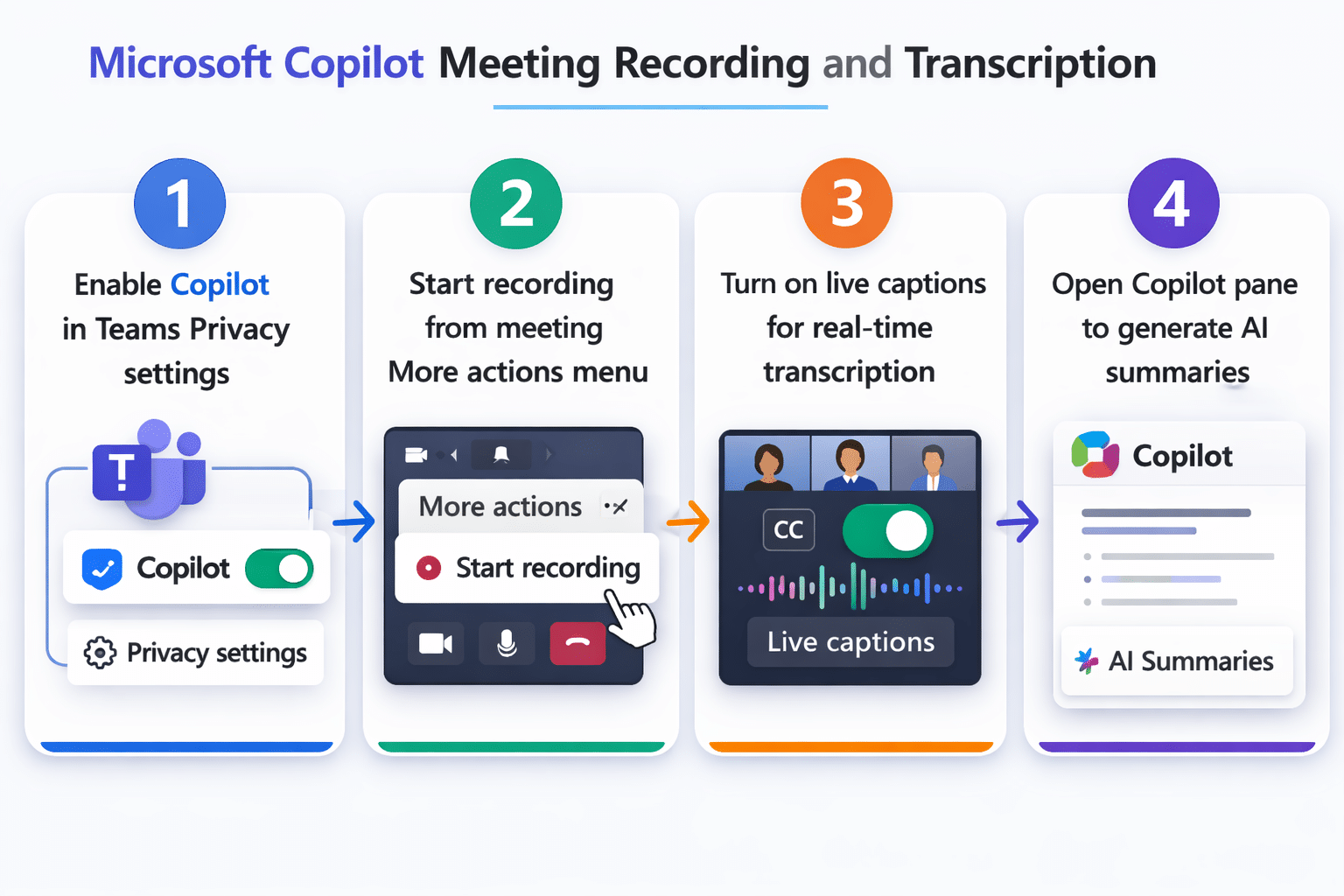
Transcribe meetings with Microsoft Copilot during live sessions
- After starting the recording, click on the More actions menu again and select Turn on live captions if you want real-time transcription to appear on screen for all participants during the meeting.
- To access the full transcript, click the Show conversation button in the meeting controls and then select the Transcript tab to view the live transcription as it is generated by Microsoft Teams.
- During the meeting, you can use Copilot by opening the Copilot pane from the meeting controls, typically found by clicking the Copilot icon in the top-right corner of the meeting window if your license supports it.
- In the Copilot pane, you can ask questions like “What are the key decisions made so far?” or “Summarize the action items discussed” to get instant AI-generated insights without interrupting the meeting flow.
- Copilot will analyze the live transcript and provide contextual answers based on the conversation, helping you stay focused on the discussion while the AI handles note-taking and summarization tasks.
- If you need to reference specific moments, you can click on any timestamp in the transcript to jump directly to that point in the recording, making it easy to review important segments later.
- After the meeting ends, stop the recording by clicking the More actions menu and selecting Stop recording, which will process the recording and transcript for post-meeting access and Copilot analysis. For additional productivity, you can also enable Copilot for automatic meeting notes to streamline your documentation workflow. After the meeting ends, stop the recording by clicking the More actions menu and selecting Stop recording, which will process the recording and transcript for post-meeting access and Copilot analysis.
Can Microsoft Copilot transcribe recordings from in-person meetings?
- For in-person meetings, you can still leverage Copilot transcription by starting a Teams meeting on your laptop or mobile device and using it as a recording hub even if participants are physically present in the room.
- Open Teams and start a new meeting or use the Meet Now feature, then place your device in a central location with a clear audio path to capture all participants’ voices effectively during the discussion.
- Click Start recording and ensure that transcription is enabled so that Copilot can process the audio into text, allowing you to generate summaries and action items just as you would for virtual meetings.
- If your organization uses Teams Rooms devices, you can initiate recording and transcription directly from the room console, which often provides better audio quality through professional-grade microphones designed for conference room environments.
- Once the recording is complete, the transcript and recording will be saved to the meeting chat in Teams and also stored in OneDrive or SharePoint depending on your organization’s configuration settings.
- You can then access the Copilot features by opening the meeting recap in Teams, where Copilot will automatically generate a summary, list of participants, key discussion points, and action items based on the transcript content.
- To use Copilot for deeper analysis, open the transcript in the Teams meeting recap and use prompts like “What were the main objections raised?” or “Create a follow-up email based on this meeting” to extract specific insights.
Remember: Meeting recordings and transcripts are subject to your organization’s retention policies, so make sure to download or archive important recordings before they are automatically deleted according to your tenant’s compliance settings.
Common issues with Copilot meeting recordings
- If you do not see the Copilot icon in your Teams meeting controls, verify with your IT administrator that your Microsoft 365 license includes Copilot for Microsoft 365 and that the feature has been enabled at the tenant level through the Microsoft 365 admin center.
- When transcription quality is poor or inaccurate, check that participants are using quality microphones and speaking clearly, and consider enabling noise suppression in Teams audio settings to improve the audio input that feeds into the transcription engine.
- If the Start recording option is grayed out or unavailable, confirm that your organization’s Teams meeting policies allow recording and that you have the appropriate permissions, as some tenants restrict recording to specific user roles or meeting types.
- When Copilot fails to generate summaries or responds with “I don’t have enough information,” ensure that the meeting was recorded with transcription enabled and that sufficient conversation content exists, as Copilot requires a minimum amount of transcript data to produce meaningful insights.
- If you encounter an error message stating “Transcription is not available in your region,” check the Microsoft 365 roadmap and admin center to confirm that Teams transcription services are supported in your geographic location and language, as some features roll out gradually across regions.
- When meeting recordings do not appear in the chat or OneDrive after the meeting ends, allow up to several hours for processing depending on meeting length, and verify your OneDrive storage quota has not been exceeded, as recordings require available storage space.
- If participants cannot see live captions during the meeting, ask them to individually enable captions by clicking the More actions menu and selecting Turn on live captions, as this setting is user-specific and not automatically applied to all meeting attendees.
Important Tip: Always announce at the beginning of a meeting that recording and transcription are active to comply with legal and ethical requirements, as some jurisdictions require explicit consent from all participants before recording conversations.