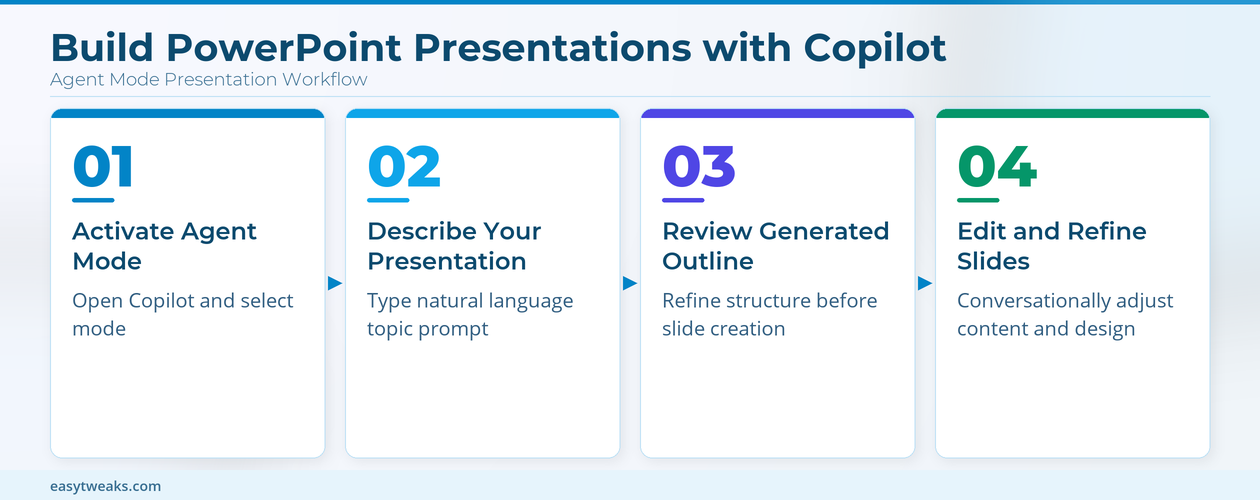
Copilot agent mode in PowerPoint is useful when you need more than a one-shot slide draft. Instead of asking for a deck and fixing the result slide by slide, you can describe the audience, topic, tone, number of slides, and visual direction, then let Copilot ask clarifying questions before it builds the presentation.
The important detail is that Microsoft now uses two closely related experiences. In PowerPoint, Agent Mode appears inside the Copilot chat pane and is aimed at creating or editing presentation content in place. In the Microsoft 365 Copilot app, the Word, Excel, and PowerPoint Agents can create files from prompts and save them to OneDrive. Treat them as a connected workflow: use Word to shape the story, Excel to prepare numbers, and PowerPoint to turn the material into a deck.
Choose the right Copilot entry point first
Start in PowerPoint when the deck already exists or when you want the agent to work directly beside your slides. Open PowerPoint for Microsoft 365, select the Copilot icon, choose Add Content, and select Agent Mode when it appears in the menu. Microsoft labels some of these capabilities as Frontier or rolling out, so your account, update channel, region, and admin settings can affect what you see.
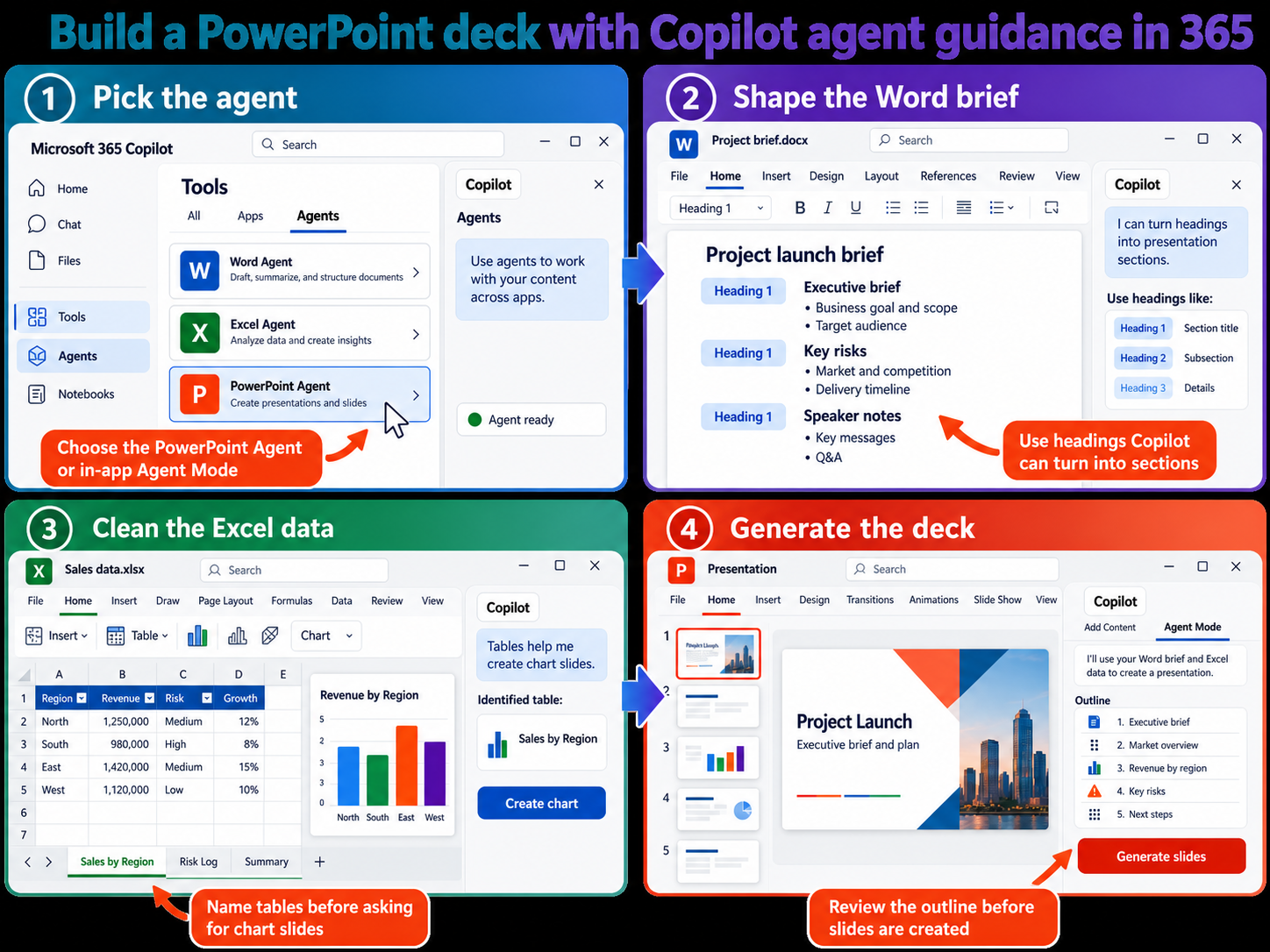
Use the Microsoft 365 Copilot app when you want to generate a new file from Copilot Chat. From the Tools or Agents menu, choose PowerPoint Agent, describe the presentation, answer any clarifying questions, review the preview, and save the generated file to OneDrive. If the Agent Mode option is missing in the desktop app, check licensing and admin availability against that separate enablement guide before assuming the feature is broken.
What Agent Mode is good at
Agent Mode is strongest when the job has several moving pieces. A sales update deck, project steering presentation, training deck, or customer proposal usually needs audience framing, slide order, tone, speaker notes, and visual consistency. Those are exactly the details Copilot can ask about before it starts generating slides.
Avoid opening with a vague prompt such as “make a presentation about our roadmap.” Give Copilot a work brief instead:
- Name the audience and meeting context.
- Specify the slide count or time limit.
- List the sections you expect.
- Mention whether the deck should be executive, instructional, persuasive, or analytical.
- Tell Copilot whether you want speaker notes, charts, or a clean template-driven style.
Build the source material in Word and Excel
A better PowerPoint agent prompt usually starts outside PowerPoint. Use Word for narrative material: executive summaries, project proposals, onboarding outlines, policy briefs, and speaker-note source text. If you are preparing a deck from a Word document, make the document easy for Copilot to parse by using Word heading styles, short sections, and descriptive titles.
Use Excel for the facts that should become charts, tables, or performance slides. The Excel Agent can help create or edit workbooks with tables, charts, PivotTables, and formulas, while Copilot in Excel can also work beside the sheet and keep the workbook editable. If the deck depends on budget data, pipeline metrics, headcount, revenue, or survey results, clean that workbook first and use the workbook prompt pattern before asking PowerPoint to tell the story.
Keep file references realistic
Microsoft’s current PowerPoint Agent Mode guidance says file referencing in that in-app mode is still rolling out. Standard Copilot in PowerPoint can create presentations from supported Word or PDF files, and the Microsoft 365 Copilot app Agents can use connected content depending on license and account type. That means your safest workflow is to keep source files in OneDrive or SharePoint, use supported Office formats, and be ready to open the generated deck in PowerPoint for final editing.
For Word source files, stay under the documented size guidance and avoid one giant mixed-purpose document. For Excel, use clear table names, plain headers, and summary tabs. Copilot has a much easier time building slides from “Q4 pipeline by region” and “Risks and mitigations” than from a workbook full of unnamed sheets.
Create the presentation in PowerPoint
Open a blank presentation or your company template before you start. A template is useful because Copilot can preserve the theme, layouts, and visual identity while drafting the deck. Then open Copilot and switch to Agent Mode if it is available.
Use a prompt like this:
Create an 8-slide executive briefing deck for a Microsoft 365 rollout review. Use a concise enterprise tone. Include one title slide, three progress slides, two risk slides, one decision slide, and one next-steps slide. Ask me any questions you need before generating the deck.
When Copilot responds with clarifying questions, answer them instead of skipping immediately. Confirm the audience, level of detail, image style, and whether you want speaker notes. After Copilot proposes an outline, review the slide order before generating the final deck. This is the moment to remove weak sections, add missing decision points, and tighten the story.
Refine the slides after generation
Once Copilot builds the slides, keep using natural language for broad changes, but be specific. “Make slide 4 less text-heavy and convert the three bullets into a timeline” is more useful than “improve slide 4.” You can ask Copilot to add speaker notes, reorganize sections, shorten titles, turn a list into a comparison table, or prepare likely audience questions.
For decks based on Excel material, inspect every chart, number, and label before sending the file. Copilot can help structure the presentation, but you still own the accuracy of business data. For decks based on Word material, check whether Copilot preserved the intended argument, not just the headings.
Fix common problems before sharing
If Agent Mode is missing, confirm that your Microsoft 365 apps are updated and that your organization allows the relevant Copilot and Frontier features. Some business tenants also require admin approval for models or agent experiences before the options appear.
If Copilot generates a generic deck, stop editing individual text boxes and return to the prompt. Add audience, purpose, source files, slide count, and tone. If the deck looks off-brand, start from a branded PowerPoint template instead of a blank file. If the presentation invents unsupported claims, remove them and ground the section in your Word document, Excel workbook, or verified business source.
Review an AI-generated deck before sharing it
Copilot produces a draft, not an approved final presentation. Complete a structured review while the source documents are still open, and save a separate working copy so you can correct the deck without losing the first generated version.
-
Match every claim to the source
Read each slide beside the Word, Excel, or other approved material used for the prompt. Check names, dates, totals, percentages, units, and conclusions. Remove a statement when you cannot trace it to a reliable source; do not keep it because it sounds plausible.
-
Inspect the generated outline and flow
Open Slide Sorter and verify that the deck answers the requested purpose for the intended audience. Combine repeated slides, move supporting detail after the main decision, and add a clear opening and closing. Confirm that the presentation uses one language consistently.
-
Review images and speaker notes
Open the Notes pane for each slide. Check image credits or AI-generation information that PowerPoint records there, and replace visuals that are misleading, decorative, or unsuitable for the audience. Make sure notes do not contain instructions, unsupported claims, or internal details that should not travel with the shared file.
-
Apply the approved design
Confirm that the presentation uses your organization's current template, fonts, colors, and layouts. Repair slides where generated content overflows placeholders. Use the Accessibility Checker from the Review tab, add useful alternative text, and correct reading order before exporting or presenting.
-
Run a final audience test
Start Slide Show from the beginning, follow every link, and read the deck at normal presentation speed. Ask an informed reviewer to challenge the most important figures and recommendations. Save the reviewed copy with a clear version name, reopen it, and verify that comments, notes, hidden slides, and sensitive source references are safe for the recipients before sharing. Confirm the intended distribution channel as well.
Questions you might have
Is PowerPoint Agent Mode the same as the PowerPoint Agent in Microsoft 365 Copilot?
Not exactly. PowerPoint Agent Mode is an in-app Copilot experience that works beside a presentation and can create or edit content in place. The PowerPoint Agent in the Microsoft 365 Copilot app is a Copilot Chat agent that can generate a presentation file and save it to OneDrive.
Can I use Word and Excel files when building a presentation?
Yes, but the exact route depends on the Copilot experience available to your account. Standard Copilot in PowerPoint supports creating presentations from supported Word or PDF content, while Microsoft 365 Copilot agents can work with connected files depending on license and settings. For in-app PowerPoint Agent Mode, Microsoft says file referencing support is still rolling out.
Why does Copilot ask questions before creating slides?
Those questions help Copilot choose the right structure, tone, visual style, and level of detail before it commits to a deck. Answering them usually produces a cleaner first draft than a single vague prompt. It also gives you a chance to correct the outline before Copilot spends time generating slide content.
Do I still need to review the finished PowerPoint file?
Yes. Microsoft recommends reviewing generated files for accuracy before sharing. Check facts, charts, speaker notes, accessibility, branding, and any sensitive information before you send the presentation to customers or leadership.
The practical takeaway
Use Copilot agent mode as a presentation partner, not as a final publisher. Prepare the story in Word, clean the data in Excel, then ask PowerPoint to build and refine the deck with clear constraints. The best results come from a short briefing-style prompt, thoughtful answers to Copilot’s questions, and a final human review of every slide before the file leaves Microsoft 365.