
Using Copilot in Outlook for email organization
Are you overwhelmed by hundreds of unread emails flooding your Outlook inbox every day? Do you spend more time searching for important messages than actually responding to them? Many professionals struggle with email overload, leading to missed opportunities and decreased productivity throughout their workday.
Email clutter accumulates when we receive newsletters, promotional content, automated notifications, and legitimate business correspondence all mixed together in one overwhelming stream. Traditional email management requires manual sorting, rule creation, and constant maintenance that consumes valuable work hours without delivering consistent results.
In this blog post you will learn to leverage Copilot’s natural language processing capabilities to identify important messages, archive irrelevant content, and maintain organized communication workflows. Note: You will need an active Microsoft 365 subscription with Copilot licensing, Outlook desktop or web application access, and basic familiarity with Outlook’s interface. We will focus on Copilot’s email management features within Outlook, including message summarization, priority detection, and automated organization tools.
Clean inbox clutter with Copilot implementation steps
Setting up Copilot for email management begins with accessing the Copilot panel within your Outlook application and configuring initial preferences for message processing.
- Open Outlook desktop application or navigate to Outlook on the web through your Microsoft 365 portal to access your email interface.
- Locate the Copilot icon in the Outlook ribbon menu, typically positioned near the Home tab, and click to activate the Copilot panel.
- Select “Help me organize my inbox” from the available Copilot options to initiate the email management workflow setup process.
- Choose your preferred organization criteria by specifying whether you want Copilot to prioritize messages by sender importance, subject urgency, or content relevance.
- Enable automatic email summarization by checking the option that allows Copilot to create brief summaries of lengthy email threads and conversations.
Configuring intelligent email sorting with Copilot assistance
- Navigate to the Copilot settings within Outlook and select “Email Classification” to establish automated sorting rules based on content analysis.
- Define your priority contacts by providing Copilot with a list of important senders whose emails should receive immediate attention and prominent placement.
- Set up contextual keywords that help Copilot identify urgent messages, such as “deadline,” “meeting,” “approval required,” or industry-specific terminology relevant to your work.
- Configure notification preferences to receive alerts only for high-priority messages identified by Copilot, reducing interruptions from less critical communications.
- Test the classification system by asking Copilot to analyze your current inbox and provide recommendations for message categorization and organization improvements.
Implementing automated email actions through Copilot prompts
- Use natural language commands with Copilot by typing “Show me all emails from this week that need immediate response” to quickly identify actionable messages.
- Create custom email templates by instructing Copilot to “Draft a professional response declining this meeting invitation” or similar task-specific requests for efficient communication.
- Leverage Copilot’s scheduling integration by requesting “Find available meeting times mentioned in recent emails” to streamline appointment coordination without manual calendar checking.
- Archive outdated communications by asking Copilot to “Move all promotional emails older than 30 days to archive folder” for automated inbox maintenance.
- Generate email summaries for long message threads by selecting multiple related emails and requesting Copilot to “Summarize this conversation thread” for quick context understanding.
Expert Tip: Train Copilot to recognize your communication patterns by consistently using specific phrases when categorizing emails, which improves future automated sorting accuracy.
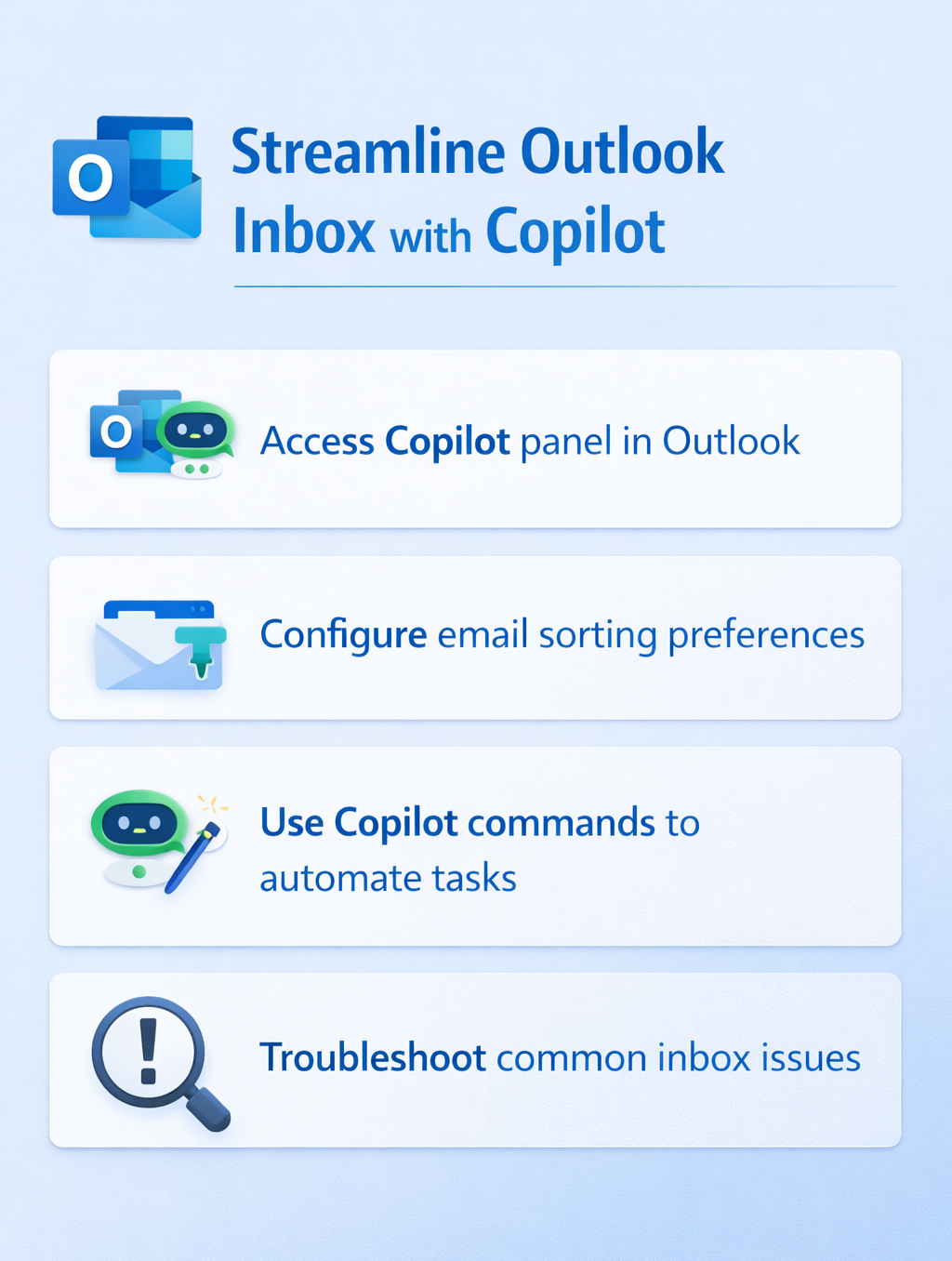
Solving common Copilot inbox management challenges
Several issues may arise when implementing Copilot for inbox organization, but most problems have straightforward solutions that restore optimal email management functionality.
- Copilot misclassifies important emails as low priority: Review your priority contact list and keyword settings to ensure Copilot understands your business context and communication patterns accurately.
- Automated email summaries contain incomplete information: Check your Copilot permissions to ensure it can access full email content, including attachments and embedded images that provide essential context.
- Natural language commands produce unexpected results: Use more specific terminology when giving Copilot instructions, including date ranges, sender names, or subject line keywords for precise email filtering.
- Copilot suggestions conflict with existing Outlook rules: Temporarily disable manual email rules to test Copilot’s automated organization, then gradually reintroduce necessary custom rules that complement AI-powered management.