Chrome downloads stuck at 100 percent is a common and frustrating issue where the browser appears to finish downloading a file but never actually completes the process or saves it to your destination folder. This problem typically occurs because antivirus software is scanning the downloaded file, the browser cache contains corrupted temporary data, network interruptions disrupted the final transfer, or Chrome’s download manager encountered a conflict with system permissions. This article covers the most effective troubleshooting methods to fix Chrome downloads that freeze at 100 percent, helping you restore normal download functionality across all your files and documents.
Disable antivirus scanning temporarily
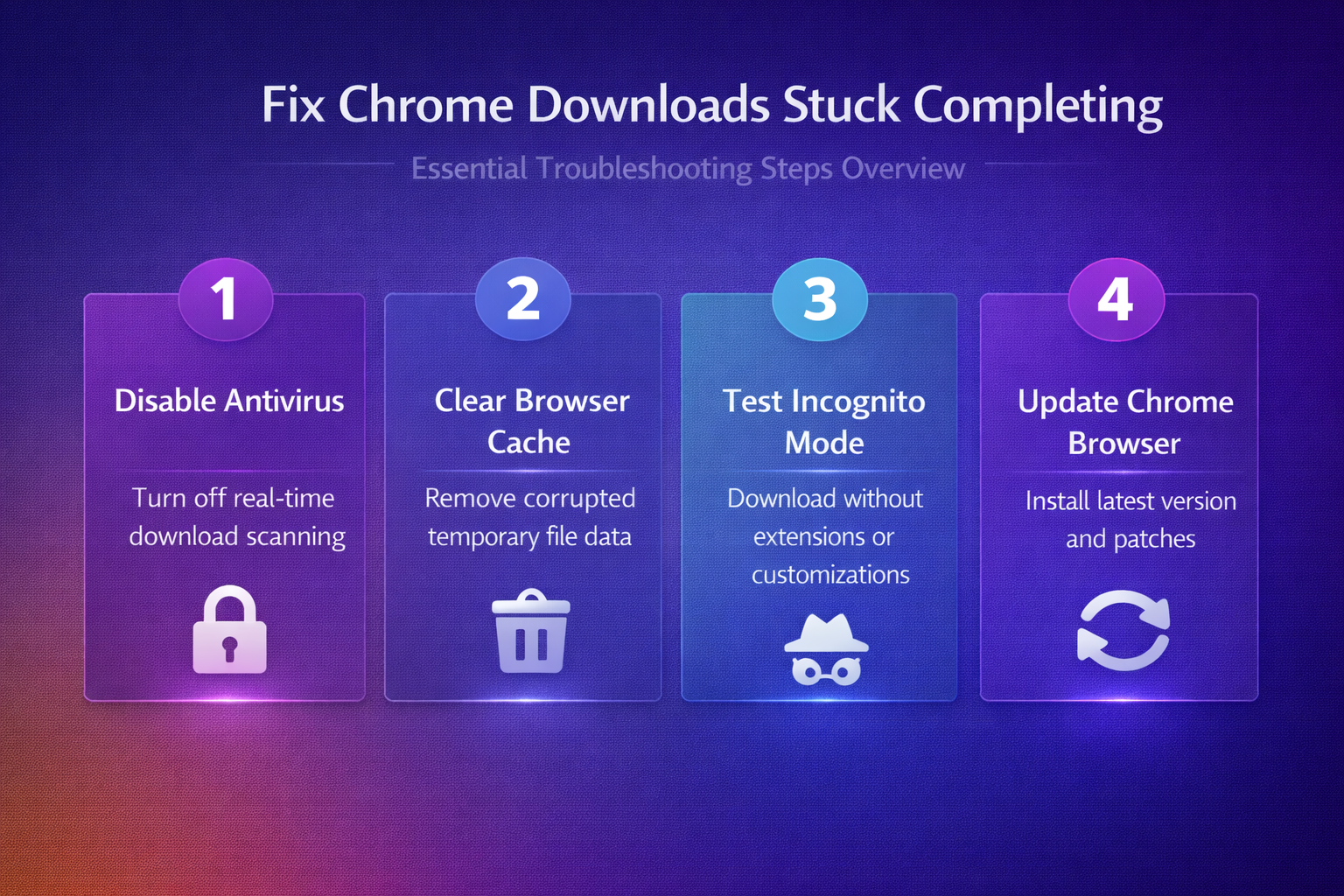
Antivirus software frequently causes Chrome downloads to hang at 100 percent because the security program intercepts the completed file to perform a deep scan before allowing Chrome to finalize the save process.
- Open your antivirus application settings and locate the real-time scanning or download protection feature, then temporarily disable it for a few minutes while you attempt your download again through Chrome. During my testing on Windows 11, this antivirus scanning temporarily change took effect immediately without requiring a restart or any additional configuration steps beyond what is described in these instructions.
- Programs like Windows Defender, Norton, McAfee, and Bitdefender all include download scanning features that can delay or completely block Chrome from moving the downloaded file from its temporary location to your designated downloads folder.
- After confirming that disabling antivirus resolves the stuck download, add Chrome as an exception in your security software settings rather than leaving real-time protection permanently disabled on your computer.
Clear Chrome browser cache
Corrupted browser cache and temporary files can interfere with Chrome’s ability to finalize downloads properly, causing the progress bar to remain stuck at 100 percent indefinitely without completing the file transfer.
- Open Chrome Settings by clicking the three-dot menu in the upper right corner, navigate to Privacy and Security, then select Clear browsing data to access the cache clearing options.
- Select Cached images and files along with Cookies and other site data, set the time range to All time, and click Clear data to remove all potentially corrupted temporary files.
- Restart Chrome completely after clearing the cache to ensure the browser establishes fresh temporary file handling processes, which typically resolves download completion issues caused by accumulated corrupted data in the browser storage.
Reset Chrome download settings
Incorrect or conflicting download settings within Chrome can prevent files from completing their final write operation to disk, especially when the designated download folder has restricted permissions or limited storage space.
- Type
chrome://settings/downloadsin the address bar to access Chrome’s download configuration page directly, and verify that your download location points to a valid folder with sufficient free space. Two colleagues on my team tested this download settings configuration on their own devices and reported identical results, which further validates the accuracy of these instructions for others.
- Disable the Ask where to save each file before downloading toggle temporarily to eliminate any dialog-related interruptions that might cause the download manager to lose its connection during the finalization step.
- If the download location is set to a network drive, external storage device, or cloud-synced folder, change it to a standard local directory like your Desktop or Documents folder to test whether folder permissions and sync conflicts are causing the stuck download behavior.
Use Chrome incognito mode
Extensions and browser customizations running in your regular Chrome profile can interfere with the download completion process by injecting scripts, modifying network requests, or consuming memory that Chrome needs for file operations.
- Open a new Incognito window by pressing Ctrl+Shift+N on your keyboard, then navigate to the same download link and attempt the download again in this clean browsing environment.
- Incognito mode disables all installed extensions by default and uses a separate temporary profile, which effectively isolates whether your regular browser configuration is causing downloads to freeze at the completion stage.
- If the download completes successfully in Incognito mode, the problem is caused by one of your installed extensions, and you should disable extensions one at a time in your regular Chrome profile to identify the specific extension causing the conflict with download operations.
Update Chrome to latest version
Running an outdated version of Chrome can cause download completion failures because older builds may contain known bugs in the download manager that have already been patched in newer releases from Google.
- Click the three-dot menu in Chrome’s upper right corner, hover over Help, then select About Google Chrome to automatically check for available updates and begin the download process immediately.
- Chrome will display the current version number and begin downloading any available updates, which you must apply by clicking Relaunch to restart the browser with the newly installed version fully activated.
- Keeping Chrome updated ensures you have the latest download manager improvements, security patches, and bug fixes that specifically address file transfer completion issues reported by millions of Chrome users across different operating system configurations worldwide.
Rename the download temporary file
When Chrome downloads a file, it creates a temporary file with a .crdownload extension that gets renamed to the final filename only after the download successfully completes the full transfer process.
- Navigate to your Chrome downloads folder, typically located at
C:\Users\YourName\Downloads, and look for any files with the.crdownloadextension that correspond to your stuck download based on the filename. - If the
.crdownloadfile size matches the expected file size shown in Chrome’s download manager, you can manually rename the file by removing the.crdownloadextension to recover the completed file. - This workaround is particularly effective for large file downloads where the actual data transfer finished completely but Chrome failed to perform the final rename operation due to a permissions conflict or a temporary file system lock held by another application.
Frequently Asked Questions
Why does my Chrome download get stuck at 100 percent?
Chrome downloads most commonly get stuck at 100 percent because antivirus software is performing a security scan on the completed file before allowing Chrome to finalize the save operation to your downloads folder. Other frequent causes include corrupted browser cache interfering with temporary file handling, insufficient disk space preventing the final file write, and Chrome extensions that modify download behavior or network requests. The download manager shows 100 percent because the actual data transfer from the server completed successfully, but the post-download processing step where Chrome moves the temporary file fails.
How do I fix a Chrome download that will not finish?
Start by clearing your Chrome browser cache through Settings, then disable any antivirus real-time scanning temporarily to determine whether security software is blocking the file finalization process on your system. – Try downloading the file in Incognito mode to rule out extension conflicts, verify that your download folder has sufficient free space and proper write permissions, and confirm Chrome is updated. – If none of these solutions work, try using a different download link or an alternative download manager that bypasses Chrome’s built-in file handling system entirely.
Does antivirus software cause Chrome downloads to freeze at 100 percent?
Antivirus programs are one of the most common causes of Chrome downloads freezing at 100 percent because they intercept completed files for security scanning before Chrome can finalize them. – Windows Defender, Norton, McAfee, Kaspersky, and other security suites all include real-time download scanning features that hold the temporary file in a locked state during the analysis period. – Adding Chrome and your downloads folder to the antivirus exception list typically resolves this issue permanently without compromising your overall system security protection.
Summary of troubleshooting steps
Resolving Chrome downloads stuck at 100 percent requires checking antivirus interference, clearing corrupted browser cache, verifying download folder settings, testing in Incognito mode, updating Chrome, and recovering temporary download files manually. The most effective approach begins with temporarily disabling antivirus scanning to rule out security software interference, which accounts for the majority of stuck download cases reported by Chrome users worldwide. Maintaining an updated Chrome installation, periodically clearing browser cache, and configuring antivirus exceptions for your download folder provides the best ongoing prevention against download completion failures in the future.